


Search Zendesk
Overview
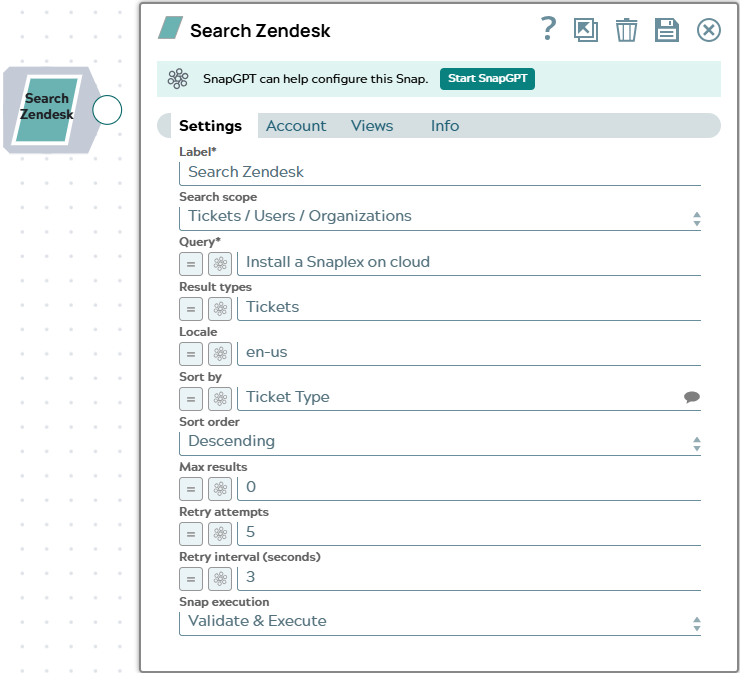
The Search Zendesk Snap searches content across your Zendesk instance, including tickets, users, organizations, Help Center articles, and community posts, using a unified search query or scope-specific filters.
Use the Search Scope field to choose which Zendesk search endpoint to target. Each scope exposes a different set of filter fields. The Query field supports Zendesk search syntax for all scopes. Each matching result is emitted as a separate document on the output view.
- Tickets / Users / Organizations: Calls the unified
/api/v2/searchendpoint. Use the Result Types field to restrict results to specific object types such as tickets, users, organizations, or groups. - Help Center Articles: Searches Help Center articles with optional filtering by category, section, label, and brand.
- Community Posts: Searches community posts with optional topic and date filters.
- Help Center (Articles + Posts): Calls the unified Guide search endpoint to return both articles and community posts in a single query, with optional category, section, and brand filters.
- This is a Read-type Snap.
 Works in Ultra Tasks
Supported Accounts
Prerequisites
None.
Snap views
| Type | Description | Examples of upstream and downstream Snaps |
|---|---|---|
| Input |
This Snap has at most one document input view. When connected, field values from the incoming document can be referenced
in expression-enabled fields using the |
|
| Output |
This Snap has one document output view. Each search result is emitted as a separate document. The structure of the output document varies depending on the object type returned (ticket, user, article, post, and so on). |
|
| Learn more about Error handling. | ||
Snap settings
The following fields apply to all search scopes. Scope-specific fields follow each scope screenshot below.
| Field/Field set | Description |
|---|---|
Label* String |
Specify a unique name for the Snap. Modify this to be more appropriate, especially if more than one of the same Snaps is in the pipeline. Default value: Search Zendesk |
Search Scope*
Dropdown list |
Select which Zendesk search endpoint to call.
The selection determines which additional filter fields are displayed. Valid
values:
Default value: Tickets / Users / Organizations |
Result Types
String/Expression |
Appears when Search Scope is Tickets / Users / Organizations. Enter a comma-separated list of Zendesk object types to restrict search
results to. Equivalent to adding Default value: None Example: ticket,user |
Query
String/Expression |
Enter the search query string. Supports Zendesk search syntax. Maps to the
When Search Scope is Tickets / Users / Organizations or Community Posts, the field is displayed as Query* and a value is mandatory. For the two Help Center scopes, the field is optional only for Help Center (Articles + Posts); for Help Center Articles, it is required unless Categories, Sections, or Label Names is set. Default value: None Example: type:ticket status:open |
Sort by
Dropdown list |
Select the field to sort results by. Valid values:
Default value: Relevance Example: Updated At |
Sort order
Dropdown list |
Select the direction in which to sort results.
Default value: Descending Example: Ascending |
Locale
String/Expression |
Specify a locale to restrict results to that locale. Leave empty to return results in all locales. When Search Scope is Help Center (Articles + Posts), the field is displayed as Locale* and a value is mandatory. Default value: en-us Example: fr |
Max results
Integer/Expression |
Specify the maximum number of search results to emit per execution. Zendesk search endpoints return at most 1000 results per query, so this field accepts values from 0 through 1000. Enter 0 or leave empty to emit up to that 1000-result maximum. A value greater than 1000 supplied through an expression is rejected when the Snap runs. Default value: 0 Example: 100 |
Retry attempts
Integer/Expression |
Enter the number of times the Snap should retry the API call on connection
errors or 5xx responses. On a 429 response, the Snap automatically retries
after the interval specified in the server's Default value: 5 Example: 3 |
Retry interval (seconds)
Integer/Expression |
Enter the number of seconds to wait between retry attempts. Default value: 3 Example: 5 |
|
Snap execution Dropdown list
|
Choose one of the three modes in
which the Snap executes. Available options are:
Default value: Validate & execute |
Search for Help Center Articles
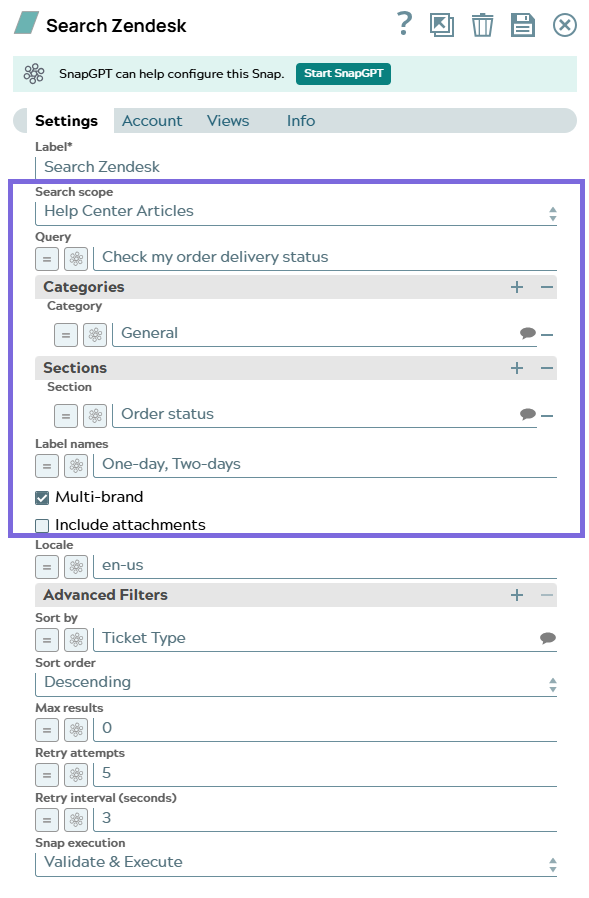
The following fields appear when Search Scope is Help Center Articles.
| Field/Field set | Description |
|---|---|
Query
String/Expression |
Enter the search query string. Supports Zendesk Help Center search syntax.
Maps to the A value is mandatory unless you set at least one of Categories, Sections, or Label Names, because the Zendesk article search endpoint requires at least one of these four filters. Default value: None Example: DITA authoring |
| Categories |
A table of Help Center categories to restrict the search to. Add one row per category. |
Category
String/Expression/ Suggestion |
The Help Center category to filter by. Suggestions are populated from your Zendesk instance when the account is configured. Select or enter the category name exactly as it appears in Zendesk. The Snap resolves the name to its numeric ID and fails if no match exists in your instance. Default value: None Example: Getting Started |
| Sections |
A table of Help Center sections to restrict the search to. Add one row per section. |
Section
String/Expression/ Suggestion |
The Help Center section to filter by. Suggestions are populated from your Zendesk instance when the account is configured. Select or enter the section name exactly as it appears in Zendesk. The Snap resolves the name to its numeric ID and fails if no match exists in your instance. Default value: None Example: Installation |
Label Names
String/Expression |
Enter a comma-separated list of article label names to filter by. Only articles that match all specified labels are returned. Default value: None Example: api,integration |
Multi-brand
Checkbox |
When selected, the search spans articles across all brands in your Zendesk instance. When not selected, the Brand field appears to restrict the search to a single brand. Default value: Selected |
Brand
String/Expression/ Suggestion |
Appears when Multi-brand is not selected. Specify the single brand to restrict the article search to. Suggestions are populated from your Zendesk instance when the account is configured. Select or enter the brand name exactly as it appears in Zendesk. The Snap resolves the name to its numeric ID and fails if no match exists in your instance. Default value: None Example: Support |
Include attachments
Checkbox |
When selected, the Snap makes an additional API call per article to retrieve attachment metadata, which is included in each article output document. Default value: Not selected |
| Advanced Filters |
A table of date-based filters to apply to the search. Add one row per filter. |
Name
Dropdown list |
The date filter to apply. Valid values:
Default value: None Example: Created After |
Value
String/Expression |
The date value for the filter, in Default value: None Example: 2024-01-01 |
Sort by
Dropdown list |
Select the field to sort results by. Valid values:
Default value: Relevance Example: Created At |
Sort order
Dropdown list |
Select the direction in which to sort results.
Default value: Descending Example: Ascending |
Search for Community Posts
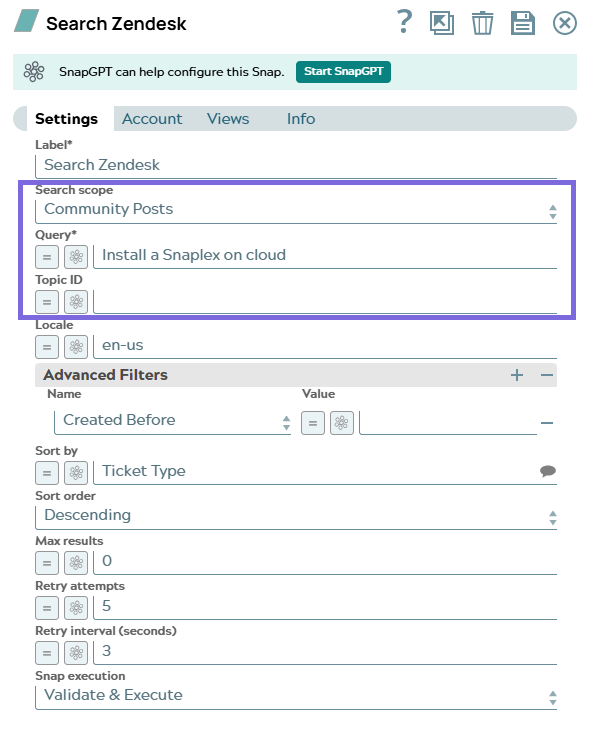
The following fields appear when Search Scope is Community Posts.
| Field/Field set | Description |
|---|---|
Query
String/Expression |
Enter the search query string. Supports Zendesk community search syntax.
Maps to the Displayed as Query*. A value is mandatory for this scope. Default value: None Example: installation error |
Topic ID
String/Expression |
Enter the numeric Zendesk topic ID to restrict the search to community posts within that topic. Default value: None Example: 360001234567 |
| Advanced Filters |
A table of date-based filters to apply to the search. Add one row per filter. |
Name
Dropdown list |
The date filter to apply. Valid values:
Default value: None Example: Created After |
Value
String/Expression |
The date value for the filter, in Default value: None Example: 2024-01-01 |
Sort by
Dropdown list |
Select the field to sort results by. Valid values:
Default value: Relevance Example: Created At |
Sort order
Dropdown list |
Select the direction in which to sort results.
Default value: Descending Example: Ascending |
Search for Help Center Articles and Community Posts
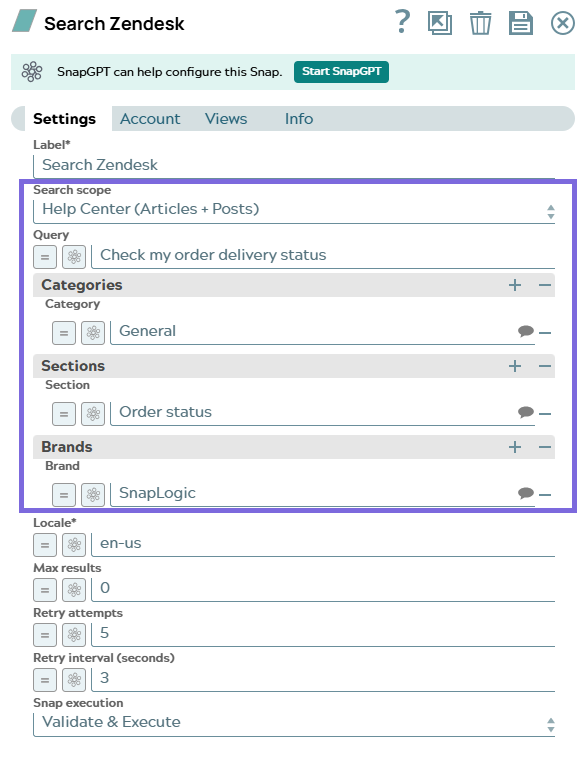
The following fields appear when Search Scope is Help Center (Articles + Posts).
| Field/Field set | Description |
|---|---|
Query
String/Expression |
Enter the search query string. Supports Zendesk Guide search syntax. Maps to
the Optional for this scope. Leave empty to return every article and post that matches Locale* and the other filters. Default value: None Example: getting started |
| Categories |
A table of Help Center categories to restrict the search to. Add one row per category. |
Category
String/Expression/ Suggestion |
The Help Center category to filter by. Suggestions are populated from your Zendesk instance when the account is configured. Select or enter the category name exactly as it appears in Zendesk. The Snap resolves the name to its numeric ID and fails if no match exists in your instance. Default value: None Example: Getting Started |
| Sections |
A table of Help Center sections to restrict the search to. Add one row per section. |
Section
String/Expression/ Suggestion |
The Help Center section to filter by. Suggestions are populated from your Zendesk instance when the account is configured. Select or enter the section name exactly as it appears in Zendesk. The Snap resolves the name to its numeric ID and fails if no match exists in your instance. Default value: None Example: Installation |
| Brands |
A table of brands to restrict the unified Help Center search to. Add one row per brand. |
Brand
String/Expression/ Suggestion |
The brand to filter by. Suggestions are populated from your Zendesk instance when the account is configured. Select or enter the brand name exactly as it appears in Zendesk. The Snap resolves the name to its numeric ID and fails if no match exists in your instance. Default value: None Example: Support |
Sort by
Dropdown list |
Select the field to sort results by. Valid values:
Default value: Relevance Example: Created At |
Sort order
Dropdown list |
Select the direction in which to sort results.
Default value: Descending Example: Ascending |
Troubleshooting
| Error | Reason | Resolution |
|---|---|---|
| Locale is required for the Help Center (Articles + Posts) search scope. | The Locale* field is empty and the selected scope requires a non-empty locale. | Enter a valid locale code, such as en-us, in Locale* and run the pipeline again. |
| Query is required for the selected search scope. | The Query field is empty and the selected scope requires a non-empty query. | Enter a search query and run the pipeline again. For the Help Center Articles scope, you can instead set at least one of Categories, Sections, or Label Names. |
| Invalid value for Max Results | Zendesk search returns a maximum of 1000 results per query, and the Max results value exceeds that limit. | Reduce the Max results value to 1000 or less and run the pipeline again. |
| Category '<name>' not found | The category name in the Categories table does not match any category in the Zendesk instance. | Select the category from the suggestions list, or verify that the name matches a category in your Zendesk instance exactly. |
| Section '<name>' not found | The section name in the Sections table does not match any section in the Zendesk instance. | Select the section from the suggestions list, or verify that the name matches a section in your Zendesk instance exactly. |
| Brand '<name>' not found | The brand name in the Brand field or the Brands table does not match any brand in the Zendesk instance. | Select the brand from the suggestions list, or verify that the name matches a brand in your Zendesk instance exactly. |