


Lookup and Enrich Data from Redshift
Overview
This example demonstrates how to use the Redshift Lookup Snap to lookup records from a Redshift table and enrich incoming documents with matched data. The Snap executes efficient batch lookups to avoid making individual requests for every input record.
Prerequisites
- Amazon Redshift cluster with appropriate access
- Valid Redshift account configured in SnapLogic
- Lookup table populated with reference data
Pipeline Overview
The pipeline uses a JSON Generator Snap to provide input data with lookup criteria (such as city names), which are then used by the Redshift Lookup Snap to retrieve matching records from the target table. The output documents contain both the original input data and the enriched lookup results.
Pipeline
Snap Configuration
JSON Generator Snap:
Provides the lookup criteria, such as city names, to be matched against the Redshift table.
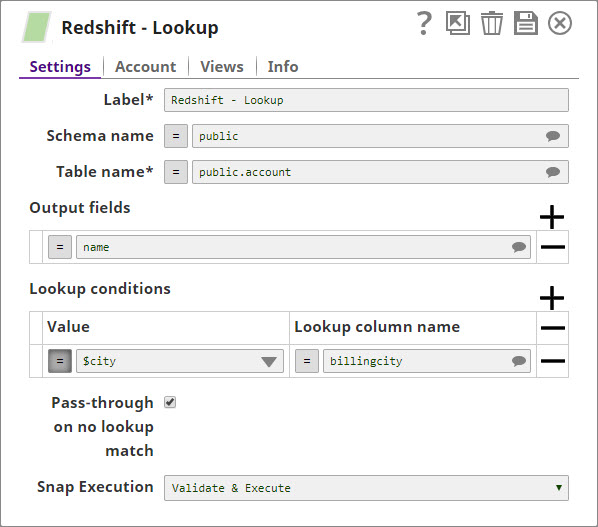
Redshift Lookup Snap - Settings:
- Schema name: public
- Table name: Lookup table name
- Output fields: Specify which fields to retrieve (e.g., name, email, address)
- Lookup conditions: Define the matching criteria
- Lookup column name: billing_city
- Value: $city (from input document)

How Lookup Works
The Redshift Lookup Snap generates SQL queries in the following format:
SELECT [Output fields] FROM [Table name] WHERE
[column1 = value1 AND column2 = value2] OR
[column1 = value3 AND column2 = value4] OR
...
The Snap maintains an internal cache of lookup conditions to avoid duplicate queries for the same criteria, optimizing performance when processing multiple input documents with similar lookup values.
Output
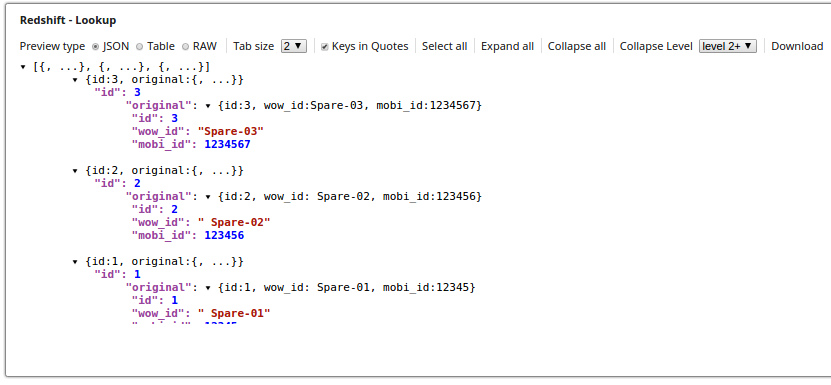
Each output document contains:
- Enriched data: Fields retrieved from the lookup table based on matching criteria
- Original data: The original input document under the "original" key
If no matching records are found:
- With Pass-through on no lookup match enabled: The input document passes through with null values for lookup fields
- With Pass-through on no lookup match disabled: The document is routed to the error view
Use Cases
This pattern is useful for:
- Enriching transaction data with customer information
- Adding reference data to streaming records
- Validating and supplementing incomplete data
- Joining data from multiple sources without complex SQL
- Real-time data enrichment in integration pipelines
Best Practices
- Ensure lookup column data types match between input and table
- Use indexed columns for lookup conditions to improve performance
- Configure the Pass-through on no lookup match option based on requirements
- Specify only required output fields to minimize data transfer
- Use the error view to capture and handle lookup failures