Enable a subscription with an API key

  • A valid Service in the Unpublished or Testing status.
To configure a subscription with an API key:
  1. Open a version of the Service.
  2. Open the Subscriptions tab.
  3. Click Subscription settings.
    The Subscription settings panel opens:
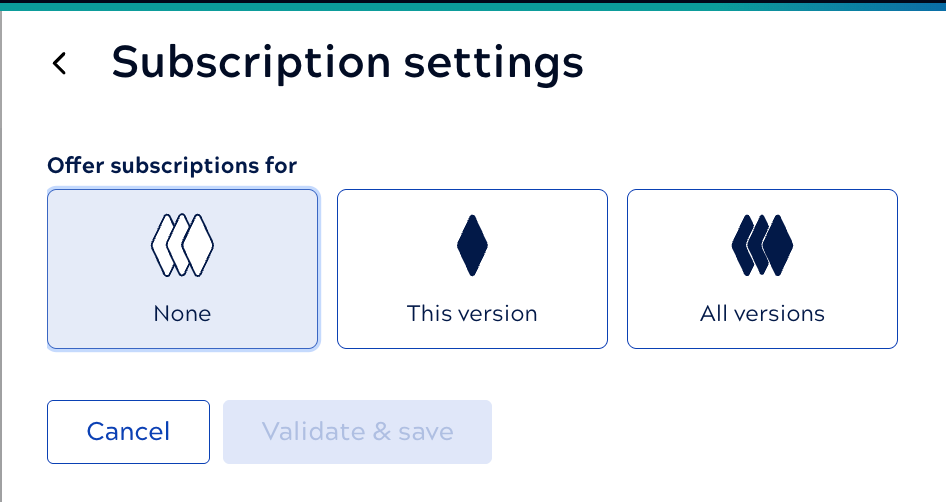
    Subscription settings panel

  4. Select whether the subscription configuration should apply to all versions of the Service or only the current version.
  5. For the subscription Expiration, enter a numeric value ≥ 1.
  6. To automate approvals, click the Automatically approve requests toggle.
  7. For Key type, select API key.
  8. For Authentication scheme leave the value bearer.
    The following shows example subscription settings:
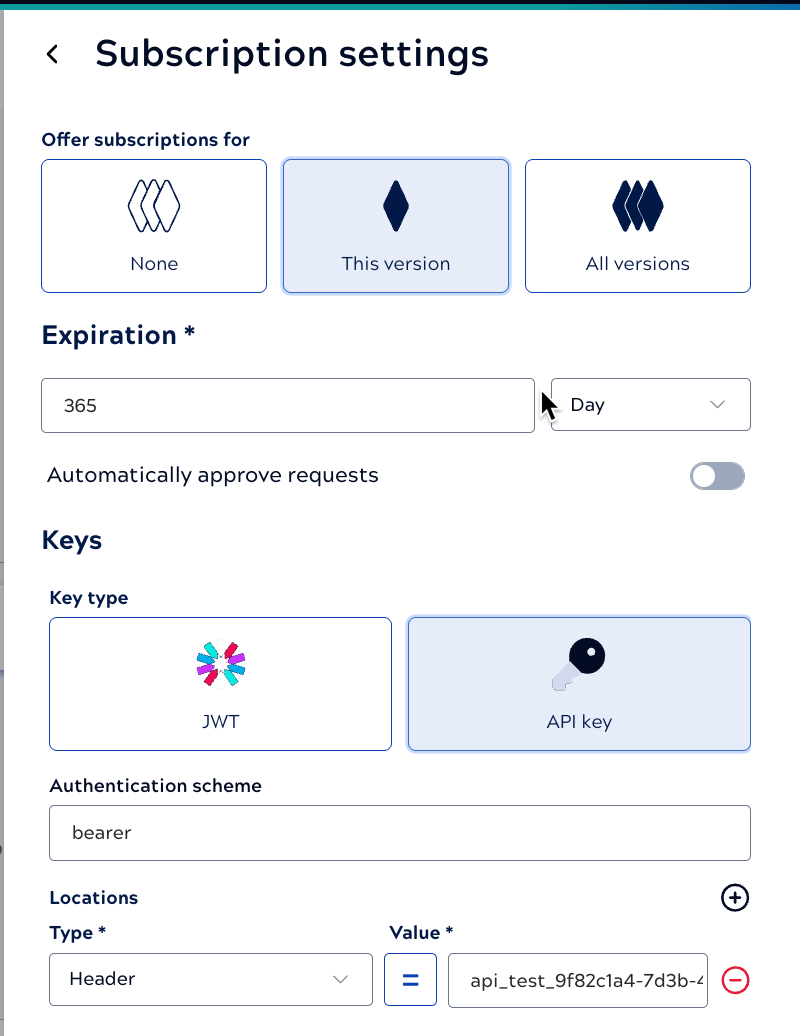
    Example subscription settings for an API key

  9. Click Validate & save.
    The Subscriptions tab now provides information on pending, active, and rejected subscriptions:
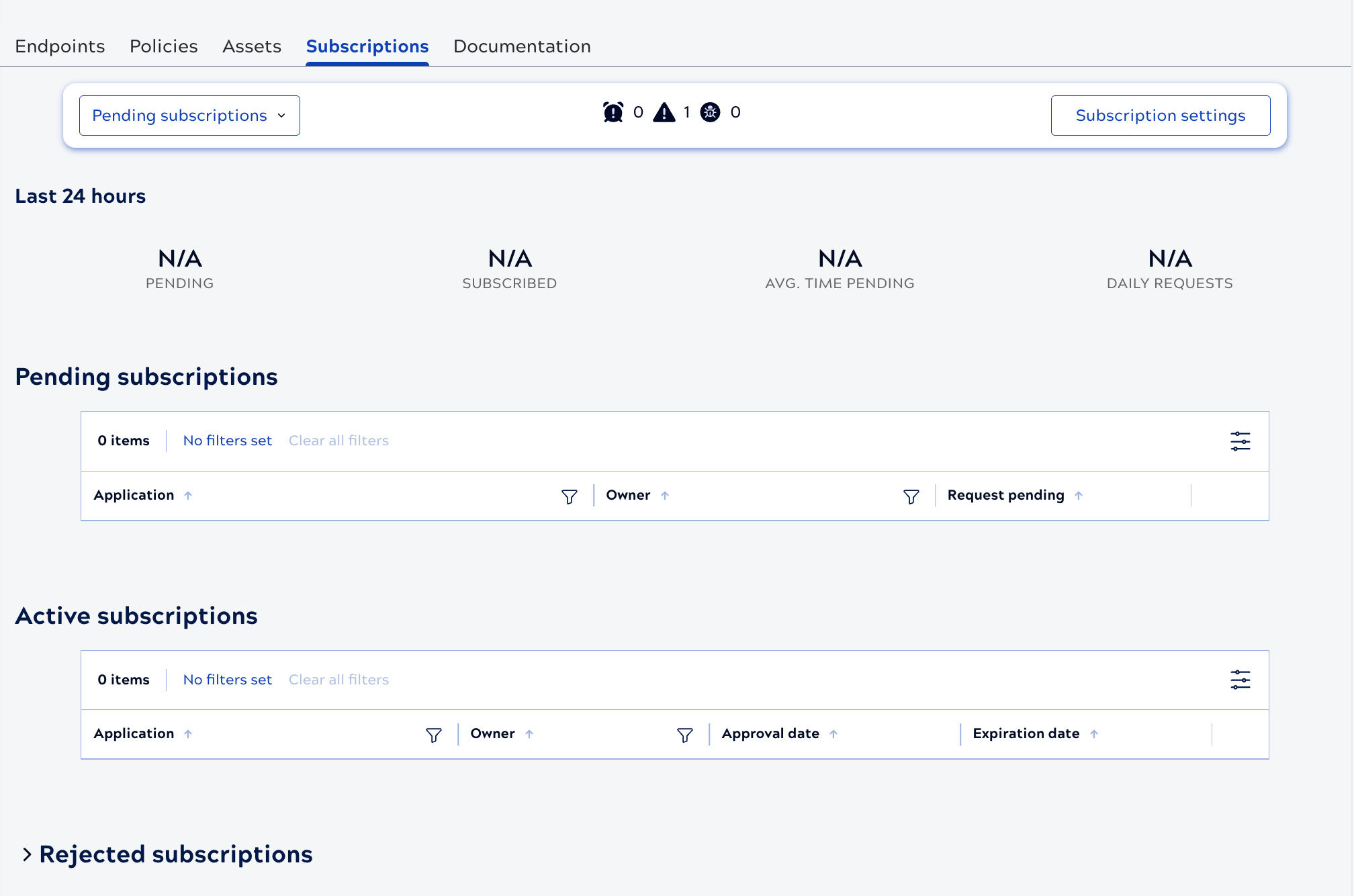
    Subscriptions tab with an active subscription

Test the key and publish the Service.. After a Service version with subscription settings is published, to edit it, you must change the status to Unpublished

APIM 3.0 Developer Portal describes how consumers request subscriptions and obtain the key.