


Getting Applicants from Workday
This example pipeline demonstrates how to get applicants from Workday by specifying the number of results you want to see in a page and the number of pages of results you want in the output.

Download this Pipeline
-
In this Pipeline, the Workday Read Snap retrieves records from the Get_Applicants object and writes the data to a JSON file.
Workday Snap Configuration Output The Page size and the Page Number fields are set to their default values of 0 and 100 respectively. This means that the Read Snap retrieves all the records from the Get_Applicants object when executed. 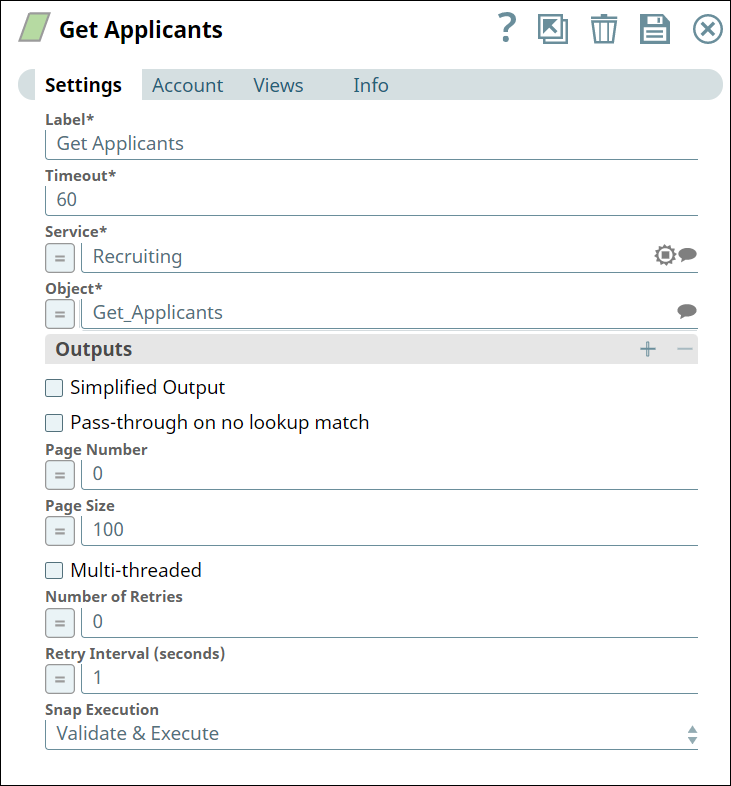
The output preview shows all the rows of data, starting from the first row of data onwards and displays 100 records per page. 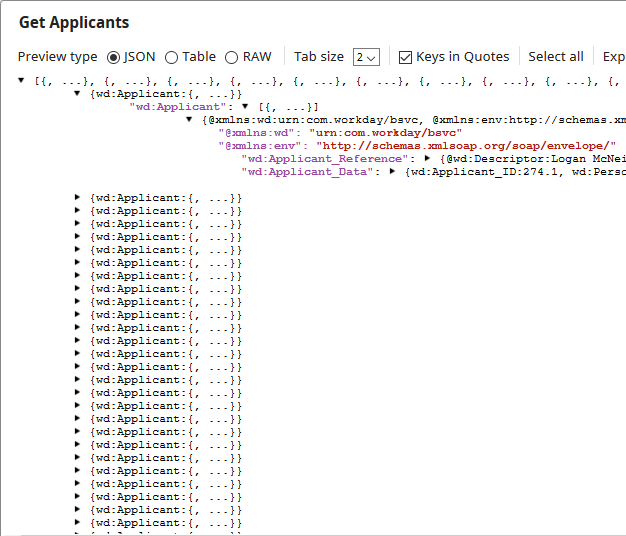 Note: You can also use Pipeline parameters to specify short strings for complicated service and objects in Workday. For step-by-step information on managing properties of Pipelines, refer to Pipeline Properties Parameters.
 -
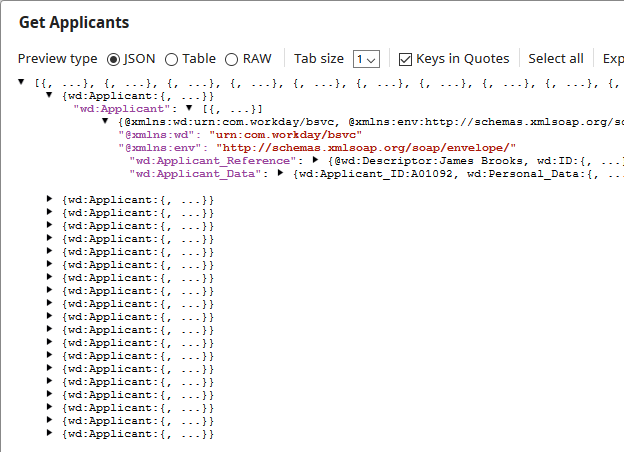
The output preview shows you 20 rows of data, starting from the second page of data onwards. For instance, in the screenshot below, you can see that there are only 20 rows displayed, and that name of the worker in the first row is different from the output screenshot above:
- Download and import the SLP file into your Environment.
- Configure Snap accounts.
- Provide Pipeline parameters, if any.