


LDAP Search
Overview
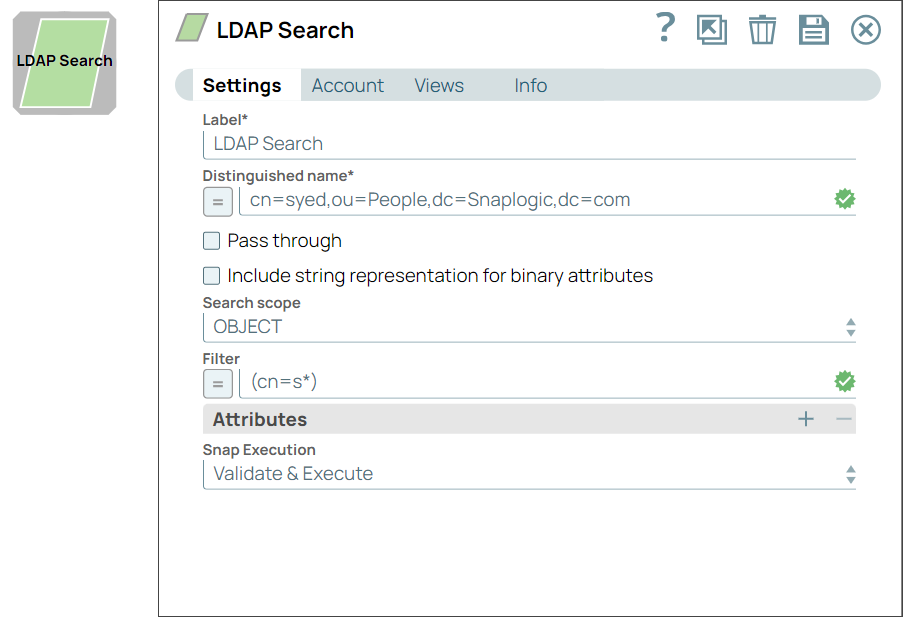
The LDAP Search Snap performs an LDAP search based on the Distinguished Name (DN) with a specific filter.
Supported Accounts
- This is a Read-type Snap.
 Works in Ultra Tasks
Behavior changes
- As of
432patches19873Snap Pack version, any LDAP entry attribute that contains binary data will be displayed as a byte array (Base64 encoded) instead of a string in the output.
Snap views
| Type | Description | Examples of upstream and downstream Snaps |
|---|---|---|
| Input |
This Snap has at most one document input view. The distinguished name of the unit to search, the scope of the search, and the filter to be applied. |
|
| Output |
This Snap has at most one document output view. The entry (if it exists) will be displayed with all its attributes. |
|
| Learn more about Error handling. | ||
Examples
Snap settings
| Field/Field set | Description |
|---|---|
Label*
String |
Specify a unique name for the Snap. Modify this to be more appropriate, especially if more than one of the same Snaps is in the pipeline. Default value: LDAP Search Example: Search |
Distinguished name*
String/Expression |
Specify the distinguished name of the entry you want to modify.
Default value: N/A Example: cn=syed,ou=People,dc=Snaplogic,dc=com |
Pass through
Checkbox |
Select this checkbox to enable the Snap to pass the input data to the downstream Snap and display in the output document.
In certain scenarios, the Snap might be unable to process the entire input due to limitations imposed by the endpoint's API. In such cases, we recommend that you select the Pass through checkbox to ensure that the unprocessed input is not lost. You can process the remaining input data using more of the same Snap in the pipeline. Alternatively, you can also write the original data into a separate file using a combination of the Mapper and the File Writer . Default value: Deselected |
Include string representation for binary attributes
Checkbox |
Select this checkbox to add a string representation of all binary attributes. When selected, the string representation of attribute values are appended to the output document, with a _str postfix.
Default value: Deselected |
Search scope*
Dropdown list |
Select one of the scopes for the search:
Default value: OBJECT Example: SUBTREE |
Filter*
String/Expression |
Specify the filter to refine and return the search results.
Default value: N/A Example: (cn=s*) |
Attributes
String/Expression |
Specify the attributes that the Snap must return in the output. If you do not add any attributes, the output displays all the attributes by default.
Default value: N/A Example: givenName |
Snap execution
Dropdown list |
Choose one of the three modes in
which the Snap executes. Available options are:
Default value: Validate and Execute Example: Execute only |
Different filters supported by the LDAP Search Snap
| Filter | Syntax for the filter |
|---|---|
Equality: |
(attribute=abc)
for example |
Negation:NOT Filter |
(!(attribute=abc))
for example |
Presence: |
(attribute=*)
for example |
Absence: |
(!(attribute=*))
for example |
Greater than: |
(attribute>=abc)
for example |
Less than: |
(attribute<=abc)
for example |
Proximity: |
(attribute~=abc)
for example CAUTION:
~= is treated as = in ADS environments. |
Wildcards or substring: |
for example |