


Create the MCP Server Pipeline Manually
Build a pipeline that exposes tools for AI agents using Function Generator Snaps and the MCP Server Router.
- Familiarity with building pipelines in SnapLogic Designer.
- A project for your MCP Server Pipeline and its tool pipelines.
- The MCP Server Snap Pack, which provides the MCP Server Router used by every MCP Server Pipeline.
- For a Pipeline as Tool, OpenAPI, or APIM Service tool source, the LLM Utilities Snap Pack, which provides the Multi Pipeline, OpenAPI, and APIM Function Generators.
- For an MCP Client tool source, the MCP Client Snap Pack, which provides the MCP Function Generator and MCP Invoke Snaps.
Overview
An MCP Server Pipeline defines the tools that AI agents can discover and invoke. The pipeline must handle two MCP protocol methods:
tools/list: Returns the list of available tools with their schemastools/call: Executes the requested tool and returns results
SnapLogic supports four tool source types that you can use individually or combine in a single MCP Server:
- Pipeline as Tool: Expose existing SnapLogic pipelines as MCP tools
- OpenAPI: Convert OpenAPI specifications into MCP tools
- APIM Service: Expose APIM-managed APIs as MCP tools
- MCP Client: Re-expose tools from external MCP Servers
Pipeline Architecture
All MCP Server Pipelines follow the same core architecture pattern:
- Function Generator - Defines available tools and their schemas
- MCP Server Router - Routes requests to list or call handlers
- Pipeline Execute - Executes the tool logic
- Mapper - Transforms output (removes internal metadata)
- Union - Merges the list and call response streams
Pipeline as Tool
Use the Multi Pipeline Function Generator Snap to expose existing SnapLogic pipelines as MCP tools. Each pipeline becomes an invocable tool.

Tool Pipeline Requirements
Pipelines used as tools must:
- Have the Expose this pipeline as a tool toggle enabled, and define tool inputs and a description in the Tool tab of the Edit Pipeline dialog. Tool inputs define the parameters the LLM provides when calling this tool. Refer to Tool tab in Pipeline Properties for details.
- Have a defined input and output view
Pipeline Structure
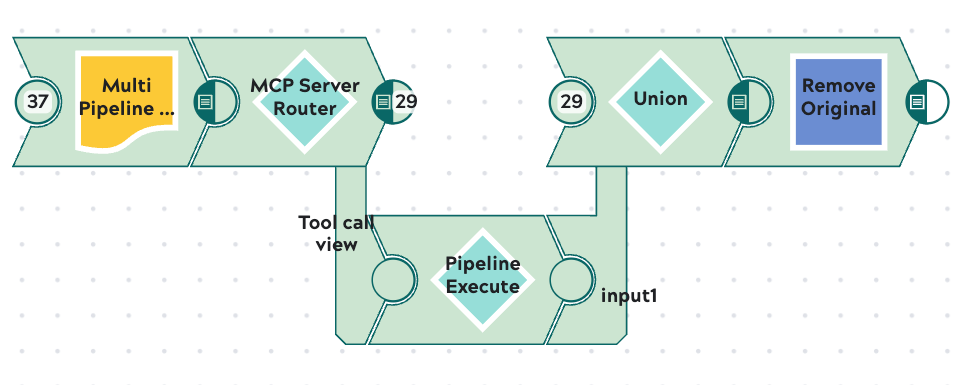
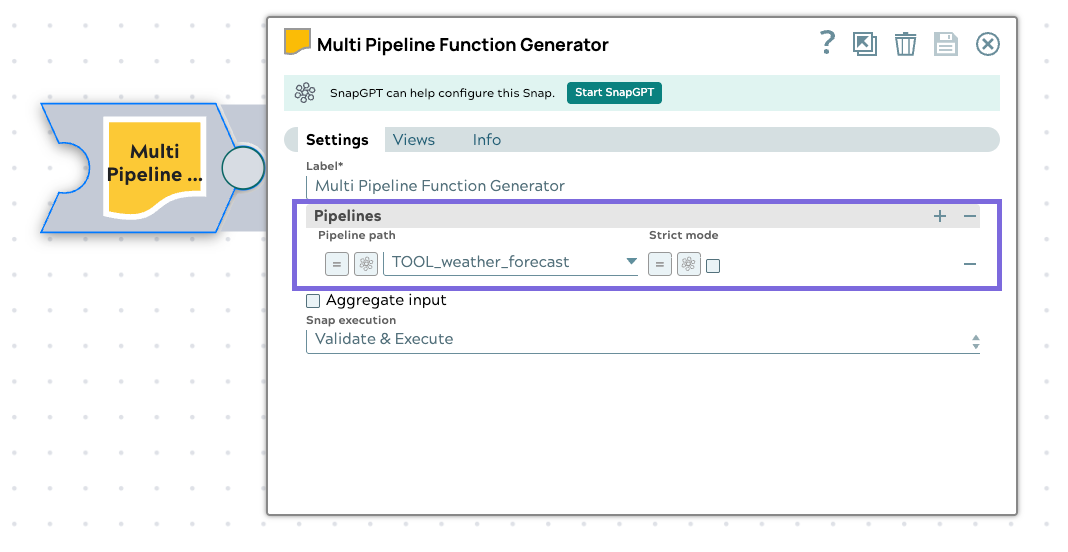
Multi Pipeline Function Generator Settings
- Pipeline Paths: List of pipeline paths to expose as tools (relative to the project). Refer to Tool Pipelines for a downloadable example.
- Strict Mode: When enabled, requires exact parameter matches
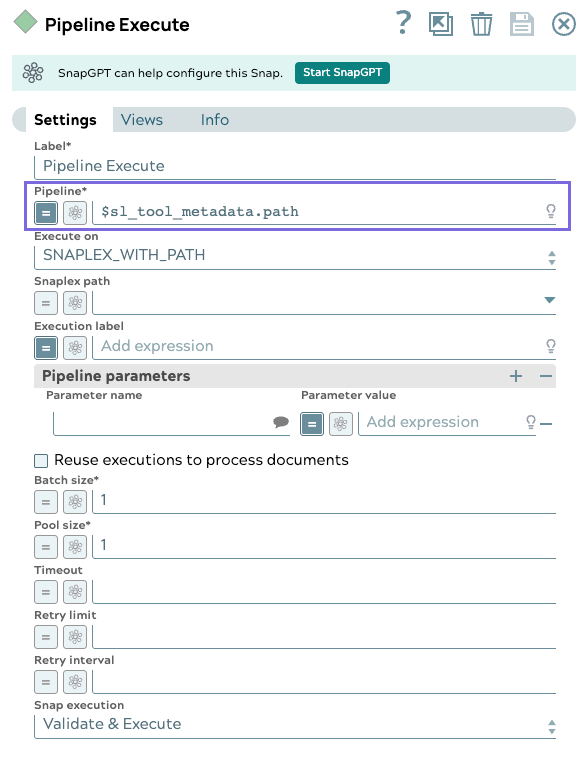
Pipeline Execute Settings
- Pipeline: Set to expression
$sl_tool_metadata.pathto dynamically execute the requested tool pipeline - Executable during suggest: Enable for real-time tool discovery
OpenAPI Tool
Use the OpenAPI Function Generator Snap to convert OpenAPI (Swagger) specifications into MCP tools. Each API operation becomes a separate tool.
OpenAPI Function Generator Settings
- Input Type: Choose between Text editor, File, or URL
- OpenAPI Spec: Paste or reference your OpenAPI/Swagger specification (JSON or YAML)
- Base URL: The base URL for API calls (overrides the spec's server URL)
- Tool Path: Path to the tool pipeline that executes the API calls
- Preferred Content Type: Default content type for requests (e.g.,
application/json) - Account: Optional account for authenticated API calls
Tool Pipeline
Create a separate pipeline (tagged with tool) that handles the actual API
execution. This pipeline receives the operation details and parameters, executes the HTTP
request, and returns the response. Refer to Tool Pipelines for a downloadable
example.
APIM Service Tool
Use the APIM Function Generator Snap to expose APIs managed by SnapLogic API Management as MCP tools.
APIM Function Generator Settings
- Project Path: The SnapLogic project containing the APIM service (e.g.,
projects/MyProject) - Service Name: The name of the APIM service
- Service Version: The version of the APIM service
- Base URL: The APIM gateway URL for the service
- Tool Path: Path to the tool pipeline that executes API calls. Refer to Tool Pipelines for a downloadable example.
- Filter Type: Choose to use all paths or filter by specific paths/tags
- Preferred Content Type: Default content type for requests
MCP Client Tool
Use the MCP Function Generator Snap to re-expose tools from external MCP Servers. This enables MCP Server composition, allowing you to aggregate tools from multiple sources.
MCP Function Generator Settings
- Account: MCP Streamable HTTP Account configured to connect to the external MCP Server
- Tool Path: Path to the tool pipeline that invokes the external MCP tools. Refer to Tool Pipelines for more on this pattern.
- Expose Tools: Enable to expose the external server's tools
- Expose Resources: Enable to expose the external server's resources (if supported)
Tool Pipeline Requirements
The tool pipeline uses the MCP Invoke Snap to call tools on the external MCP Server:
- Account: The same MCP Streamable HTTP Account
- Operation: Set to
$sl_tool_metadata.operation - Tool Name: Set to
$sl_tool_name - Parameters: Filter out internal metadata fields
Combining Multiple Tool Types
You can combine multiple Function Generators in a single MCP Server Pipeline to expose tools from different sources. Link the different tool types in a series, using the appropriate Function Generator Snap for each source type. Don't link them in parallel using only the Multi Pipeline Function Generator Snap.
Chain the Function Generators together so each one passes its output to the next. The combined tool list flows to the MCP Server Router, which handles both listing all tools and routing tool calls to the appropriate execution path.
-
Add a Mapper Snap after Pipeline Execute to remove internal metadata.
Configure the Mapper transformation:
$.filter((value, key) => !key.startsWith("original"))This removes the
originalrequest data from the response.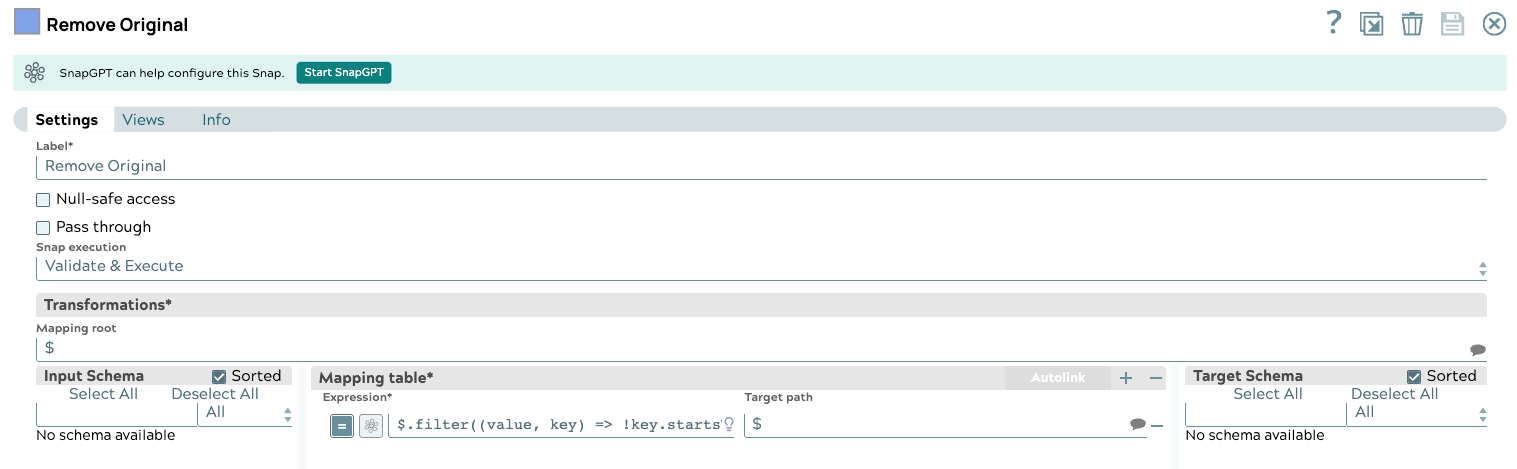
Example Pipelines
Download these example pipelines to use as templates:
- MCP Server - Pipeline as Tool: Exposes a weather forecast Pipeline as an MCP tool
- MCP Server - OpenAPI: Converts a Petstore OpenAPI spec to MCP tools
- MCP Server - APIM: Exposes an APIM Petstore service as MCP tools
- MCP Server - MCP Client: Re-exposes tools from an external MCP Server
- MCP Server - All Tool Types: Combines Pipeline, OpenAPI, and APIM tools in one server
Tool Pipelines
An MCP Server Pipeline usually doesn't do the requested work itself — it calls a separate tool pipeline to do it. The Multi Pipeline Function Generator's Pipeline Paths setting and the OpenAPI and APIM Function Generators' Tool Path setting each point to a tool pipeline like this.
The following downloads are minimal test tool pipelines. Their only job is to
confirm that an adjacent MCP Server Pipeline example above is wired correctly end to
end — that a tools/call request reaches the tool pipeline through
Pipeline Execute and a response makes it back through the Union. (
tools/list requests don't reach the tool pipeline at all — the Router
sends its tool-list output directly to the Union.) Neither tool pipeline is a complete,
working implementation of the API it's named after. You can use these tool pipelines to
test their correspondingly named MCP Server Pipeline examples.
- TOOL_weather_forecast.slp: Verifies the MCP Server - Pipeline as Tool example above. Its base configuration calls a public weather API with a fixed set of parameters — treat it as a starting point, not a fully-built weather integration.
- TOOL_OpenAPI_PetStore.slp: Verifies the MCP
Server - OpenAPI example above. It sends one JSON-body request with no headers to
confirm the pipeline wiring works; it doesn't implement the Petstore API. Implementing
Petstore's operations against its OpenAPI spec is up to you — at minimum you'll need
to:
- Route requests by content type. The Snap's Entity Type
setting is fixed to Raw (JSON), so operations that require a
multipart/form-databody (for example,uploadFile) or anapplication/x-www-form-urlencodedbody (for example,updatePetWithForm) need their own handling. - Forward header-based parameters. The Snap's Header table is
empty, so header inputs such as
deletePet'sapi_keyare accepted as tool input but not currently sent to Petstore.
- Route requests by content type. The Snap's Entity Type
setting is fixed to Raw (JSON), so operations that require a
TOOL_OpenAPI_PetStore as well,
so it uses the same test tool pipeline to verify its wiring — it doesn't implement APIM's
Petstore service either.After creating your MCP Server Pipeline, proceed to Register MCP Server to create an MCP Server asset.