


SQL Server Account
Overview
You can use this account type to connect SQL Server Snaps with data sources that use SQL Server database accounts. Account details specified in this account (at a Snap level) are called Service Accounts.
You can also connect to a SQL Server high-availability (HA) deployment, such as an Always On availability group or a failover cluster. Select User Provided for the JDBC URL Source and specify a JDBC URL with the required HA parameters in the Custom JDBC URL field. Your pipelines then reconnect during a failover event without any manual intervention. Accounts that use Snap Generated JDBC URLs continue to work without any changes.
Limitations
Authentication of SQL Server Account using NTLM Protocol is limited to Windows Snaplexes.
Account settings
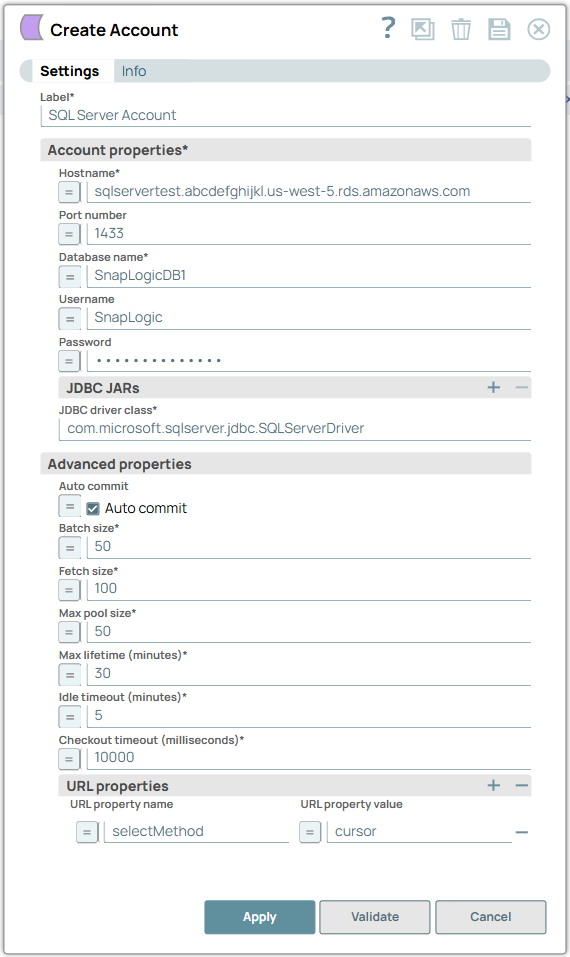
- Asterisk ( * ): Indicates a mandatory field.
- Suggestion icon: Indicates a list that is dynamically populated based on the configuration.
- Expression icon: Indicates the value is an expression (if enabled) or a static value (if disabled). Learn more about Using Expressions in SnapLogic.
- Add icon: Indicates that you can add fields in the fieldset.
- Remove icon: Indicates that you can remove fields from the fieldset.
| Field/Field set | Type | Description |
|---|---|---|
| Label
|
Required. Specify a unique name for the Account.
Default value: N/A |
|
| JDBC URL Source
|
Required. Select the source of the JDBC URL.
Existing accounts continue to use Snap Generated, so the single-host accounts that you created before this field was introduced work without any changes. Default value: Snap Generated Example: User Provided |
|
| Account properties | Required. Use this fieldset to enter in the information to create a connection to the database. This field set contains the following fields: | |
| Hostname
|
Required. Appears when the JDBC URL
Source is Snap Generated. Specify the server's address to which
you must connect. Note: If you need to connect to an on-premise server, specify the
domain name or the IP address. For example, test.mydbserver.com or
190.159.0.124. Default value: N/A Example:
|
|
| Port number
|
Optional. Appears when the JDBC URL
Source is Snap Generated. Specify the port number of the
database server to which you must connect. Note:
Default value: 1433 Example: 1433 |
|
| Database name
|
Required. Appears when the JDBC URL
Source is Snap Generated. Specify the name of the database to
which you must connect. Default value: N/A Example: SnapLogicDB1 |
|
| Username
|
Optional. Specify the username to connect to the database.
This username is used as the default username when retrieving connections and must be valid to set up the data source. Default value: N/A Example: snaplogic |
|
| Password
|
Optional. Specify the password used to connect to the data
source. This password is used as the default password when retrieving connections and must be valid to set up the data source. Default value: N/A Example: P#2,nxu0oiX2&? |
|
| Custom JDBC URL
|
Required. Appears when the JDBC URL
Source is User Provided. Specify the JDBC URL that you want to
use to connect to your SQL Server account. Use this option if you want to use complex JDBC URLs (involving multiple hosts and advanced options) to connect to your SQL Server instance. To connect to a SQL Server high-availability deployment, such as an Always On availability group or a failover cluster, add the SQL Server HA parameters that you want to apply. For example, if you want to connect to a failover pair, you can enter a JDBC URL like the one below:
Important: When you use a multi-host account, ensure that retry is
enabled. Retries are disabled by default, so set Number of
Retries to a value greater than 0 in the SQL Server Snaps that
use this account. Otherwise, the Snaps do not reconnect during a failover event.
Learn more: FAQ: Retry Mechanism in
SQL Server Snaps.
The Microsoft JDBC driver supports the following HA parameters:
Note: Use the jdbc:sqlserver: scheme and ensure that the URL is
valid for the driver that the account loads. When you use a custom JDBC URL,
specify the database in the URL using the databaseName property.
The account displays a validation error if the URL format is
invalid.Default value: N/A Example: jdbc:sqlserver://server1:1433;databaseName=TestDB;failoverPartner=server2;trustServerCertificate=true; |
|
| JDBC JARs | Use this fieldset to specify the list of JDBC drivers to connect to the SQL Database. This field set contains the following fields: | |
| JDBC driver
|
Optional. The SQL Server Snap Pack is bundled with
com.microsoft.sqlserver.jdbc.SQLServerDriver by default. However,
you can specify a custom JDBC driver. If you do not upload any JAR file, the default
JAR is used. Note: The jTDS driver is now obsolete and is no longer maintained.
Using this driver with Unicode data types, such as NCHAR, NVARCHAR, or NTEXT, can
lead to data corruption or loss, as these types are not fully supported. We highly
recommend you to use the Microsoft JDBC Driver for SQL Server
(com.microsoft.sqlserver.jdbc.SQLServerDriver), which offers complete support for
Unicode data types and is actively maintained. Note:
Default value: com.microsoft.sqlserver.jdbc.SQLServerDriver Example: com.microsoft.sqlserver.jdbc.SQLServerDriver |
|
| JDBC driver class
|
Required. Specify the JDBC driver class name to use. Default value: com.microsoft.sqlserver.jdbc.SQLServerDriver Example: com.microsoft.sqlserver.jdbc.SQLServerDriver |
|
| Advanced properties | Use this fieldset to specify the advanced properties for connecting to the database. This field set contains the following fields: | |
| Auto commit
|
Optional. Select this checkbox to commit each of the batches
immediately after it is executed. If the Snap fails, only the batch being executed
at that moment is rolled back. Deselect this checkbox to commit the output only after all the batches are executed. If the Snap fails, the entire transaction is rolled back, unless the Snap finds invalid input data before it sends the insert request to the server, and routes the error documents to the Error view. Default value: Selected |
|
| Batch size
|
Required. Specify the number of statements to execute at a
time. Note:
Default value: 50 Example: 60 |
|
| Fetch size
|
Required. Specify the number of rows to fetch at a time when
executing a query. Note: Large values could cause the server to run out of
memory. Default value: 100 Example: 80 |
|
| Max pool size
|
Required. Specify the maximum number of connections a pool
will maintain at a time. Default value: 50 Example: 60 |
|
| Max lifetime (minutes)
|
Required. Specify the maximum lifetime of a connection in the
pool. Note: Ensure that the value you enter is shorter than any database or
infrastructure-imposed connection time limit. A value of 0 indicates an infinite
lifetime, subject to the Idle Timeout value. An in-use connection is never
retired. Connections are removed only after they are closed. Default value: 30 Example: 50 |
|
| Idle timeout (minutes)
|
Required. Specify the maximum amount of time a connection is
allowed to sit idle in the pool. A value of 0 indicates that idle connections are
never removed from the pool. Default value: 5 Example: 8 |
|
| Checkout timeout (milliseconds)
|
Required. Specify the number of milliseconds to wait for a
connection to be available when the pool is exhausted. Note: If you specify
0, the Snap waits infinitely until the connection is available. Therefore,
we recommend you not to specify 0 for Checkout Timeout. Default value: 10000 Example: 100 |
|
| URL properties | Use this field set to define URL properties to use if any. This field set contains the following fields: | |
| URL property name
|
Optional. Specify a name for the URL property if any.
Note: The BCP utility v18.x and higher enforces the Trust Server Certificate check
by default. Therefore, if you are using v18.x or higher in your pipelines,
configure the URL property and value to
trustServerCertificate=true to prevent the Snap from failing if
a trusted certificate is not added to the nodes' Java truststore.Default value: selectMethod Example: selectMethod |
|
| URL property value
|
Optional. Specify a value for the URL property name.
Default value: cursor Example: cursor |
|
SQL Server Authentication
In the Account Settings, provide the Username and Password as defined for the user on the SQL Server instance. This SQL Server account must have the required privileges to run the operations seamlessly defined for the Snaps in this Snap Pack.
sa account for SQL Server Authentication. Learn more about how to choose between SQL Server Authentication and Windows Authentication: SQL Docs: Security: Authentication modeWindows (Active Directory-based) Authentication
Service Account Authentication
- Ensure that Snaplex is running on Windows and an AD user with required access privileges has logged into the Snaplex.
- To use the default jar bundled with the Snap Pack, place the latest version of
sqljdbc_auth.dllin$SL_ROOT/ldlib (c:\opt\Snaplogic\ldlib). You do not have to add the custom jar file to the account. You can find the latest version of the DLL on the Microsoft SQL Server JDBC Driver website.
If you upload customized JDBC jars to the directory, the following error might occur:
java.lang.UnsatisfiedLinkError: Native Library C:\\opt\\snaplogic\\ldlib\\sqljdbc_auth.dll already loaded in another classloader
To fix this issue, remove all JDBC jars from the SQL server account and restart the JCC node.
- Service Account Authentication implies that the active AD user session on the Snaplex is leveraged to obtain access to the SQL Server instance. Therefore, you need not provide values in the Username and Password fields.
- Do not specify a port number.
- SnapLogic recommends using the default JAR. You can download the latest JAR file from here.
- Configure the following properties for JDBC under URL properties:
| Url property name | Url property value |
|---|---|
domain |
Your domain name Note: Domain name must be added as a URL property and not along with the user name.
|
integratedSecurity |
true |
Connecting to an MSSQL Instance
- You can connect to a specific instance of MSSQL by using the instance name along with the server name in Hostname <server_name>/<instance_name>.
- Alternatively, you can define the instance name by using the URL property name, instanceName.
Linux (Active Directory-based) Authentication
The SQL Server Account supports Linux-based authentication in Groundplexes. The setup instructions must be configured on the Groundplex to align with the Kerberos configuration, and then updating the connection settings provides an integrated authentication. Refer to Microsoft documentation for more information: Using Kerberos integrated authentication to connect to SQL Server - JDBC Driver for SQL Server
Troubleshooting
| Error | Reason | Resolution |
|---|---|---|
SQLState = 08001, NativeError =
-1SQLState =
08001, NativeError =
-1 |
If you use BCP v18. x or higher, the SQL Server Bulk Load Snap will automatically fail with this error as this version enforces SSL certificate verification by default. | In the SQL Server Database Account, configure the
URL property and value to trustServerCertificate=true to allow
the Snap to work with BCP v18.x and above. |
| The account fails validation with an invalid JDBC URL error. | The value in the Custom JDBC URL field is not a valid
SQL Server JDBC URL. For example, the URL uses an unsupported scheme, separates the
connection properties with commas instead of semicolons, or omits the
databaseName property. |
Correct the URL so that it uses the jdbc:sqlserver: scheme
and separates each connection property with a semicolon:
|
| The pipeline does not fail over to the standby server. | Either the custom JDBC URL does not include the HA parameters that your deployment requires, so the driver has no standby server to connect to, or retry is not enabled for the Snaps that use the account. | Add the applicable HA parameters to the URL. Use
failoverPartner for a database mirroring configuration and
multiSubnetFailover=true for an Always On availability group or
a failover cluster instance that spans multiple subnets.Also set Number of Retries to a value greater than 0 in the Snaps that use this account, because retries are disabled by default. Learn more: FAQ: Retry Mechanism in SQL Server Snaps. |
| java.lang.UnsatisfiedLinkError: Native Library C:\\opt\\snaplogic\\ldlib\\sqljdbc_auth.dll already loaded in another classloader. | You have uploaded customized JDBC JAR files to the directory. | Remove all JDBC JARs from the SQL Server account and restart the JCC node. |
| com.microsoft.sqlserver.jdbc.SQLServerException: This driver is not configured for integrated authentication. | The correct sqljdbc_auth.dll file is not available in the ldlib folder. | Download the appropriate sqljdbc_auth.dll file and place it
in $SL_ROOT/ldlib. |
| No valid credentials providedOR Server not found in Kerberos database | The Service Principal Name (SPN) is not setup properly. | Ensure that you have setup the SPN for MSSQLSvc service
properly. |
| Defective token detected. |
Kerberos fails when a mismatch occurs between the SPN for the SQL Server service and the hostName. For example, if FQDN of the machine is used to setup SPN, the hostname must be an FQDN and not an IP address, while establishing a connection. |
Provide a value for hostName that matches with the SPN in
context. Also ensure that the properties authenticationScheme,
domain and integratedSecurity are defined for
the account. |