


Amazon SNS - Publish Message
Overview
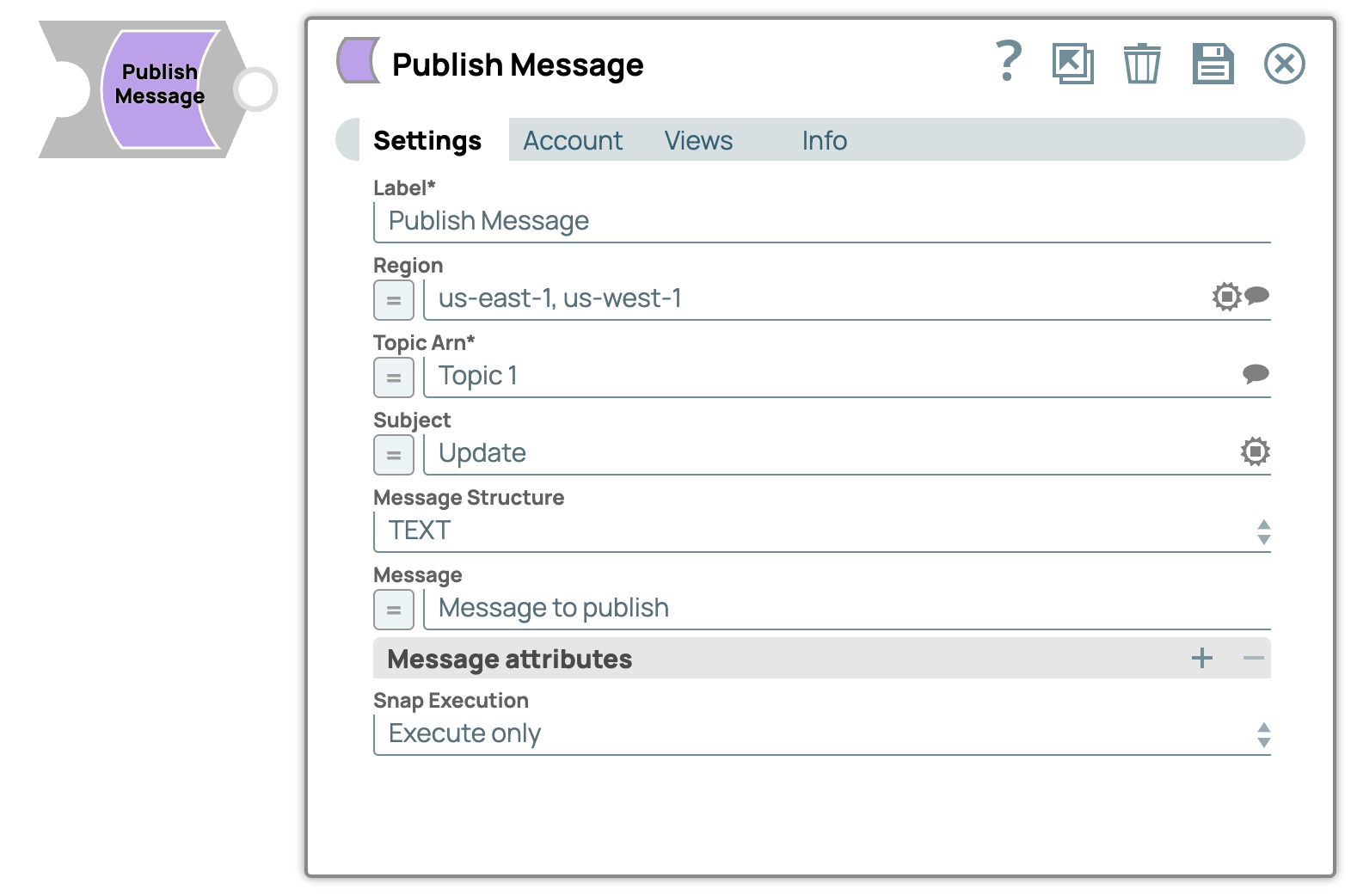
You can use this Snap to send a message to an Amazon SNS topic. The message can be a text message (SMS message) directly to a phone number, or a message to a mobile platform endpoint (when you specify the TargetArn). If you send a message to a topic, Amazon SNS delivers the message to each endpoint that is subscribed to the topic.
When you use this Snap to publish a message, that message can be consumed through various means, including subscription through the SQS Consumer Snap, email, or HTTP endpoint. If the message is under 256 KB, you can view it directly in the output preview. However, if it exceeds 256 KB, the message's content does not display. Instead, a reference to the message is provided, typically in the form of an array of JSON objects containing an S3 Key and S3 Bucket Name. To read the message, use the S3 File Reader, Email Reader , S3 Download, or S3 Select Snaps downstream of the Publish Message Snap.
Supported Accounts
- This is a Write-type Snap.
 Works in Ultra Tasks
Prerequisites
- Valid AWS Account and SNS access.
- Authentication such as IAM Role access, Access key, and Security Access key.
- Create a topic and subscribe to a topic for an endpoint (SQS/Email/Email-JSON, and so on) before performing the Publish Message action.
- Set the Attribute Name in Amazon SNS - Set Subscription Attribute to FilterPolicy if you want to select Number, String, or String Array data types under Message attributes in the Publish Message Snap.
Limitations
The SnapLogic user interface (UI) has a maximum limit of 200 MB on the size of messages you can copy in the Message field of the Publish Message Snap. If the message size exceeds this limit, the Snap fails and displays an error message stating that the: 'update' command document is too large.
Work-around: To publish messages greater than 200 MB, you can use upstream Snaps and input the message into the Publish Message Snap.
Known Issues
The Snap's performance might decrease if you do not provide a value in the Region field. As a workaround, provide a value in the Region field for optimal performance of the Snap.
Snap views
| Type | Description | Examples of upstream and downstream Snaps |
|---|---|---|
| Input |
Document. This Snap has at most one document input view. Region, ARN of the topic, and the text message that you want to publish. |
|
| Output |
Document. This Snap has at most one document output view. Published message. |
|
| Learn more about Error handling. | ||
Snap settings
| Field/Field set | Description |
|---|---|
|
Label
|
Specify a unique name for the Snap. Modify this to
be more appropriate, especially if there are more than one of the same Snap in the
pipeline.
Default value: Publish Message Example: |
| Region
|
Specify the AWS region where the application is implemented. If the region field is not present, then the region is evaluated in the following sequence:
Default value: None Example: |
| Topic ARN
|
Required. Specify the Amazon Resource Name (ARN) of the topic. If you enable expression for Topic ARN, then the Message group ID and Deduplicate ID fields are populated. Default value: N/A Example: |
| Subject
|
Specify the subject line to be included while delivering the messages. Default value: None Example: |
| Message Structure
|
Select one of the following options to provide the structure or type of the message that you want to publish:
If the property is set to JSON, then the Customized Messages field set and Message property are enabled. You can send messages to various protocols using the field set. Default value: TEXT Example: JSON |
| Message
|
Specify the message you want to publish. It is mandatory to enter the default message if the Message Structure is set to JSON. The Snap displays an error when you do not provide a default message in the protocol. Default value: N/A Example: Message to publish |
| Customized Messages |
Appears when you select JSON in the Message Structure field. You can add any number of messages by clicking the Add icon on the field set. |
| Protocol
|
Specify the internet protocol to connect to the Amazon server. Alternatively, click the Suggestion icon to fetch a list of attribute names associated with the entity type. Available options are:
Default value: default Example: https |
| Message
|
Specify the message you want to publish. It is mandatory to enter the default message if the Message Structure is set to JSON. The Snap displays an error when you do not provide a default message in the protocol. Default value: N/A Example: Message to publish |
| Message group ID
|
Displayed when you enable expression for Topic ARN. Specify a tag that indicates which message group this message belongs to. The field is used and required by a FIFO queue. Messages in the same message group are delivered in the order that they are published. Default value: N/A Example: |
| Deduplicate ID
|
Displayed when you enable expression for Topic ARN. Specify the token used for de-duplication of sent messages in a FIFO queue. This ID is optional if you enabled the Content-based message deduplication setting for the topic. The property is used by a FIFO queue only. Default value: N/A Example: |
| Message attributes |
Specify the table of the message attributes. Message attributes are structured metadata for the message to help the consumer identify how to deal with the message without having to read the message body. Each message can have up to 10 attributes. The value type is string. |
| Attribute Name
|
Specify the name for the message attribute. By default, this field is expression enabled. Default value: N/A Example: Number |
| Data type
|
Specify the data type of the message attribute. Available options are:
You must set the Attribute Name in the Amazon SNS - Set Subscription Attribute Snap to FilterPolicy if you select Number, String, or String Array data types in the Publish Message Snap. Default value: Number Example: String |
| Attribute Value
|
Specify the value for the message attribute. By default, this field is expression enabled. Default value: N/A Example: |
|
Snap execution Dropdown list
|
Choose one of the three modes in
which the Snap executes. Available options are:
Default value: Execute only |
Troubleshooting
| Error | Cause | Resolution |
|---|---|---|
| Missing Topic ARN. | A topic ARN value is not provided. | Specify the topic ARN and retry. |
| No default entry in JSON message body. | The Message field is empty while Message Attribute is set to JSON. | Enter the message in the Message field. |
| An error occurred when publishing a message to the specific topic in the Amazon SNS. | Failed to store the message content in an S3 object. | Check the input data, formats and retry. |