


Tc Requirement Structure Create
This Snap create a structure of a Teamcenter Requirement Specification based on structured paragraphs and requirements.
Supported Accounts
- This is a Write-type Snap.
 Works in Ultra Tasks
Prerequisites
- A valid Teamcenter account with the required permissions.
Snap views
| Type | Description | Examples of upstream and downstream Snaps |
|---|---|---|
| Input |
This Snap has exactly one document input view. The required input of the snap are the Teamcenter types and attributes that needs to be defined for creating the requirement structure as (multi) level structure style in JSON document. The JSON object “lineObject”includes properties for the object. The JSON object „children“ is a list of JSON objects including “lineObject” information and “lineData” information for the componens and structure to be build. Optionally “lineObject” can include html rich content in “[richContent]” attribute. See Example chapter. |
|
| Output |
This Snap has exactly one document output view. The output of the snap is the created requirements structure. |
|
| Learn more about Error handling. | ||
Examples
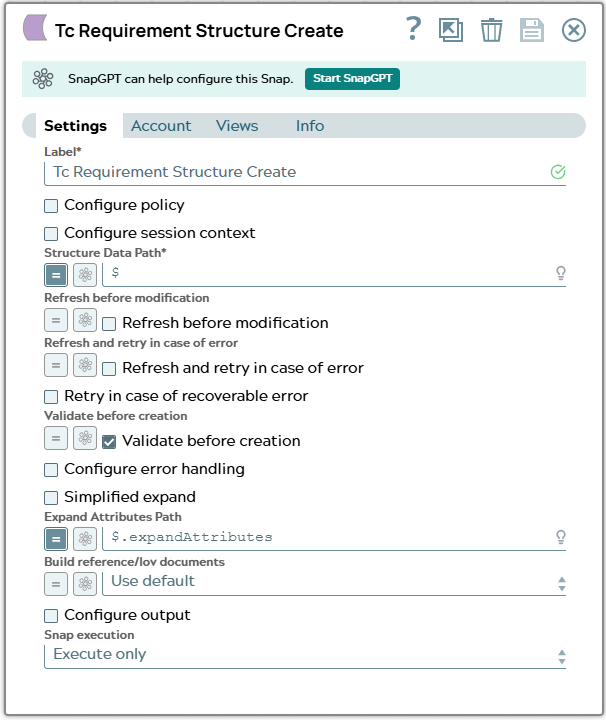
Tc Requirement Structure Create: Create Requirement StructureSnap settings
| Field/Field set | Description |
|---|---|
Label
String |
Specify a unique name for the Snap. Modify this to
be more appropriate, especially if there are more than one of the same Snap in the
pipeline.
Default value: Tc Requirement Structure Create |
Configure policy
Checkbox |
Select this checkbox to run the Snap with a specific named Teamcenter policy. A policy determines the set of object properties that Teamcenter returns. Learn more: Configure policy. Default status: Deselected |
Configure session context
Checkbox |
Select this checkbox to run the Snap with a group, role, or project other than the one configured in the account. Learn more: Configure session context. Default status: Deselected |
Structure Data Path*
String/Expression |
Specify the path of the Requirement structure to be fetched from JSON input document Default value: $ Example: $ |
Refresh before modification
Checkbox/Expression |
In case checkbox is ON Snap will do a deep refresh before starting to create the structure. Default value: Unselected Example: Unselected |
Refresh and retry in case of error
Checkbox/Expression |
In case checkbox is ON Snap will do a deep refresh in case of error while creating the structure and retry create. Default value: Unselected Example: Unselected |
Retry in case of recoverable error
Checkbox |
Specify retry shall be done in case of error. Default value: Unselected Example: Unselected |
Maximum number of retries
String |
Appears when Retry in case of recoverable error is selected. Specify the number of retries. Default value: 5 Example: 5 |
Validate before creation
Checkbox/Expression |
Appears when Use old implementation is deselected. Snap will execute a validation of requirement structure. Default value: Selected Example: Selected |
Configure error handling
Checkbox |
Select this checkbox to define how the Snap behaves when Teamcenter returns an error. Use these settings for analysis and debugging. Learn more: Configure error handling. Default status: Deselected |
Simplified expand
Checkbox |
Select this checkbox to make the Snap look for the name given in
Expand Attributes Path in the input document (for example,
When deselected, configure Expand Attributes Path as a string or an expression. Default status: Deselected |
Expand Attributes Path
String/Expression |
Specify the JSON path to the expand attributes in the input document. Expand attributes are the list of attributes that the Teamcenter response must contain. Each name must be the technical name of a valid property in the Teamcenter data model for the expected objects. For example: Learn more: Configuring Expand Attributes. Default value: N/A Example: $.expandAttributes |
Build reference/lov documents
Dropdown list/Expression |
Select how the Snap represents references and lists of values (LOVs) that
Teamcenter returns. The Snap can return them as nested JSON objects instead of
flattened IDs and internal values with additional
The available options are:
Default value: Use Default Example: Yes |
Configure output
Checkbox |
Select this checkbox to specify the Teamcenter properties that the Snap includes in the output. This Snap offers the output settings described in Variant: type field in configuration settings. Default status: Deselected |
Snap execution
Dropdown list |
Choose one of the three modes in
which the Snap executes. Available options are:
|