


Discovery Hub settings
Set your organization's Discovery Hub custom URL and portal branding.
Configure Discovery Hub's custom URL and logo from Admin Manager > Application Settings > Discovery Hub. Click View hub at any time to open the portal in a new tab.
Note: This page is visible only to Environment admins, and only for
organizations with the MCP Server subscription.
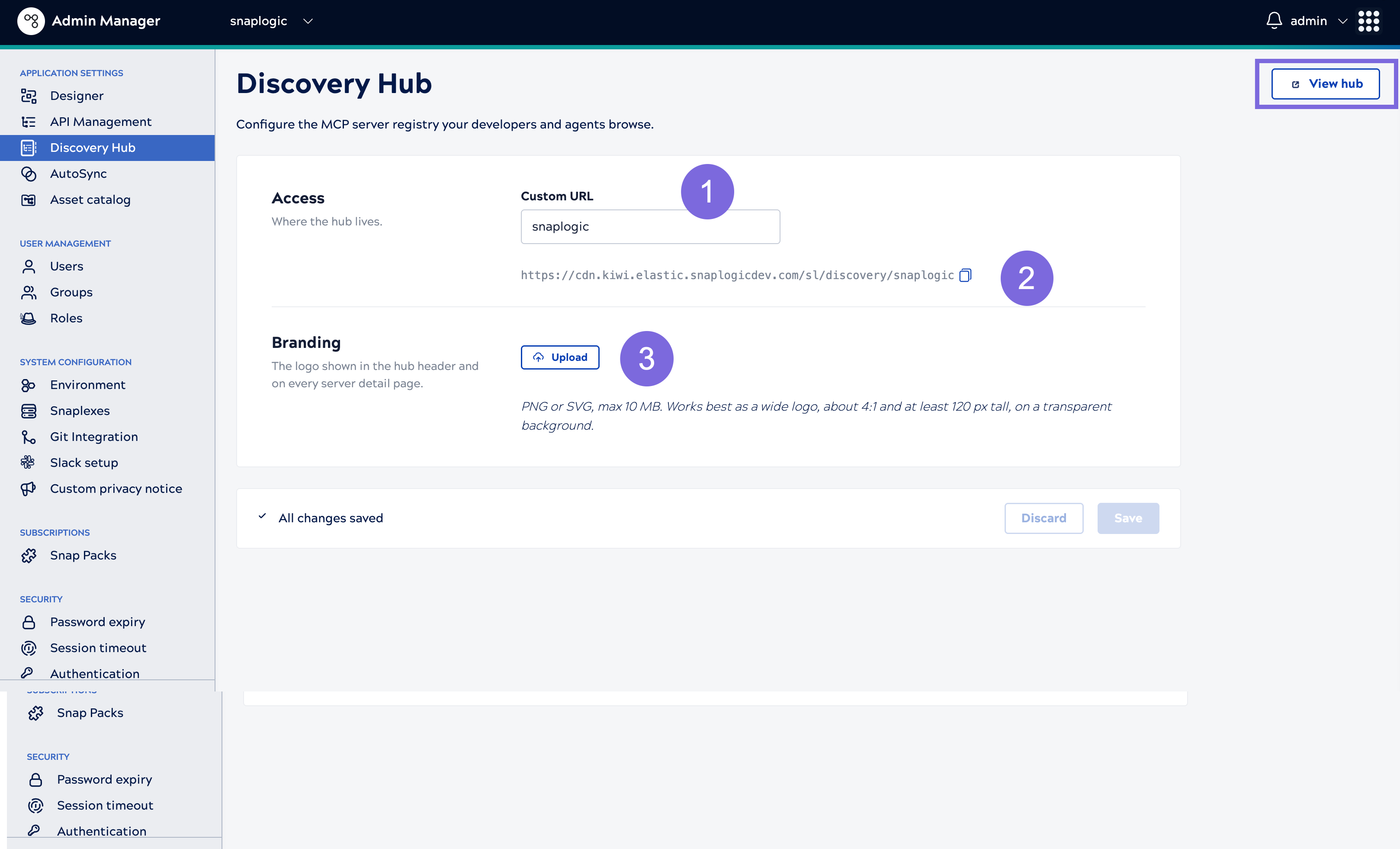
- Custom URL: The URL suffix for your organization's Discovery
Hub portal. Defaults to your organization name. Allowed characters are alphanumeric,
hyphens, and underscores, up to 64 characters. Stored in lowercase, and must be unique
across the platform.
CAUTION: Changing the Custom URL changes the portal's address. A bookmark or shared link to the previous portal URL stops working. This doesn't affect any MCP client already connected to a server — a client's configuration points to that server's own endpoint URL, not to the Discovery Hub portal URL.
- Portal URL: The full Discovery Hub URL, built from the
Custom URL value. Click the copy icon (
 )
next to it to copy the URL for distribution to your organization, or click
View hub in the upper right to open it directly in a new tab —
both point to the same page.
- Branding logo: Click Upload to set the
logo shown in the Discovery Hub header and on every server detail page.
- Supported formats: PNG or SVG
- Maximum size: 10 MB
- Works best as a wide logo, about 4:1, at least 120 px tall, on a transparent background
Save your changes
Click Save. The updated URL and branding apply the next time anyone loads the Discovery Hub portal — there's no build step. Click Discard to revert unsaved changes.