


Get insights on the Snaps preview data
Use SnapGPT to analyze preview data from any Snap in your pipeline and receive insights into key fields, business and validation rules, and Personally Identifiable Information (PII).
Overview
SnapGPT can analyze preview data from Snaps in your pipeline to surface insights into key fields, business and validation rules, and Personally Identifiable Information (PII). These insights are displayed in the SnapGPT chat panel and are automatically used as context when you generate or refine pipelines, resulting in more accurate outputs.
When you request preview data insights, SnapGPT uses the actual preview data from your pipeline to surface relevant metadata automatically, providing more accurate and context-aware recommendations than generic configuration assistance.
Prerequisites
- SnapGPT must be enabled for your environment.
- The Use preview data for contextual metadata setting must be enabled in Admin Manager. Refer to SnapGPT settings for more information.
- Your pipeline must have preview data available for the Snap you want to analyze. Preview data is generated when you validate the pipeline successfully.
Get Preview Data Insights
To get SnapGPT-generated insights about a Snap's preview data:
- Open your pipeline in Designer.
- Validate your pipeline successfully to generate preview data for your Snaps. For more information about preview data, refer to Launch data preview.
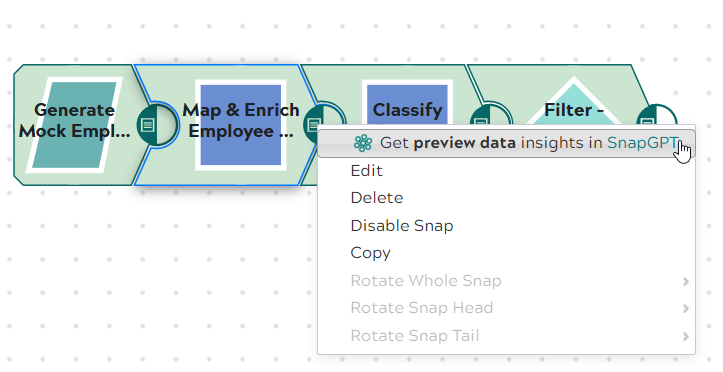
- Right-click the Snap you want to analyze.
- Select Get preview data insights in SnapGPT from the context menu.
- SnapGPT analyzes the preview data and displays insights in the SnapGPT panel.
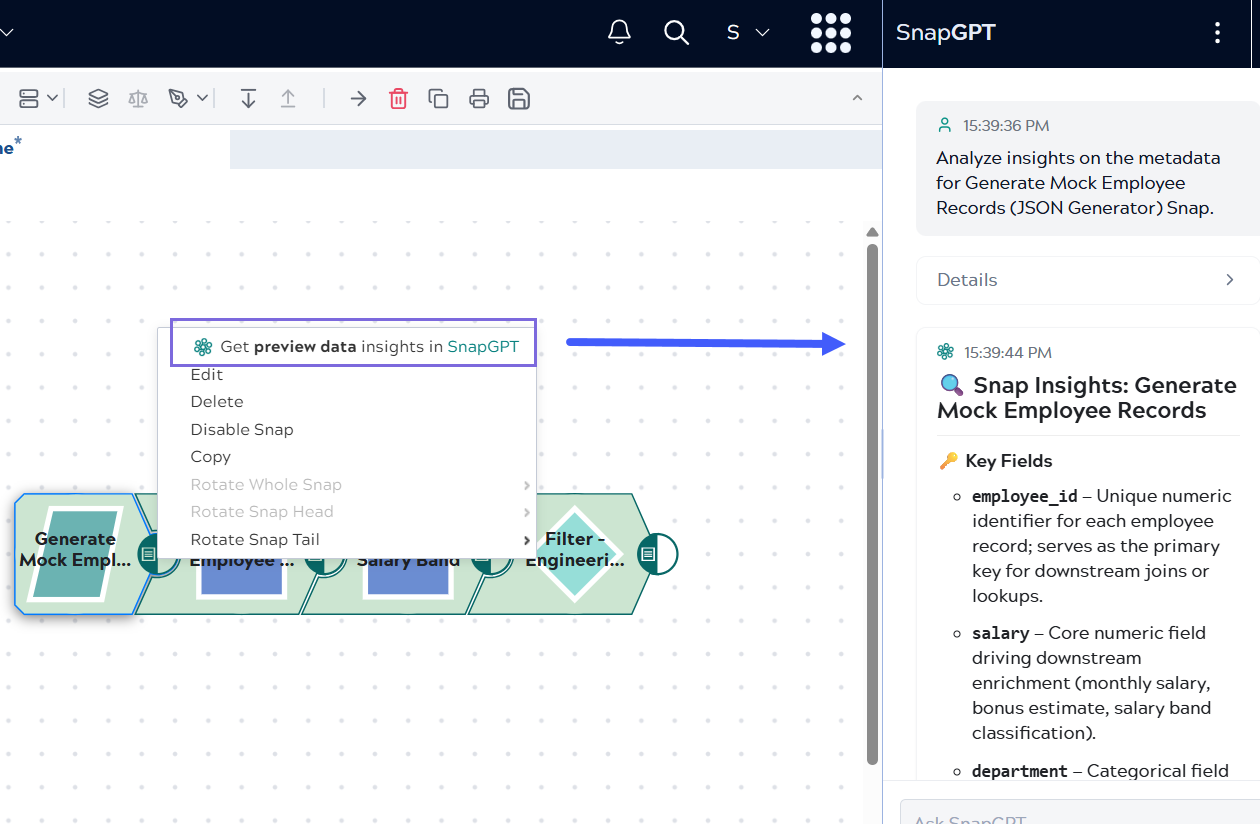
- Review the insights, which include key fields, important insights, compliances and validation and business rules.
Examples
Example 1: Analyzing Employee Data Mapper Configuration
You've configured a Mapper Snap to transform employee records. After validating the pipeline, you request insights and SnapGPT reports:
- Key fields identified: The mapper renames
name→full_nameandsalary→annual_salary. These are critical semantic upgrades that downstream Snaps depend on—any upstream changes tonameorsalarywould break mappings. - Derived computations detected: Three fields are computed at runtime:
monthly_salary(rounded from annual/12),bonus_estimate(10% of salary), andseniority_level(derived from age using ternary logic: age < 35 = Junior, 35-44 = Mid-Level, ≥45 = Senior). - PII compliance alert: Five fields carry PII signals and require data governance review:
full_name,employee_id,age,annual_salary, andmonthly_salary. Consider masking or encrypting these fields if flowing to non-secured targets. - Configuration warning: Pass-through is disabled—only explicitly mapped fields appear in output. Any future unmapped input fields will be silently dropped.
Example 2: Validating Data Quality and Business Rules
After validating a pipeline with employee data, you request insights on data validation and SnapGPT provides:
- Validation rules applied: SnapGPT detected 9 validation rules across your fields, including
employee_id(must be unique positive integer),full_name(requires first + last name format),age(valid range 18-70), anddepartment(must match picklist: Engineering, Marketing, HR, Finance). - Business logic boundaries identified: The
seniority_levelfield uses age boundaries at 35 and 45. Ages exactly at 35 map to "Mid-Level"—verify this aligns with your business classification policy. - Financial calculation review:
bonus_estimateuses a flat 10% rate on all salaries. High earners (e.g., $120K → $12K bonus) have no cap applied. Consider whether tiered bonus logic is needed. - Data quality check: The
departmentfield is case-sensitive—downstream filters use== "Engineering". Ensure upstream data sources maintain consistent casing to prevent silent filter failures.
Troubleshooting
| Issue | Cause | Resolution |
|---|---|---|
| The Get preview data insights in SnapGPT option doesn't appear in the context menu. | The Use preview data for contextual metadata setting is disabled | Contact your Environment admin to enable the setting in SnapGPT Settings. |
| SnapGPT returns No preview data available message. | Pipeline has not been validated successfully, or preview data has expired | Validate your pipeline successfully to generate fresh preview data, then try again. Refer to Launch Data Preview for more information. |
| SnapGPT provides generic insights that don't seem specific to my data. | Preview data may be limited or the Snap may not have processed any documents yet |
Ensure your pipeline validation completed successfully and the Snap has input data. Check the preview document count in the Snap's output view. If the Snap is at the beginning of the pipeline, ensure the upstream data source has available data. |
| Insights request times out or takes too long. | Large preview data sets or high LLM provider load |
Try requesting insights again. If the issue persists, preview data may be too large for analysis. Consider reducing the preview document limit in your pipeline settings. |
| Insights don't match the actual data I see in preview. | SnapGPT analyzes a sample of preview data, not all documents |
SnapGPT analyzes a representative sample of preview data. If your preview data varies significantly across documents, the insights may reflect the sample analyzed. Review multiple preview documents to ensure consistency in your data. |
Best practices
- Validate first: Always validate your pipeline successfully before requesting insights to ensure SnapGPT analyzes current preview data.
- Verify recommendations: Always validate SnapGPT's suggestions in your specific context before applying them to production pipelines.
- Iterative analysis: Request insights multiple times as you refine your pipeline to verify improvements.