


Twofish Decrypt
Overview
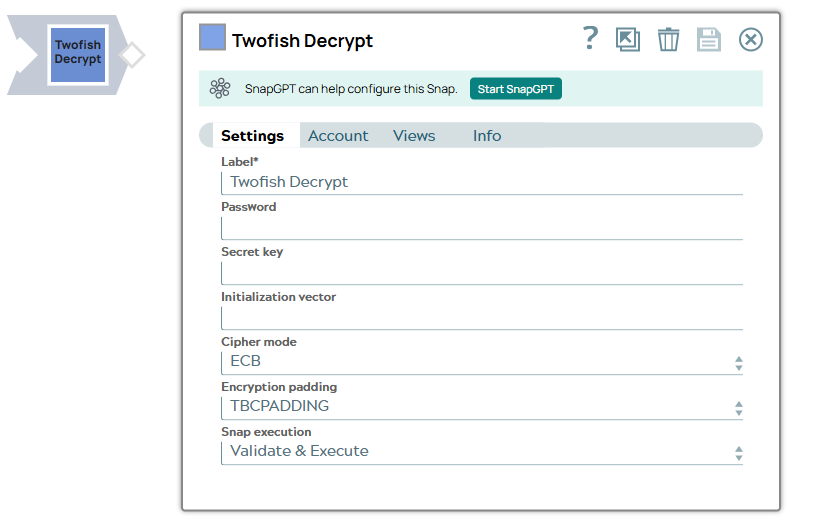
This Snap decrypts the binary documents that it receives on its input view using the Twofish algorithm and user-specified encryption parameters.
The default security in the JRE limits the key length for encryption keys. For stronger encryption keys, you would need to manually install the Java Cryptographic Extension JARs on your JCC nodes.
- This is a Transform-type Snap.
 Works in Ultra Tasks
Account
This Snap uses account references created on the Accounts page of the SnapLogic Manager to handle access to this endpoint. This Snap supports a Symmetric crypto account, or no account. See Configuring Binary accounts for information on setting up accounts that work with this Snap.
Snap views
| Type | Description | Examples of upstream and downstream Snaps |
|---|---|---|
| Input | This Snap has exactly one binary input view. Stream of binary encrypted data with the encryption details required to decrypt the data streaming in. |
Any Snap that produces binary data in the output view such as File Reader or Compress . |
| Output | This Snap has exactly one binary output view. Stream of binary decrypted data. |
Any Snap that accepts binary data in the input view such as File Writer or Decompress . |
| Learn more about Error handling. | ||
Snap settings
- Expression icon (
 ): Allows using
pipeline parameters to set field values dynamically (if enabled). SnapLogic Expressions
are not supported. If disabled, you can provide a static value.
): Allows using
pipeline parameters to set field values dynamically (if enabled). SnapLogic Expressions
are not supported. If disabled, you can provide a static value. - SnapGPT (
 ): Generates SnapLogic Expressions
based on natural language using SnapGPT. Learn
more.
): Generates SnapLogic Expressions
based on natural language using SnapGPT. Learn
more. - Suggestion icon (
 ): Populates a
list of values dynamically based on your Snap configuration. You can select only one
attribute at a time using the icon. Type into the field if it supports a comma-separated
list of values.
): Populates a
list of values dynamically based on your Snap configuration. You can select only one
attribute at a time using the icon. Type into the field if it supports a comma-separated
list of values. - Upload
 : Uploads files. Learn more.
| Field/Field set | Type | Description |
|---|---|---|
Label
|
String | Required. Specify a unique name for the Snap. Modify this to be more appropriate, especially if more than one of the same Snaps is in the pipeline. Default value: Twofish Decrypt Example: Twofish Decrypt |
| Password | String | The string used to generate a secret key and an initialization vector. If the
Secret key property is set, the password is ignored. Note: This field is currently
not encrypted at rest and is saved and exported in plaintext. For any shareable
secrets that require encryption at rest, we recommend you use a Secret key in the
Symmetric
Crypto Account
. Using a
Symmetric Crypto Account ensures that your sensitive information is protected and
secure. Example: K1qjoeFQTr |
| Secret key | String | The secret key that is used for decryption. Note: This field is currently not
encrypted at rest and is saved and exported in plaintext. For any shareable
secrets that require encryption at rest, we recommend you use a Secret key in the
Symmetric
Crypto Account
. Using a
Symmetric Crypto Account ensures that your sensitive information is protected and
secure. Example: N0FzAAe4qtY= |
| Initialization vector | String | The initialization vector used for decryption. It should be in hexadecimal
format and should not be used in ECB mode. Example: 296151aacf89c87f |
| Cipher mode | Dropdown list | The mode of operation for a block cipher. The available options include: ECB, CBC, PCBC, CTR, CTS, CFB, CFB8, CFB16, CFB24, CFB32, CFB40, CFB48, CFB56, CFB64, OFB, OFB8, OFB16, OFB24, OFB32, OFB40, OFB48, OFB56, OFB64. Default value: ECB |
| Encryption padding | Dropdown list | The encryption padding. The available options include: PKCS5PADDING, ISO10126PADDING, NOPADDING. Default value: PKCS5PADDING |
| Snap execution
|
Dropdown list |
Choose one of the three modes in
which the Snap executes. Available options are:
Default value: Execute only Example: Validate & Execute |