


Publishing messages to SQS and email endpoints
These examples demonstrate how to publish messages larger and smaller than 256 KB to Amazon SQS and email endpoints, and read them back, using the Amazon SNS - Publish Message Snap.
These example Pipelines demonstrate how to publish messages to Amazon SQS and email endpoints using the Amazon SNS - Publish Message Snap, including messages larger and smaller than 256 KB.
-
Publish messages larger than 256 KB to the Amazon SQS endpoint.
This example Pipeline demonstrates how you can read a message after it is published by the Publish Message Snap.

The Pipeline performs the following steps:
- Read the file from the S3 bucket.
- Extract the content of the message.
- Publish the message.
- Read the message.
Prerequisites: A valid S3 account.
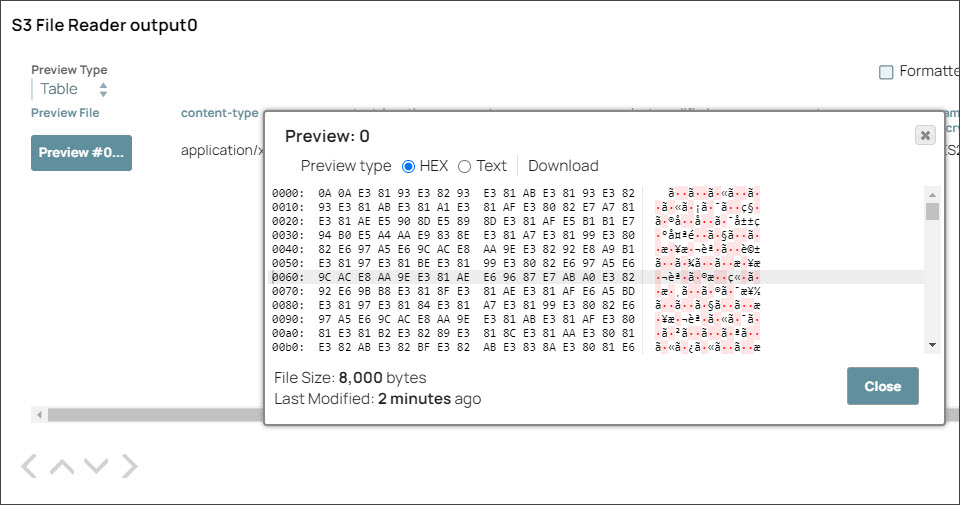
Step 1: Configure the S3 File Reader Snap to read the file from the S3 bucket. On validation, this Snap displays the binary output in the preview.

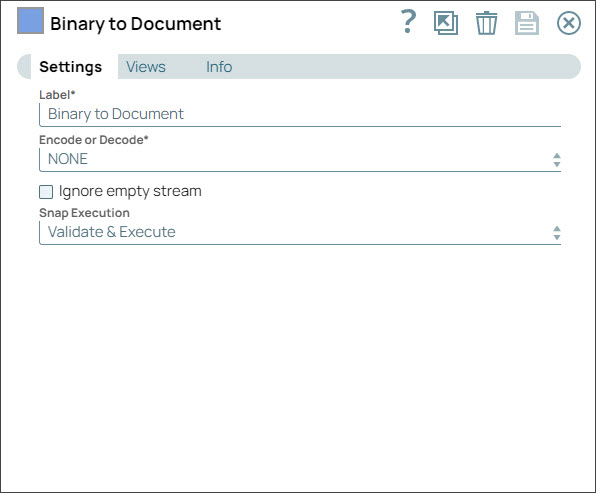
Step 2: Configure the Binary to Document Snap to convert the file content that is in binary format to document format.
Step 3: Configure the Mapper Snap to extract only the content of the message.

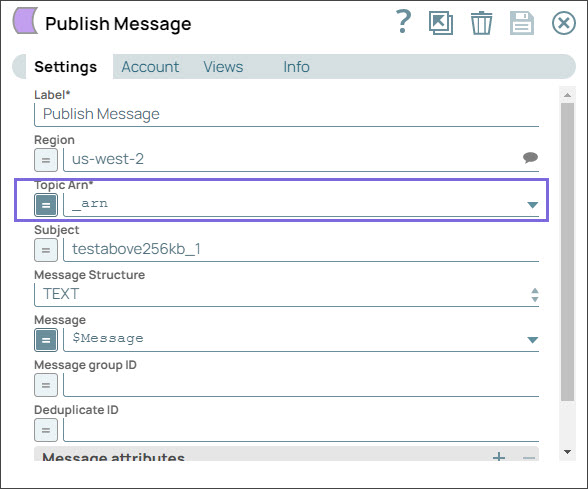
Step 4: Configure the Amazon SNS - Publish Message Snap to publish the message to the ARN topic in the SQS endpoint. On validation, the Snap displays the output with the details of the message payload.
Step 5: Configure the SQS Consumer Snap to consume the message. On validation, the Snap displays the reference of the payload.


Step 6: Configure the File Writer Snap to write the message in the SnapLogic database.

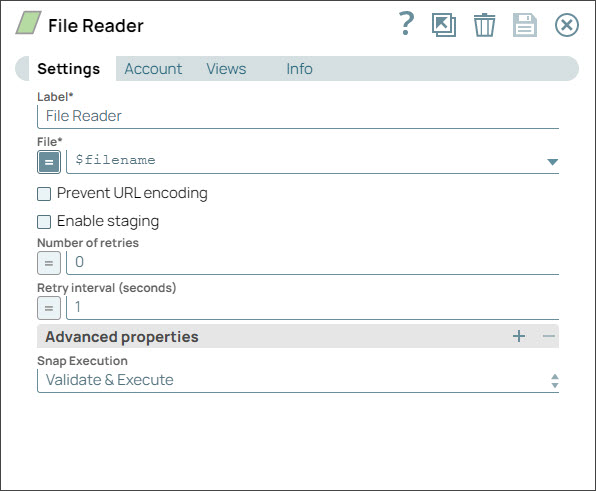
Step 7: Configure the File Reader Snap to read the message.
-
Publish messages larger than 256 KB to an email endpoint.
This example Pipeline demonstrates how you can read a message after it is sent to the email endpoint.

Prerequisites: A valid S3 account.
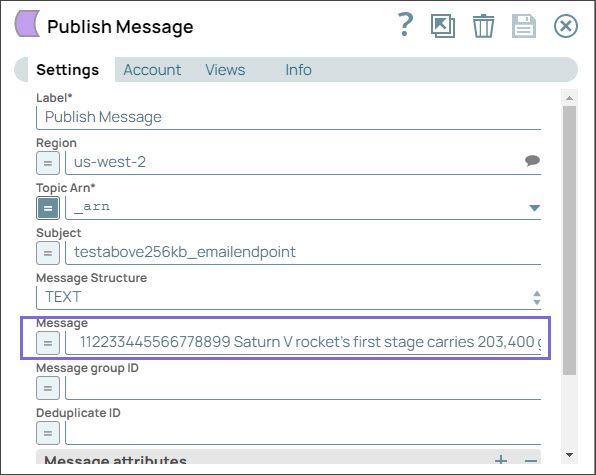
Step 1: Configure the Amazon SNS - Publish Message Snap to send a message to the email endpoint greater than 256 KB. On validation, the Snap displays the output with the message payload details.
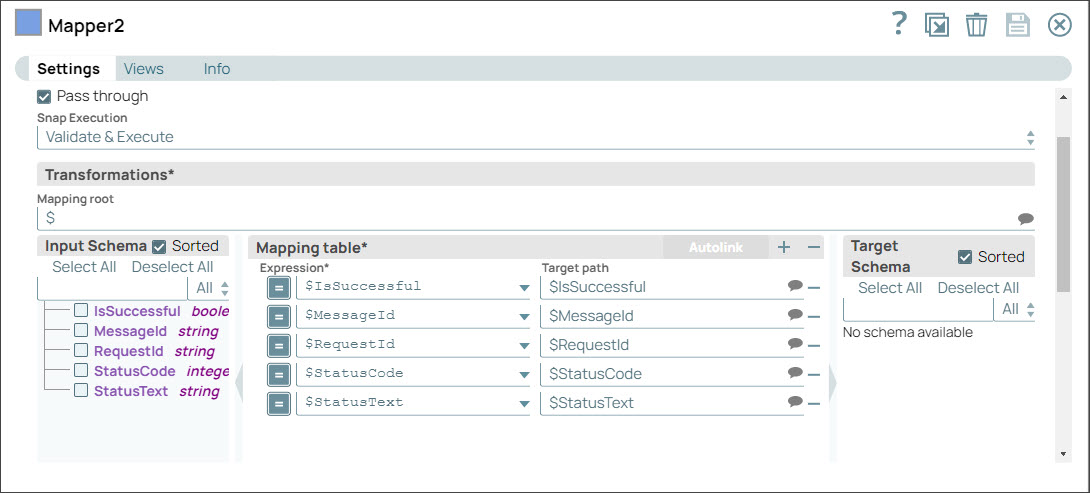
Step 2: Configure the Mapper Snap to extract the content of the message.
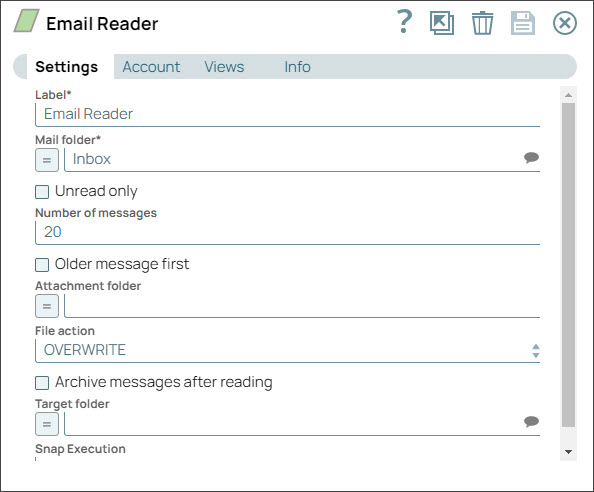
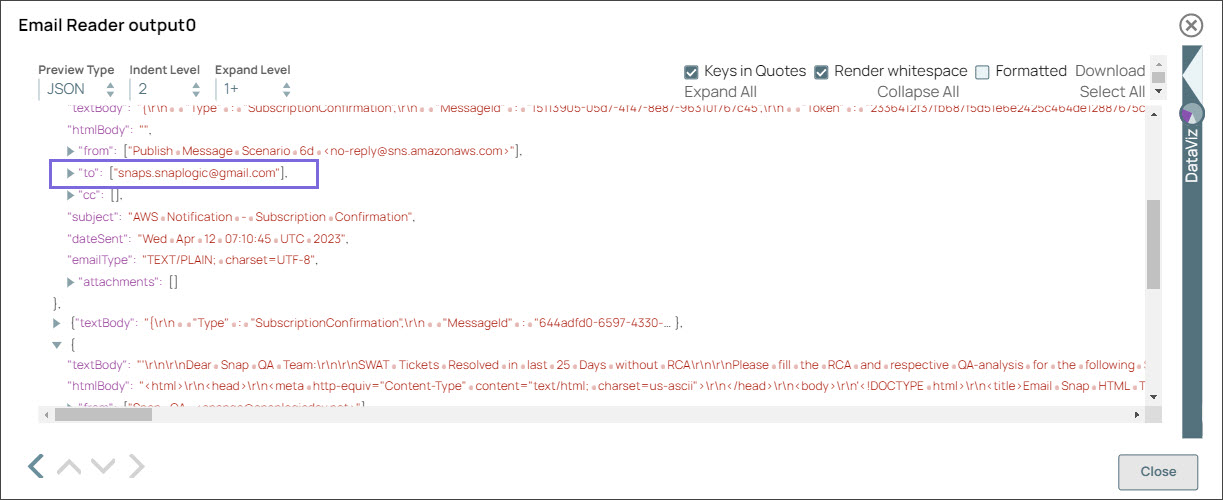
Step 3: Configure the Email Reader Snap to read the message. On validation, the Snap sends an email with the message payload details.
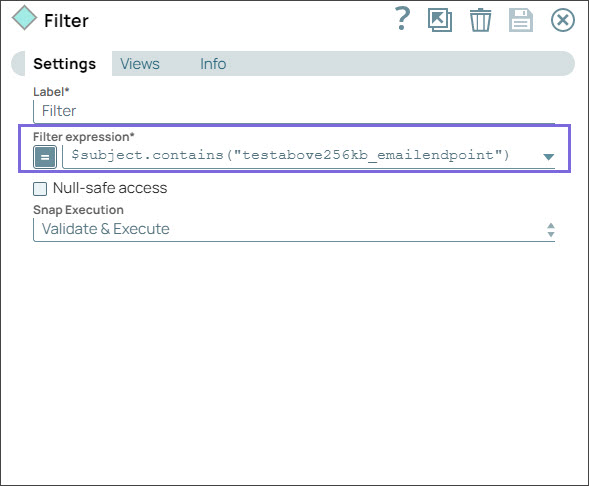
Step 4: Configure the Filter Snap to filter the messages above 256 KB from the email endpoint.
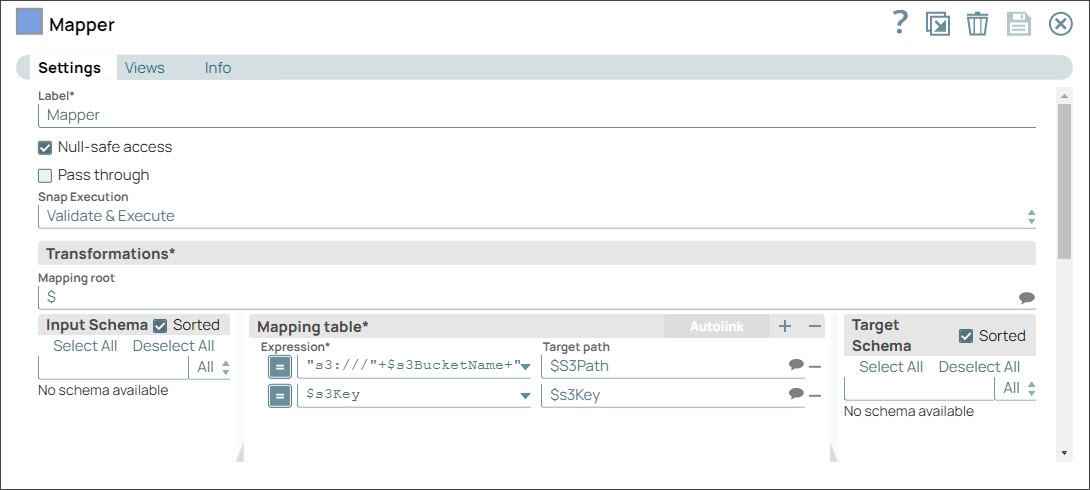
Step 5: Configure the Mapper Snap with the S3 bucket name and secret key to enable the download of the message.
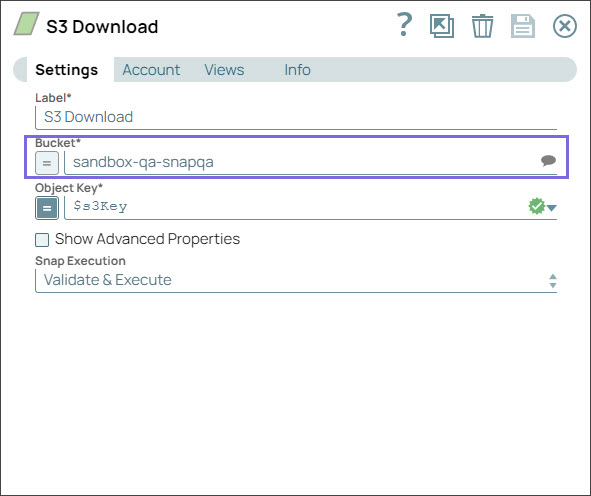
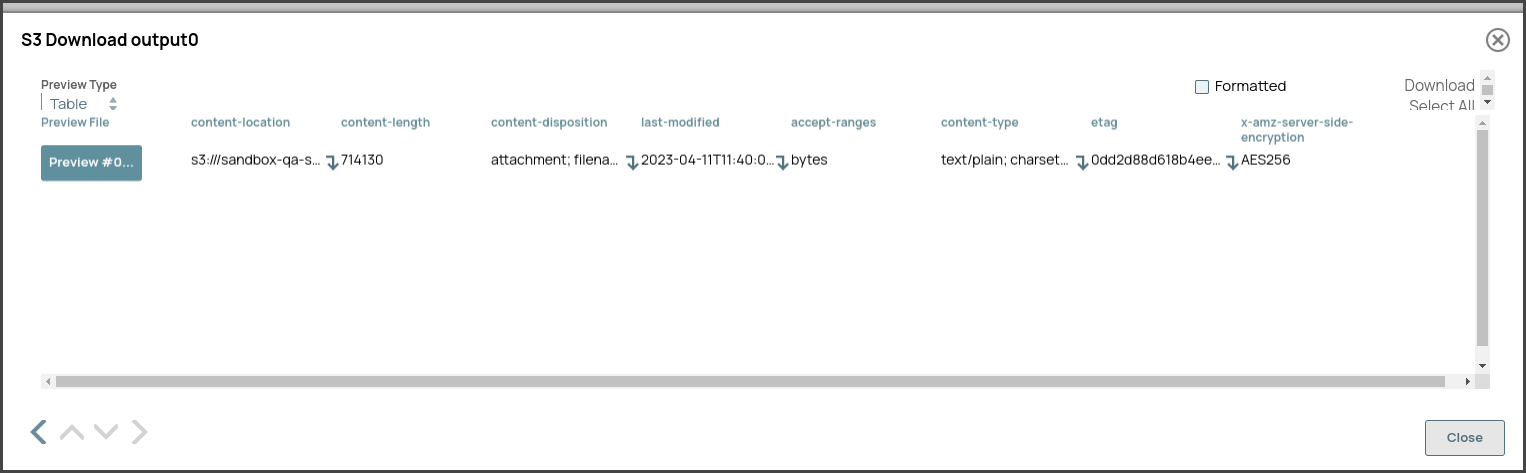
Step 6: Configure the S3 Download Snap with the S3 bucket name to download the message. On validation, the output preview shows the location of the downloaded message and the message details.
-
Publish messages smaller than 256 KB to an email endpoint.
This example Pipeline demonstrates how you can publish a message lesser than 256 KB to an email endpoint.

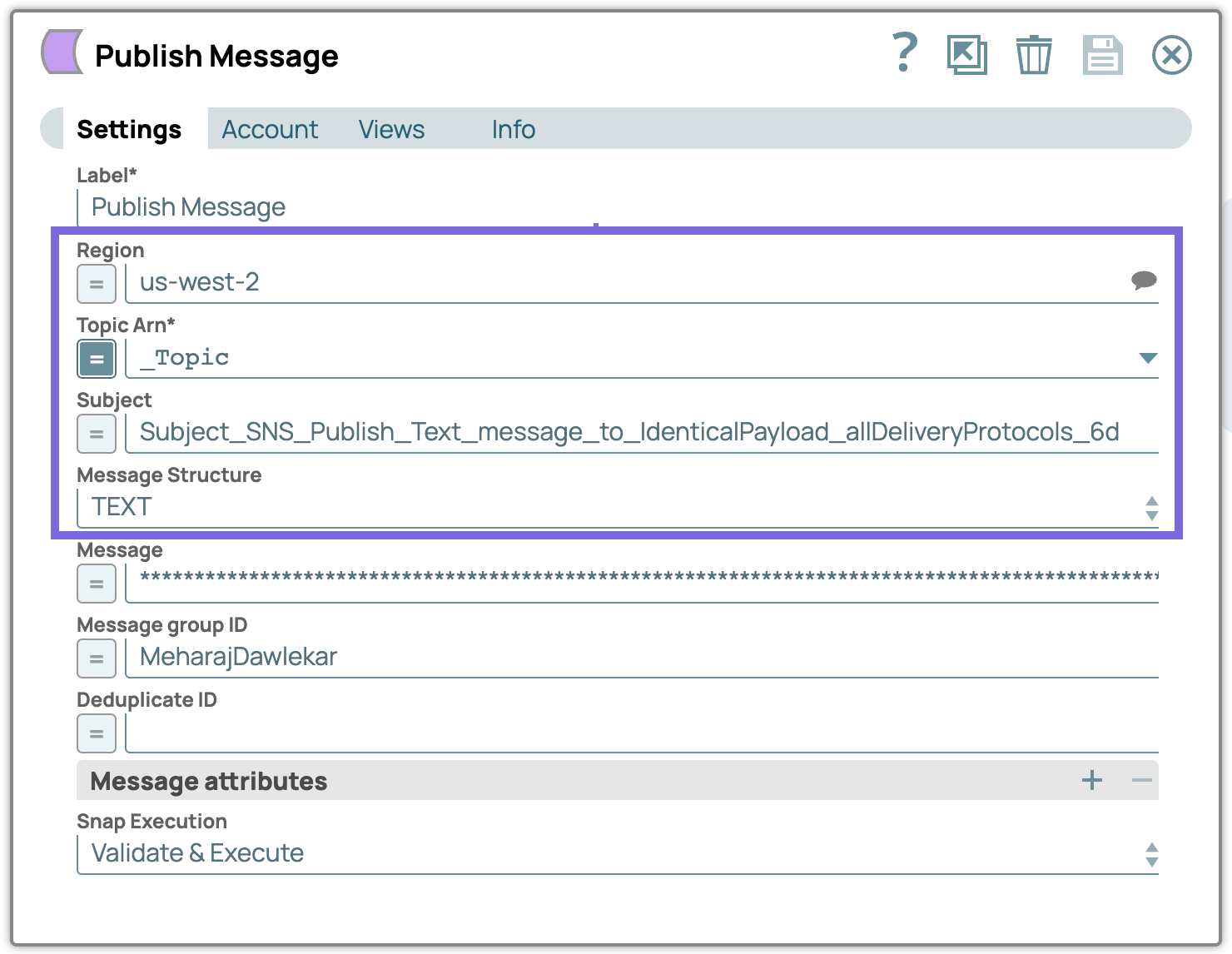
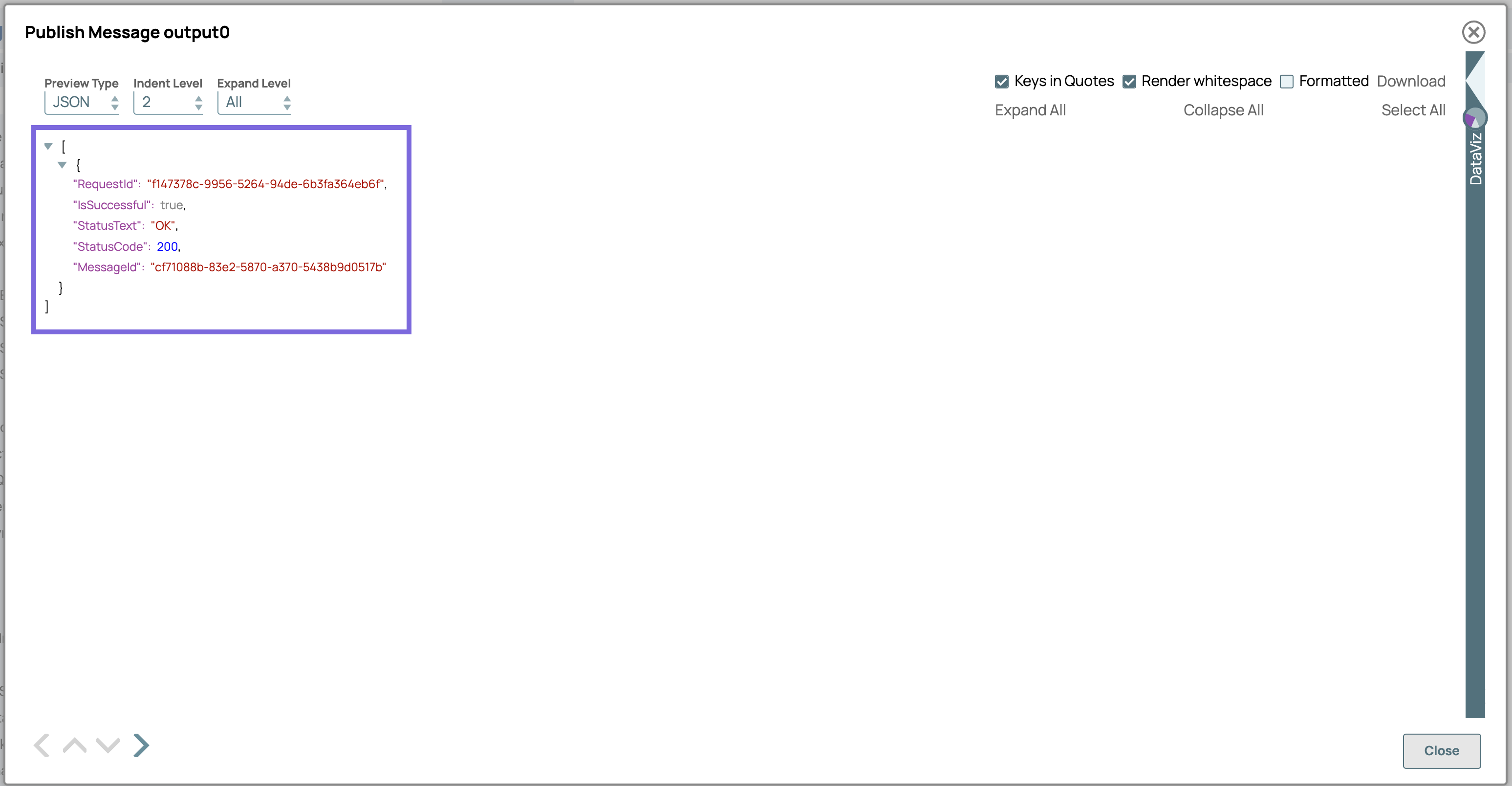
Step 1: Configure the Amazon SNS - Publish Message Snap to send a message to the email endpoint. On validation, the Snap displays the output with the message payload details.
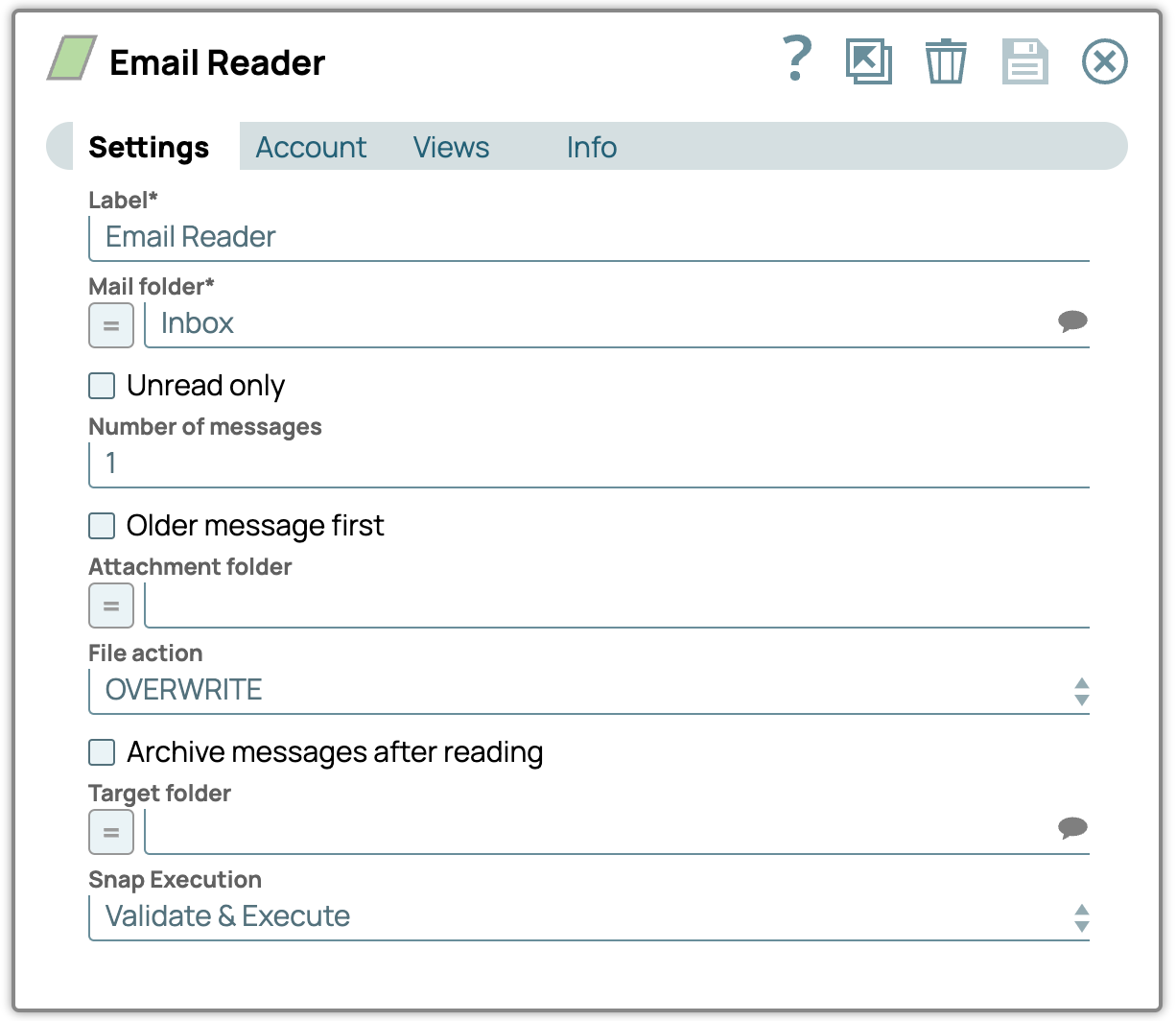
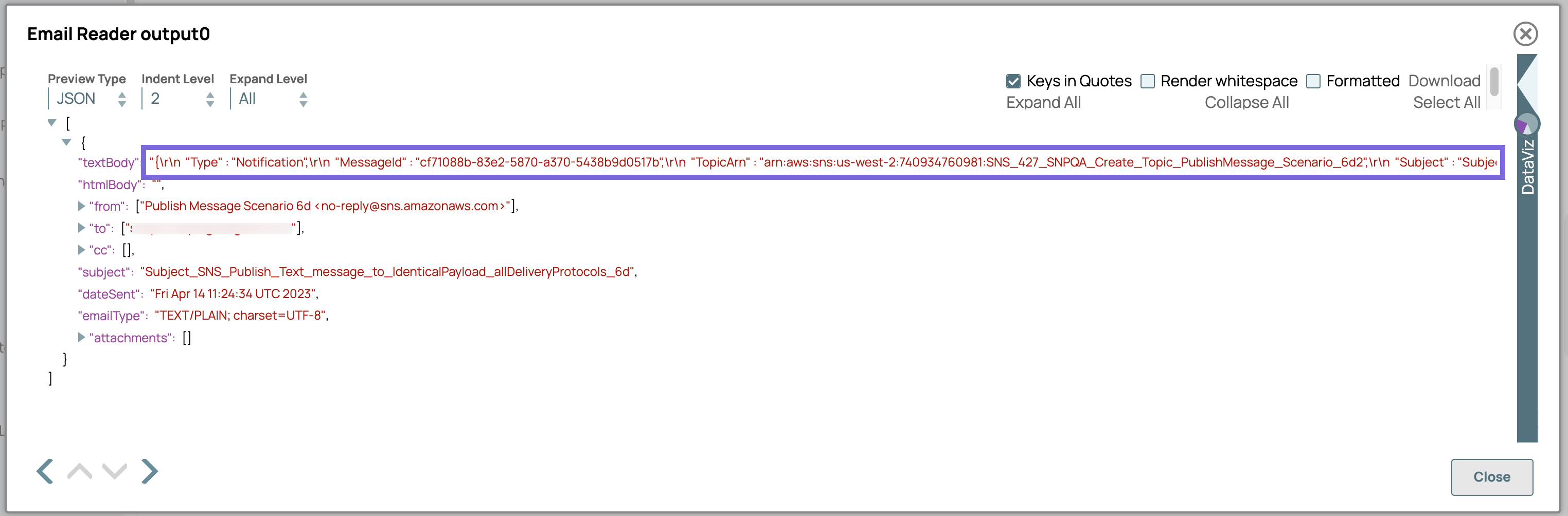
Step 2: Configure the Email Reader Snap to read the message. On validation, the Snap sends a message to a specified email address.
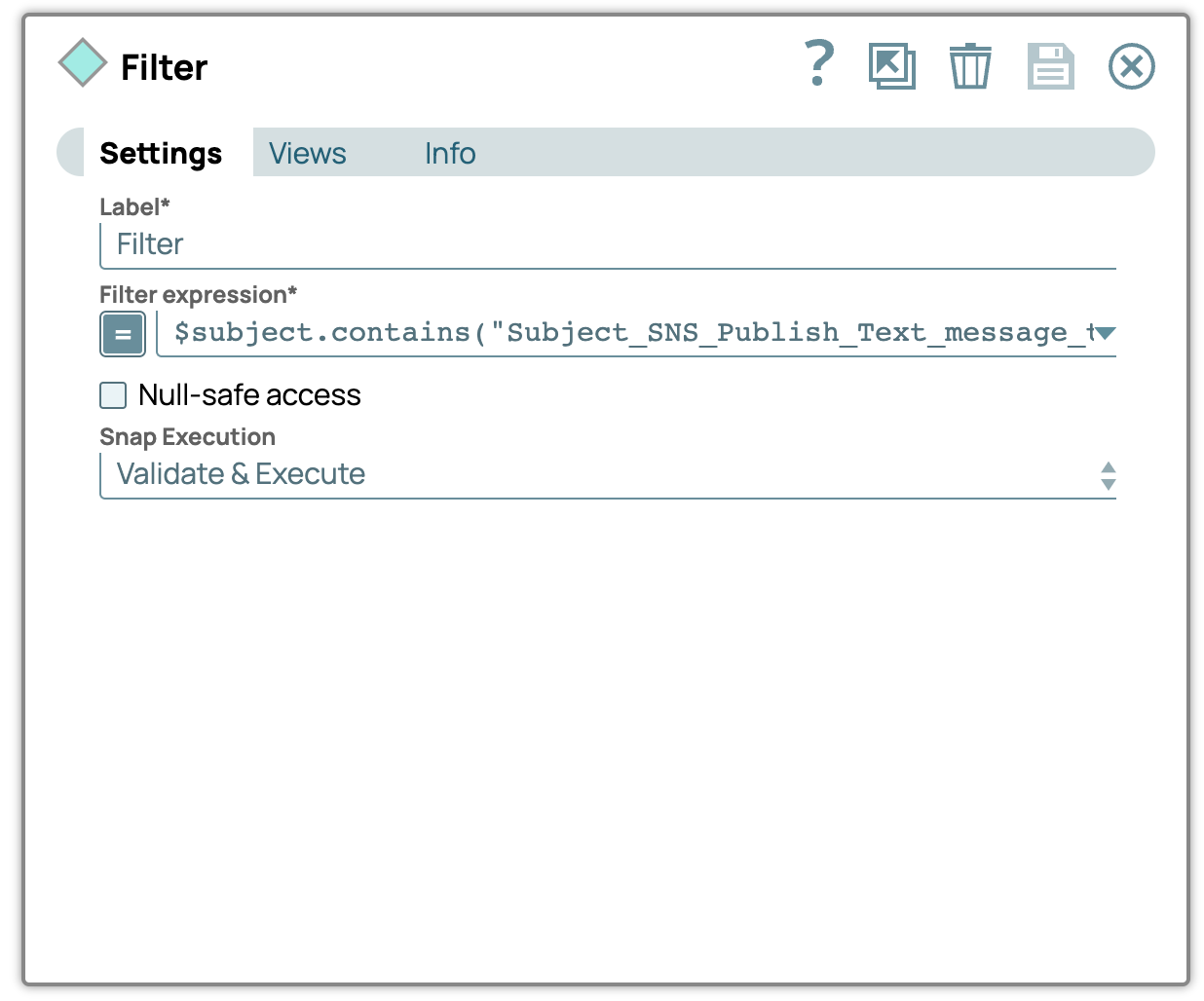
Step 3: Configure the Filter Snap to filter messages less than 256 KB.
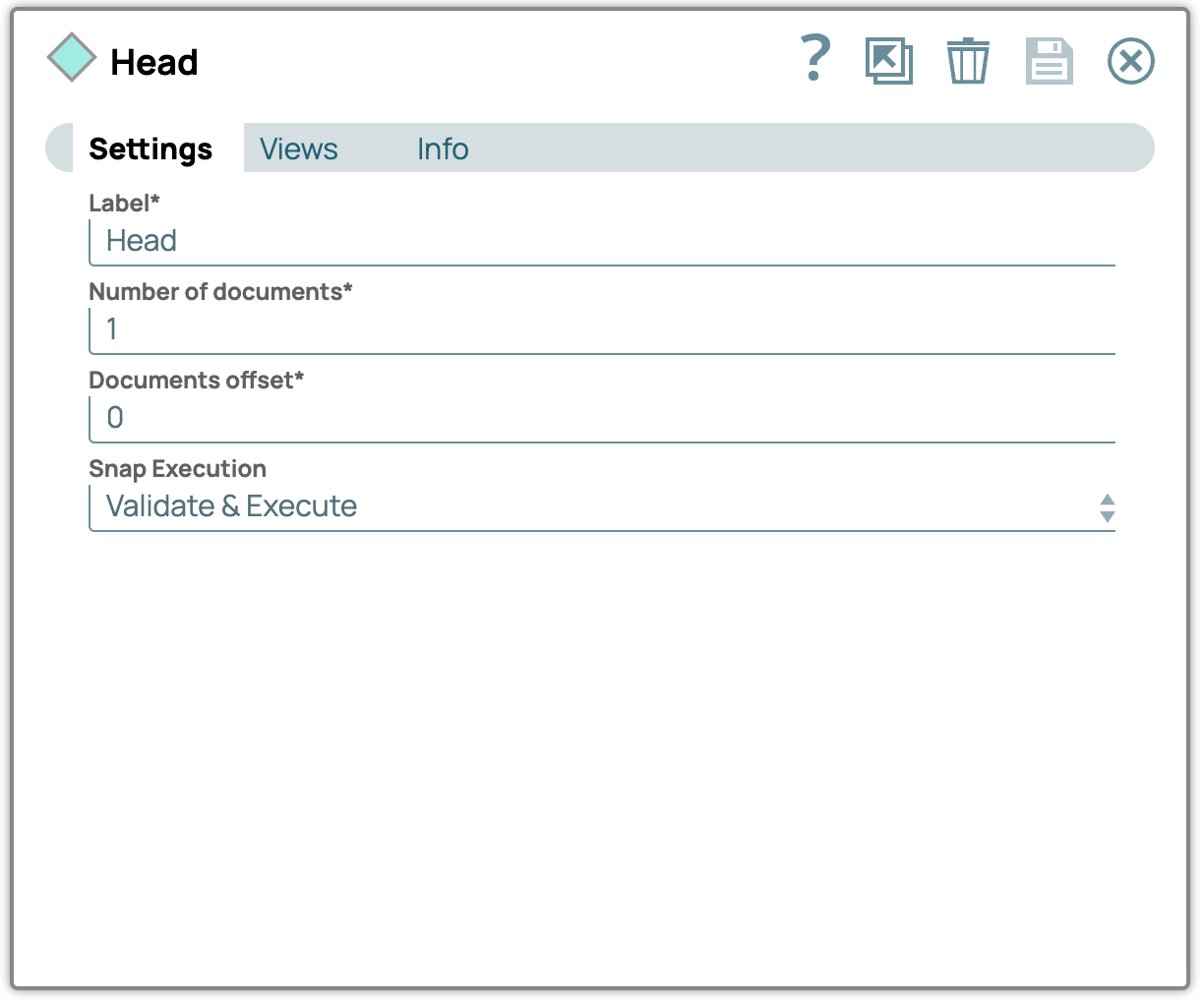
Step 4: Configure the Head Snap to send the input documents to the output view relative to the start of the input stream.
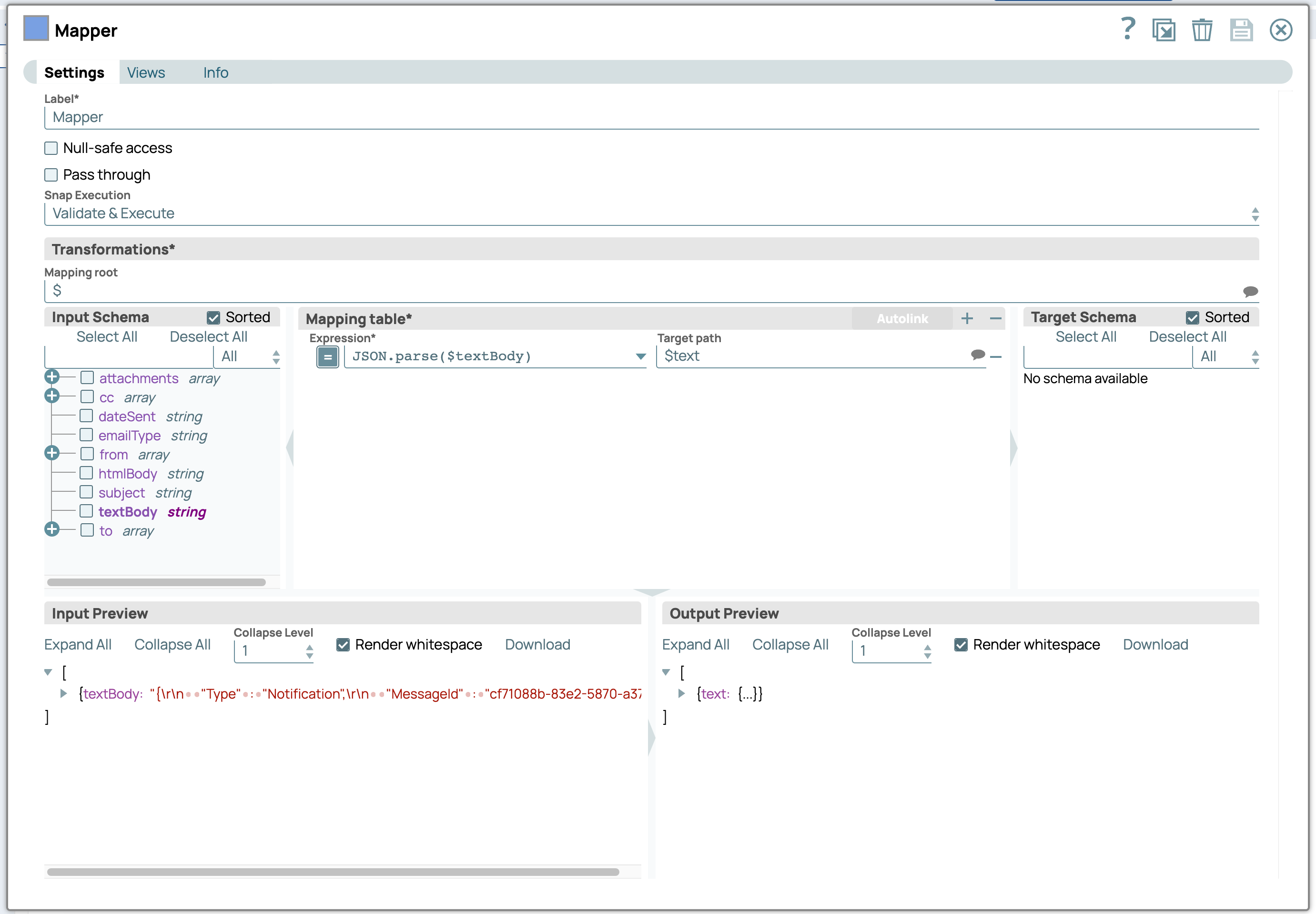
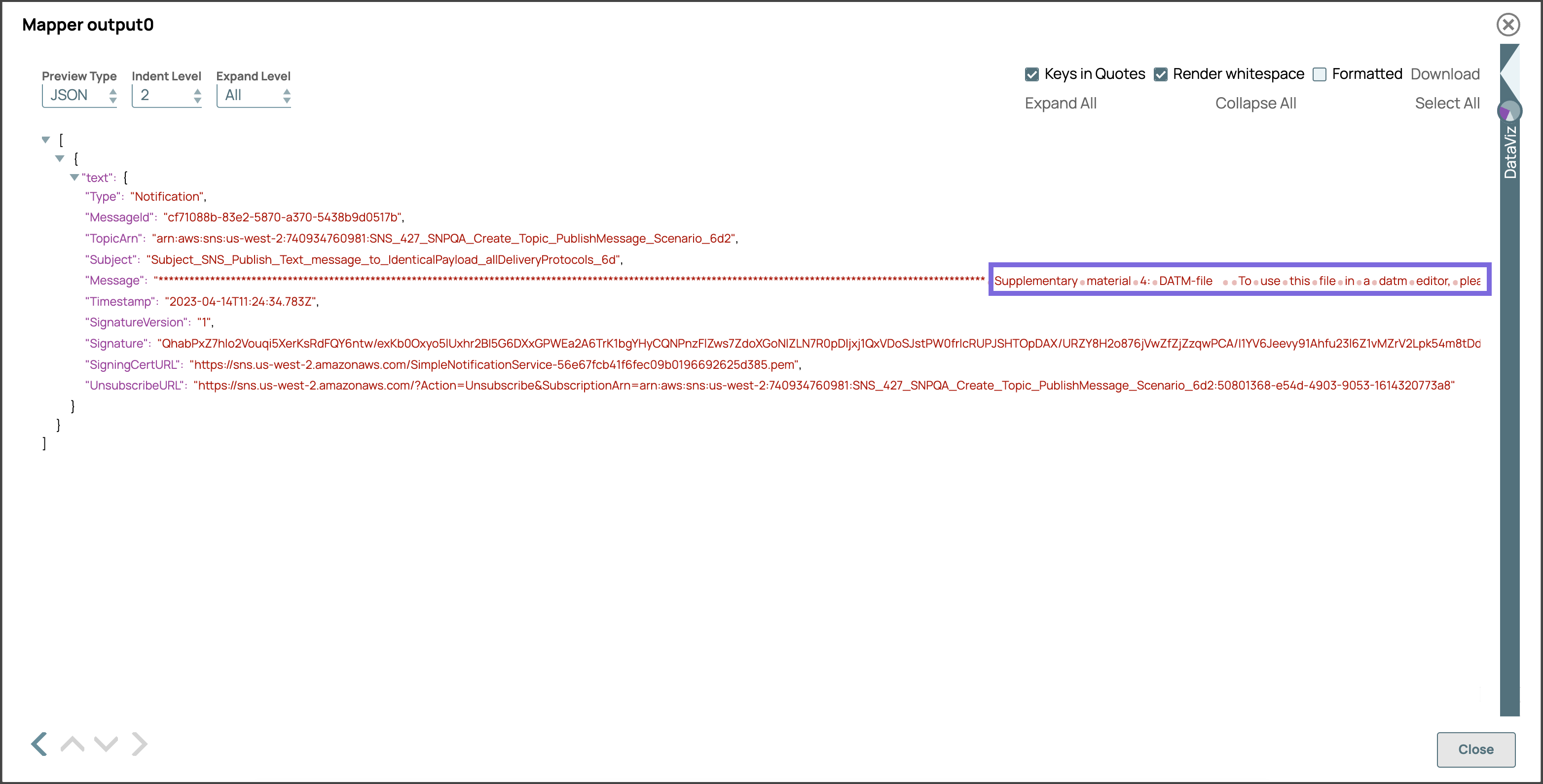
Step 5: Configure the Mapper Snap to extract the content of the message. On validation, the Snap displays the message content in the output preview.
- Download and import the SLP file into your Environment.
- Configure Snap accounts.
- Provide Pipeline parameters, if any.