


Oracle - Select
Overview
The Oracle - Select Snap fetches data from an Oracle database by providing a table name and configuring the connection.
The Snap produces the records from the database on its output view which can then be processed by a downstream Snap.
JSON paths can be used in a query and will have values from an incoming document substituted into the query. However, documents missing values for a given JSON path will be written to the Snap's error view. After a query is executed, the query's results are merged into the incoming document overwriting any existing keys' values. The original document is output if there are no results from the query. Queries produced by the Snap have an equivalent format:
SELECT * FROM [table] WHERE [where clause] ORDER BY [ordering] LIMIT [limit] OFFSET [offset]If more powerful functionality is desired, use the Oracle - Execute Snap.
- This is a Read-type Snap.
 Works in Ultra Tasks
The Oracle JDBC Driver is upgraded from OJDBC6 JAR (v11.2.0.4) to OJDBC10 JAR (v19.20.0.0) in the latest distribution in October 2023 and deployed to the stable distribution in the November 2023 release (after the Snaplex upgrade). The latest JDBC driver upgrade is backward-compatible. Learn more: Oracle JDBC driver and JOOQ upgrades.
You can consume this driver upgrade with the 434patches23000 Snap Pack
version.
This JDBC driver upgrade has resulted in specific behavior changes that include errors, status codes, and success and failure messages. Learn more about the behavior changes to ensure your migration to the upgraded driver is seamless.
Prerequisites
None.
Behavior changes
Earlier, the ROWID columns were displayed in binary (Base64 encoded data)
form in the output. With the 439patches29008, the Oracle - Execute and Oracle - Select Snaps display the ROWID
columns in string form in the output (which can be used for other operations
downstream).
Breaking change
With the 439patches29008 Snap Pack version, if any of your existing Oracle
pipelines use the encoded ROWID (by manually handling the Base64 encoded
data), your pipelines might break. To prevent your pipelines from failing, you must update
your Snap Pack version to the latest version.
Snap views
| Type | Description | Examples of upstream and downstream Snaps |
|---|---|---|
| Input |
This Snap has at most one document input view. If the input view is defined, the where clause can substitute incoming values for a given expression, such as a table name or as a variable as part of the where clause. Expected input: A document that provides values for one or more properties of the Snap or simply for pass-through purposes. |
|
| Output |
This Snap has one or two document output views. A second view can be added to show the metadata for the table as a Document. The metadata document can then be fed into the second input view of Oracle - Insert Snap or Oracle - Bulk Load Snap so that the table is created in Oracle with a similar schema as the source table. Expected output: A document for each record retrieved. Special types such as TIMESTAMP, TIMESTAMPTZ, and TIMESTAMPLTZ are converted into SnapLogic internal date type representations which can then be consumed by downstream Snaps. |
|
| Learn more about Error handling. | ||
Snap settings
- Expression icon (
 ): Allows using
pipeline parameters to set field values dynamically (if enabled). SnapLogic Expressions
are not supported. If disabled, you can provide a static value.
): Allows using
pipeline parameters to set field values dynamically (if enabled). SnapLogic Expressions
are not supported. If disabled, you can provide a static value. - SnapGPT (
 ): Generates SnapLogic Expressions
based on natural language using SnapGPT. Learn
more.
): Generates SnapLogic Expressions
based on natural language using SnapGPT. Learn
more. - Suggestion icon (
 ): Populates a
list of values dynamically based on your Snap configuration. You can select only one
attribute at a time using the icon. Type into the field if it supports a comma-separated
list of values.
): Populates a
list of values dynamically based on your Snap configuration. You can select only one
attribute at a time using the icon. Type into the field if it supports a comma-separated
list of values. - Upload
 : Uploads files. Learn more.
| Field/Field set | Description |
|---|---|
Label* String |
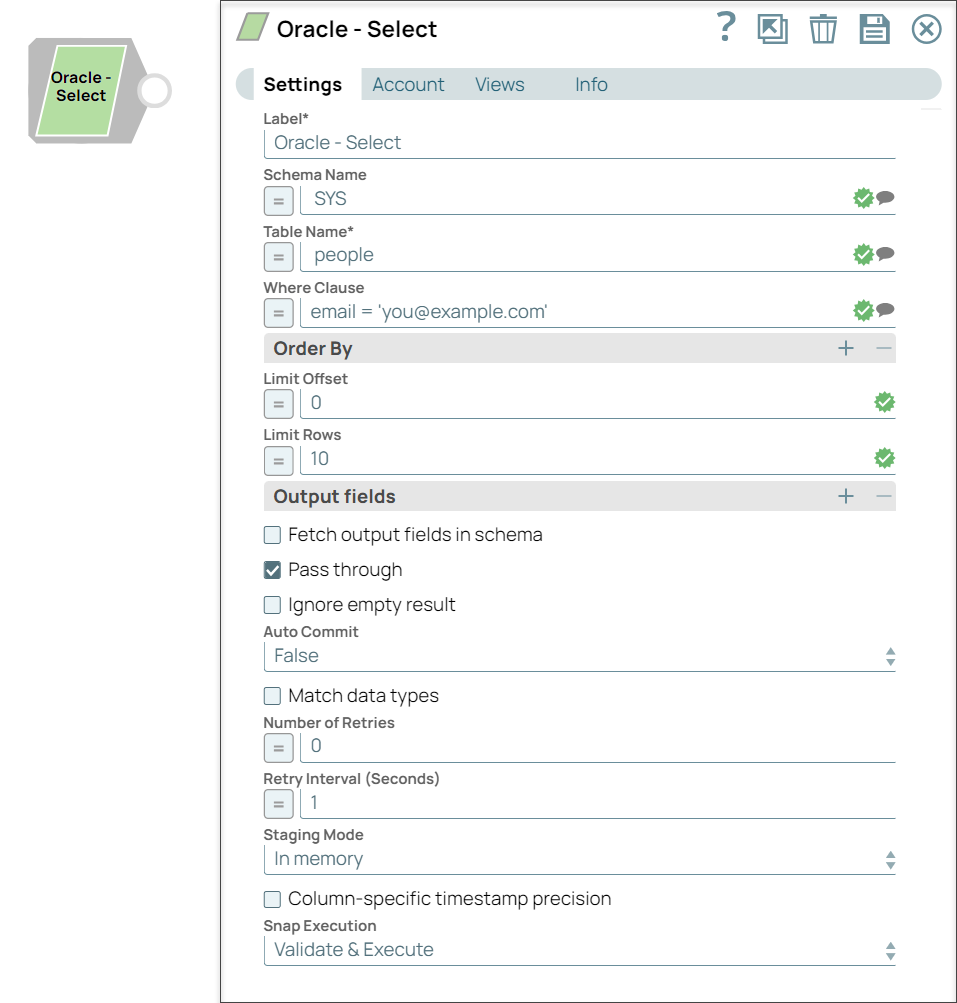
Specify a unique name for the Snap. Modify this to be more appropriate, especially if more than one of the same Snaps is in the pipeline. Default value: Oracle - Select |
Schema name String/Expression/ Suggestion |
Specify the database schema name. The suggestions in the Schema field are populated only when at least a single table exists in the schema. If no tables exist to use that schema, only SYS, SYSTEM, and XDB are populated. Default value: None Example: SYS |
Table name* String/Expression/ Suggestion |
Required. Specify the table from which the rows will be fetched. This list is populated based on the tables associated with the selected schema. Default value: None Example: people |
Where clause String/Expression |
WHERE clause of SELECT statement. The value to be used in the WHERE clause will be used here. Document value substitutions (such as $person.firstname with the value found in the incoming document at the path) can also be used as needed. The "=" will not need to be checked when using document value substitutions unless using expression language. Without using expressions:
Using expressions:
CAUTION: Using expressions that join strings together to create SQL
queries or conditions has a potential SQL injection risk and is hence unsafe.
Ensure that you understand all implications and risks involved before using
concatenation of strings with '=' Expression enabled.
The Where clause property does not support passing Pipeline parameters or passing upstream parameters. Default value: None |
Order by: Column names String/Expression/ Suggestion |
Enter the columns in the order in which you want to order by. The default database sort order will be used. Default value: None Example: name, email |
Limit offset Integer/Expression |
Specify the first row for the query. Default value: None Example: 0 |
Limit rows Integer/Expression |
Specify the number of rows to return from the query. Default value: None Example: 10 |
Output fields* String/Expression/ Suggestion |
Enter or select output field names for SQL SELECT statement. To select all fields, leave it at default. Default value: None Example: email, address, first, last |
Fetch Output Fields In Schema Checkbox |
Select this checkbox to include only the selected fields or columns in the Output Schema (second output view). If you do not provide any Output fields, all the columns are visible in the output. If you provide output fields, we recommend you select the Fetch Output Fields In Schema checkbox. Default value: Not selected |
Pass through Checkbox |
Select this checkbox to pass the input document to the output view under the key 'original'. Default value: Selected |
Ignore empty result Checkbox |
Select this checkbox to ignore empty results, that is, no document will be written to the output view when a SELECT operation does not produce any result. If you do not select this checkbox and select the Pass through checkbox, the input document will be passed through to the output view. Default value: Not selected |
Auto commit Dropdown list |
Select one of the options for this property to override the state of the Auto commit property on the account. The Auto commit at the Snap-level has three values: True, False, and Use account setting. The expected functionality for these modes are:
Default value: False |
Match data types Checkbox |
Conditional. If you select this checkbox, the Snap matches the output data types same as when the Output fields property is empty (SELECT * FROM ...). The output preview would be in the same format as the one when SELECT * FROM is implied and all the contents of the table are displayed. This field applies only when the Output fields field is provided with any values. Default value: Not selected |
Number of retries Integer/Expression |
Specify the maximum number of attempts to be made to receive a response. The request is terminated if the attempts do not result in a response. If the value is larger than 0, the Snap first downloads the target file into a temporary local file. If any error occurs during the download, the Snap waits for the time specified in the Retry interval and attempts to download the file again from the beginning. When the download is successful, the Snap streams the data from the temporary file to the downstream Pipeline. All temporary local files are deleted when they are no longer needed. Ensure that the local drive has sufficient free disk space to store the temporary local file. Default value: 0 Example: 3 |
Retry interval (seconds) Integer/Expression |
Specify the time interval between two successive retry requests. A retry happens only when the previous attempt resulted in an exception. Default value: 1 Example: 10 |
Staging mode Dropdown list |
Required when the value in the Number of retries field is greater than 0. Specify the location from the following options to store input documents between retries:
Default value: In memory To disable staging, enter 0 in the Number of retries field. |
Column-specific timestamp precision Checkbox |
Select this checkbox to display the timestamp with millisecond/microsecond/nanosecond precision in string type. By default, the checkbox is deselected, which maintains the backward compatibility (supports only millisecond of date time type). Default value: Deselected |
|
Snap execution Dropdown list
|
Choose one of the three modes in
which the Snap executes. Available options are:
Default value: Validate & execute Example: Execute only |
Troubleshooting
| Error | Reason | Resolution |
|---|---|---|
| ORA-00604 and ORA-01882 errors when connecting to Oracle databases. | These errors occur when there is an issue in timezone configuration in Windows Plex that is running on JRE17. |
Set the following URL property in the Oracle account:
or JVM option in the global properties:
|