


Snaplex Node Proxies
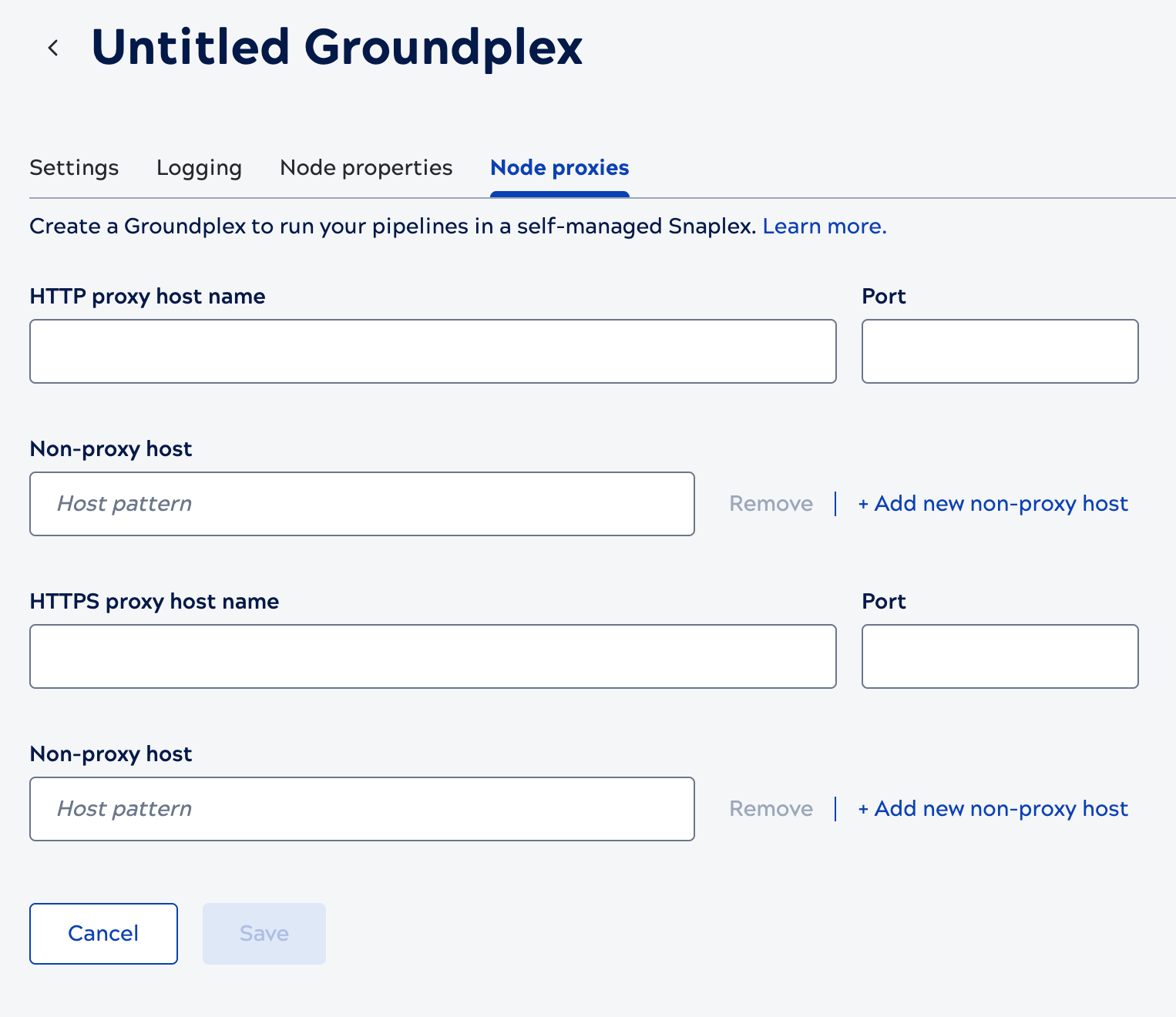
Field reference for the Node proxies tab of the Add Snaplex page
This tab configures whether outbound traffic from your nodes goes through your organization's proxy server. It's available for Groundplexes only — SnapLogic manages outbound networking for Cloudplex nodes directly, so this tab isn't shown for a Cloudplex. For firewall and network planning, refer to Groundplex requirements: Network.
| Field/Field set | Description |
|---|---|
| HTTP proxy host name and Port |
HTTP proxy host name — The hostname or IP address of the HTTP proxy server that outbound HTTP traffic from this node's Snaps and accounts routes through. Port — The port number on which the HTTP proxy host listens. Default value: None. Example: 172.16.10.162, port 3127 For configuration examples and troubleshooting, refer to HTTP proxy configuration. |
| Non-proxy host |
Hostnames or IP addresses to contact directly instead of through the HTTP proxy.
Patterns can start or end with a wildcard character ( Default value: None. If you use an HTTP proxy, add the other nodes in this Snaplex as non-proxy hosts so they communicate with each other directly instead of through the proxy. For details, refer to Firewall settings. |
| HTTPS proxy host name and Port |
HTTPS proxy host name — The hostname or IP address of the HTTPS proxy server that outbound HTTPS traffic from this node's Snaps and accounts routes through. Port — The port number on which the HTTPS proxy host listens. Default value: None. Example: 172.16.10.162, port 3127 For configuration examples and troubleshooting, refer to HTTP proxy configuration. |
| Non-proxy host |
Hostnames or IP addresses to contact directly instead of through the HTTPS proxy.
Patterns can start or end with a wildcard character ( Default value: None. If you use an HTTPS proxy, add the other nodes in this Snaplex as non-proxy hosts so they communicate with each other directly instead of through the proxy. For details, refer to Firewall settings. |