


Hadoop Directory Browser
Overview
You can use this Snap to browse a given directory path in the Hadoop file system and generate a list of all the files in the directory and subdirectories. The Hadoop Directory Browser Snap supports URIs using HDFS & ABFS (Azure Data Lake Gen 2) protocols.
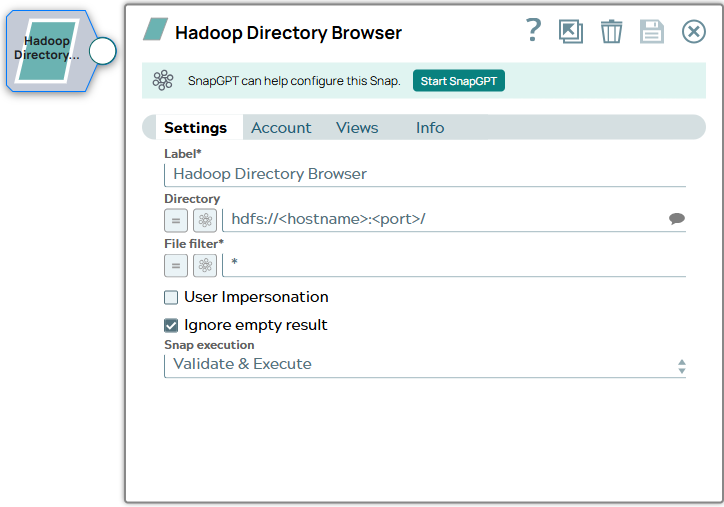
This Snap also identifies the contents of a directory before you run any command that uses this information. For example, if you need to iteratively run a specific command on a list of files, this Snap can help you view the list of all available files.
- Path (string): The path to the directory being browsed.
- Type (string): The type of file.
- Owner (string): The name of the owner of the file.
- Creation date (datetime): The date the file was created. In the Hadoop file system, this can often show up as 'null' due to limited API functionality.
- Size (in bytes) (int): The size of the file.
- Permissions (string): Read, Write, Execute.
- Update date (datetime): Date of update.
- Name (string): Name of the file.
Supported Accounts
- This is a Read-type Snap.
 Works in Ultra Tasks
Prerequisites
- A Groundplex needs to be configured as a Hadoop client.
- The user executing the Snap must have at least Read permissions in the concerned directory.
Snap views
| Type | Description | Examples of upstream and downstream Snaps |
|---|---|---|
| Input | This Snap has at most one optional document input view. It contains values for
the directory path to be browsed and the glob filter to be applied to select the
contents. Directory Path to be browsed and the File Filter Pattern to be applied. For example: Directory Path: hdfs://hadoopcluster.domain.com:8020/<user>/<folder_details>; File Filter: *.conf. |
Mapper Any Snap that offers a directory URI. This can be even a CSV Generator with a collection of file names and their URIs. |
| Output | This Snap has exactly one output view that provides the various attributes
(such as Name, Type, Size, Owner, Last Modification Time) of the contents of the
given directory path. Only those contents are selected that match the given glob
filter. The attributes of the files contained in the directory specified that match the filter pattern. |
Mapper A document listing out attributes of the files contained in the directory specified. |
| Learn more about Error handling. | ||
Snap settings
| Field/Field set | Description | ||
|---|---|---|---|
| Label
|
Specify a unique name for the Snap. Modify this to be more appropriate, especially if more than one of the same Snaps is in the pipeline. Default value: Hadoop Directory Browser Example: Browse HDFS directory |
||
| Directory
|
The URL for the data source (directory). The Snap supports both HDFS and ABFS(S) protocols. Syntax for a typical HDFS URL: Syntax for a typical ABFS and an ABFSS URL: When you use the ABFS protocol to connect to an endpoint, the account name and endpoint details provided in the URL override the corresponding values in the Account Settings fields. Default value: [None] |
||
| File filter
|
The GLOB pattern to be applied to select the contents (files/sub-folders) of the directory. You cannot recursively navigate the directory structures. The File filter property can be a JavaScript expression, which will be evaluated with the values from the input view document. Example:
Default: None |
||
| User Impersonation
|
Select this check box to enable user impersonation. For more information on working with user impersonation, see the HDFS Reader Snap documentation. Default status: Deselected |
||
| Ignore empty result
|
If selected, no document will be written to the output view when the result is empty. If this property is not selected and the Snap receives an input document, the input document is passed to the output view. If this property is not selected and there is no input document, an empty document is written to the output view. Default status: Selected |
||
| Snap execution
|
Choose one of the three modes in
which the Snap executes. Available options are:
Default value: Execute only Example: Validate & Execute |
||
Troubleshooting
Writing to S3 files with HDFS version CDH 5.8 or later
When running HDFS version later than CDH 5.8, the Hadoop Snap Pack may fail to write to S3 files. To overcome this, make the following changes in the Cloudera manager:
- Go to HDFS configuration.
- In Cluster-wide Advanced Configuration Snippet (Safety Valve) for core-site.xml, add an entry with the following details:
- Name: fs.s3a.threads.max
- Value: 15
- Click Save.
- Restart all the nodes.
- Under Restart Stale Services, select Re-deploy client configuration.
- Click Restart Now.