


SQL Server Lookup
You can use this Snap to lookup records in the target SQL Server table and return a selected set of fields for every matched record. The Snap executes one request per multiple input documents to avoid making a request for every input record. JSON paths can be used in the Snap properties and will have values from an incoming document substituted into the properties. However, documents missing values for a given JSON path will be written to the Snap's error view. After a query is executed, the query's results are merged into the incoming document.
Queries produced by the Snap have the format:
SELECT [Output fields] FROM [Table name] WHERE
[C1 = V11 AND C2 = V21 AND...[Cn = Vn1] OR
[C1 = V12 AND C2 = V22 AND...[Cn = Vn2] OR
......................................  OR
[Cn = V1n AND Cm = V2m AND...[Cn = Vnm]]
The Snap ignores any duplicated lookup condition in the input document stream since it maintains a cache for lookup conditions internally. This Snap supports SQL Server 2008 or newer.
Supported Accounts
- This is a Read-type Snap.
Snap Type
The SQL Server - Lookup Snap is a Read-type Snap that provides functionality to lookup records in the target SQL Server table and return a selected set of fields for every matched record.
Support for Ultra Pipelines
Works in Ultra Pipelines if PassThrough is enabled. The snap must always produce a document for every input in an Ultra task.
Snap views
| Type | Description | Examples of upstream and downstream Snaps |
|---|---|---|
| Input |
This Snap allows exactly one input view and expects documents in the view.
Each document should have values for one AND clause in the WHERE statement. Each document in the input view should contain a Map data of key-value entries. Input data may contain values needed to evaluate expressions in the Object type, Output fields, and Conditions properties. If the Pass-through on no lookup match property is unchecked, please make sure input data types match column data types in the database table. Otherwise, you may encounter an error message "Cannot find an input data which is related to the output record .....". If the error view is open, all input data in the batch are routed to the error view with the same error information. |
|
| Output |
This Snap has exactly one output view and produces documents in the view.
The output document includes the corresponding input data under the "original" key. If there are no results from the query, each output field will have a null value. Each document in the output view contains a Map data of key-value entries, where keys are the Output fields property values. The input data that has produced the corresponding output data is also included in the output data under the "original" key. |
|
| Learn more about Error handling. | ||
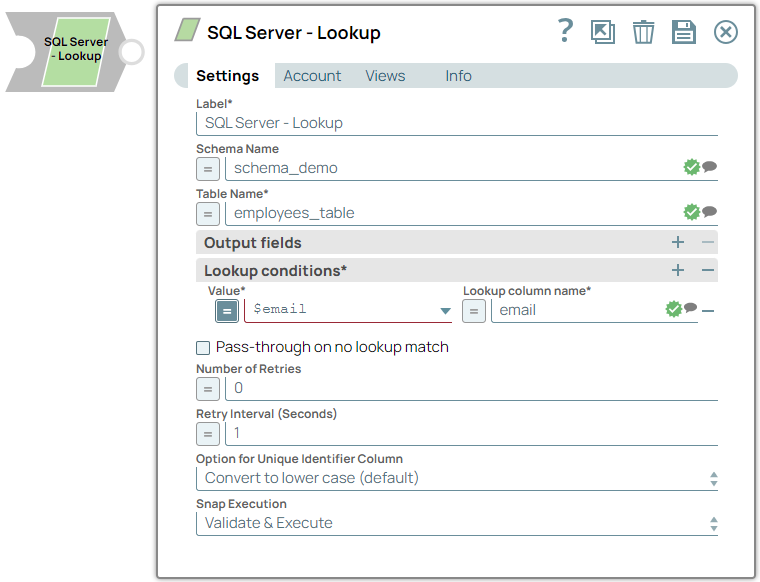
Snap settings
| Field/Field set | Description |
|---|---|
|
Label String
|
Required.Specify a unique name for the Snap. Modify this to
be more appropriate, especially if there are more than one of the same Snap in the
pipeline.
Default value: SQL Server - Lookup |
Schema name
String/Expression |
Specify the database schema name. In case it is not defined, then the suggestion for the Table Name will retrieve all tables names of all schemas. The property is suggestible and will retrieve available database schemas during suggest values. Note: The values can be passed using the pipeline parameters but not the upstream parameter.
Default value: N/A Example: schema_demo |
Table name
String/Expression |
Required. Specify the name of the table to execute insert on. Note: The values can be passed using the pipeline parameters but not the upstream parameter.
Default value: N/A Example: employees_table |
|
Output fields Use this fieldset to enter output fields for SQL SELECT statement. |
|
Output fields
String/Expression |
Specify the output field names for SQL SELECT statement. If this property is empty, the Snap selects all fields by executing the statement "SELECT * FROM ..." Default value: N/A Example: email, address, first, last |
|
Lookup conditions Required. Use this fieldset to enter or select the lookup column name. The lookup conditions are created by using the lookup column name and the lookup column value. Each row will build a condition, such as lookupColumn1 = $inputField. Each additional row will be concatenated using a logical AND. All rows together build the lookup condition being used to lookup records in the lookup table. |
|
Value
String/Expression |
Required. Specify the JSON path of the lookup column value. The value will be provided by the input data field. Default value: N/A Example: $email, $first, $last |
Lookup column name
String/Expression |
Required. Specify the lookup column name. Default value: N/A Example: email, first, last |
Pass-through on no lookup match
Checkbox |
Select when there is no lookup matching an input document, the input document will pass through to the output view if this property is checked. Otherwise, it will be written to the error view as an error condition. Default status: Deselected |
Number of Retries
Integer/Expression |
Specify the maximum number of retry attempts when the Snap fails to read. Minimum value: 0 Default value: 0 Example: 3 |
Retry Interval (Seconds)
Integer/Expression |
Specify the minimum number of seconds the Snap must wait before each retry attempt. Minimum value: 1 Default value: 1 Example: 3 |
Option for Unique Identifier Column
Dropdown list |
Conditional. This property applies only when the Snap returns the unique identifier (GUID) in the output. Specify the unique identifier is stored in the database using an internal format and when it is displayed in the output, it is converted to a string and gets displayed in upper case for HEX characters. Select either of the following options to change the case type. Available options are:
Default value: Convert to lower case Example: Convert to upper case |
Snap execution
Dropdown list |
Select one of the three modes in which the Snap executes. Available options are:
Default value: Validate & Execute Example: Execute only |