Scanning a DynamoDB table
This example demonstrates how to scan and read data from a DynamoDB table using the DynamoDB Scan Snap.
Before you begin, ensure you have:
- A configured DynamoDB Account .
- An existing DynamoDB table with data to scan.
- Appropriate read permissions on the DynamoDB table.
This pipeline demonstrates how to perform a scan operation on a DynamoDB table. The DynamoDB Scan Snap reads all items from the specified table and returns the data.
-
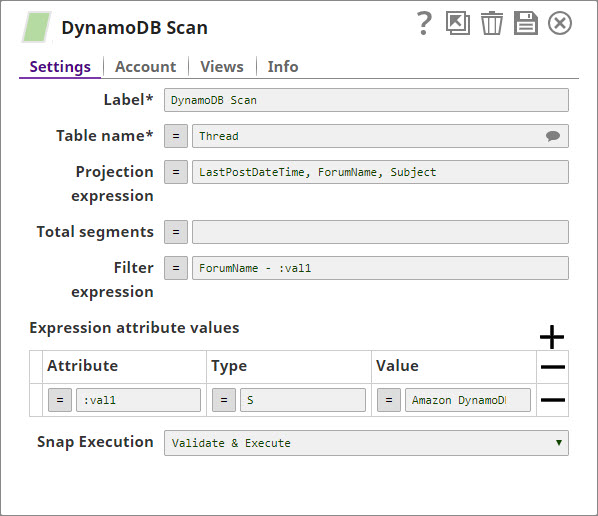
Configure the DynamoDB Scan Snap.
In the DynamoDB Scan Snap settings:
- Account: Select your configured DynamoDB account.
- Table name: Enter the name of the table you want to scan.
- Projection expression: Specify the attributes to retrieve (optional). If not specified, all attributes are returned.
- Filter expression: Add filtering criteria to return only items that match specific conditions (optional).
- Segment: For parallel scans, specify the segment number (optional).
- Total segments: For parallel scans, specify the total number of segments (optional).
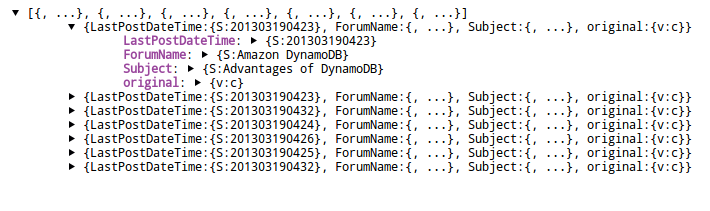
The DynamoDB Scan Snap reads data from the DynamoDB table and returns all items (or filtered items if a filter expression is specified). The output displays the retrieved records.