


Copy a pipeline
Copy a pipeline to another project to modify it without impacting the original.
If the pipeline references child pipelines, accounts, files, or tasks:
- Copy any child pipelines to the same destination project.
- Leave references to assets in the global shared folder unchanged.
- For assets in a project other than the destination, update references after copying to point to the correct location in the destination project or its shared folder.
-
On the Designer toolbar, click Copy.
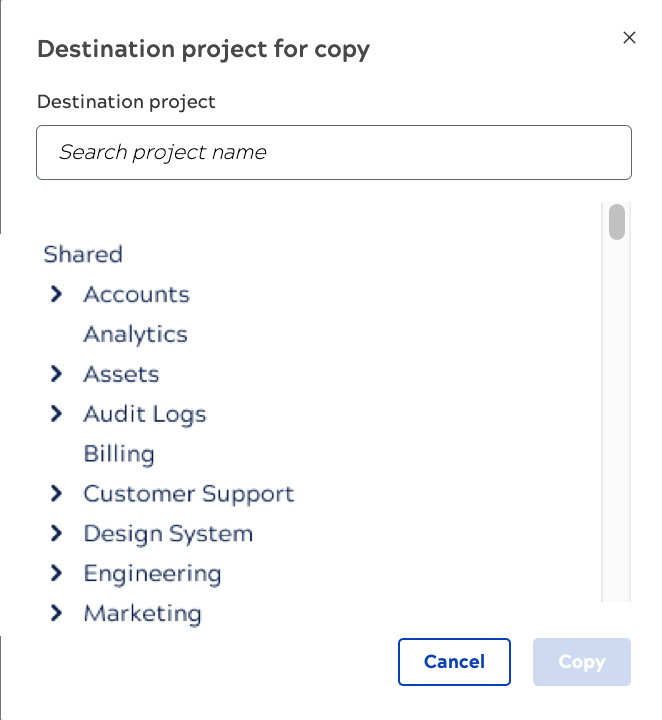
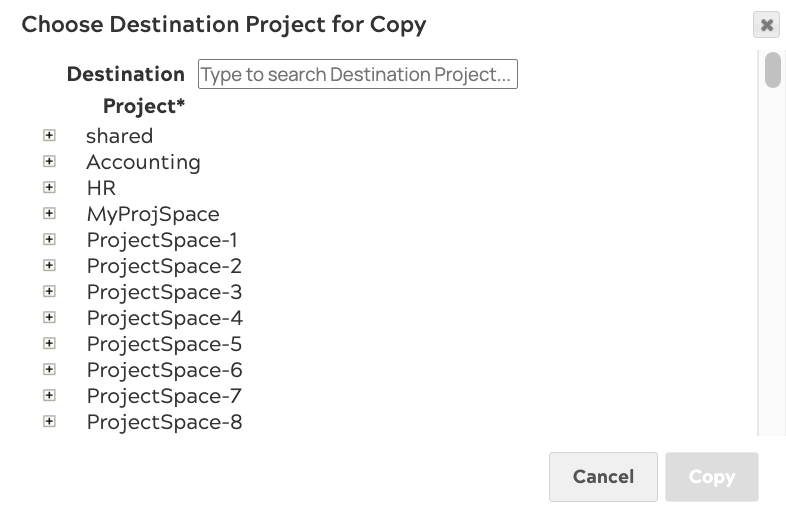
The Choose Destination Project for Copy dialog opens:
To copy pipelines to a different org, use the Project Manager asset table. Refer to Migrate projects to another org.