


Parquet Reader
The Parquet Reader Snap reads Parquet files from HDFS, ADL, ABFS, WASB, or S3 and converts the data into documents.
Overview
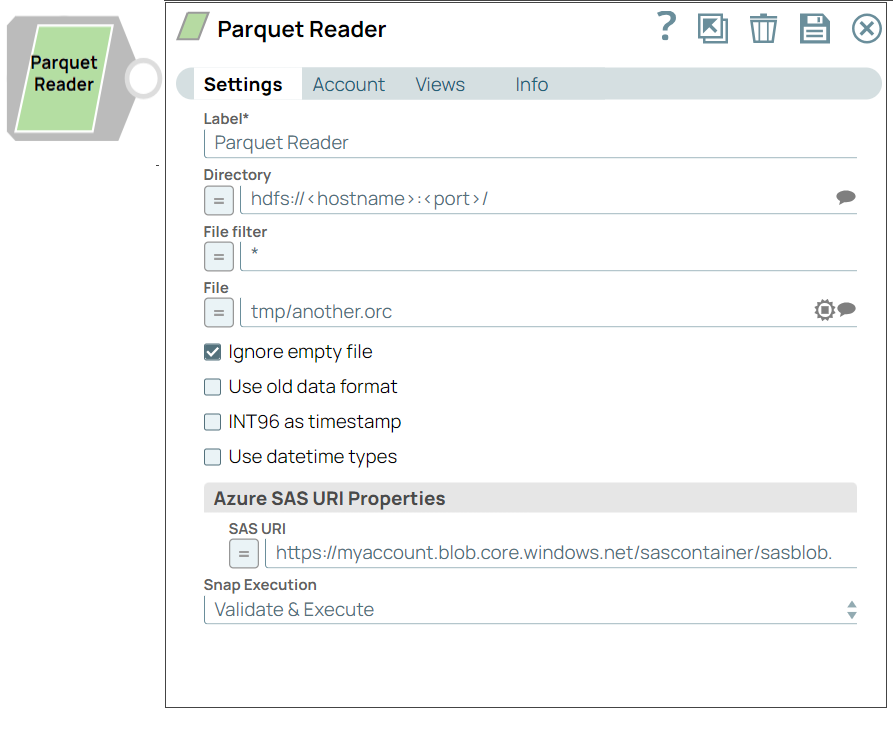
The Parquet Reader Snap reads Parquet files from HDFS (Hadoop Distributed File System), ADL (Azure Data Lake), ABFS (Azure Blob File Storage), WASB (Windows Azure Storage Blob), or S3 and converts the data into documents. You can also use this Snap to read the structure of Parquet files in the SnapLogic metadata catalog.
Supported Accounts
- This is a Read-type Snap.
 Works in Ultra Tasks
Behavior Change
When you select the Use datetime types checkbox in the Parquet Reader Snap, the Snap displays the LocalDate and DateTime in the output for INT32 (DATE) and INT64 (TIMESTAMP_MILLIS) columns. When you deselect this checkbox, the columns retain the previous datatypes and display string and integer values in the output.
Prerequisites
Access and permission to read from HDFS, ADL (Azure Data Lake), ABFS (Azure Data Lake Storage Gen 2), WASB (Azure storage), or AWS S3.
Known issues
The upgrade of Azure Storage library from v3.0.0 to v8.3.0 has caused the following issue when using the WASB protocol:
When you use invalid credentials for the WASB protocol in Hadoop Snaps (HDFS Reader, HDFS Writer, ORC Reader, Parquet Reader, Parquet Writer), the pipeline does not fail immediately, instead it takes 13-14 minutes to display the following error:
reason=The request failed with error code null and HTTP code 0. , status_code=errorLearn more about Azure Storage library upgrade.
Snap views
| Type | Description | Examples of Upstream and Downstream Snaps |
|---|---|---|
| Input | The Parquet Reader reads and parses Parquet columnar data from a file system (for example, HDFS or Azure Storage). It converts in the pipeline. Optional input for dynamic file path or filter parameters. |
|
| Output | A document with the columns and data of the Parquet file. Each document represents a record parsed from the Parquet columnar structure. |
|
| Learn more about Error handling in Pipelines. | ||
Snap settings
| Field | Description |
|---|---|
| Label*
|
Specify a unique name for the Snap. Modify this to be more appropriate, especially if more than one of the same Snaps is in the pipeline. Default value: Parquet Reader Example: Parquet Reader |
| Directory
|
Specify a directory in HDFS to read data. All files within the directory must be Parquet formatted. We support file storage systems as below:
When you use the ABFS protocol to connect to an endpoint, the account name and endpoint details provided in the URL override the corresponding values in the Account Settings fields. Note: With the ABFS protocol, SnapLogic creates a temporary file to
store the incoming data. Therefore, the hard drive where the JCC
is running should have enough space to temporarily store all the
account data coming in from ABFS.
Note: SnapLogic automatically appends "azuredatalakestore.net" to the
store name you specify when using Azure Data Lake; therefore, you
do not need to add 'azuredatalakestore.net' to the URI while
specifying the directory.
|
| File Filter
|
A glob to select only certain files or directories. The glob pattern is used to display a list of directories or files when the Suggest icon is pressed in the Directory or File property. The complete glob pattern is formed by combining the value of the Directory property and the Filter property. If the value of the Directory property does not end with "/", the Snap appends one so that the value of the Filter property is applied to the directory specified by the Directory property. Default value: * |
| File
|
Required for standard mode. Filename or a relative path to a file under the directory given in the Directory property. It should not start with a URL separator "/". The File property can be a JavaScript expression which will be evaluated with values from the input view document. When you press the Suggest icon, it will display a list of regular files under the directory in the Directory property. It generates the list by applying the value of the Filter property. Example:
Note: Both the Parquet Reader and Parquet Writer Snaps have the
ability to read compressed files. The compression codecs that are
currently supported are: Snappy, GZIP, and LZO. To use LZO
compression, you must explicitly enable the LZO compression type
on the cluster (as an administrator) for the Snap to recognize and
run the format. For more information, see Data Compression. For
detailed guidance on setting up LZO compression, see Cloudera
documentation on Installing the GPL Extras Parcel.
Note: Many compression algorithms require both Java and system
libraries and will fail if the latter is not installed. If you see
unexpected errors, ask your system administrator to verify that
all the required system libraries are installed–they are typically
not installed by default. The system libraries will have names
such as liblzo2.so.2 or libsnappy.so.1 and will
probably be located in the /usr/lib/x86_64-linux-gnu
directory.
|
| User Impersonation
|
Select this check box to enable user impersonation. Note: For encryption zones, use user impersonation.
Default value: Not selected |
| Ignore empty file
|
Select this checkbox to ignore an empty file, that is the Snap does nothing. If you deselect this checkbox, the Snap produces an empty output document. Note:
Default value: Selected |
| Use old data format
|
Deselect this checkbox to read complex data types or nested schema such as LIST, and MAP. Null values are skipped when doing so. Default value: Selected |
| int96 As Timestamp
|
Enabled when you deselect Use old data format checkbox. Select this checkbox to enable the Snap to convert int96 values to timestamp strings of a specified format in Date Time Format field. If you deselect this checkbox, the Snap shows values for int96 data type as 12-byte BigInteger objects. Default value: Deselected |
| Use datetime types
|
Select this checkbox to enable the Snap to display LOCALDATE type
for int32(DATE) and DATETIME type for int64(TIMESTAMP_MILLIS) in the
output. When deselected, the columns retain the previous
datatypes. Default value: Deselected |
| Date Time Format
|
Enabled when you select int96 As Timestamp checkbox. Enter a date-time format of your choice for int96 data-type fields (timestamp and time zone). For more information about valid date-time formats, see DateTimeFormatter. Default value: yyyy-MM-dd'T'HH:mm:ss.SSSX Example: yyyy-MM-dd'T'HH:mm:ssX Note: The int96 data type can support up to nanosecond
accuracy.
|
| Azure SAS URI Properties | Shared Access Signatures (SAS) properties of the Azure Storage account. |
| SAS URI
|
Specify the Shared Access Signatures (SAS) URI that you want to use to access the Azure storage blob folder specified in the Azure Storage Account. You can get a valid SAS URI either from the Shared access signature in the Azure Portal or by generating one from the SAS Generator Snap. Note: If the SAS URI value is provided in the Snap settings, then the
settings provided in the account (if any account is attached) are
ignored.
|
| Snap Execution
|
Choose one of the three modes in
which the Snap executes. Available options are:
Default value: Validate & Execute Example: Execute Only |
Troubleshooting
Writing to S3 files with HDFS version CDH 5.8 or later
When running HDFS version later than CDH 5.8, the Hadoop Snap Pack may fail to write to S3 files. To overcome this, make the following changes in the Cloudera manager:
- Go to HDFS configuration.
- In Cluster-wide Advanced Configuration Snippet (Safety Valve) for core-site.xml, add an entry with the following details:
- Name: fs.s3a.threads.max
- Value: 15
- Click Save.
- Restart all the nodes.
- Under Restart Stale Services, select Re-deploy client configuration.
- Click Restart Now.
Temporary Files
During execution, when larger datasets are processed that exceed the available compute memory, the Snap writes pipeline data to local storage as temporary files to optimize performance. These temporary files are deleted when the Snap/Pipeline execution completes.