


Azure Synapse SQL Select
Overview
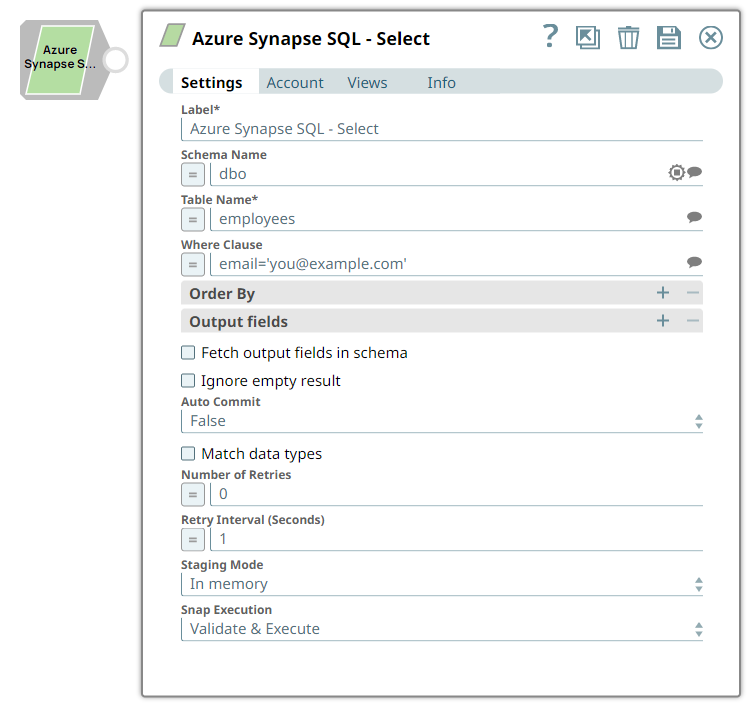
You can use this Snap to fetch data from an Azure Synapse SQL Server database by providing a table name and configuring the connection.
- This is a Read-type Snap.
 Works in Ultra Tasks
Prerequisites
A valid Azure Synapse SQL Account with the required permissions.
Limitations
When the table name contains single quote characters, the No table found error is displayed. This is because of the JDBC driver limitation.
Known issues
None.
Snap views
| Type | Description | Examples of upstream and downstream Snaps |
|---|---|---|
| Input |
Optional.A document that provides values for one or more properties of the Snap or for pass-through purpose. |
|
| Output |
Document for each record retrieved. |
|
| Learn more about Error handling. | ||
Snap settings
- Expression icon (
 ): Allows using
pipeline parameters to set field values dynamically (if enabled). SnapLogic Expressions
are not supported. If disabled, you can provide a static value.
): Allows using
pipeline parameters to set field values dynamically (if enabled). SnapLogic Expressions
are not supported. If disabled, you can provide a static value. - SnapGPT (
 ): Generates SnapLogic Expressions
based on natural language using SnapGPT. Learn
more.
): Generates SnapLogic Expressions
based on natural language using SnapGPT. Learn
more. - Suggestion icon (
 ): Populates a
list of values dynamically based on your Snap configuration. You can select only one
attribute at a time using the icon. Type into the field if it supports a comma-separated
list of values.
): Populates a
list of values dynamically based on your Snap configuration. You can select only one
attribute at a time using the icon. Type into the field if it supports a comma-separated
list of values. - Upload
 : Uploads files. Learn more.
| Field/Field set | Description | ||
|---|---|---|---|
| Label
|
Required.Specify a unique name for the Snap. Default value: Azure Synapse SQL - Select Example: Azure_Synapse_SQL_Select |
||
| Schema Name
|
Specify the database schema name. If it is not defined, then the suggestion for the Table Name retrieves all tables names of all schemas. The property is suggestible and will retrieve available database schemas during suggest values. Default value: None Example: dbo |
||
| Table Name
|
Required.Specify the name of a table on which the select query is to be executed. Default value: None Example: dbo.people |
||
| Where Clause
|
Specify the where clause of the select statement. This field supports document value substitution (for example, $person.firstname is substituted with the value found in the incoming document at the path). Warning: Do not use expressions that join strings together to create SQL queries or conditions, which has a potential SQL injection risk and therefore unsafe. Ensure that you understand all implications and risks involved before using concatenation of strings with the '=' Expression enabled.
Default value: None Example: Without using expressions
Using expressions
|
||
| Order By | |||
| Column Names
|
Use this field set to define the column names for sorting the results. If you do not specify column names, the Snaps uses the default database sort order. Default value: None Example: name, email |
||
| Output Fields | |||
| Output Field
|
Use this field set to define the output fields for SQL Select statement. Specify the output fields for the SQL SELECT statement. To select all fields, leave them blank. Default value: None Example: name, email, address, first, last |
||
| Fetch output fields in schema
|
Select this checkbox to include only the selected fields or columns in the Output Schema (second output view). If you do not provide any Output fields, all the columns are visible in the output. If you provide output fields, we recommend you to select Fetch output fields in schema checkbox. Default value: Not selected Example: Selected |
||
| Ignore empty result
|
Select this checkbox if you do not want to write to the output view when a SELECT operation does not produce any result or is empty. If you do not select this property and with the default Pass through property, the input document is written to the output view. Default value: Deselected |
||
| Auto Commit
|
Select one of the following options to override the state of the Auto Commit property on the account:
Default value: False Example: True |
||
| Match data types
|
Select this checkbox to match the output data type when the Output Fields property is empty (SELECT * FROM ...). The output preview is in the same format as the one when SELECT * FROM is implied and all the contents of the table are displayed. This property applies only when the Output Fields property is provided with any field values. Default value: Deselected |
||
| Number of Retries
|
Specify the maximum number of attempts to be made to receive a response. The request is terminated if the attempts do not result in a response. If the value is larger than 0, the Snap first downloads the target file into a temporary local file. If any error occurs during the download, the Snap waits for the time specified in the Retry interval and attempts to download the file again from the beginning. When the download is successful, the Snap streams the data from the temporary file to the downstream Pipeline. All temporary local files are deleted when they are no longer needed. Ensure that the local drive has sufficient free disk space to store the temporary local file. Default value: 0 Example: 3 |
||
| Retry Interval (seconds)
|
Specify the time interval between two successive retry requests. A retry happens only when the previous attempt resulted in an exception. Default value: 1 Example: 10 |
||
| Staging Mode
|
Select a value from the following options to specify the location to store input documents between retries when the value in the Number of retries field is greater than 0:
To disable staging, enter 0 in the Number of retries field. Default value: In memory Example: On disk |
||
|
Snap execution Dropdown list
|
Choose one of the three modes in
which the Snap executes. Available options are:
Default value: Execute only Example: Validate & execute |
||