


Parquet Writer
The Parquet Writer Snap converts documents to the Parquet format and writes the data to HDFS, ABFS, WASB, or S3.
Overview
You can use this Snap to convert documents to the Parquet format and write the data to HDFS, ABFS (Azure Blob File Storage), WASB (Azure storage), or an S3 bucket. This Snap supports a nested schema such as LIST and MAP. You can also use this Snap to write schema information to the Catalog Insert Snap.
Supported Accounts
- This is a Write-type Snap.
 Works in Ultra Tasks
Prerequisites
You must have access and permission to write to HDFS, ABFS (Azure Data Lake Storage Gen 2), WASB (Azure storage), or AWS S3.
Supported Versions
- The Parquet Writer Snap is tested against Windows Server 2008, 2010, and 2012.
Limitations
- Generate template is unsupported for a nested structure like MAP and LIST type. Generate template is a link within the schema editor accessed through the Edit Schema button.
- All expression Snap properties can be evaluated (when the '=' button is pressed) from pipeline parameters only, not from input documents from upstream Snaps. Input documents are data to be formatted and written to the target files.
- The security model configured for the Groundplex (SIMPLE or KERBEROS authentication) must match the security model of the remote server. Due to the limitations of the Hadoop library, we can only create the necessary internal credentials to configure the Groundplex.
- Parquet Snaps work well in a Linux environment. However, due to limitations in the Hadoop library on Windows, their functioning in a Windows environment may not always be as expected. We recommend you use a Linux environment for working with Parquet Snaps.
To use the Parquet Writer Snap on a Windows Snaplex, follow these steps:
- Download
hadoop.dllandwinutils.exefrom https://github.com/cdarlint/winutils/tree/master/hadoop-3.3.6/bin (SnapLogic's Hadoop version is 3.3.6) - Create a temporary directory.
- Place the
hadoop.dllandwinutils.exefiles in this path:C:\hadoop\bin - Set the environment variable
HADOOP_HOMEto point toC:\hadoop - Add
C:\hadoop\binto the environment variable PATH. - Add the JVM options in the Windows Snaplex:
jcc.jvm_options=-Djava.library.path=C:\hadoop\binIf you already have an existing
jvm_options, then add:"-Djava.library.path=C:\hadoop\bin"after the space.For example:
jcc.jvm_options = -agentlib:jdwp=transport=dt_socket,server=y,suspend=n,address=8000 -Djava.library.path=C:\hadoop\bin - Restart the JCC for configurations to take effect.
Known issues
The upgrade of Azure Storage library from v3.0.0 to v8.3.0 has caused the following issue when using the WASB protocol:
When you use invalid credentials for the WASB protocol in Hadoop Snaps (HDFS Reader, HDFS Writer, ORC Reader, Parquet Reader, Parquet Writer), the pipeline does not fail immediately, instead it takes 13-14 minutes to display the following error:
reason=The request failed with error code null and HTTP code 0. , status_code=errorSnapLogic is actively working with Microsoft Support to resolve the issue.
Learn more about Azure Storage library upgrade.
Snap views
| Type | Description | Examples of Upstream and Downstream Snaps |
|---|---|---|
| Input | The Snap supports 1 to 2 input views. The primary data view carries the records to be written. A second input view can optionally be used to supply schema information. |
|
| Output | The Snap writes incoming documents to Parquet files. The output document typically contains metadata about the write operation, such as the file path written and status information. |
|
| Learn more about Error handling in Pipelines. | ||
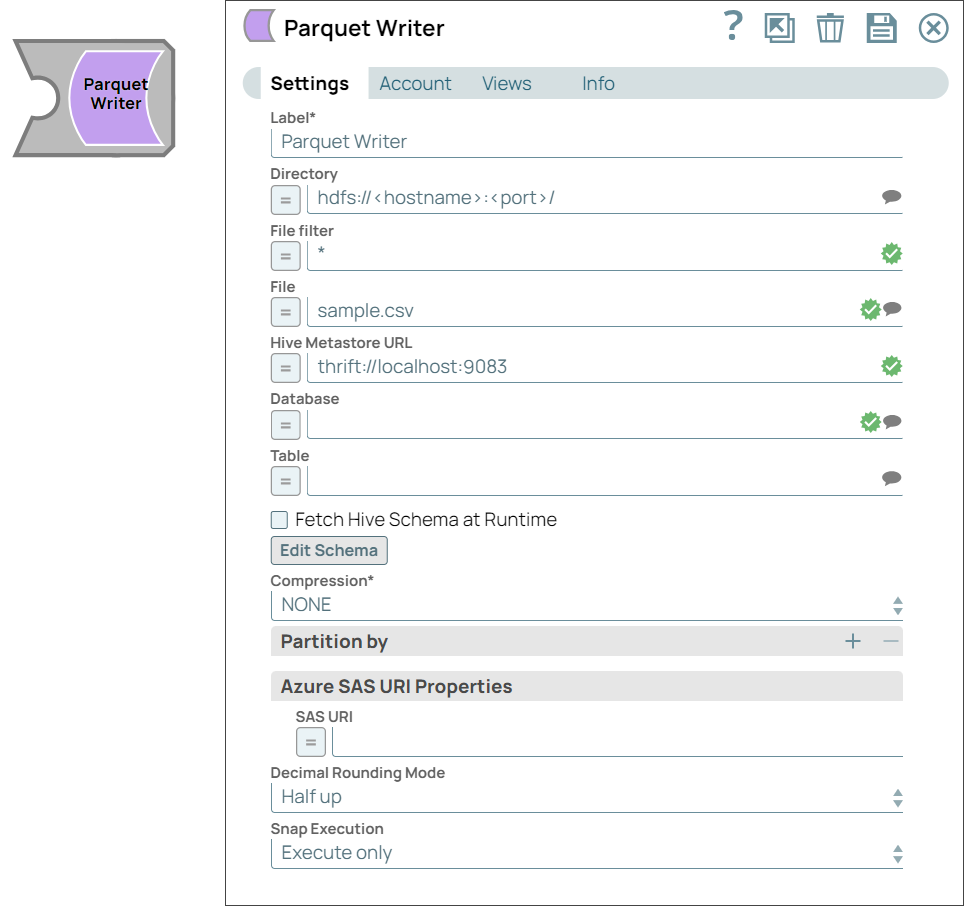
Snap settings
| Field Name | Description |
|---|---|
| Label*
|
Specify a unique name for the Snap. Modify this to be more appropriate, especially if more than one of the same Snaps is in the pipeline. Default value: Parquet Writer Example: Parquet Writer |
| Directory
|
Specify the file path to a directory to write the incoming data.
The path must be in the following format:
The following file storage systems are supported:
Note: SnapLogic automatically appends "azuredatalakestore.net" to the
store name you specify when using Azure Data Lake; therefore, you
do not have to add 'azuredatalakestore.net' to the URI while
specifying the directory.
The Directory property is not used in the Pipeline execution or preview and used only in the Suggest operation. When you click on the Suggest icon, the Snap displays a list of subdirectories under the given directory. It generates the list by applying the value of the Filter property. Default value: hdfs://<hostname>:<port>/ Example:
|
| File Filter
|
Specify the Glob file pattern. Note: Use glob patterns to display a list of directories or files when
you click the Suggestion icon in the Directory or File property. A
complete glob pattern is formed by combining the value of the
Directory property with the Filter property. If the value of the
Directory property does not end with "/", the Snap appends one, so
that the value of the Filter property is applied to the directory
specified by the Directory property.
Default value: * Example: ** |
| File
|
Specify the filename or a relative path to a file under the directory given in the Directory property. It should not start with a URL separator "/". The File value can be a JavaScript expression which will be evaluated with values from the input view document. When you click the Suggest icon, the Snap displays a list of regular files under the directory in the Directory property. It generates the list by applying the value of the Filter property. Default value: N/A Example:
|
| Hive Metastore URL
|
Specify the URL of the Hive Metastore to assist in setting the schema along with the database and table setting. If the data being written has a Hive schema, then the Snap can be configured to read the schema instead of manually entering it. Set the value to a Hive Metastore URL where you define the schema. Default value: N/A Example: thrift://localhost:9083 |
| Database
|
Specify the Hive Metastore database which holds the schema for the outgoing data. Default value: N/A Example: test-database |
| Table
|
Specify the table whose schema should be used for formatting the outgoing data. Default value: N/A Example: demo-table |
| Fetch Hive Schema at Runtime
|
Select this checkbox to fetch the schema from the Metastore table before writing. The Snap fails to write if it cannot make connection to the metastore or the table does not exist during the Pipeline's execution. Will use the metastore schema instead of the one set in the Snap's Edit Schema property if this is checked. Default value: Deselected |
| Edit Schema
|
Edit the schema to use during formatting. Note: The schema can be specified based off a Hive Metastore table
schema or generated from suggest data. Save the pipeline before
editing the schema to generate suggest data that assists in
specifying the schema based off of the schema of incoming
documents. If no suggest data is available, then an example schema
is generated along with documentation. Alter one of those schemas
to describe the input data. The Parquet schema can also be written
manually. A schema is defined by a list of fields and here is an
example describing the contact information of a person.
After defining the message type, a list of fields are given. A field is comprised of a repetition, a type, and the field name. Available repetitions are required, optional, and repeated. Each field has a type. The primitive types include:
These types can be annotated with a logical type to specify how the application should interpret the data. The Logical types include UTF8, INT_8, INT_16, UINT_8, UINT_16, UINT_32, UINT_64, DECIMAL, DATE, TIME_MILLIS, TIMESTAMP_MILLIS, INTERVAL, JSON, and BSON. Note: This Snap supports only the following date format:
yyyy-MM-dd.
Remember: Generate template will not work for nested
structure like MAP and LIST type.
|
| Compression*
|
Select the type of compression to use when writing the file. The available options are:
Note:
|
| Partition by
|
Specify or select the key which will be used to get the 'Partition by' folder name. All input documents should contain this key name or an error document will be written to the error view. Default value: N/A Example: partition-key |
| Azure SAS URI Properties | Shared Access Signatures (SAS) properties of the Azure Storage account. |
| SAS URI
|
Specify the Shared Access Signatures (SAS) URI that you want to use to access the Azure storage blob folder specified in the Azure Storage Account. Note:
|
| Decimal Rounding Mode
|
Select the required rounding method for decimal values when they exceed the required number of decimal places. The available options are:
Default value: Half up Example: Up |
| Timestamp Parquet type
|
Choose the appropriate Parquet type for your timestamp schema based on the format of the timestamp data. This schema is passed from the second input view. The available options are:
If the timestamp data is in string format, a date-time object, or milliseconds, select one of the INT64 types (Millis, Micros, or Nanos) from the dropdown. Note:
Default value: INT96 Example: INT64 Timestamp millis |
| Snap Execution
|
Choose one of the three modes in
which the Snap executes. Available options are:
Default value: Execute Only Example: Validate & Execute |
Auto schema generation
The Parquet Writer Snap builds the output schema automatically based on the documents received during preview execution. The fields outside the preview set are ignored. The schema is built from the first n documents processed during preview (where n is the preview document limit). Any additional fields that appear in documents beyond the preview set (document n+1 onwards) are silently ignored. The Snap does not fail, but those fields are dropped from the output. For example, if the preview processes 50 documents and document 51 contains a new field cost_center, then that field will not appear in the Parquet output.
Troubleshooting
| Error | Reason | Resolution |
|---|---|---|
| Unable to connect to the Hive Metastore. | This error occurs when the Parquet Writer Snap is unable to fetch schema for Kerberos-enabled Hive Metastore. |
Pass the Hive Metastore's schema directly to the Parquet Writer Snap. To do so:
|
| Parquet Snaps may not work as expected in the Windows environment. | Because of the limitations in the Hadoop library on Windows, Parquet Snaps do not function as expected. |
To use the Parquet Writer Snap on a Windows Snaplex, follow these steps:
|
|
Because of the limitations in the Hadoop library on Windows, Parquet Snaps do not function as expected. |
To resolve this issue, follow these steps:
|
Write to S3 files with HDFS version CDH 5.8 or later
When running the HDFS version later than CDH 5.8, the Hadoop Snap Pack may fail to write to S3 files. To overcome this, make the following changes in the Cloudera manager:
- Go to HDFS configuration.
- In Cluster-wide Advanced Configuration Snippet (Safety Valve) for
core-site.xml, add an entry with the following details:
- Name: fs.s3a.threads.max
- Value: 15
- Click Save.
- Restart all the nodes.
- Under Restart Stale Services, select Re-deploy client configuration.
- Click Restart Now.
Temporary Files
During execution, data processing on Snaplex nodes occurs principally in-memory as streaming and is unencrypted. When larger datasets are processed that exceed the available compute memory, the Snap writes Pipeline data to local storage as unencrypted to optimize the performance. These temporary files are deleted when the Snap/Pipeline execution completes. You can configure the temporary data's location in the Global properties table of the Snaplex's node properties, which can also help avoid Pipeline errors due to the unavailability of space. For more information, see Temporary Folder in Configuration Options.