


DynamoDB Account
Overview
Use this account type to connect DynamoDB Snaps with data sources that use DynamoDB accounts. The account now supports the IAM role using the Authentication Types when setting up the account.
Account settings
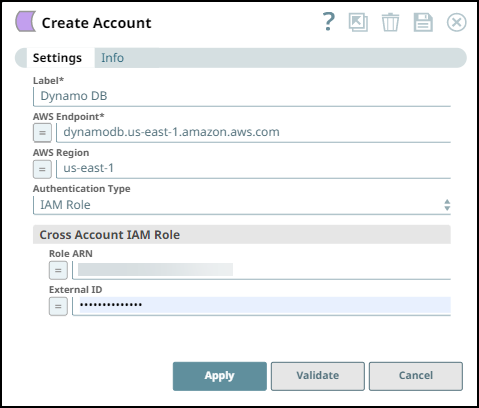
| Field/Field set | Type | Description |
|---|---|---|
| Label String |
Required. Specify a unique label for the account. Default value: N/A Example: DynamoDB IAM Role |
|
| AWS Endpoint String/Expression |
Required. Specify the AWS Endpoint URL. Refer to AWS Service Endpoints for more information. Default value: N/A Example: xyz876jhnJKBuya9730 |
|
| AWS Region String/Expression |
Required. Specify the AWS region where the application is running from the allowed values. Default value: N/A Example: us-east-1 |
|
| Authentication Type Dropdown list |
Select either of the following Authentication Types to create your DynamoDB Account:
Learn more about DynamoDB Account Configuration Scenarios. Tip: Cross Account IAM Role settings are available in the Account settings dialog box regardless of the Authentication Type you choose.
|
|
| AWS Access Key ID String/Expression |
Appears when you select User Credentials as Authentication Type. Specify the Access Key ID associated with your AWS authentication. Default value: N/A Example: us-east-1 |
|
| AWS Secret Key String/Expression |
Specify the Secret Key associated with your AWS authentication. Default value: N/A Example: Encrypted |
|
| AWS Security Token String/Expression |
Specify the Security Token to get access to AWS resources using credentials. Note that only global Security Token Service (STS) regions are supported. Default value: N/A Example: Encrypted |
|
| Cross Account IAM Role | String/Expression |
Use this field set to configure the cross-account access. Learn more about Setting up Cross-Account IAM Role. |
| Role ARN String/Expression |
Specify the Amazon Resource Name (ARN) of the role to assume. Default value: N/A Example: arn:aws:iam::612864912850:role/EC2_to_assume_role |
|
| External ID String/Expression |
Specify an External ID that might be required by the role to assume. Default value: N/A Example: Encrypted |
|
DynamoDB Account Configuration Scenarios
| Scenario | Groundplex Type | Role attached to EC2 instance | Authentication Type and other details |
|---|---|---|---|
| When the Groundplex type is an AWS EC2 and the role attached to the EC2 instance is the DynamoDB access role. | AWS EC2-type | DynamoDB access role. | Select Authentication Type as the IAM Role. |
| When the Groundplex type is an AWS EC2 and the role attached to the EC2 instance is the DynamoDB Cross-account access role. | AWS EC2-type | DynamoDB Cross-account access role. | Select Authentication Type as IAM the Role and provide details for the Cross-account IAM Role. |
| When you do not have an AWS-EC2 Groundplex and the role attached to the EC2 instance is the DynamoDB access role. | User does not have an AWS-EC2 Groundplex. Value is from local machine. | DynamoDB access role |
Select the Authentication Type as User Credentials and provide details for the following fields:
|
| When you do not have an AWS-EC2 Groundplex and the role attached to the EC2 instance is the DynamoDB Cross-account access role. | User does not have an AWS-EC2 Groundplex. Value is from local machine. | DynamoDB Cross-account access role. |
Select Authentication Type as User Credentials and provide details for the following fields:
|
DynamoDB Permissions
The ListTables permission requires all resources (*) to be selected (because it needs to be able to list all the DynamoDB tables), but the others can have policies that are more limited (for example, to a specific table) as per the DynamoDB API Permissions reference. Following is the most basic and permissive Policy document that could be assigned to the user that would guarantee all the required permissions are granted.
{
  "Version": "2012-10-17",
  "Statement": [
    {
      "Sid": "Stmt1482439123852",
      "Action": [
        "dynamodb:BatchGetItem",
        "dynamodb:BatchWriteItem",
        "dynamodb:DescribeTable",
        "dynamodb:ListTables",
        "dynamodb:Scan",
        "dynamodb:UpdateItem"
      ],
      "Effect": "Allow",
      "Resource": "*"
    }
  ]
}
Troubleshooting
| Error | Reason | Resolution |
|---|---|---|
| Failed to validate account: Failed to connect to service endpoint. | The connection to the host failed. | Verify that the Cross-account IAM role is not attached to the EC2 instance. Refer to Attach IAM Role to Instance for additional information. |
| AWS Access Key ID and AWS Secret Key are mandatory for Client Credentials. | The AWS Access Key and AWS Secret might be invalid. | Verify valid AWS Access Key ID and AWS Secret are provided. |
| Failed to perform AssumeRole operation. | The following could be the reasons:
|
|