


Navigate data previews
- Optionally, Set data preview record count. The pipeline picks up this setting the next time it's validated, so set it before you validate.
- Validate the pipeline.
- Launch data preview.
Data Preview is an integral component for pipeline design activities. After saving or validating a pipeline, you can preview the data that a Snap passes down the pipeline. You can navigate through the data preview of Snaps via a table or JSON views, and generate data visualizations from that data.
-
Use the outer arrows at the bottom left of the data preview to navigate to the
results for the next or the previous Snap:
-
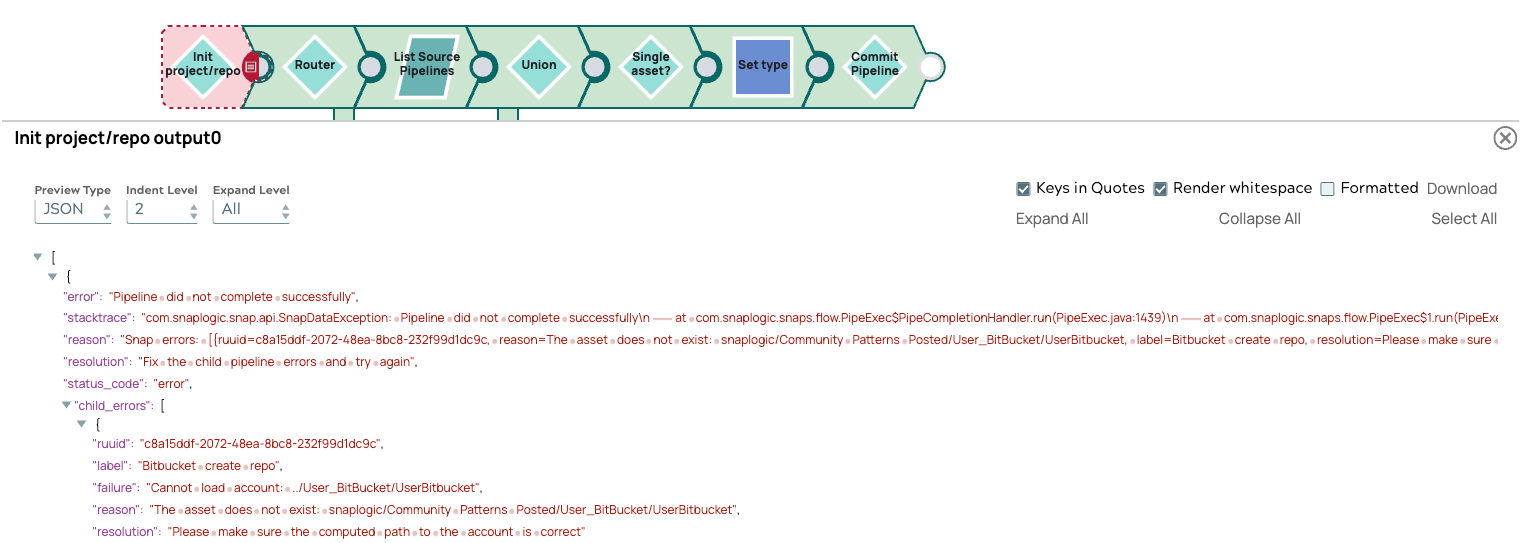
View data in error documents:
If a Snap fails to validate, you can preview data from the failed Snap's error documents.
-
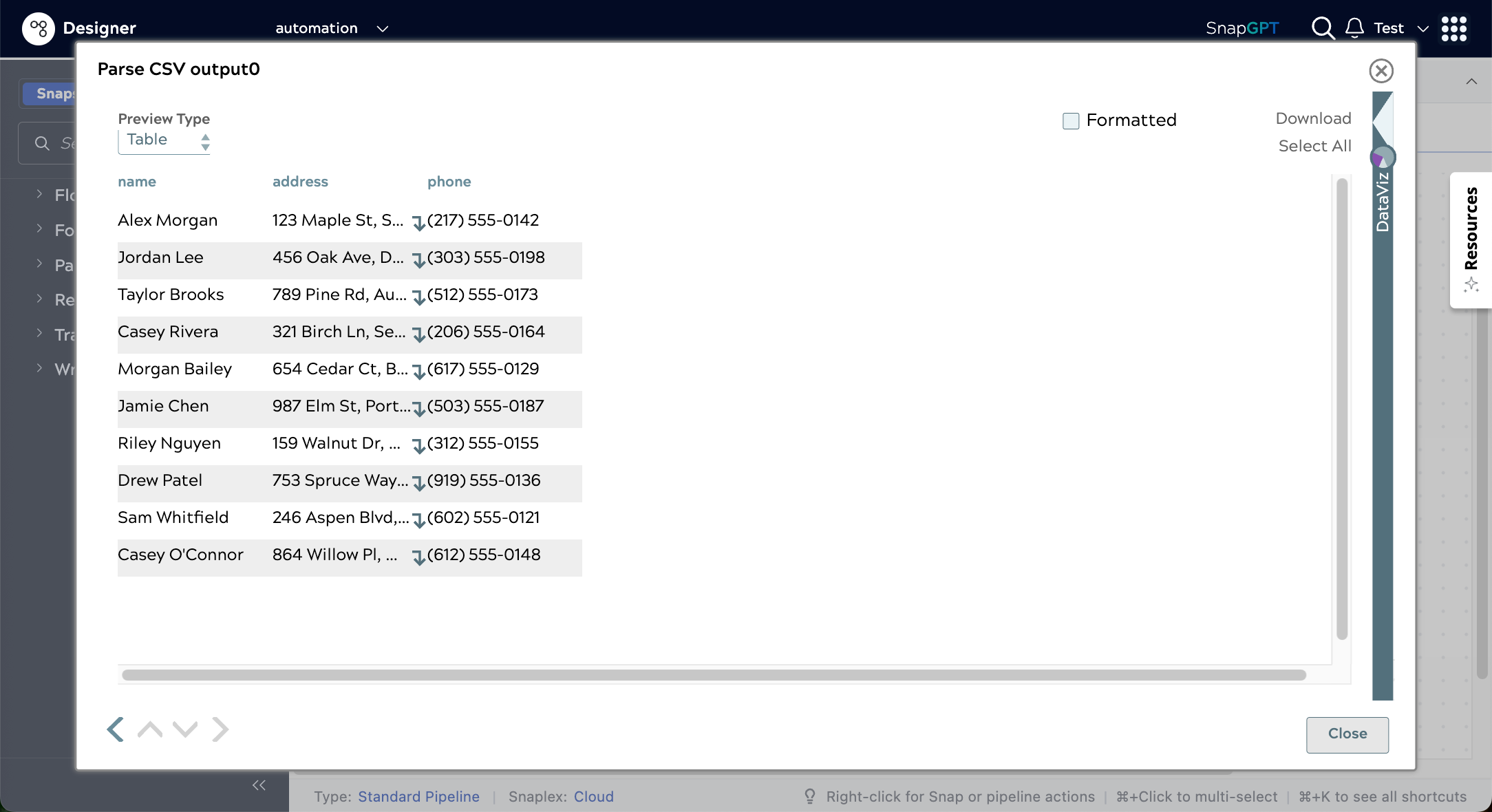
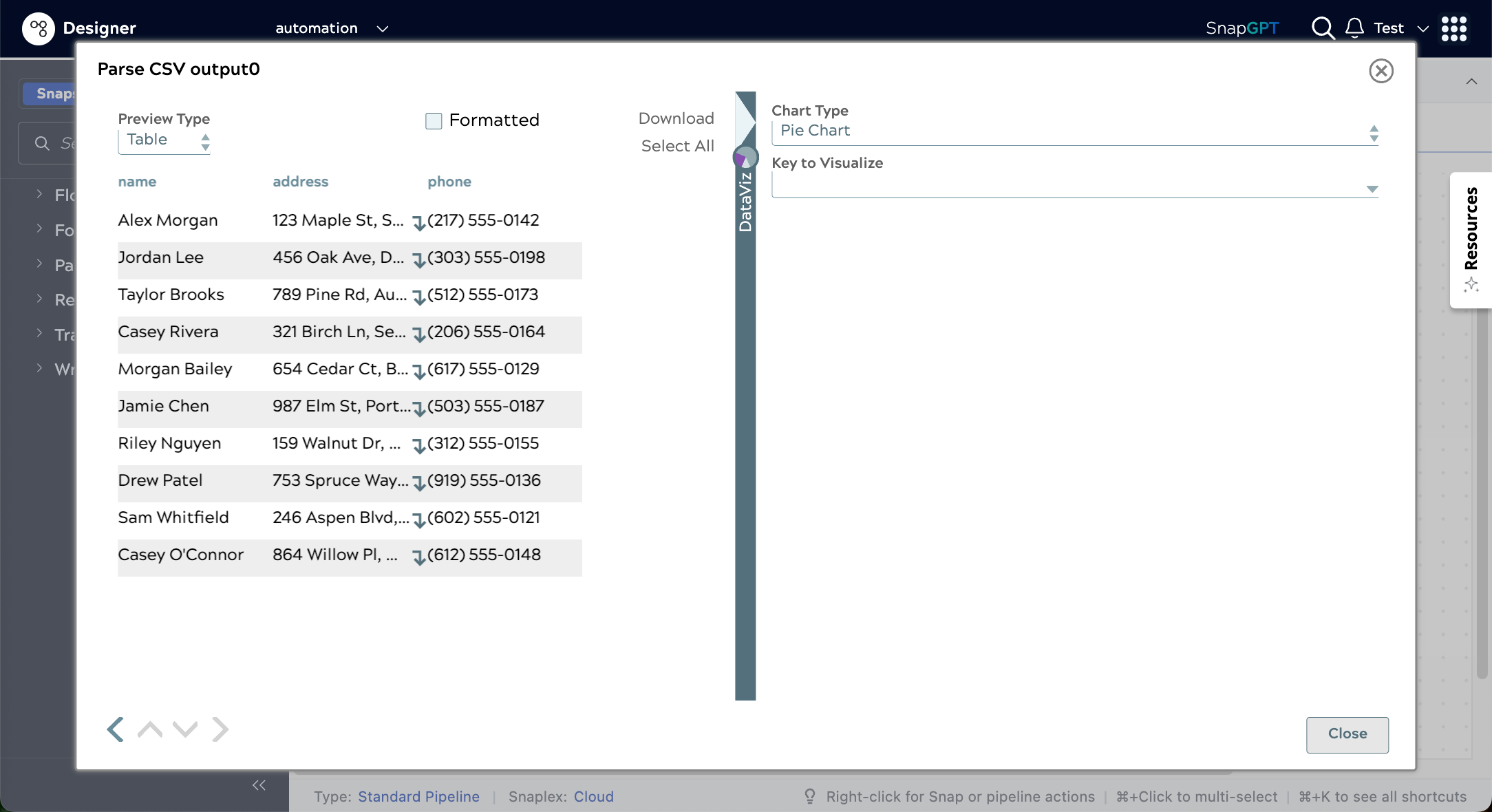
Click the triangle at the top of the DataViz bar to display chart options:
-
For each data visualization type:
Option Description Pie chart Select Pie Chart Line chart for numeric fields - Select Line Chart
- For each line, select a numeric field key.
Line chart over time - For Chart Type, select Line Chart - Date as X axis.
- For X-axis (Date), select a temporal field (year, date, or time).
- Click Key to Visualize.
- Select the key for the y-axis values.
Line chart with date as the x-axis, showing a yearly trend across three keys from the data:

Bar chart to compare values - Select Bar Chart - Count.
- Click Key to Visualize.
- Select the key field for the y-axis.
Bar chart to aggregate data - Select Bar Chart - Group and Count.
- For Category, select the target type.
- For Group By, select the field to aggregate.
- Hover over a bar to see the number of entries for that group key value.
Bar chart with a group count showing the distribution of type against characteristic:

Scatter chart - Select Scatter Chart as the Chart Type.
- Select a data category from the X-axis and Y-axis dropdown menus.
- Optionally, select a data category from the Group By menu.
- Roll over or click a data point to view values. The header shows the value for the Group By field, and the X-axis and Y-axis values appear below, separated by a comma.