


MySQL Dynamic Account
Overview
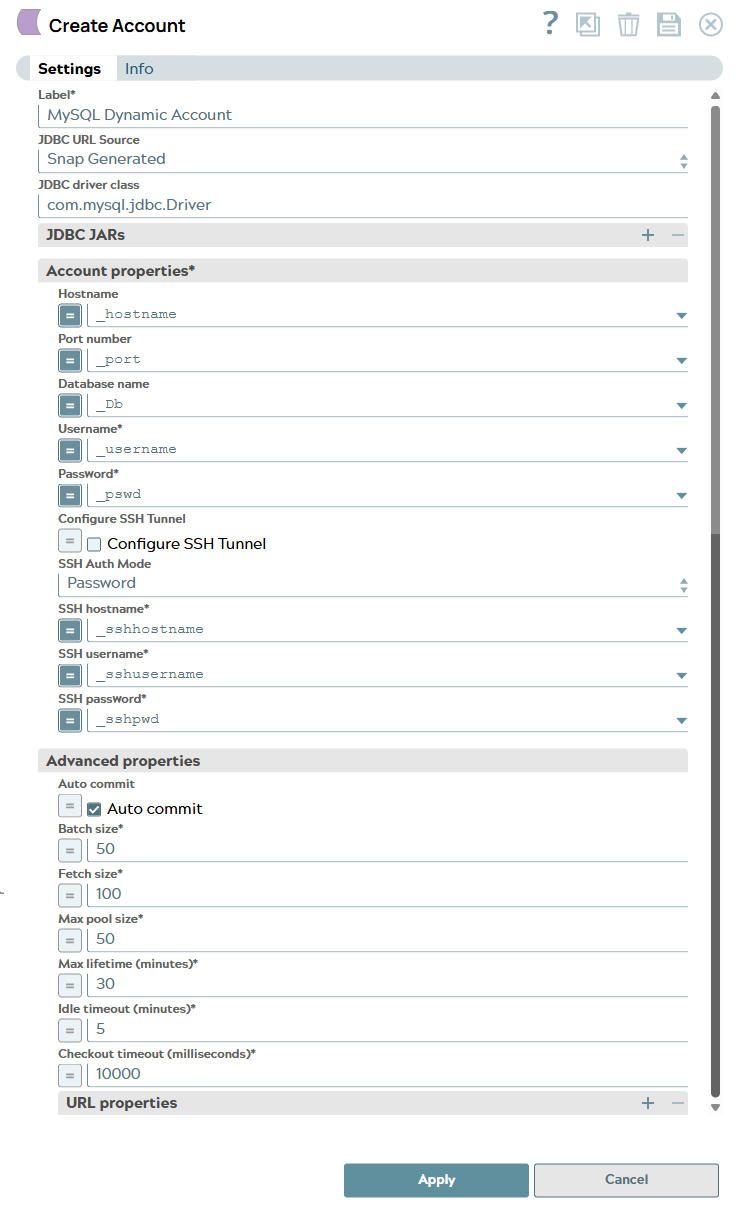
Use this account type to connect MySQL Snaps with datasources that use MySQL Dynamic accounts. This account deals with the dynamically calculated values. You can specify the account properties as expressions referencing pipeline parameters. The values for dynamic accounts are not stored; hence, use them when requested.
Expression-enabled authentication fields, such as Username, Password, and Client Secret, support Secrets Management, a SnapLogic add-on that allows you to store endpoint credentials in a third-party secrets manager, such as AWS Secrets Manager, Azure Key Vault, or HashiCorp Vault. During validation and execution, pipelines obtain the credentials directly from the secrets manager. Learn more: Configure Accounts to use secrets.
Prerequisites
To ensure compatibility, we recommend that you use matching versions of MySQL driver and MySQL server for configuring your account. For example, when using server version 8.0.22, ensure that the driver version is also 8.0.22. For details, see the official MySQL article on version compatibility.
Known Issues
- When using MariaDB JDBC driver version 2.7.2 or lower, providing username and password as JDBC URL parameters does not function as expected. To use this feature, use a MariaDB JDBC driver version of at least 2.7.3.
- When using MariaDB JDBC driver, tables using spatial data types may not function as expected.
Workaround: Use the MySQL JDBC driver or limit spatial data type usage to the GEOMETRY type instead of more specific spatial data types.
Account Settings
| Field/Field set | Description |
|---|---|
Label*
String |
Required. The user-provided name
for the account. Preferably, update the account name if your project
includes more than one account of the same type. Default value: N/A Example: MySQL_DynamicAccount |
JDBC URL Source
String |
Select the source of the JDBC URL.
Important: jdbc:mysql scheme compatibility with
MariaDB driver 3.0.0+
To use MariaDB JDBC driver version 3.0 or above, you must select User Provided as the JDBC URL source and provide a Custom JDBC URL that uses the jdbc:mariadb: protocol. This Snap Pack does not support MariaDB driver version 3.x when using either Snap generated JDBC URLs or Custom JDBC URLs using the jdbc:mysql: protocol. Default value: Snap Generated Example: User Provided |
JDBC driver class
String |
The class name of the JBDC driver. Default value: N/A Example: com.mysql.jdbc.Driver |
JDBC JARs
Dropdown list |
List of JDBC JAR files to be loaded.
If you do not add any JDBC JARs, a default JDBC JAR file is loaded. The default JAR file does not support connectivity to MYSQL8. To connect to MYSQL8, you must upload JAR mysql-connector-java (v5.1.47 or v8). Default value: N/A Example: |
JDBC driver
String |
Upload the JDBC driver and other JAR
files that you want to use into SLDB. Click to add a new row. Add
each JDBC JAR file in a separate row. For more information about
JDBC drivers and downloading the appropriate driver for your
account, see Downloading the JDBC
Driver. When you use the relative path for the JDBC JAR file in accounts across different projects, the pipelines fail with the JAR FILE NOT FOUND error. Therefore, you must use the absolute path for the JDBC JAR file to run your pipelines successfully. Default value: N/A Example: Project Spaces/my_diagnostic_space/my_diagnostic /sqljdbc4-2.0.jar |
Account properties
Fieldset |
Required. Use this field set to specify the account properties required to connect to the database. |
Hostname
String/Expression |
Required. Appears when the JDBC
URL Source is Snap Generated. Specify the server address to which the application must connect. Default value: N/A Example: _hostname |
Port number
Integer/Expression |
Required. Appears when the JDBC
URL Source is Snap Generated. Specify the database server's port number to which the application must connect. Default value: 3306 Example: _port |
Database name
String/Expression |
Required. Appears when the JDBC
URL Source is Snap Generated. Specify the database name to which the application must connect. Default value: N/A Example: _database |
Username
String/Expression |
Required. Appears when the JDBC URL Source is Snap
Generated. Specify the user name that is allowed to connect to the database. It is used as the default user name when retrieving connections. The user name must be valid in order to set up the data source. Default value: N/A Example: _username |
Password
String/Expression |
Required. Appears when the JDBC URL Source is Snap
Generated. Specify the password used to connect to the data source. It is used as the default password when retrieving connections. The password must be valid in order to set up the data source. Default value: N/A Example: _password |
Custom JDBC URL
String |
Appears when the JDBC URL Source is User
Provided. Specify the JDBC URLs that you want to use to connect to your MySQL Account. Use this option if you want to use complex JDBC URLs (involving multiple hosts and advanced options) to connect to your MySQL instance. For example, if you want to connect to MariaDB, you can enter a JDBC URL like the one below:
Default value: N/A Example: jdbc:mariadb://a.com:3306,b.com:3306/db |
Configure SSH Tunnel
Checkbox/Expression |
Select this checkbox if the Snap must
create an SSH tunnel dynamically for connecting the JCC node to the
MySQL server. Once the operation is completed, the tunnel is closed.
If selected, the configuration details of the SSH Tunnel must be provided. Default status: Deselected |
SSH Auth Mode
Dropdown list |
Select the mode for authenticating the
user on the SSH tunnel. The associated properties are displayed.
The valid options are:
This value is considered only if the Configure SSH Tunnel check box is selected. Default value: Password Example: Password |
SSH hostname
String/Expression |
Required. Specify the IP address
or the domain name of the SSH server to which you want to connect.
This value is considered only if the Configure SSH Tunnel check box is selected. Default value: N/A Example: _sshhostname |
SSH username
String/Expression |
Required. Specify the SSH
username for connecting to the tunnel. This value is considered only if the Configure SSH Tunnel check box is selected. Default value: N/A Example: _sshusername |
SSH password
String/Expression |
Required. Specify the password
associated with the SSH username. This field is required if SSH Auth
Mode is Password. This value is considered only if the Configure SSH Tunnel check box is selected. Default value: N/A Example: _sshuserpassword |
KeyStore
String/Expression |
Specify the location of the keystore
file. This field is required if SSH Auth Mode is KeyFile. The file can be in SLDB, on the host machine that is hosting the JCC, or at any other remote location. For a local file, click to select the appropriate file using the file browser. You can also upload the file using any protocol such as https, ftp, sldb, and sftp. This value is considered only if the Configure SSH Tunnel check box is selected. Default value: N/A Example: _keystorepath |
KeyStore password
String/Expression |
Specify the password to access the
keystore file. This field is required if the SSH Auth Mode is
KeyFile. This value is considered only if the Configure SSH Tunnel check box is selected. Default value: N/A Example: _keystorepassword |
Key alias
String/Expression |
Specify the identifier or label of the
private key to be used from the keystore. This field is required if
SSH Auth Mode is KeyFile. This value is considered only if the Configure SSH Tunnel check box is selected. Default value: N/A Example: _keyalias |
Private key passphrase
String/Expression |
Specify the password associated with the
private key. If no value is provided, the keystore password is used.
This value is considered only if the Configure SSH Tunnel check box is selected. Default value: N/A Example: |
Advanced properties
Fieldset |
Use this field set to set advanced properties required for connecting to the database. |
Auto commit
Checkbox/Expression |
Select this checkbox to auto-commit
batches immediately after it is executed. If the Snap fails, only
the batch being executed at that moment is rolled back. Deselect this checkbox to commit only after all the batches are executed. If the Snap fails, the entire transaction is rolled back, unless the Snap finds invalid input data before it sends the insert request to the server, and routes the error documents to the Error view. Default status: Selected |
Batch size
Integer/Expression |
Required. Specify the batch size
to indicate the number of SQL statements to execute in a single
batch. For example, when inserting 100 records with batch size as
40, there will be 100 insert statements, and they are executed in 3
batches, the first and second batches contain 40 insert statements
each and the third batch contains 20.
Note:
Select queries are not batched. It is part of the JDBC standard, there is no maximum limit on the batch size. However, the JDBC drivers do not necessarily follow the standard and could throw exceptions if the batch size is too large for a specific driver. Reduce the batch size if you see an exception saying that the batch size is too large. Warning:
Using a large batch size could use up the JDBC placeholder limit of 2100. If the batch size is too large, sending a single batch request to the database server can take too long and it would time out. You should test and monitor the performance with different batch sizes and decide the best batch size. Default value: 50 Example: 50 |
Fetch size
Integer/Expression |
Required. Specify the number of
rows to fetch at a time when executing a query. Large values could cause the server to run out of memory. Default value: 100 Example: 100 |
Max pool size
Integer/Expression |
Required. Specify the maximum
number of concurrent connections a pool maintains at a time. The
number of max pool size depends on the number of concurrent
connections you need. Each MySQL Snap holds a separate connection
when running. For a pipeline that has 4 MySQL Insert, 2 MySQL
Execute, and 1 MySQL Update Snaps, the max pool size should be no
less than 7 to make sure that the pipeline is executed
successfully. Default value: 50 Example: 50 |
Max lifetime (minutes)
Integer/Expression |
Required. Specify the maximum
time (in minutes) of a connection in the pool. Ensure that the value
you enter is a few seconds shorter than any database or
infrastructure-imposed connection time limit. A value of 0 indicates
an infinite lifetime, subject to the Idle Timeout value. An in-use
connection is never retired. Connections are removed only after they
are closed. Default value: 30 Example: 30 |
Idle timeout (minutes)
Integer/Expression |
Required. Specify the maximum
time (in seconds) a connection is allowed to remain idle in the
pool. A value of 0 indicates that idle connections are never removed
from the pool. Default value: 5 Example: 5 |
Checkout timeout (milliseconds)
Integer/Expression |
Required. Specify the number of
milliseconds to wait for a connection to be available when the pool
is exhausted. Note:
If you provide 0, the Snap waits infinitely until the connection is available. Therefore, we recommend you not to specify 0 for Checkout Timeout. Default value: 10000 Example: 10000 |
URL properties
Fieldset |
Use this field set to define the URL
properties. You can define the time zone values in this field set. The server time zone is important to convert date and time values stored in the database to the time zone set in the application server. You must configure either the database server or JDBC driver (by passing the serverTimeZone in the Url property name field) to use a specific time zone value for time zone support. The Connector/J8.0 performs time offset adjustments on date-time values; however, the adjustments require either of the following conditions to be true:
Default value: N/A Example: |
URL property name
String/Expression |
Specify the name of the URL property
name. Default value: N/A Example: zeroDateTimeBehavior |
URL property value
String/Expression |
Specify the value for the URL property
defined above. Default value: N/A Example: convertToNull |