


Directory Browser
This Snap browses a given directory path from various sources (such as FTP, FTPS, SFTP, SLDB and S3) and lists the attributes (such as Name, Type, Size, Last Modification Time) of the contents (files or sub-folders).
You must install the AzCopy utility, if you use the ABFS (Azure Blob File Storage) file protocol Azure Data Lake Gen 2 for bulk operation. The utility must be installed in Snaplex to fetch the file path. If the path is null, the native Azure Storage SDK is used for all operations. Learn more about the AzCopy command. If AzCopy Utility is not installed for ABS file transfer, the file transfer will not be as fast as using AzCopy because a REST call will be invoked for each file content instead of a bulk operation.
The SnapLogic Platform does not support the installation of utilities or processes on Cloudplexes. Learn more.
We plan to introduce additional S3 features exclusively in Amazon S3 Snaps, while Binary Snaps with S3 support will not contain these updates. Therefore, we recommend you to use the Amazon S3 Snap Pack for all your S3 operations within your pipelines. However, Binary Snaps will be retained as is to maintain backward compatibility, but be aware that we will no longer provide S3 support for the Binary Snaps.
Learn more: Migrate from Binary to S3 Snaps.
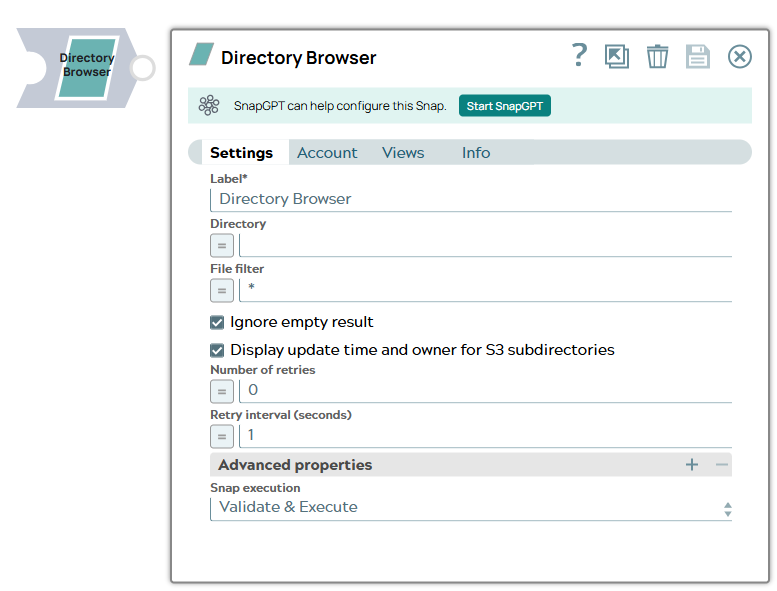
- This is a Read-type Snap.
 Works in Ultra Tasks
Prerequisites
IAM Roles for Amazon EC2
The 'IAM_CREDENTIAL_FOR_S3' feature is used to access S3 files from EC2 Groundplex, without
Access-key ID and Secret key in the AWS S3 account in the Snap. The IAM credential stored in
the EC2 metadata is used to gain access rights to the S3 buckets. To enable this feature,
set the Global properties (Key-Value parameters) and restart the JCC:jcc.jvm_options
= -DIAM_CREDENTIAL_FOR_S3=TRUE
This feature is supported in the EC2-type Groundplex only. Learn more.
Connect to FTP server:
-DFTPS_SSL_TLS_PROTOCOL=TLSV1.2 (or) TLSV1.3JVM option under the Global properties of the Node
Properties tab: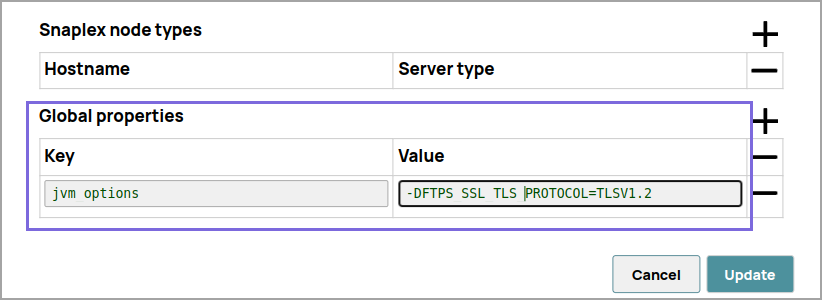
Known issues
- This Snap Pack does not natively support SHA1-based algorithms to connect to SFTP endpoints. With the August 2023 GA release, you can now leverage the properties specified in the Configuration settings for Snaps to add support for ones that are disabled on your Snaplex.
Snap views
| Type | Description | Examples of upstream and downstream Snaps |
|---|---|---|
| Input (binary) | Directory Path to be browsed and File Filter Pattern to be applied. It contains values for the directory path to be browsed and the GLOB filter to be applied to select the contents. | |
| Output (binary) | The attributes (name, size, and so on) of the contents of the directory path matching the filter pattern. This Snap provides the various attributes (such as Name, Type, Size, Owner, Last Modification Time) of the contents of the given directory path. Only those contents are selected that match the given GLOB filter. | |
| Learn more about Error handling. | ||
Snap settings
- Expression icon (
 ): Allows using
JavaScript syntax to access SnapLogic Expressions to set field values dynamically (if
enabled). If disabled, you can provide a static value. Learn more.
): Allows using
JavaScript syntax to access SnapLogic Expressions to set field values dynamically (if
enabled). If disabled, you can provide a static value. Learn more. - SnapGPT (
 ): Generates SnapLogic Expressions
based on natural language using SnapGPT. Learn
more.
): Generates SnapLogic Expressions
based on natural language using SnapGPT. Learn
more. - Suggestion icon (
 ): Populates a
list of values dynamically based on your Snap configuration. You can select only one
attribute at a time using the icon. Type into the field if it supports a comma-separated
list of values.
): Populates a
list of values dynamically based on your Snap configuration. You can select only one
attribute at a time using the icon. Type into the field if it supports a comma-separated
list of values. - Upload
 : Uploads files. Learn more.
| Field/Field set | Type | Description |
|---|---|---|
| Label*
|
String | Specify a unique name for the Snap. Modify this to be more appropriate, especially if more than one of the same Snaps is in the pipeline. Default value: Directory Browser Example: Directory Browser |
| Directory | String/Expression | Specify the URL for the data source (directory) that should begin with a
protocol. Following are the protocols that are currently supported:
Default value: N/A Examples:
|
| File filter | String/Expression | Specify the Glob pattern for filtering the files. The Glob pattern can be
applied to select the contents (files/sub-folders) of the directory. You cannot
recursively navigate through the directory structures. Default value: N/A Example:
|
| Ignore empty result | Checkbox | Select this checkbox to enable the Snap to not write a document to the output
view when the result is empty. Deselect this checkbox in the following cases:
Default status: Selected |
| Display update time and owner for S3 subdirectories | Checkbox | Applicable only for S3 directory. If selected, the Snap produces Update time and Owner attributes in the output documents for S3 subdirectories. However, it may take a long time or even freeze if there are very large number of files and subdirectories in the file structure under the specified S3 directory. This is because the Snap has to completely examine the S3 objects under the directory recursively in order to get Update time and Owner attributes for subdirectories. If not selected, the Snap does not produce Update time and Owner attributes in the output documents for S3 subdirectories. Snap output is faster since it examines only S3 files and subdirectories immediately under the specified S3 directory. Default status: Selected |
| Number of retries | Integer/Expression |
Specify the maximum number of retry attempts in case of a network failure. Minimum value: 0 Default value: 0 Example: 3 |
| Retry interval (seconds) | Integer/Expression | Specify the minimum number of seconds the Snap must wait before attempting
recovery from a network failure. Minimum value: 1 Default value: 1 Example: 3 |
| Advanced properties | Use this field set to define specific settings for directory browsing. | |
|
SAS URI |
Dropdown list | Specify the URI of the Shared Access Storage (SAS) you need to access. You can
generate the SAS URI either from the
SAS Generator
Snap or from the Azure portal →
Shared access signature. The supported SAS types are:
Warning:
Default value: N/A Example: https://myaccount.blob.core.windows.net/sascontainer/sasblob.txt?sv=2015-04-05&st=2015-04-29T22%3A18%3A26Z&se=2015-04-30T02%3A23%3A26Z&sr=b&sp=rw&sip=168.1.5.60-168.1.5.70&spr=https&sig=Z%2FRHIX5Xcg0Mq2rqI3OlWTjEg2tYkboXr1P9ZUXDtkk%3D |
| Use fast file-type check for wasb/wasbs protocols | String/Expression | Specifies whether the Snap can use a fast file-type check while browsing
through a given file/directory path (for WASB and WASBS file protocols). Set this field of the Snap to true to save execution times when working with WASB and WASBS file protocols. Warning: Snap execution results may not
be accurate when using this field. Set this field to true if longer
execution times are not a constraint. Default value: N/A |
| Snap execution
|
Dropdown list |
Choose one of the three modes in
which the Snap executes. Available options are:
Default value: Execute only Example: Validate & Execute |