


Mapping Table
Overview
The Mapping table in the Mapper Snap enables you to do the following:
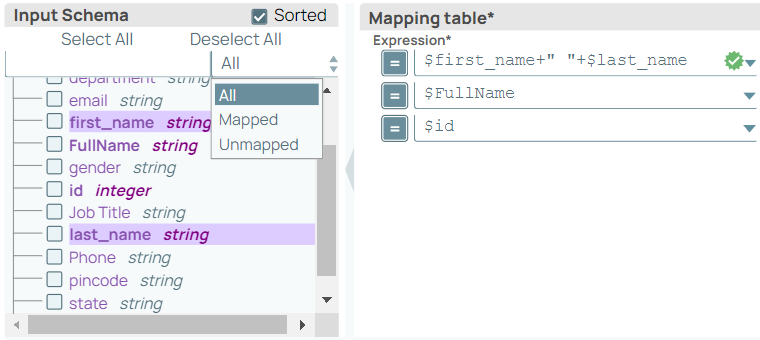
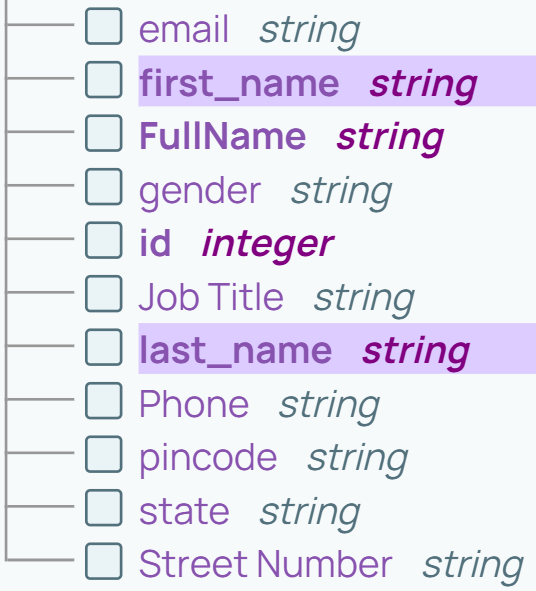
- Determine which fields in a schema are mapped or unmapped.
- Create and manage a large mapping table through drag-and-drop.
- Search for specific fields.
- If an XML schema is exposed in the Target schema column of the Mapper Snap, map the attribute fields before the element fields of the enclosing element field. The mapping ensures that the JSON data from the Mapper Snap is valid for converting to XML.
- If a Copy Snap is placed directly after a Mapper Snap, schema information is not visible in the target schema of the Mapping Table.
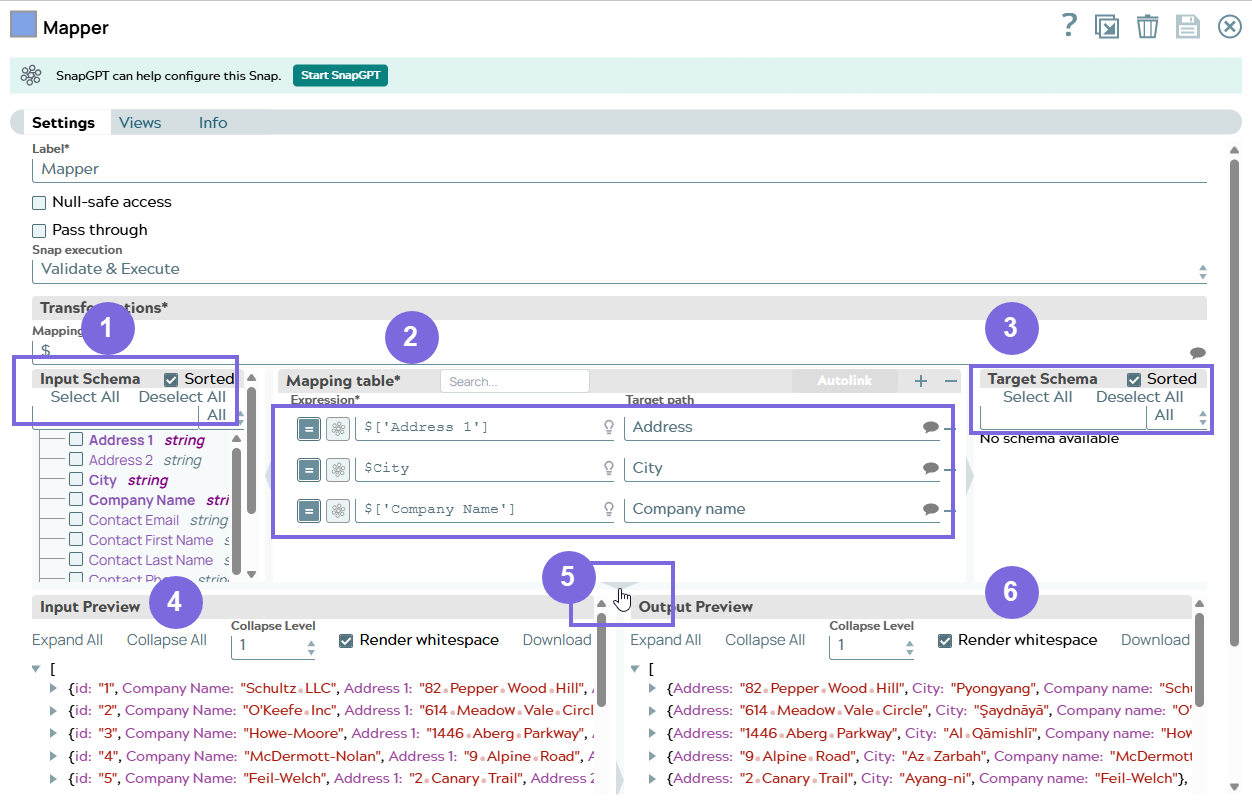
| Callout number | Element | Description |
|---|---|---|
| 1 | Input Schema | The input schema lists all the schema elements from the upstream Snap. You can drag the desired schema element to the Mapping table. Learn more. |
| 2 | Search | The inline Search in the Mapping table helps you to quickly find specific mappings. Learn more. |
| 3 | Expression | The function to be used to transform the data. For example, concat, combine, or flatten. |
| 4 | Target path | The target JSON path where the value from the evaluated
expression is written. Learn more Note:
The expression in the Target path field works only when Pass through is enabled. |
| 5 | Target Schema | The schema generated by a downstream Snap populates a list of suggestions for the Expression column. This functionality is useful when the Mapper Snap is followed by Snaps with custom fields, such as the JSON Formatter or NetSuite Snaps. Learn more. |
| 6 | Input Preview | Displays the input preview of the specified mappings in the mapping table. |
| 7 | Arrow | Click the arrow below the mapping table to preview the input and
target schemas. Note:
|
| 8 | Output Preview | Displays the output preview of the specified mappings in the mapping table. |
Input schema
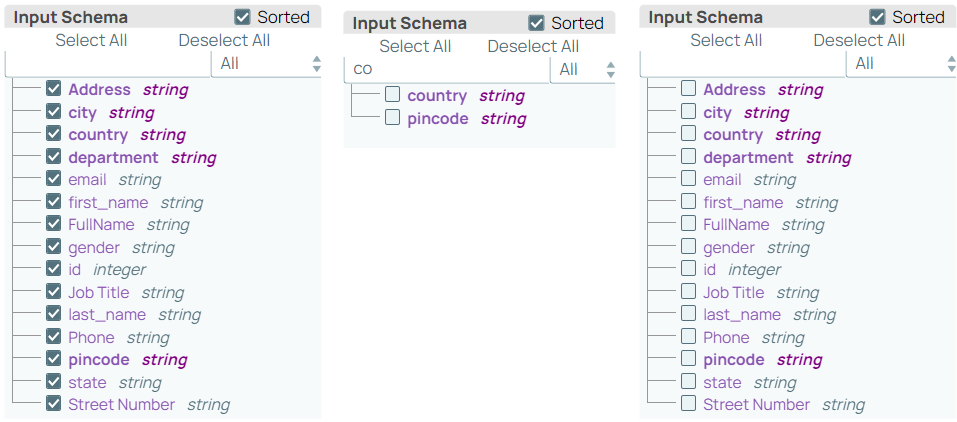
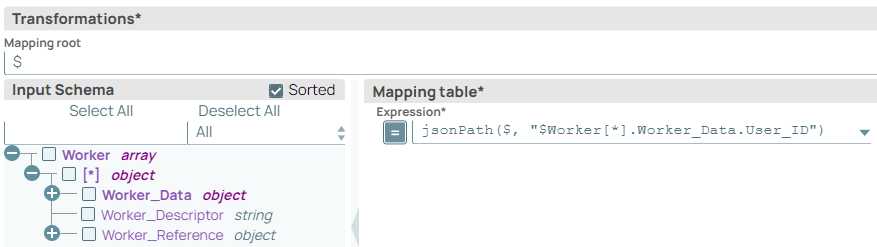
You can use any of the following features to select multiple fields in an Input or Target schema:
-
Select All: Click this button to select all fields in a schema, including the collapsed children.
-
Deselect All: Click this button to deselect all the selected fields in a schema, including the collapsed children.
-
To select (or deselect) a subset of the schema, search for the key name.
-
Click Select All or Deselect All.
Note: Select (or deselect) applies only to fields that match the search terms. -
-
Shift-click: You can also use a keyboard shortcut to select a range of fields. Select the first field in the range, hold down the Shift key, then select the last field in the range. You can also hold down the Shift key and click a plus symbol + in the schema hierarchy to expand that part of the hierarchy.
Target schema
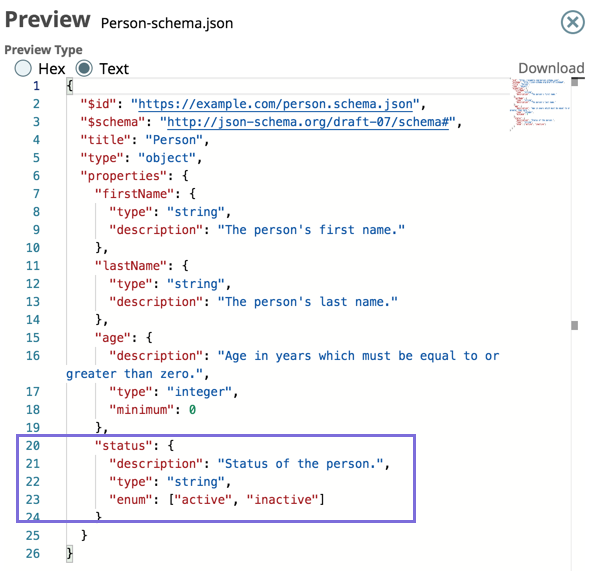
The schema generated by a downstream Snap populates a list of suggestions for the Expression column. This functionality is useful when the Mapper Snap is followed by Snaps with custom fields, such as the JSON Formatter or NetSuite Snaps.
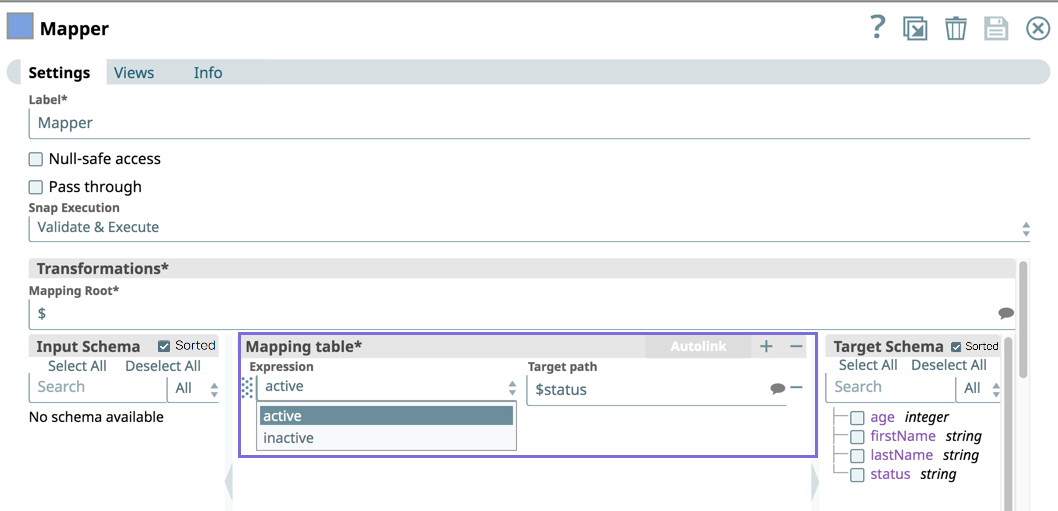
Toggle off the Expression button in the Expression Builder, then select the field with multiple keys, and a dropdown list of the multiple keys in that field.
Mapping table search
You can use the Search functionality:
-
When working with large mapping tables and need to locate a specific expression or target path.
-
When debugging or reviewing mappings to verify that a specific field is mapped correctly.
-
When editing a subset of mappings without viewing the unrelated rows (using the Hide others checkbox).
To search for an input expression or target path:
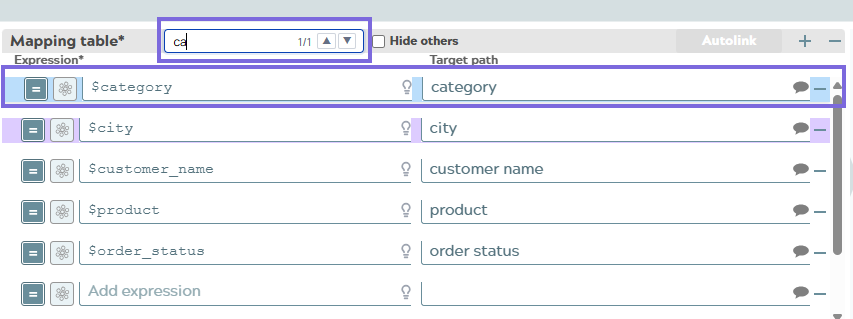
- Type a search term in the Search box. Search matches across both expression
and target path columns. Matched rows are highlighted in light blue; the
current match is highlighted in darker blue with a shadow.
-
Use the arrow buttons (▲/▼) or keyboard shortcuts to navigate between matches.
-
Optionally, check Hide others to hide all non-matching rows for focused viewing.
Note: The Hide others checkbox displays only when you specify a search term in the Search box. Drag-and-drop reordering is automatically disabled when the Hide others filter is active. Clear the search term to reset the view and re-enable drag-and-drop.
Automatically map fields
- Click + to add a row. Drag an element from the Input Schema into the Expression field of the Mapping table . The input changes to an expression.
- Drag the appropriate Output Schema field into the target path for the corresponding Input Schema field or enter a value for the target path. If a value already exists, the new value replaces it.

To insert a new line between entries, use the Unicode value of
\u000A , as in:
 $element
      + "\u000A" + $element
To directly map a field from one schema to the other, click and drag the field from either schema to the other, and the mapping is automatically created. You can also drag fields from the input schema to the target path.
Search a Schema in Mapper
To search for a specific field in the input or target schema, enter the specific field name in the search field. You can use the file path wildcards * and ? in a search.
- +Parent
- +Child
- +Grandchild
- +Child
Searching for Parent returns all three items because the key names are
$Parent, $Parent.Child, and
$Parent.Child.Grandchild.
Usability functions
- Collapse the schema views with the gray arrows in the header row for a larger Expression and Target path columns.
- Click the down arrow in an expression field to access the expression editor, functions and properties, and the upstream schema. Click the bubble in the Target path field to access the downstream schema suggestions.
- Rearrange the rows in the mapping table by:
- Highlighting the left side, clicking, and dragging.

- Mousing over a row until a selection arrow appears, then dragging it to a new location.
- Highlighting the left side, clicking, and dragging.