


Salesforce SOQL
Overview
The Salesforce SOQL Snap retrieves object records from Salesforce using a Salesforce Object Query Language (SOQL) query.
See Introduction to SOQL and SOSL for more information.
- This is a Read-type Snap.
 Works in Ultra Tasks
Supported Accounts
Limitations
- For a Salesforce SOQL Snap using the REST API, certain network failures while reading a REST response may result in a socket timeout exception.
- When using Primary Key (PK) Chunking mode in this Snap, the output document schemas in preview mode and execution mode may differ. For more information, see PK Chunking.
Snap views
| Type | Description | Examples of upstream and downstream Snaps |
|---|---|---|
| Input |
This Snap has at most one document input view. Min: 0, Max: 1 |
|
| Output |
This Snap has exactly one document output view. Min: 1, Max: 1 |
|
| Learn more about Error handling. | ||
Examples
Salesforce SOQL example: Combine Salesforce SOQL data with ServiceNow data.
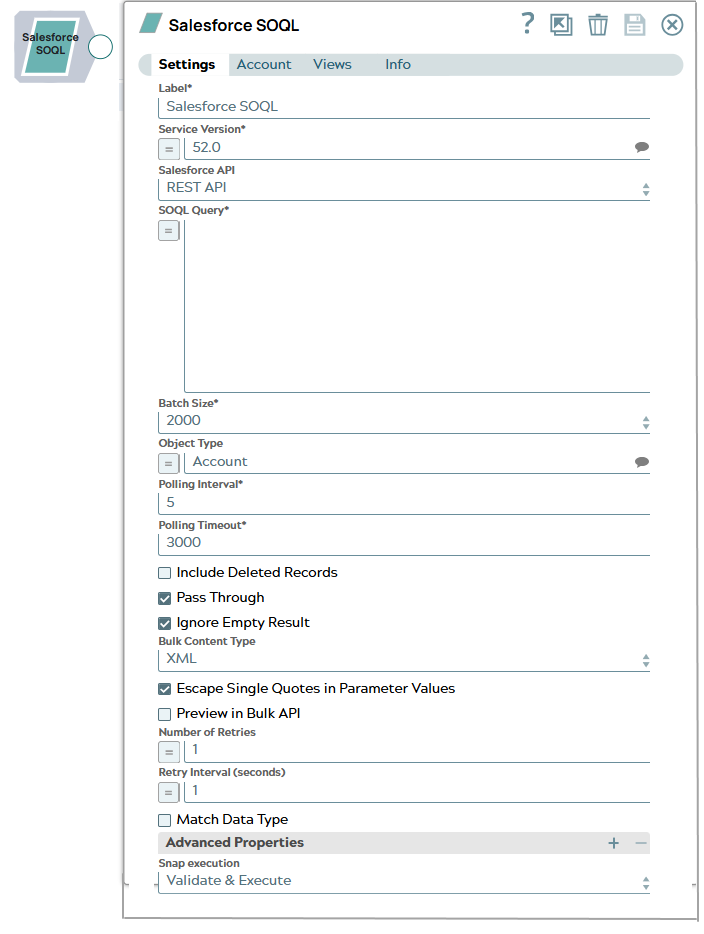
Snap settings
| Field/Field set | Description |
|---|---|
Label*
String |
Specify the name for the Snap. You can modify
this to be more specific, especially if you have more than one of the same Snap in
your pipeline. Default value: Salesforce SOQL Example: Salesforce SOQL |
Service Version*
String |
Specify the version number associated with the
Salesforce service that you want to connect to. Alternatively, click the Suggestion
icon to fetch the list of versions and select the desired version. Default value: 52.0 Example: 41.0 |
Salesforce API
Dropdown list |
Select the Salesforce API mode to Bulk API or REST API.
Note: If you select Bulk API, the Object Type field becomes mandatory.
Default value: REST API Example: Bulk API |
SOQL Query*
String/Expression |
Define the SOQL query statement. You can enter an expression, which is evaluated each time the Snap is executed. This Snap supports the SOQL keyword FIELDS(), which can be used to select a pre-defined collection of fields from an object in place of the typical field list. Learn more. To use FIELDS() in a SOQL query, the Snap's service version must be set to 51.0 or higher.
Note:
Using quotes in the WHERE clause
Default value: N/A Example: SELECT Id, Name FROM Account WHERE LastModifiedDate > 2020-01-01T00:00:00Z |
Batch size
Integer |
Specify the number of records to process in a batch. This refers to the number of records in each batch during the download of large query results. Each batch read requires an API call against Salesforce to retrieve the set of records. This Snap does not honor the selection of the Match Data Type checkbox when the value entered for Batch Size is greater than 50,000.
Default value: 2000 Example: 2000 |
Object Type
String |
Specify the name of the Salesforce object or select one from the suggested list.
Note: This Snap does not support Net Zero Cloud Salesforce objects.
Default value: Account Example: Account |
Polling Interval*
Integer |
Specify the polling interval in seconds for the Bulk API query execution. At each polling interval, the Snap checks the status of the Bulk API query batch processing.
Maximum value: 60 Default value: 5 Example: 5 |
Polling Timeout*
Integer |
Specify the polling timeout in seconds for the Bulk API query batch execution. If the timeout occurs while waiting for the completion of the query batch execution, the Snap throws an exception.
Default value: 3000 Example: 300 |
Include Deleted records
Checkbox |
Select this checkbox to include deleted records in the query result. This feature is supported in REST API version 29.0 or later and Bulk API version 39.0 or later.
Default value: Deselected |
Pass Through
Checkbox |
Select this checkbox to pass the input document through to the output view under the key 'original'. This property is applicable for REST and Bulk APIs.
Default value: Selected |
Ignore Empty Result
Checkbox |
Select this checkbox to ignore empty result, so no document will be written to the output view when the operation does not produce any result.
If you deselect this checkbox and select Pass Through, the input document will be passed through to the output view. If you do not select both the checkboxes, Ignore Empty Result and Pass Through, the Snap writes an empty output as below: Note:
This property does not apply when you run the Snap in When you run the Snap in Default value: Selected |
Bulk Content Type
Dropdown list |
Select the content type for Bulk API: JSON or XML.
Note:
Default value: XML Example: JSON |
Escape Single Quotes in Parameter Values
Checkbox |
Select this checkbox to escape single quotes in the parameter values when the SOQL query property is expression-enabled. You must use this feature when the WHERE clause values are parameterized and contain single quotes. For example, "SELECT Name,Email FROM Contact WHERE Name='" + $Name + "'". If you clear the selection, the SOQL query property is evaluated without escaping the single quotes.
Default value: Selected |
Preview in Bulk API
Checkbox |
Select this checkbox to view the preview in Bulk API. If you select this option and the Salesforce API property is Bulk API, the Snap is executed in Bulk API during the preview.
Note: If the query is expected to take long to complete its execution, the preview will also take longer or fail with a timeout error. Users may add "LIMIT 50" to the query to get the preview result fast. If you deselect this checkbox and Salesforce API is Bulk API, the Snap previews in REST API. The data schema of the query results in REST API may be different from the ones in Bulk API, and the data types of some fields are different between REST API and Bulk API. This issue may result in cases where the pipeline previews successfully, but fails in execution.
Default value: Deselected |
Number of Retries
Integer |
Specify the maximum number of retry attempts in case of a network failure.
Note:
This Snap retries all retryable HTTP status codes, including 401, 403, and 5XX, and connection-related errors. Remember:
Minimum value: 0 Default value: 1 Example: 3 |
Retry Interval (seconds)
Integer |
Specify the minimum number of seconds for which the Snap must wait before
attempting recovery from a network failure. Minimum value: 0 Default value: 1 Example: 3 |
Match Data type
Checkbox |
Select this checkbox to match the data types of the Bulk API results with the data types of the REST API. This property applies only when the content type is XML for Bulk API (it does not apply to JSON). If the Bulk content type is XML, Salesforce.com returns all values as strings. If Match data type is selected, the Snap attempts to convert string values to the corresponding data types if the original data type is one of the following: boolean, integer, double, currency, or percent.
This property is ignored in REST APIs or when the Bulk Content Type is Default value: Deselected |
| Advanced Properties | Use this field set to set advanced properties. By default, the advanced properties are not required and is an empty table property. Click the add icon to add an advanced property to set a value other than the default value. This field set contains the following fields:
|
Properties
Dropdown list |
Select either of the following properties:
Default value: N/A |
Values
String |
Specify the value for property selected in the Properties field. The default values are:
Default value: N/A Example: true |
Snap execution
Dropdown list |
Choose one of the three modes in
which the Snap executes. Available options are:
|
PK Chunking
PK chunking splits bulk queries on very large tables into chunks based on the record IDs, or primary keys, of the queried records. Each chunk is processed as a separate batch that counts toward your daily batch limit. PK chunking is supported for the following objects: Account, Campaign, CampaignMember, Case, Contact, Lead, LoginHistory, Opportunity, Task, User, and custom objects.
PK chunking works by adding record ID boundaries to the query with a WHERE clause, limiting the query results to a smaller chunk of the total results. The remaining results are fetched with additional queries that contain successive boundaries. The number of records within the ID boundaries of each chunk is referred to as the chunk size. The first query retrieves records between a specified starting ID and the starting ID plus the chunk size, the next query retrieves the next chunk of records, and so on. Since Salesforce.com appends a WHERE clause to the query in the PK Chunking mode, if SOQL Query has LIMIT clause in it, the Snap will submit a regular bulk query job without PK Chunking. See PK Chunking Header for more details.
If 100,000 or 250,000 is selected for Batch size, the value is used as a chunk size in the PK Chunking. Note the chunk size applies to the number of records in the queried table rather than the number of records in the query result. For example, if the queried table has 10 million records and 250,000 is selected for Batch size, 40 batches are created to execute the bulk query job. One additional control batch is also created and it does not process any record. The status of the submitted bulk job and its batches can be monitored by logging onto your Salesforce.com account in a web browser and going to .
PK Chunking requires Service version 28.0 or later. Therefore, if 100,000 or 250,000 is selected for Batch size and Service version is older than 28.0, the Snap submits a regular bulk query job without PK Chunking.
The output document schemas in preview mode (validation) and execution mode for this Snap may differ when using Primary Key (PK) Chunking mode. This is because the Snap intentionally generates the output preview using regular Bulk API instead of PK Chunking, to reduce the costs involved in the PK Chunking operation. Salesforce recommends use of PK Chunking if the target Salesforce object (table) is relatively large (for example, more than few 100,000 records).
CSV files are generated as a result of PK Chunking Bulk API request in Salesforce.com. The Snap downloads them into temporary files in local disk of the instance where the pipeline is executed. Therefore, users should make sure sufficient free disk space is available for all CSV files. These temporary files are removed when the CSV parsing is completed.
Troubleshooting
None.