


Redshift - Execute
Overview
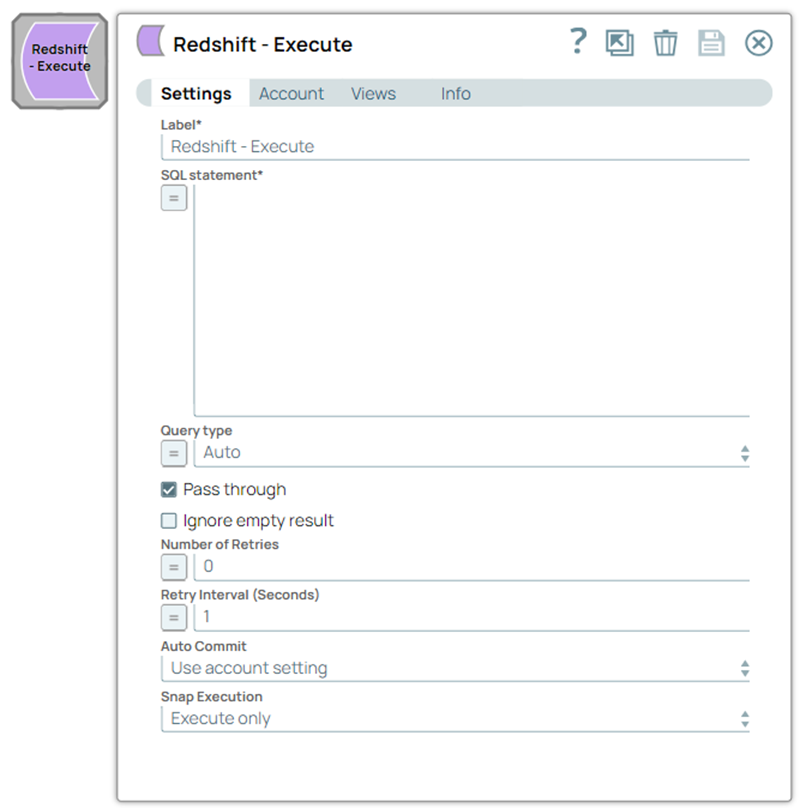
You can use the Redshift Execute Snap to execute arbitrary SQL queries. It executes DML (SELECT, INSERT, UPDATE, DELETE) type statements. This Snap works best with single queries.
- This is a Write-type Snap.
 Works in Ultra Tasks
Prerequisites
A valid Redshift Account with the required permissions.
Limitations
If you use the PostgreSQL driver (org.postgresql.Driver) with the Redshift Snap Pack, it could result in errors if the data type provided to the Snap does not match the data type in the Redshift table schema. Either use the Redshift driver (com.amazon.redshift.jdbc42.Driver) or use the correct data type in the input document to resolve these errors.
- When the SQL statement property is an expression, the pipeline parameters are shown in the suggest, but not the input schema.
- Multiple queries might not work, because the underlying JDBC driver does not support multiple queries. We recommend you to use the Redshift - Multi Execute Snap for running multiple queries.
Behavior Change
Starting from the main22460 version, when you enable the Pass through property in the Execute Snaps, the Snap execution does not stop even when SQL exceptions occur. Instead, the Snap routes the exceptions to the error view while continuing to process other SQL queries.
For example, in a Pipeline with an upstream Snap providing five input documents to the Execute Snap configured to perform INSERT operations:
- If the second INSERT operation results in an SQL exception, the Execute Snap routes that exception to the error view.
- The Snap continues processing and successfully completes the remaining three INSERT operations.
Snap views
| Type | Description | Examples of upstream and downstream Snaps |
|---|---|---|
| Input |
Document |
|
| Output |
Document |
|
| Learn more about Error handling. | ||
Examples
- Execute Custom SQL Statements: Execute custom SQL statements in Redshift database
- Invoke Stored Procedures in Redshift: Invoke stored procedures in Redshift database
Snap settings
| Field/Field set | Description | ||
|---|---|---|---|
|
Label
|
Required. Specify a unique name for the Snap. Modify this to be more appropriate, especially if more than one of the same Snaps is in the pipeline. Default value: Redshift - Execute Example: Redshift - Execute |
||
|
SQL statement
|
Required. Specify the SQL statement to execute on the server. Note:
Redshift allows using \ (backslash) or ' (single quote) to escape special characters in the SQL. We recommend that you use ' (single quote) in the SQL statement to escape special characters. We recommend you to add a single query in the SQL Statement field. Valid JSON paths that are defined in the WHERE clause for queries/statements are substituted with values from an incoming document. If the document is missing a value to be substituted into the query/statement, it will be written to the error view. If '$' is not part of the JSON path, it can be escaped by writing it as \$ so that it can be executed as-is. For example: SELECT \$2, \$3 FROM mytable. If the character before $ is alphanumeric, then '$' does not have to be escaped (for instance, SELECT metadata$filename ...). If a SELECT query is executed, the query results are merged into the incoming document and any the values of the existing keys are overwritten. If there are no results from the query, the original document is written. If the SQL is parameterized (having valid JSON paths defined in the SQL text), the Snap creates a prepared statement and binds any parameters with the substituted values from the incoming document before executing in batch. If the SQL is not parameterized (literal SQL text), it will not create a PREPARE statement and instead execute SQL as a single query instead of batching. Default value: N/A Example: |
||
|
Query type
|
Select the type of query for your SQL statement (Read or Write). When Auto is selected, the Snap tries to determine the query type automatically. If the execution result of the query is not as expected, you can change the query type to Read or Write. Default value: Auto Example: Read |
||
|
Pass through
|
Select this checkbox to pass the input document through to the output view under the key 'original'. This property applies only to the Execute Snaps with SELECT statement. Default value: Selected Example: Deselected |
||
|
Ignore empty result
|
Select this checkbox to ignore empty result; no document will be written to the output view when a SELECT operation does not produce any result. If you deselect this checkbox and select the Pass through checkbox, the input document will be passed through to the output view. Default value: Deselected Example: Selected |
||
|
Number of retries
|
Specify the maximum number of retry attempts the Snap must make in case of network failure. Note:
When you set the Number of retries to more than 0, the Snap generates duplicate records when the connection is not established. To prevent duplicate records, we recommend that you follow one of the following:
Default value: 0 Example: 3 |
||
|
Retry interval (seconds)
|
Specify the time interval between two successive retry requests. A retry happens only when the previous attempt resulted in an exception. Default value: 1 Example: 10 |
||
|
Auto commit
|
Select one of the following options:
Note: Auto commit may be enabled for certain use cases if PostgreSQL JDBC driver is used in either Redshift, PostgreSQL or Generic JDBC Snap. But the JDBC driver may cause out of memory issues when Select statements are executed. For such cases, we recommend you to set Auto commit in the Snap settings to False and the Fetch size in the Account settings can be increased for optimal performance.
Note:
Behavior of DML Queries in the Execute Snap when auto-commit is false:
Default value: Use account setting Example: True |
||
|
Snap execution
|
Select one of the three modes in which the Snap executes. Available options are:
Default value: Execute only Example: Validate & Execute |
||
Troubleshooting
| Error | Reason | Resolution |
|---|---|---|
| type "e" does not exist | This issue occurs due to incompatibilities with the recent upgrade in the Postgres JDBC drivers. | Download the latest 4.1 Amazon Redshift driver here and use this driver in your Redshift Account configuration and retry running the Pipeline. |
| Batch entry 1 - too many update results were returned | The supplied SQL contains multiple statements that either return a row count (INSERT, UPDATE, DELETE) or 0 for DDL (CREATE, DROP, TRUNCATE, ...). You can only have one of these in the SQL. You can mix this with SELECT, however, only the first SQL statement will be returned and shown in the output view. | Check the SQL to make sure it doesn't contain multiple statements. Some subtle edge cases, such as a trailing comment after a delimiter (;), creates another SQL statement. |
Additional Information
Scenario 1: Executing SQL statements without expressions
When you deselect the expression toggle of the SQL statement field:
- You must not embed the SQL statement within quotes.
- The $<variable_name> parts of the SQL statement are expressions. In the below example, $id and $book.
The JSON path is allowed only in the WHERE clause. If the SQL statement starts with SELECT (case-insensitive), the Snap regards it as a select-type query and executes once per input document. If not, it regards it as write-type query and executes in batch mode.
Scenario 2: Executing SQL queries with expressions
When you select the expression toggle of the SQL statement field:
- The SQL statement must be within quotes.
- The + $<variable_name> + parts of the SQL statement are expressions, and must not be within quotes. In the below example, $tablename.
- The $<variable_name> parts of the SQL statement are bind parameter, and must be within quotes. In the below example, $id and $book.
- The non-expression form uses bind parameters, so it is much faster than executing N arbitrary SQL expressions.
- Using expressions that join strings together to create SQL queries or conditions has a potential SQL injection risk and hence unsafe. Ensure that you understand all implications and risks involved before using concatenation of strings with '=' Expression enabled.
- The '$' sign and identifier characters, such as double quotes ("), single quotes ('), or back quotes (`), are reserved characters and should not be used in comments or for purposes other than their originally intended purpose.
Any relational database (RDBMS) treats single quotes (') as special symbols. So, single quotes in the data or values passed through a DML query may cause the Snap to fail when the query is executed. Ensure that you pass two consecutive single quotes in place of one within these values to escape the single quote through these queries. For example:
| If String | To pass this value | Use |
|---|---|---|
| Has no single quotes | Schaum Series | 'Schaum Series' |
| Contains single quotes | O'Reilly's Publication | 'O''Reilly''s Publication' |
- Be cautious when running your queries, because you can drop your database and lock tables while executing SQL statements.
- Running multiple queries might not work with the Redshift - Execute Snap. If you need to run multiple queries, we recommend you to use the Redshift - Multi Execute Snap.
This Snap enables the following ETL operations/flows:
- Extract data from an existing Redshift Table.
- Transform any input document SnapLogic types to Redshift JDBC types for any input and transform any output document Redshift JDBC types to SnapLogic types for output.
- Load data in the Redshift table.
The SQL (to be executed) is passed to Redshift. Here's the detailed data flow:
- The Snaps collects the user account information, and the SQL statement (after any expression evaluation), and any JDBC jars defined in the Redshift database account. JDBC jars defined in the Redshift database account are at customer discretion and should be Redshift approved/supported.
- Valid JSON paths that are defined in the WHERE clause for queries/statements will be substituted with values from an incoming document as a prepared statement. The substituted values will be transformed from the SnapLogic type value to the appropriated JDBC type values based on the database's column type. If there are no JSON paths then a JDBC query will be utilized instead of a prepared statement.
- Successful execution may create a result set. The result set columns will be transformed from the JDBC type value to the SnapLogic type value.
- Data errors may occur, therefore an error view should be created to handle these conditions. If the batch has a data error the error data will be written to the error view and the rest of the batch will not be processed. However, a batch data error will not stop subsequent batches from executing.
- Select SQLs will not use auto-commit. For non-select SQL, commit happens at successful batch completion when the database account has Auto commit enabled. If the database account does not have Auto commit enabled, commit happens at end of the successful Snap run. Therefore the Auto commit the setting must be configured to be processed in the desired way. For example, If a downstream Snap needs to see the data in the database, auto-commit should be enabled.
- The database account uses a shared connection pool for efficiency and to prevent opening too many connections to a database. It is possible that another Snap with the same database account settings may be reusing the same connection as the Redshift Execute. To avoid reusing another Snap's connection for the purpose of isolating DML operations or debugging connection operations, use a different database account having different settings - this will cause the database connection to be unique to the Redshift Execute Snap.