


Thinking and Planning modes
SnapGPT offers Standard, Think, and Plan modes to control the level of AI reasoning and the type of task you want to perform.
SnapGPT provides three modes that balance response time and output quality based on your task. You can use any of the following modes based on your requirements:
- Standard: The default mode. Works for all SnapGPT skills with quick responses.
- Think: Applies deeper AI reasoning. Available as a toggle button below the chat input box.
- Plan: Enables a conversational planning loop for pipeline
generation and refinement. Available as a toggle button below the chat input box.Note: You can enable both Think and Plan modes at the same time. When both are active, the agent applies extended reasoning and on request, generates mock data to verify that the generated pipelines satisfy your request.
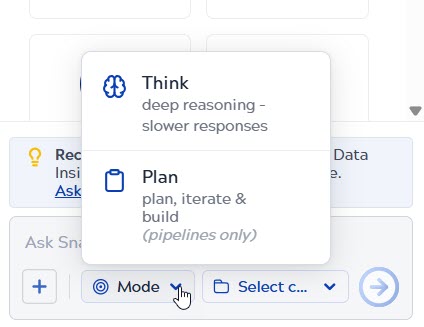
Modes at a glance
| Mode | Purpose | Latency | Example prompts |
|---|---|---|---|
| Standard (default) | Quick responses for all SnapGPT skills. Use when speed matters more than depth of reasoning. | Low |
|
| Think | Deeper AI reasoning for skills other than pipeline generation and refinement, such as pipeline analysis, Q&A, descriptions, expression generation, and SQL generation. | Higher |
|
| Plan | Conversational planning loop for pipeline generation and refinement. SnapGPT proposes a plan, you review and iterate, then it builds the pipeline. Use to create a new pipeline or refine an existing one. | Higher |
|
Select project assets using the Project Context selector
The Project Context selector scopes SnapGPT to specific pipelines and assets in your project. Selecting assets is optional for all modes but is recommended to improve output accuracy. It also determines which assets appear when you use the @ mention feature in the chat input box.
- In the SnapGPT panel, click the Select scope below the chat input
box.
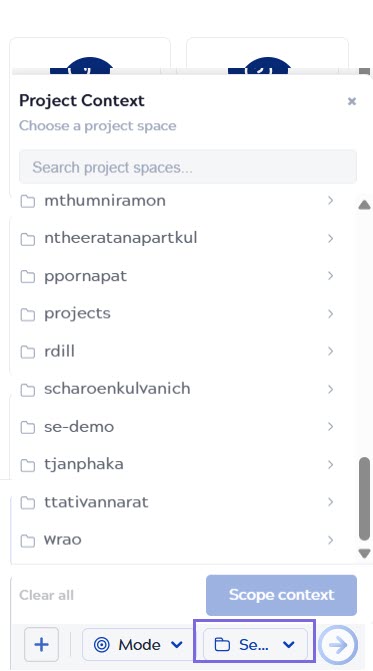
- Navigate to your asset: Project Space > Project > Asset.
- Select the assets relevant to your task. You can select up to 10 assets in total from
one or more projects that you have access to. The selector button updates to show the
number of assets scoped. Hover over the button to see the asset count and the root project
path.
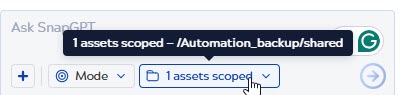
Note: Supported asset types are Pipeline, File, and Account. For Account assets, only the account reference is sent to the agent; credentials are never shared. In addition to reading selected files as context, SnapGPT can generate new files as part of its response. Refer to Generate supporting assets. - Enable Think or Plan using the toggle buttons below the chat input box.
- Enter your prompt and click the submit button or press Return.
- You must have the required access permissions to view and select assets from a project.
- Project Spaces cannot be selected as context. Navigate to the project or asset level.
- Hidden directories are not shown in the Scope context selector.
- The last project in which you click Scope Context is set as the root project. Default save actions, such as saving pipelines or generated files, point to this root project.
Generate supporting assets
SnapGPT can generate supporting files alongside a pipeline, such as sample test data (CSV, JSON) and expression libraries. These are returned in a Generated assets block in the chat response. You can preview each file and save it directly to your project, enabling you to test and validate your integration without creating datasets manually.
To generate supporting assets, include the request in your prompt alongside the pipeline generation request. For example:
- Generate a pipeline that reads from a CSV file and writes to JSON. Also generate a sample input CSV file I can use to test it.
- Build a pipeline to sync Salesforce leads to BigQuery and provide a sample JSON dataset to test the pipeline.
- Create a pipeline to aggregate sales data by region and generate a sample expression library for the transformation logic.
SnapGPT returns a Generated assets block with a card for each file, showing the file name, type, and size.
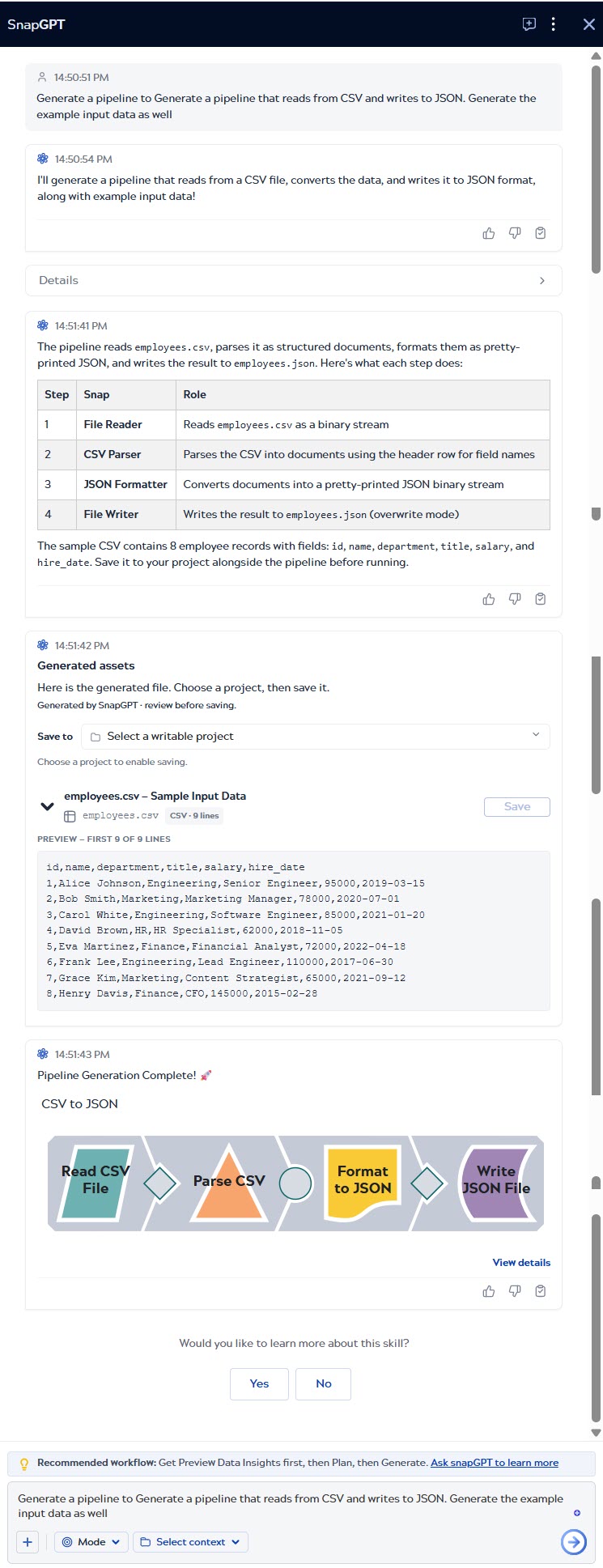
To save a generated file to your project:
- In the Generated assets block, select the destination project from the Save to dropdown, and click Save.
- On the file card, click the three-dot menu and select one of the following:
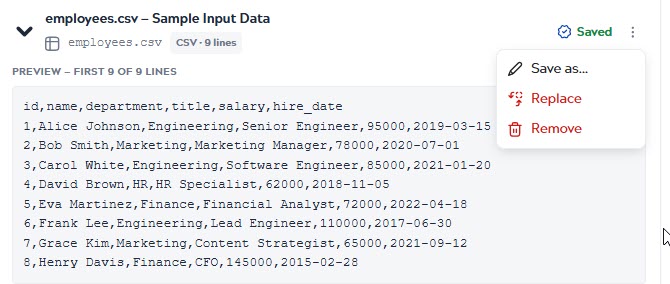
- Save as: Save the file under a new name to the selected project location.
- Replace: Overwrite an existing file in your project with the generated file.
- Remove: Discard the generated file from the response.
- A Saved badge appears on the file card to confirm the file has been saved.
Reference an asset in your prompt (@-mention)
After selecting project assets with the Project Context selector, you can reference specific assets directly in your prompt by typing the @ symbol. SnapGPT attaches the referenced asset's content to your prompt as additional context, which is particularly useful when generating or refining pipelines in Plan mode.
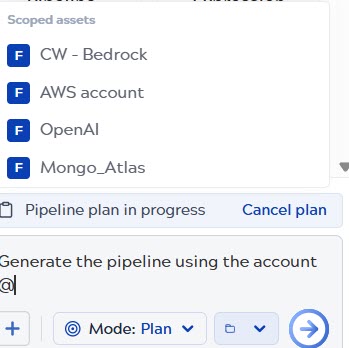
- In the chat input box, type @ followed by the start of the asset name.
- A dropdown appears showing matching assets from your selected project scope.
- Select the asset from the dropdown to add it as a reference in your prompt.
- Complete your prompt and submit it.
Example
Refine @customerPipeline to write paid customers to one file and trial customers to another.
Best practices
- Use Plan mode for pipeline work: Plan mode is designed for pipeline generation and refinement. For all other tasks, use Think or Standard mode.
- Use Think mode for deeper analysis: Think mode applies more AI reasoning to tasks such as pipeline analysis, Q&A, and expression generation. Expect a longer response time than Standard mode.
- Select relevant assets: Selecting the right project assets as context leads to more accurate outputs. Limit your selection to assets directly relevant to your task.
- Provide detailed prompts in Think and Plan modes: More detailed prompts produce better results. See Prompt tips for guidance.
- Start a new chat to switch Think mode: Think mode locks after the first message is sent. Click New chat to start a session with a different mode. Plan mode can be toggled on or off at any point during a session.
- Enable both Think and Plan modes for complex pipeline generation: When both modes are active together, the agent applies extended reasoning and generates mock data to validate that the pipeline satisfies your request before producing the final output. Enable Think mode before sending your first message, then toggle Plan mode on as needed during the session. Use this combination for pipelines with intricate logic, multiple data sources, or strict transformation requirements.
- Request sample data alongside your pipeline: Ask SnapGPT to generate supporting test data (CSV, JSON) or expression libraries in the same prompt as your pipeline request. Preview and save the generated files directly from the chat to validate your integration without building test datasets manually.