


Expensify Create Report
Overview
The Expensify Create Report Snap creates reports in Expensify.
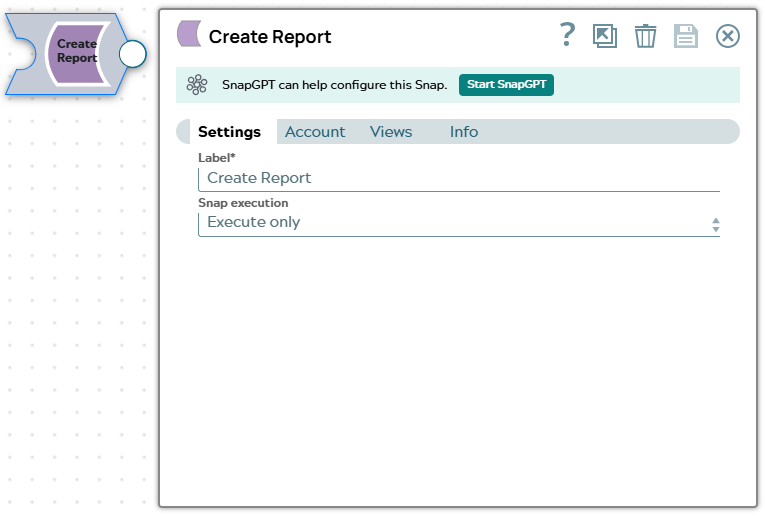
- This is a Write-type Snap.
 Works in Ultra Tasks
Supported Accounts
Prerequisites
A valid Expensify Account.
Snap views
| Type | Description | Examples of upstream and downstream Snaps |
|---|---|---|
| Input |
This Snap has exactly one document input view. Expected input: Input request data. |
|
| Output |
This Snap has at most one document output view. Expected output: The information about the created report. |
|
| Learn more about Error handling. | ||
Snap settings
Note: Learn about
the common controls in the Snap settings dialog.
| Field/Field set | Description |
|---|---|
Label*
String |
Specify a unique name for the Snap. Modify this to be more appropriate, especially if more than one of the same Snaps is in the pipeline. Default value: Expensify Create Report |
Snap execution Dropdown list |
Choose one of the three modes in
which the Snap executes. Available options are:
Default value: Execute only Example: Execute only |
Supported Attributes for Create Report operation
The details about attributes to be passed as input for create report operation can be found at following link: create report attributes.
JSON for creating report
{
                "inputSettings": {
                    "type": "report",
                    "policyID": "0123456789ABCDEF",
                    "report": {
                        "title": "Name of the report",
                         "fields":{
                            "reason_of_trip": "Business trip",
                            "employees": "3"
                }
        },
          "employeeEmail": "[email protected]",
          "expenses": [
             {
                     "date": "yyyy-mm-dd",
                     "currency":  "USD",
                     "merchant": "Name of merchant",
                     "amount": 1234
              },
              {
                     "date": "yyyy-mm-dd",
                     "currency":  "CAD",
                     "merchant":  "Name of merchant",
                     "amount": 2211
              }
           ]
       }
 }