


Google Sheets – Google Service Account
Overview
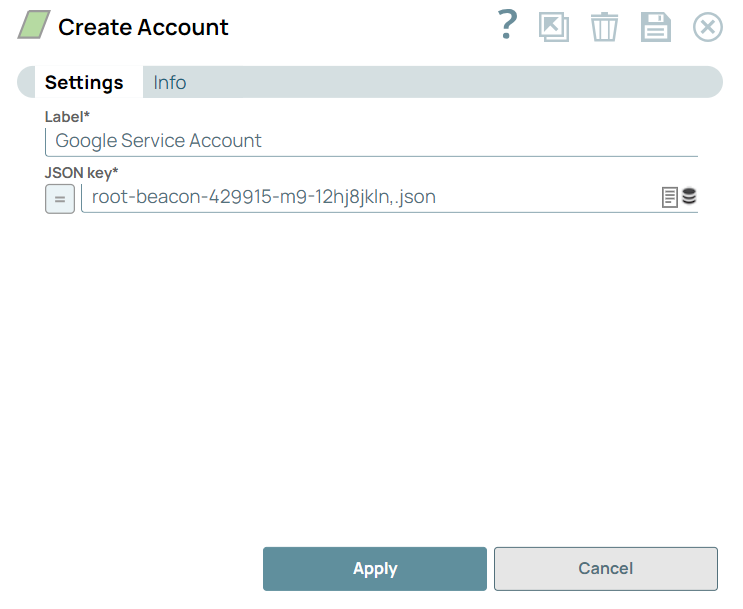
You can use this account type to connect Google Sheets Snaps with data sources that use Google Service Account.
Prerequisites
- Valid JSON key. Learn how to create a JSON key.
Account settings
Legend:
- Expression icon (
 ): Allows using
JavaScript syntax to access SnapLogic Expressions to set field values dynamically (if
enabled). If disabled, you can provide a static value. Learn more.
): Allows using
JavaScript syntax to access SnapLogic Expressions to set field values dynamically (if
enabled). If disabled, you can provide a static value. Learn more. - SnapGPT (
 ): Generates SnapLogic Expressions
based on natural language using SnapGPT. Learn
more.
): Generates SnapLogic Expressions
based on natural language using SnapGPT. Learn
more. - Suggestion icon (
 ): Populates a
list of values dynamically based on your Snap configuration. You can select only one
attribute at a time using the icon. Type into the field if it supports a comma-separated
list of values.
): Populates a
list of values dynamically based on your Snap configuration. You can select only one
attribute at a time using the icon. Type into the field if it supports a comma-separated
list of values. - Upload
 : Uploads files. Learn more.
| Field/Field set | Description |
|---|---|
Label*
String |
Required. Specify a unique label for the account.
Default value: Google Service Account Example: Google Sheets - Service Account |
JSON key*
String/Expression |
Required. Specify the JSON key created for the service account. Learn how to create a JSON key.
For enhanced security, you can store your JSON key in a secret vault and pass it in this field. Default value: N/A Example: root-beacon-429915-m9-12hj8jkln,.json |
How to use the Google Service Account to read and write data from Google Sheets
To read and write data in Google Sheets that belong to a user within your organization, you can use the Google Service Account. Here are the steps to configure:
- Get the Service Account email.
- In the Details tab of your Service Account, locate the Email field. The format is: your-service-account-name@your-project-id.iam.gserviceaccount.com.
- Share the Spreadsheet.
- Open the Google Sheet in your browser.
- Click the Share button.
- Enter the Service Account email address.
- Set the permission to Editor if you need write access or Viewer if you need only read access.
- Click Send.
Learn more: Share the spreadsheet with the service account email.
Troubleshooting
| Error | Cause | Resolution |
|---|---|---|
| Failed to get the spreadsheet ID | Found an empty ID. | Provide a unique name for the spreadsheet and retry. |
| Spreadsheet not found | The spreadsheet may not exist or cannot be accessed. | Verify if the spreadsheet exists and retry. |