


Tc PLMXML Import
This Snap initiate an import of product data structure given in PLMXML format into Teamcenter.
Supported Accounts
- This is a Write-type Snap.
 Works in Ultra Tasks
Prerequisites
- A valid Teamcenter account with the required permissions.
Snap views
| Type | Description | Examples of upstream and downstream Snaps |
|---|---|---|
| Input |
Optional.This Snap has at the most one document input view. The required input of the snap is the File containing data structure PLMXML import or a PLMXML String. |
|
| Output |
Optional.This Snap has at the most one document output view. The output of the snap is empty. |
|
| Learn more about Error handling. | ||
Snap settings
| Field/Field set | Description |
|---|---|
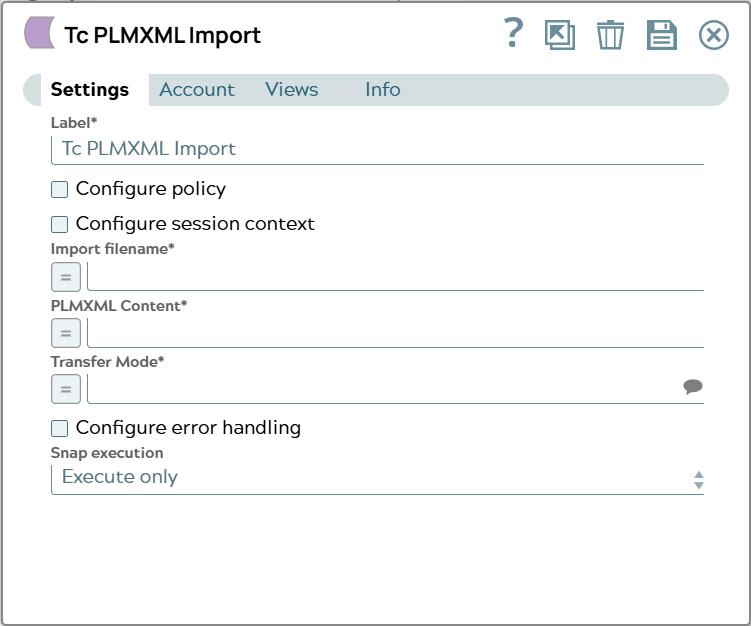
Label
String |
Specify a unique name for the Snap. Modify this to
be more appropriate, especially if there are more than one of the same Snap in the
pipeline.
Default value: Tc PLMXML Import |
Configure policy
Checkbox |
Select this checkbox to run the Snap with a specific named Teamcenter policy. A policy determines the set of object properties that Teamcenter returns. Learn more: Configure policy. Default status: Deselected |
Configure session context
Checkbox |
Select this checkbox to run the Snap with a group, role, or project other than the one configured in the account. Learn more: Configure session context. Default status: Deselected |
Import filename*
String/Expression |
While PLMXML import Teamcenter will write an intermediate file. It’s filename is defined here. Default value: N/A Example: importPLM.xml |
PLMXML Content*
String/Expression |
Content of the import file. Input can be a PLMXML String or a expression to e.g. content in import View JSON Document, Default value: N/A Example: $Content |
Transfer Mode*
String/Expression/ Suggestion |
Specify Transfer Mode for PLMXML Import. Transfer Modes are defined in Teamcenter and rule what and how the import shall happen. Suggestion will present the list of Transfer Modes from the connected Teamcenter. Default value: N/A Example: incremental_import |
Configure error handling
Checkbox |
Select this checkbox to define how the Snap behaves when Teamcenter returns an error. Use these settings for analysis and debugging. Learn more: Configure error handling. Default status: Deselected |
Snap execution
Dropdown list |
Choose one of the three modes in
which the Snap executes. Available options are:
|