


BigQuery - Write
This Snap allows you to load data into BigQuery easily leveraging the jobs and query APIs.
Overview
This Snap allows you to load data into BigQuery easily leveraging the jobs and query APIs.
Snaps in Google BigQuery Snap Pack
- Write datetime values to the database tables, always in UTC format.
- Convert any non-UTC values in the incoming data to UTC before writing them.
- Consider datetime values without the time zone mentioned, as in UTC.
So, ensure that you include the time zone in all the datetime values that you load into Google BigQuery tables using this Snap.
For example: "2020-08-29T18:38:07.370 America/Los_Angeles", "2020-09-11T10:05:14.000-07:00", "2020-09-11T17:05:14.000Z"
- Snap Type: Write
 Works in Ultra Tasks
Prerequisites
None.
Limitations and Known Issues
Copying data by creating a table with the same name in Google BigQuery immediately after deleting it, may not insert the rows as expected. This behavior is due to the way the tables are cached and the internal table ID is propagated throughout the system.
Workaround:
We recommend you avoid rewriting in Google BigQuery and suggest the following workarounds. You can choose to use them individually or in unison, to suit your requirement.
- Truncate the existing table instead of deleting it.
- Add some randomly generated prefix to the table name each time you create the table (new or unique table name every time).
Behavior Change
In the 4.27 (427patches13615) release and later, pipelines that truncated (or deleted and re-created) a table and then used the BigQuery Write or BigQuery Bulk Load (Streaming) Snaps were allowed to retry the load operation. This lead to potential data loss because Google BigQuery uses an eventually consistent backend where one server might respond that it's okay to write, but other servers still truncate the table.
In the 4.32 (432patches20298) release and later, we disabled retries on truncated tables in these two Snaps to prevent a potential loss of data. We recommend that you use the BigQuery Bulk Load - Cloud Storage Snap instead.
Supported Accounts
This Snap works with the following account types. For more information, see Configuring Google BigQuery Accounts.
Snap Views
| Type | Format | Number of Views | Examples of Upstream and Downstream Snaps | Description |
|---|---|---|---|---|
| Input | Document |
|
|
This Snap has exactly one document input view. By connecting a Snap like Mapper, the schema of the selected table maybe viewed and mapped to send data into the columns. |
| Output | Document |
|
|
This Snap has at most one document output view that displays the number of records successfully inserted into the BigQuery table. |
| Learn more about Error handling. | ||||
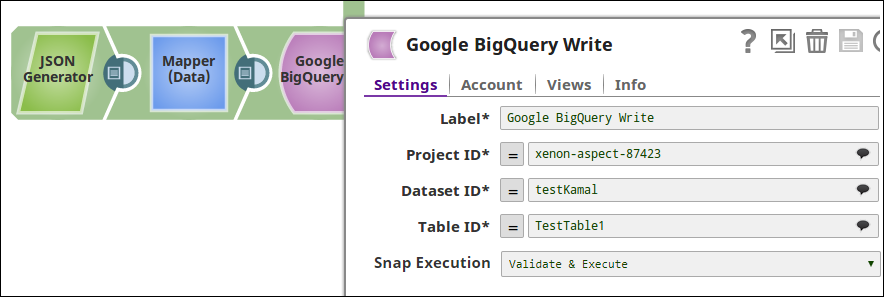
Snap Settings
| Field/Field set | Description | ||
|---|---|---|---|
| Label String |
Specify a unique name for the Snap. Modify this
to be more appropriate, especially if more than one of the same Snaps is in the
pipeline. Default value: N/A |
||
| Project ID String/Expression |
Required. This drop-down shows you a list of all the available projects that your user Account has access to. Clicking on the drop-down always pulls the latest list of available projects. The project on which the query should be executed should be selected. |
||
| Dataset ID String/Expression |
Required. After selecting the project, this drop-down will be populated with the list of available datasets in the Project. |
||
| Table ID String/Expression |
Required. After selecting the dataset, this drop-down will be populated with the list of available tables in the project. All the tables in BigQuery can also be viewed from the BigQuery console and entered directly into this field. |
||
| Create table if not present Checkbox |
Whether the table should be automatically created if not already present. Default value: Not selected |
||
Snap execution
Dropdown list |
Choose one of the three modes in
which the Snap executes. Available options are:
Default value: Validate & Execute Example: Execute only |
||
Implicit retries in BigQuery Snaps
The BigQuery Snaps handle all retriable BigQuery errors (BigQuery exception, IO exception, and Runtime exception) internally.
- 429 (Too Many Requests):
- Retry attempts: Maximum of 5 retries.
- Delay Between Retries: Backoff strategy with jitter (random variation) is applied to prevent synchronized retries and reduce load.
- 401 (Unauthorized):
- Retry attempts: Maximum of 3 retries.
- Delay Between Retries: Backoff strategy is applied.
- Additional Actions: Reloads the BigQuery account on the retry event.
- IOException and 500, 502, 503, 504 (Server Errors):
- Retry attempts: Maximum of 3 retries.
- Delay Between Retries: Backoff strategy is applied.
Note on Writing Numeric Values
Writing numeric values into Google BigQuery tables
Google BigQuery tables support columns with NUMERIC data type to allow storing big decimal numbers (up to 38 digits with nine decimal places). But Snaps in Google BigQuery Snap Pack that load data into tables cannot create numeric columns. When the Create table if not present check box is selected, the Snaps create the required table schema, but map big decimals to a FLOAT64 column. So, to store the data into numeric columns using these Snaps, we recommend the following actions:
- Create the required schema, beforehand, with numeric columns in Google BigQuery.
- Pass the number as a string.
The Google API converts this string into a number with full precision and saves it in the numeric column.
Example:
| Value Passed Through Snap | Value Stored in BigQuery | Remarks |
|---|---|---|
"12345678901234567890123456789.123456789" |
12345678901234567890123456789.123456789 | As per this issue logged in Google Issue Tracker, if you send the values as strings, the values are never converted to floating-point form, so this works as expected. |
12345678901234567890123456789.123456789 |
123456789012345678000000000000 | Big decimal values sent as non-string values lose precision. |