


Configure Regular Schedule
Scheduled Tasks enable you to schedule the execution of a pipeline on a repeatable schedule. To set the run frequency for a pipeline:
-
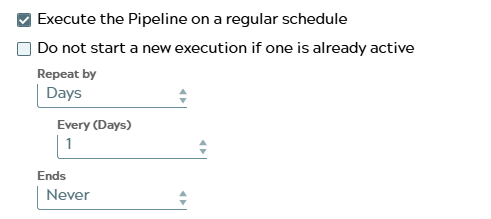
Select the Execute the Pipeline on a regular schedule checkbox. You can
view the scheduling options that indicate how often the associated pipeline
should run.
-
Use the Repeat by setting to select the frequency
interval to execute the pipeline.
- Minutes: Select how often the pipeline should be executed in minutes (1–59) from the Every (Minutes) dropdown list. For example, you can run a Scheduled Task every 15 minutes.
- Hours: Select how often the pipeline should be executed in hours (0–24) from the Every (Hours) dropdown list. For example, you can run a Scheduled Task every 9 hours.
- Days: Select how often the pipeline should be executed in days (1–90) from the Every (Days) dropdown list. For example, you can run a Scheduled Task every 45 days.
- Weeks: Select how often the pipeline should be executed in weeks (1–52) from the Every (Weeks) dropdown list. You can also specify the days of the week your Scheduled Task must execute.
- Months: Select how often the pipeline should be executed in
months (1–6) from the Every (Months) dropdown list. You can also
specify the days of the month on which your Scheduled Task must execute.
This includes the following options:
-
Dates of the month: For example, you can run a Scheduled Task on the 12th and 24th of every month.
-
Days of the month (1st, 2nd, 3rd, 4th, 5th, Last): For example, you can schedule a task to run every third Wednesday of the month.
-
-
Years: Select how often the pipeline must be executed in years (1-4) from the Every (Years) dropdown list.
-
Cron: Select how often the pipeline must be executed in a Cron schedule.
-
Select one of the following options to end your Schedule Task:
-
Never: Select this option to run the Scheduled Task for an indeterminate time. Scheduled tasks run continuously as long as the Snaplex where the Pipeline runs remains online.
-
After # of Runs: Select this option to specify the number of Scheduled Task executions, and enter the number of Scheduled Task executions before the schedule ends in the Runs field.
-
Minimum:
1 -
Maximum:
10000000If you enter an invalid number (for example,
-3or9999999999.99), the dialog displays an error.
-
-
On Date/Time: Select the date and time when the Scheduled Task must end.
-