Proxy Security Policies
How to view, add, edit, and manage security policies for Proxies and Proxy endpoints in the API Manager.
Overview
The supported security policies for Proxies and endpoints are the same as those for APIs and API Versions.
To apply security policies to the Proxy or to the endpoints, edit the Proxy settings or the endpoint settings.
Learn more about each policy type and its settings: Supported API Policies
Viewing Security Policies
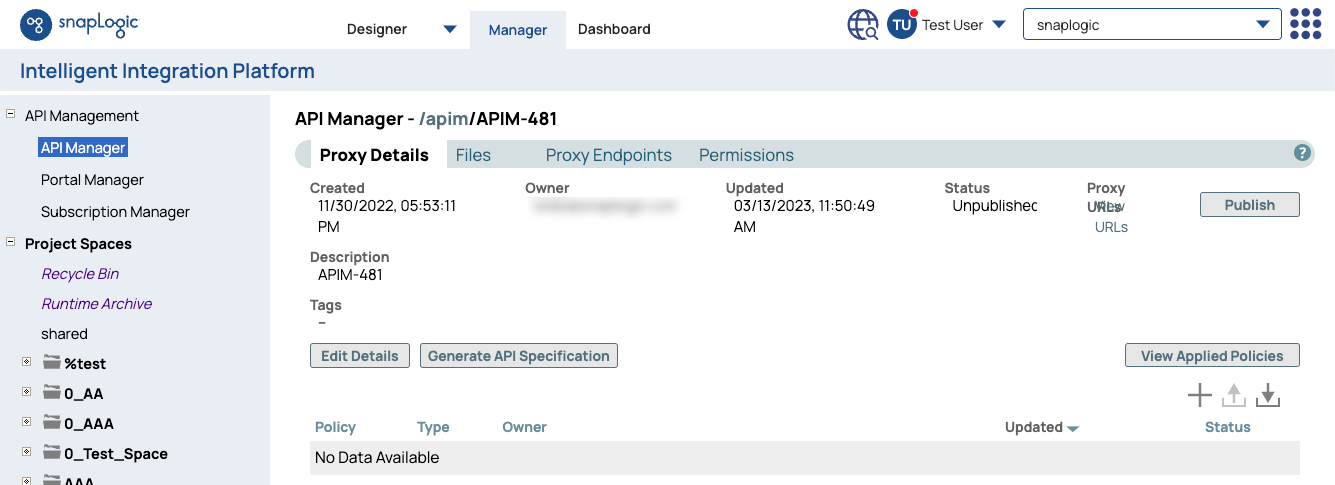
To view the list of security policies that are defined for a Proxy or for an endpoint, go to the details page of the Proxy or the endpoint.
To go to the Proxy details page:
- In SnapLogic Project Manager, go to API Management > API Manager.
- In the API Manager, go to the APIs & Proxies tab.
- Set Filter by Type to Proxy and click Search.
- Click the Proxy's name in the list. The Proxy Details tab opens.
To go to the endpoint details page:
- In SnapLogic Project Manager, go to API Management > API Manager.
- In the API Manager, go to the APIs & Proxies tab.
- Set Filter by Type to Proxy and click Search.
- Click the Proxy's name in the list.
- Go to the Proxy Endpoints tab.
- Click the endpoint's name in the list.
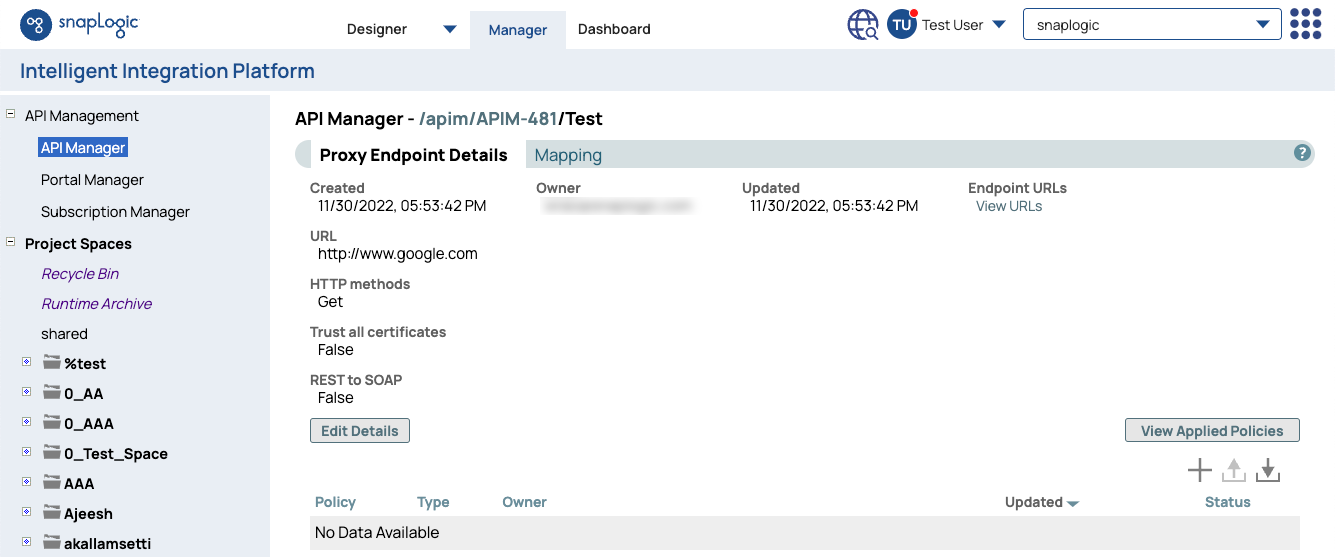
The following fields for defined security policies are listed in the table at the bottom:
| Field | Description |
|---|---|
| Policy | The name of the policy instance. |
| Type | The type of the security policy. |
| Owner | The owner of the policy instance, typically the creator of the policy instance. |
| Updated | The date and time when the policy was last updated. |
| Status | Indicates whether the policy is Enabled or Disabled. |
Adding a Policy
To add and apply security policies to your proxy or endpoint, click the Add icon to open the Add Policy dialog and choose a policy type.
The fields in the Add Policy dialog vary according to the policy type.
Editing a Policy
To edit a policy, click its name on the list.
The fields in the Edit Policy dialog vary according to the policy type.
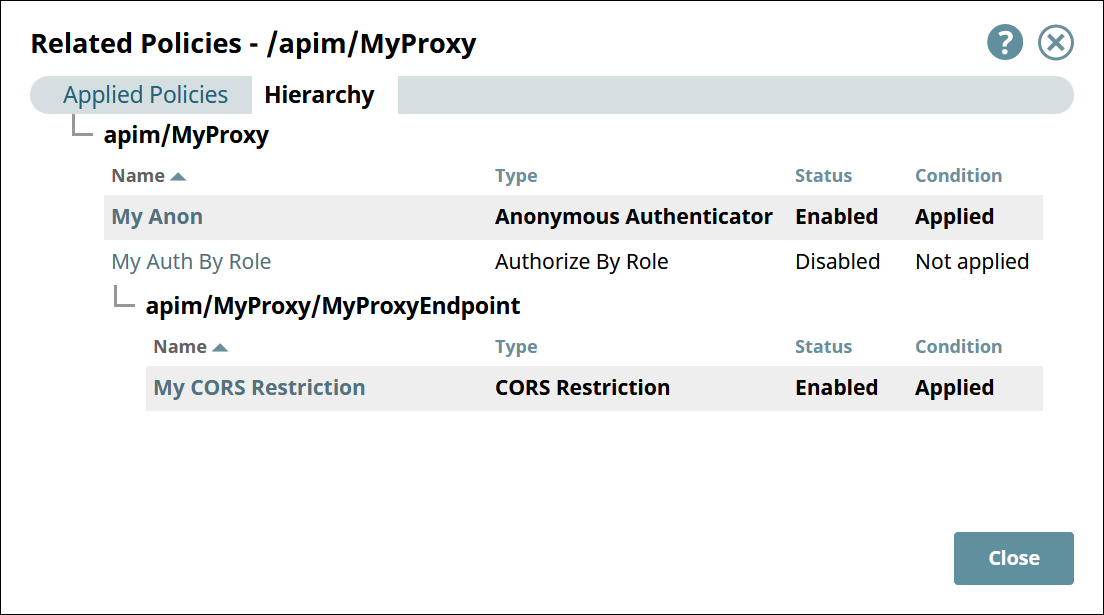
Viewing the Hierarchy of Policies
To view the hierarchy of the applied policies, click View Applied Policies and go to the Hierarchy tab.