Mapper AutoLinking
AutoLink simplifies the data mapping by suggesting Input Schema mapping to the Target Schema in the Mapper Snap.
AutoLink helps simplify the mapping of data by suggesting Input Schema mapping to the Target Schema in the Mapper Snap. The SnapLogic Platform uses a combination of the following algorithms to derive mapping suggestions:
- AI matching: This method uses artificial intelligence-based data sorting and matching algorithms to derive suggestions.
- Exact matching: This approach employs string matching to identify suggestions based on matching string patterns.
- Fuzzy matching: Fuzzy string matching is utilized to find suggestions based on strings that approximately match a pattern rather than strictly matching.
- History matching: This method leverages the mapping history of an Environment to suggest appropriate mappings.
AutoLink rates mapping suggestions using a star system. By default, it only displays 5-star mappings, but users can opt to view suggestions with lower ratings as well. The AutoLink feature enables you to:
- Filter mapping suggestions based on the score threshold.
- Obtain the best mapping recommendations.
- Map nested schemas easily because the machine learning model has higher flexibility for mapping nested schemas.
- Preview and refine the suggested matches
The SnapLogic Platform cleans up AutoLink history every 180 days.
Using AutoLink
To use AutoLink, follow these steps:
- Open a Pipeline that uses a Mapper Snap. Ensure that the Snap includes schemas on both sides of the Snap that are not mapped.
- Validate the Pipeline. The Mapper Snap fails because it is not mapped yet.
-
Click the Autolink button.
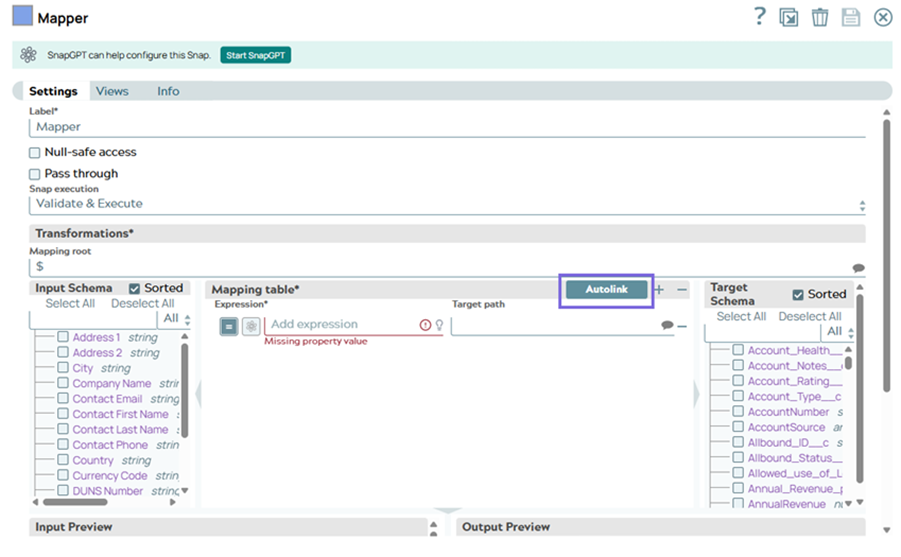
The AutoLink preview dialog appears as shown below: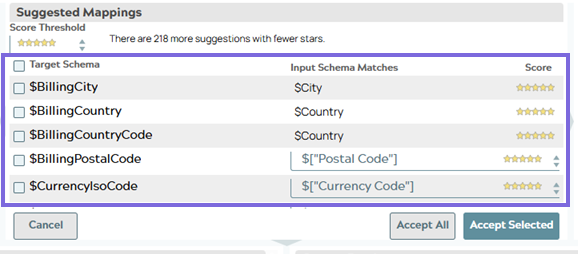
In the above image, the Input Schema matches against Target Schema. Note that the Target Schema here has a nested structure. You can use the AutoLink feature to get suggestions on mapping the input and target schema to successfully run the Pipeline.
You can expand the$BillingPostalCodeschema to view the available options.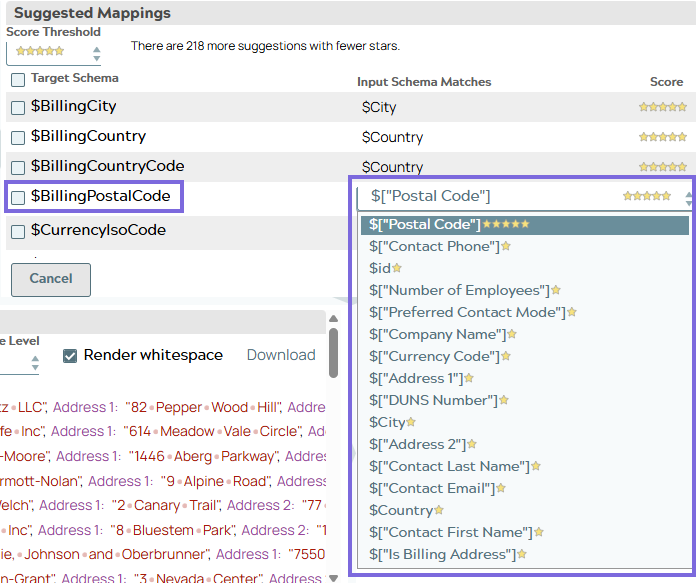
- Select the required mappings.
- Click Accept All or Accept Selected to map
the schemas as per your requirement.
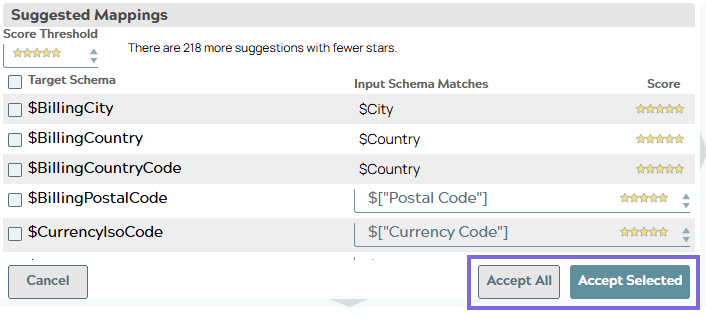
Refer to the Field Description table below for details on the different fields in the Autolink preview dialog.
Field Description
The following table describes the different fields in the Autolink preview dialog:
| Field | Description |
|---|---|
| Score Threshold | Filters the suggestions based on the selected score threshold. For example, if you select 5 stars, Autolink suggests only mappings with a high score. |
| Target Schema | Lists the fields in the target schema to be mapped. |
| Input Schema Matches |
Lists the different Input Schema match options available for each Target Schema. If there is only one suggestion against a Target Schema, then the Input Schema Match is a text with no options. For multiple matches, the different matches are in a drop-down list and you can select the most suitable match. |
| Score | Displays the matching score for each field in the Input Schema mapping suggestion option, for every Target Schema. A score of 5 stars indicates a match in which the model has high confidence. |
| Accept All | Accepts all the matching suggestions listed in the preview dialog. |
| Accept Selected |
Accepts only those matching suggestions that you select. Redoing a mapping using Autolink displays only those fields in the schemas that are not yet mapped. |