


Mapper
Overview
You can use this Snap to map input fields to output fields using JavaScript expressions or expressions created using the Expression Builder. It transforms incoming data using the given mappings and produces new output data.
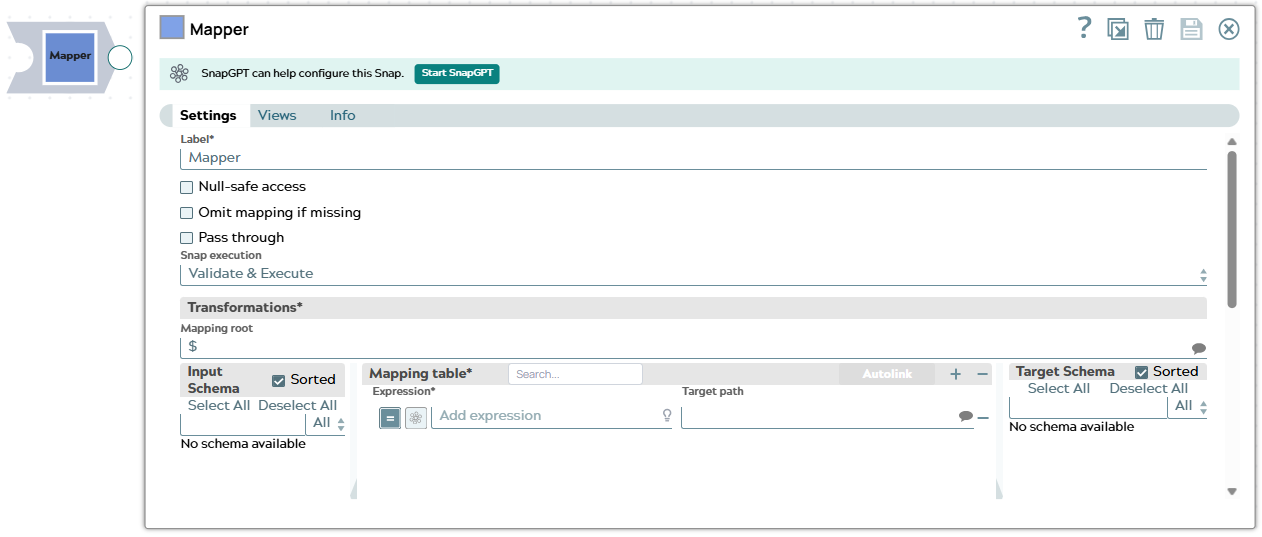
- This is a Transform-type Snap.
 Works in Ultra Tasks
Snap views
| Type | Description | Examples of upstream and downstream Snaps |
|---|---|---|
| Input | This Snap supports exactly one document input view. | |
| Output | This Snap supports exactly one document output view. Outputs the mapped documents as defined by the user-configured expressions. | |
| Learn more about Error handling. | ||
Snap settings
| Field/Field set | Description |
|---|---|
| Label*
|
Specify a unique name for the Snap. Modify this to be more appropriate, especially if more than one of the same Snaps is in the pipeline. Default value: Mapper Snap Example: Transform key records |
| Null-safe access
|
Select this checkbox to treat missing source paths as Default value: Deselected |
| Omit mapping if missing
|
Appears when you deselect Null-safe access. Select this checkbox to
omit the entire mapping from the Mapping table when an expression references a
field that is missing from the input data, instead of failing the document. If
Pass through is selected, the original target path is
preserved. Attention: When you select this checkbox, we recommend you
to choose the preview type as JSON instead of Table, because the
Table preview will contain the omitted field label which can be misleading. The
JSON preview skips the omitted fields as expected. Default value: Deselected |
| Pass through
|
Select this checkbox so the Snap passes all the original input data into the output document with the data transformation results. If you deselect this checkbox, only the data transformation results in the mapping section appear in the output document and the input data is discarded. Note: This setting is impacted by Mapping Root. If
Mapping Root is set to
$ and
Pass through is deselected, anything not mapped in
the table does not pass through. However, if Mapping Root
is set to $customer and Pass through is
deselected, it only applies to the items in the Mapping Root level. That
means that anything above the Mapping Root level passes through and items at the
Mapping level that are not mapped in the table do not pass through. Remember:
Always select Pass through if you plan to leave the Target path field blank. Otherwise, an error displays to indicate that the field you want to delete does not exist. This is the expected behavior. For example, if you have an input file that contains a number of attributes and you need only two of these downstream. To accomplish that:
No schema
available error.Default value: Deselected |
| Transformations* |
Use this field set to configure the settings for data transformations. |
| Mapping Root
|
Specify the subsection of the input data to map. Learn more: Understand the Mapping Root. Default value: $ Example: $ |
| Input Schema
|
Select the input data (from the upstream Snap) that you want to transform. You can either Select All or Deselect All items from the input schema. Drag the item you want to map and place it under the Mapping table. |
| Sorted
|
Select this checkbox to sort the input schema and the target schema. The sort
options are:
|
| Mapping table | Use this field set to specify the mapping expressions and
target paths used to map schema structure. The mapping table enables you to:
You can also use SnapGPT icon to construct expressions by using
natural language. For example, when you specify, "convert the value of
|
| Expression
|
Specify the function to use to transform the data. For example, combine, concatenate, or flatten. Expressions that are evaluated replace the source targets at the end of the pipeline runtime. Note: The data from previous undefined
Snaps in the Mapping Table pass through the Data Snap to the next Snap. However,
when you define output fields in the Target Path, and if the field name is the
same as a field name that would otherwise pass through, the field in the mapping
table overrides the output. Learn more: Understanding Expressions in SnapLogic and Using Expressions for usage guidelines. Managing Numeric Inputs in Mapper Expressions When you
work with upstream numeric data, you might see some unexpected behavior. For
example, consider a mapping that reads as follows:
Now, the value passes from upstream for $num is 20.05. You expect the
value of The value of $numnew to now be 120.05. However, when you execute the
Snap, the value of $numnew is shown as 20.05100. This happens
because, as of now, the Mapper Snap reads all incoming data as strings, unless
they are specifically listed as integers (INT) or decimals (FLOAT). So, to ensure
that the upstream numeric data is appropriately interpreted, parse the data as a
float to convert the numeric data into a decimal, and all calculations on the
upstream data in the Mapper Snap work as expected:
$numnew shows 120.05.Default value: $ Example: $ |
| Target path
|
Specify the target JSON path where the value from the evaluated expression is
written. For example, after evaluation of the $person.firstname
expression, the Snap inserts the firstname for the
person object.Remember:
The expression in the Target path field works only when Pass through is enabled. The Target Path field in the Mapper Snap supports expression-based values, allowing you to compute paths at runtime based on input data. Refer to the example for better understanding. Note:
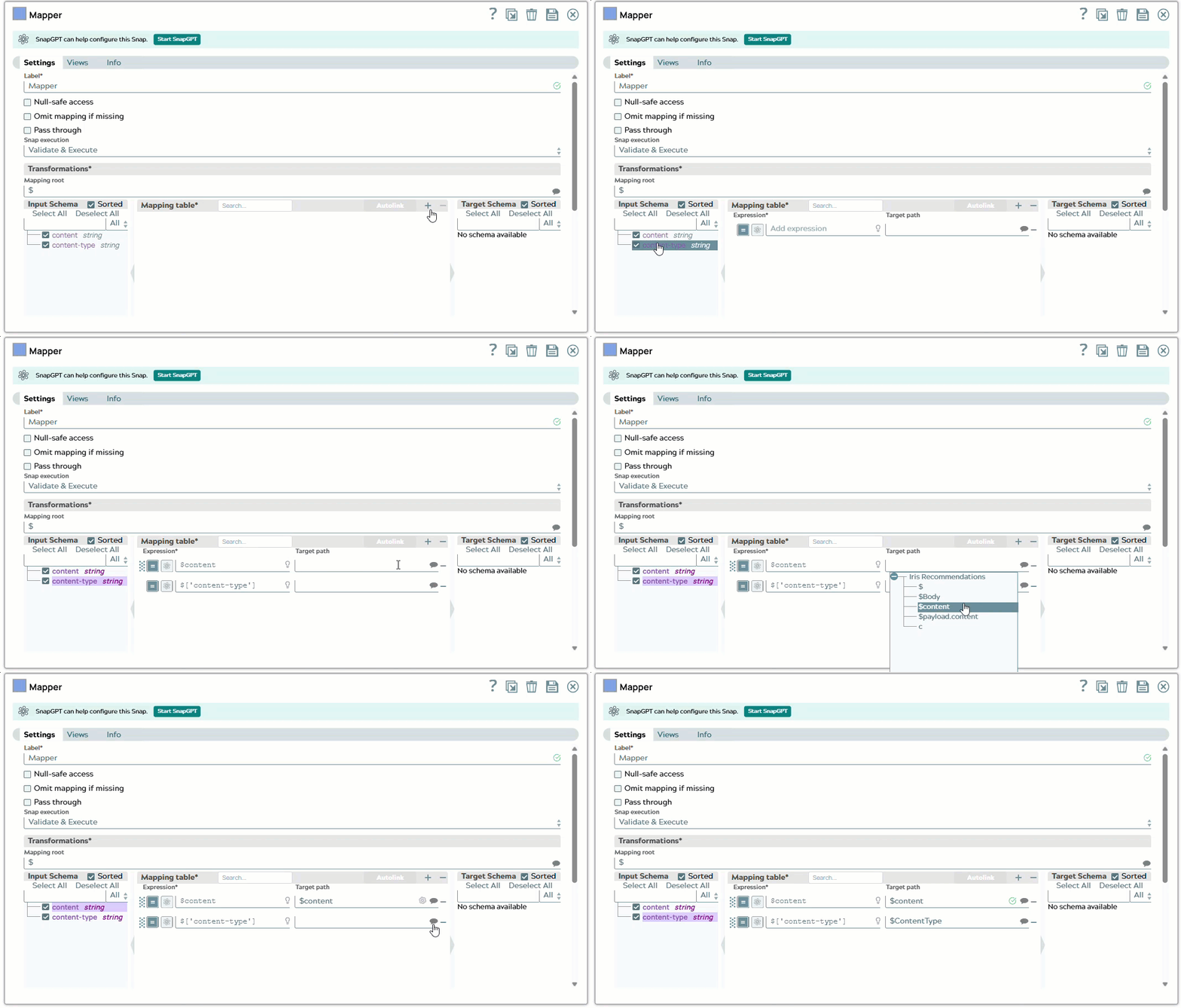
The following gif shows how SnapLogic recommends the Target path in the Mapper
Snap:Target path recommendation: SnapLogic can suggest standardized target
paths based on your Environment's historical mappings. It simplifies configuring
the Target path property in the Snap with suggestions for the Expression
and Target path fields mapping. To populate these suggestions, SnapLogic analyzes
Expression and Target path mappings in other pipelines in your
Environment and suggests the exact matches for the Expressions in your current
pipeline. Click the Suggestions icon on the Target Path field to get
intelligent suggestions. For example, if your expression resolves to
 |
|
Snap execution Dropdown list
|
Choose one of the three modes in
which the Snap executes. Available options are:
Default value: Validate & Execute Example: Execute only |