


SQL Server Execute
You can use this Snap to execute arbitrary SQL queries. This Snap works only with single queries.
- You can drop your database with the execution, so we recommend you to be cautious.
- You can execute stored procedures containing IN, OUT, INOUT parameters using this Snap.
Supported Accounts
- This is a Write-type Snap.
Snap Type
SQL Server - Execute Snap is a Write-type Snap that executes an SQL Server statement/query.
Support for Ultra Pipelines
Works in Ultra Pipelines.
Limitations & Known Issues
- When the SQL statement property is an expression, the pipeline parameters are shown in the suggest, but not the input schema.
Snap views
| Type | Description | Examples of upstream and downstream Snaps |
|---|---|---|
| Input |
This Snap allows zero or one input views.
If the input view is defined, then the where clause can substitute incoming values for a given expression. |
|
| Output |
This Snap allows zero or one output view and produces documents in the view.
|
|
| Learn more about Error handling. | ||
Snap settings
| Field/Field set | Description | |||||||||
|---|---|---|---|---|---|---|---|---|---|---|
|
Label String
|
Specify a unique name for the Snap. Modify this to
be more appropriate, especially if there are more than one of the same Snap in the
pipeline.
Default value: SQL Server - Execute |
|||||||||
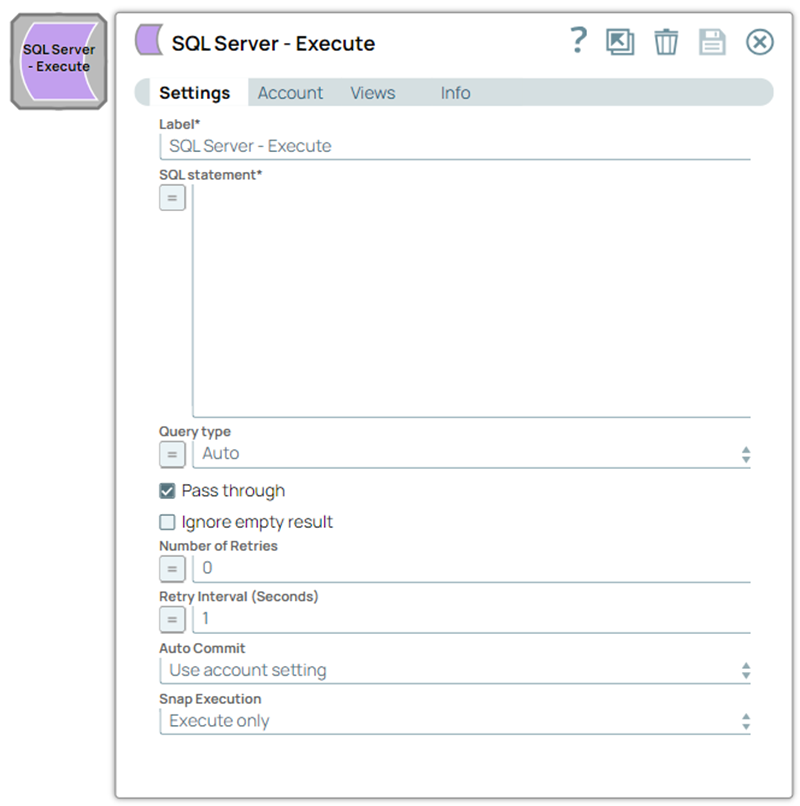
SQL statement
String/Expression |
Required. Specify the SQL statement to execute on the server. Learn more about how to execute SQL statements. Note:
Note:
Single quotes in values must be escaped Any relational database (RDBMS) treats single quotes (
Default value: N/A Example: INSERT into SnapLogic.book (id, book) VALUES ($id,$book) |
|||||||||
Query type
Dropdown list/Expression |
Select the type of query for your SQL statement (Read or Write). When Auto is selected, the Snap tries to determine the query type automatically. If the execution result of the query is not as expected, you can change the query type to Read or Write. Default value: Auto Example: Read |
|||||||||
Pass through
Checkbox |
Select this checkbox to pass the input document to the output view under the key 'original'. This property applies only to the Execute Snaps with SELECT statement. Default status: Selected |
|||||||||
Ignore empty result
Checkbox |
Select this checkbox to ignore empty result; no document is written to the output view when a SELECT operation does not produce any result. If you deselect this checkbox and the Pass through checkbox is selected, the input document is passed through to the output view. Default status: Deselected |
|||||||||
Number of retries
Integer/Expression |
Specify the maximum number of retry attempts the Snap must make in case of network failure. When you set the Number of retries to more than 0, the Snap generates duplicate records when the connection is not established. To prevent duplicate records, we recommend that you follow one of the following:
Default value: 0 Example: 3 |
|||||||||
Retry interval (seconds)
Integer/Expression |
Specify the time interval between two successive retry requests. A retry happens only when the previous attempt resulted in an exception. Default value: 1 Example: 10 |
|||||||||
Auto commit
Dropdown list |
Select one of the options for this property to override the state of the Auto commit property on the account. The Auto commit at the Snap-level has three values: True, False, and Use account setting. The expected functionality for these modes are:
Note: 'Auto commit' may be enabled for certain use cases if PostgreSQL jdbc driver is used in either Redshift, PostgreSQL or generic JDBC Snap. But the JDBC driver may cause out of memory issues when Select statements are executed. In those cases, "Auto commit" in Snap property should be set to 'False' and the Fetch size in the "Account setting" can be increased for optimal performance.
Note: If you are executing a DDL statement, such as CREATE, DROP, or ALTER, within a stored procedure or script, the Snap must commit the changes to the database immediately using auto-commit. This is required for the changes to persist in the database. Using a Transaction Snap to commit may not have the desired effect for executing DDL statements within stored procedures.
Default value: Use account setting Example: True |
|||||||||
|
Snap execution Dropdown list
|
Choose one of the three modes in
which the Snap executes. Available options are:
Default value: Execute only |
Execute SQL statements
Without expressions
If you do not enable the expression toggle of the SQL statement field, then:
- The SQL statement must not be within quotes.
- The $<variable_name> parts of the SQL statement are expressions. In the below example, $id and $book.
Examples:
email = '[email protected]'oremail = $emailemp=$emp
With expressions
If you enable the expression toggle of the SQL statement field, then:
- The SQL statement must be within quotes.
- The + $<variable_name> + parts of the SQL statement are expressions, and must not be within quotes. In the below example, $tablename.
- The $<variable_name> parts of the SQL statement are bind parameter, and must be within quotes. In the below example, $id and $book.
Examples:
"EMPNO=$EMPNO and ENAME=$EMPNAME""emp='" + $emp + "'""EMPNO=" + $EMPNO + " and ENAME='" + $EMPNAME+ "'"
- The non-expression form uses bind parameters, so it is much faster than executing N arbitrary SQL expressions.
- Using expressions that join strings together to create SQL queries or conditions has a potential SQL injection risk and hence unsafe. Ensure that you understand all implications and risks involved before using concatenation of strings with '=' Expression enabled.
- The '$' sign and identifier characters, such as double quotes ("), single quotes ('), or back quotes (`), are reserved characters and should not be used in comments or for purposes other than their originally intended purpose.
Troubleshooting
| Error | Reason | Resolution |
|---|---|---|
Failure: Batch operation failed. Error code: 102 |
Incorrect syntax near 'GO'. | Rewrite the query without 'GO' and run it. |