


Managing Your Developer Portal Settings
Each environment (Org) can have a Developer Portal site where you can publish your APIs to make them available to consumers outside the SnapLogic ecosystem.
Overview
Each environment can have a Developer Portal site where you can publish your APIs to make them available to consumers outside the SnapLogic ecosystem. To match your organization's brand, you can customize the appearance of your Developer Portal landing page and modify the suffix of the Developer Portal URL.
Prerequisites
- Environment admin role to manage settings
Launch the Dev Portal
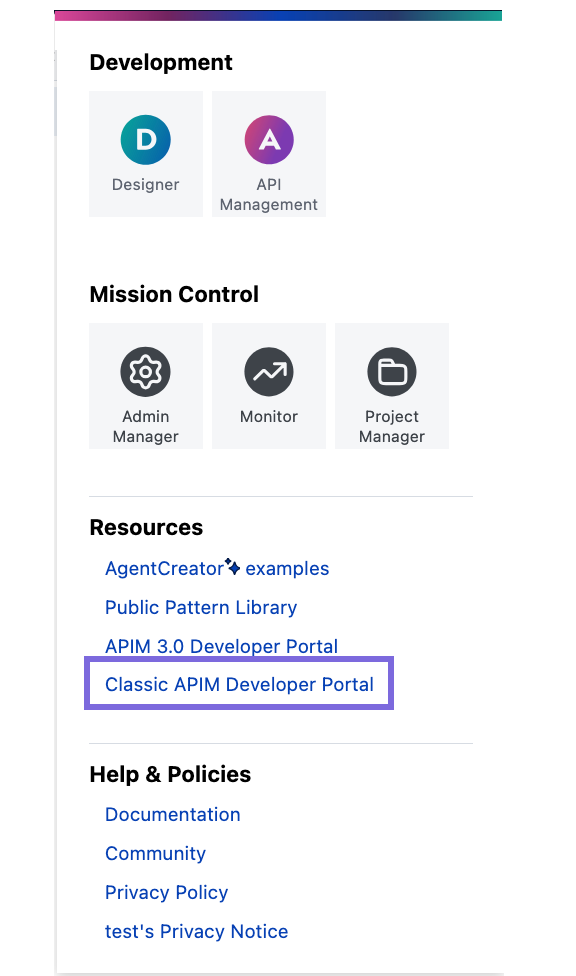
Users with a SnapLogic platform login can open the Developer Portal with one click from the Apps menu:
Set Up Your Developer Portal
As an Environment admin, set up the Developer Portal:
- In SnapLogic Project Manager, go to API Management >
Portal Manager and click the Settings tab.
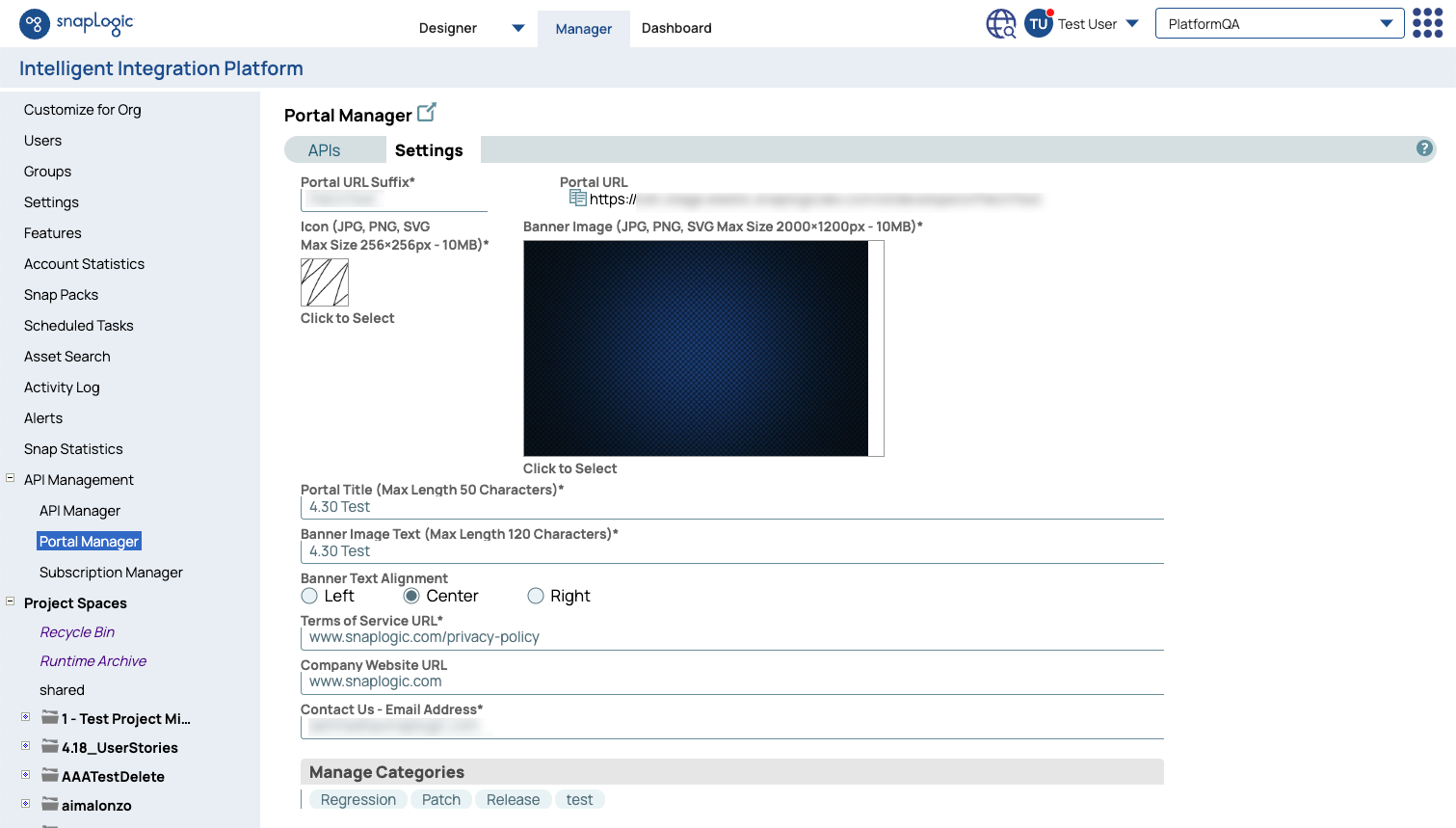
- Fill in the required fields. See the Developer Portal Settings section below for details.
- Click Save. You can modify these settings at any time.
- Validate your settings by clicking the external site icon to launch your Developer Portal.
Full Access Permission to Publish for Users
Environment admins can provide full access to users to Publish APIs by enabling the Allow users with Full-Access permissions to publish checkbox.
To enable the checkbox in Project Manager, navigate to the API Management > Portal Manager > Settings > Publishing section (at the bottom of the page):
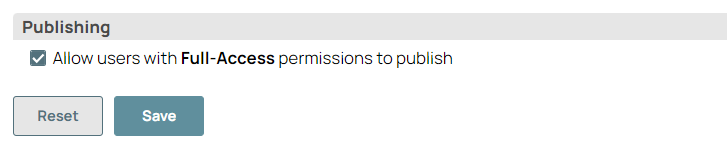
- When the checkbox is enabled, the users with full access and full access/owner permission can Publish, Unpublish, and Deprecate the APIs.
- When the checkbox is disabled, users with full access and full access/owner permission cannot Publish, Unpublish, and Deprecate the APIs.
Developer Portal Settings
| Setting | Description |
|---|---|
| Portal URL Suffix |
The suffix for your Developer Portal URL. What you enter in this field is automatically appended to Portal URL. |
| Portal URL |
(Read-only) The full URL to your Developer Portal. To copy your Developer Portal URL to your clipboard, click the copy icon next to the Portal URL value. |
| Icon |
The thumbnail image for your Developer Portal. The image must be JPG, PNG, or SVG with a maximum image size of 256px x 256px and a maximum file size of 10MB. |
| Banner Image |
The background image for the landing page of your Developer Portal. The image must be JPG, PNG, or SVG with a maximum image size of 2000px x 1200px and a maximum file size of 10MB. |
| Portal Title |
The title of your Developer Portal. This appears at the top banner of all pages of your Developer Portal. Must be no more than 50 characters. |
| Banner Image Text |
The title displayed over your banner image in the landing page. Must be no more than 120 characters |
| Banner Text Alignment | The position of the Banner Image Text on the landing page: Left, Center, or Right. |
| Terms of Service URL | The URL where API consumers can read the terms of service for using your Developer Portal and your APIs. |
| Company Website URL | Your organization's website. |
| Contact Us - Email Address | The email address where your API consumers can contact you. |
| Manage Categories |
Categories to classify published APIs in the Developer Portal. Note: Category names must be unique within the environment.
|
| Documentation - OpenAPI Viewer | (Read-only) The type of API documentation used for each API published in the Developer Portal. |
| CORS Setting > Enable Try Me |
If selected, API consumers can try out an API to see what it returns before subscribing to it. Note: For older JCC nodes (Snaplex Version 4.28 and older), changes to this
setting might not take effect for up to two hours due to caching.
Learn how to determine your
Snaplex's version.
Note: If a
CORS
Restriction policy is defined at the API or API version level, that policy
takes precedence over the default CORS settings for the
Developer Portal.
Learn how to configure a CORS Restriction policy at the API or API version level.
|