


Unload Data from Redshift to S3
Overview
This example demonstrates how to use the Redshift Unload Snap to export data from Redshift tables to Amazon S3 using the UNLOAD command. The UNLOAD operation efficiently exports large datasets in parallel and can optionally compress and encrypt the output files.
Prerequisites
- Amazon Redshift cluster with appropriate access
- Valid Redshift account configured in SnapLogic
- Amazon S3 bucket with write permissions
- AWS IAM role or credentials with S3 write access
- Source table or SELECT query with data to export
Pipeline Overview
The pipeline uses the Redshift Unload Snap to export query results from Redshift directly to S3. The Snap generates an UNLOAD command that leverages Redshift's parallel processing to write data efficiently to multiple files in S3.
Basic Unload Configuration
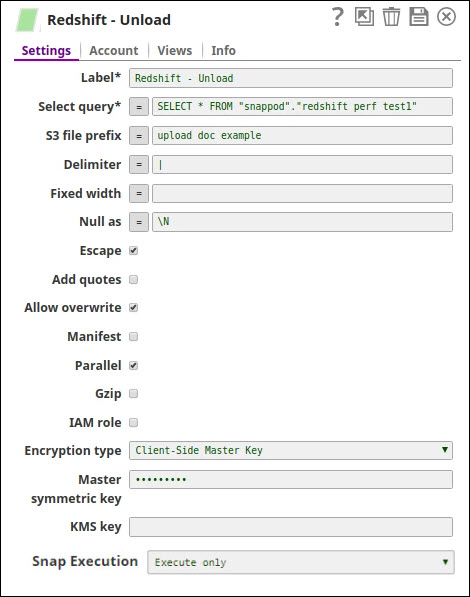
Redshift Unload Snap - Settings:
- SELECT statement: Query to retrieve data to unload
- S3 URL: Target S3 path (e.g., s3://mybucket/myprefix/)
- AWS access key ID: AWS credentials for S3 access
- AWS secret access key: AWS secret key (or use IAM role)
- Additional options: GZIP, MANIFEST, DELIMITER, etc.
UNLOAD Command Format
The Snap generates an UNLOAD command with the following structure:
UNLOAD ('SELECT * FROM table_name WHERE condition')
TO 's3://bucket-name/prefix/filename'
IAM_ROLE 'arn:aws:iam::account-id:role/role-name'
[options];
Example with options:
UNLOAD ('SELECT customer_id, name, email FROM customers WHERE status = ''active''')
TO 's3://my-data-bucket/exports/customers_'
IAM_ROLE 'arn:aws:iam::123456789012:role/RedshiftUnloadRole'
GZIP
MANIFEST
ALLOWOVERWRITE
PARALLEL ON;
UNLOAD Options
The Redshift Unload Snap supports various options to control the export:
- GZIP: Compress output files using gzip compression
- MANIFEST: Create a manifest file listing all data files created
- DELIMITER: Specify field delimiter (default is pipe |)
- ALLOWOVERWRITE: Overwrite existing files in S3
- PARALLEL: Control parallel export (ON by default)
- ADDQUOTES: Enclose strings in double quotes
- NULL AS: Specify string to represent NULL values
- ESCAPE: Enable escape characters for special characters
- ENCRYPTED: Encrypt files using S3 server-side encryption
Authentication Methods
The Snap supports multiple authentication approaches:
- IAM Role: Recommended - uses IAM role attached to Redshift cluster
- Access Keys: Provide AWS access key ID and secret access key
- Temporary Credentials: Use temporary security credentials with session token
Using IAM roles is the preferred method as it eliminates the need to manage access keys and provides better security through automatic credential rotation.
Advanced Pipeline Pattern
Pipeline: Redshift Unload → JSON Splitter → Redshift Bulk Upsert
This advanced pattern exports data to S3, retrieves the manifest, and optionally processes the exported files:
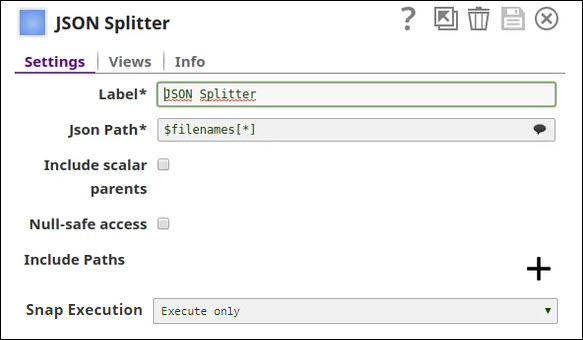
Redshift Unload Output:
The Snap outputs a document containing:
- S3 URLs of the exported files
- Manifest file location (if MANIFEST option enabled)
- Number of rows unloaded

JSON Splitter Configuration:
Split the manifest to process individual file references:
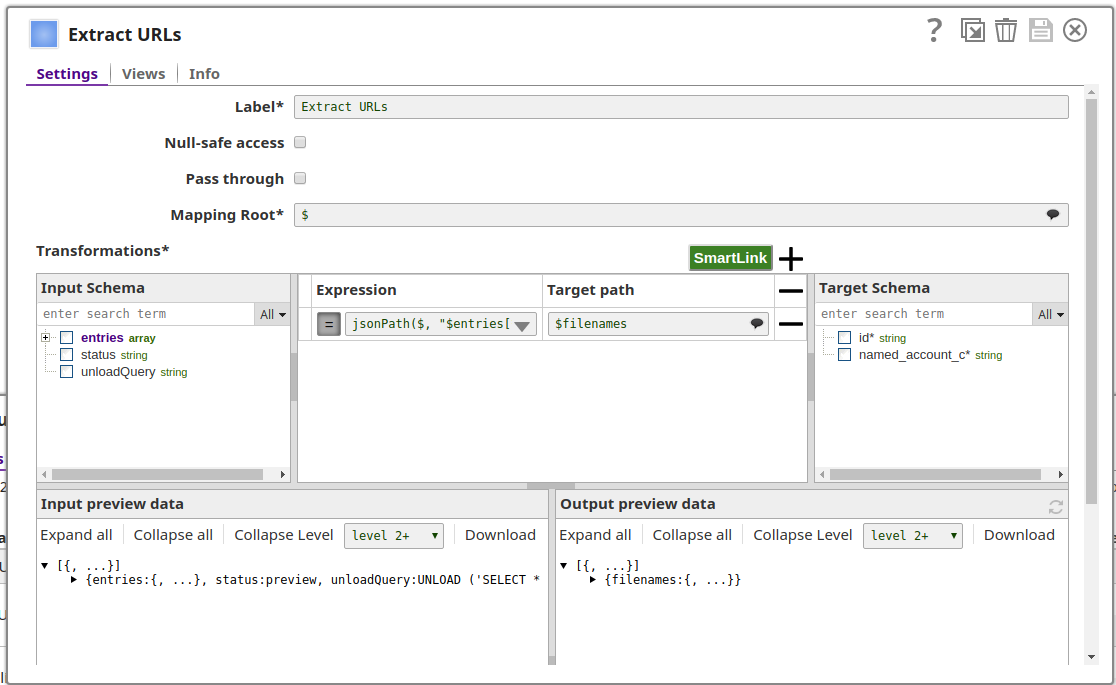
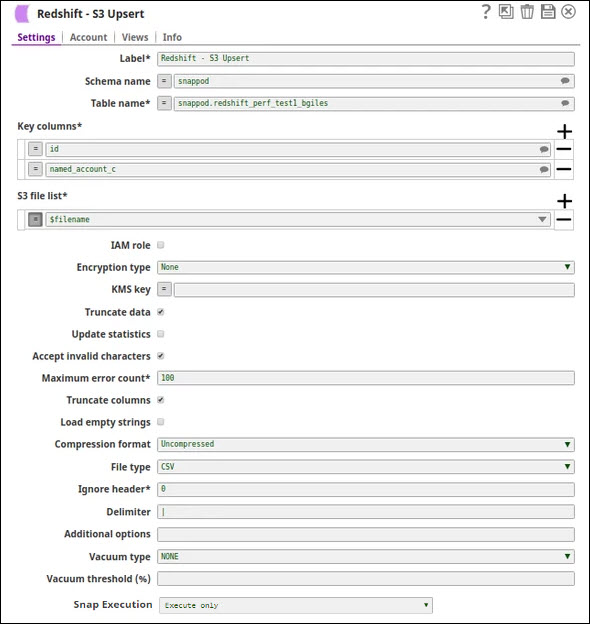
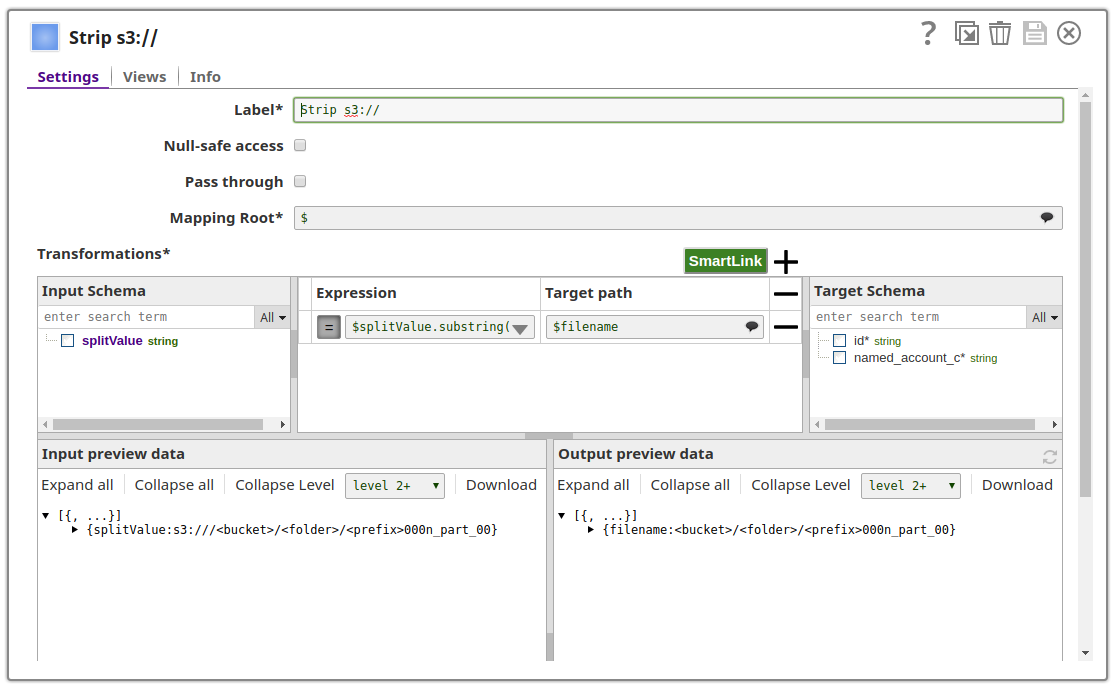
Processing Unloaded Files:
Use the file references for downstream processing:
File Naming and Partitioning
Redshift automatically creates multiple files when unloading:
- Files are named with numeric suffixes: prefix000, prefix001, prefix002, etc.
- The number of files depends on data size and cluster configuration
- Each slice in the Redshift cluster writes to a separate file
- Use PARALLEL OFF to create a single output file (slower)
Example file structure:
s3://my-bucket/exports/customers_000.gz
s3://my-bucket/exports/customers_001.gz
s3://my-bucket/exports/customers_002.gz
s3://my-bucket/exports/customers_manifest
Use Cases
This pattern is useful for:
- Exporting large datasets from Redshift for archival or backup
- Data migration to other systems or platforms
- Creating data extracts for downstream analytics
- Sharing data with external parties via S3
- Offloading historical data to reduce storage costs
- Creating snapshots for reporting or compliance
- Implementing data lake ingestion workflows
Best Practices
- Use IAM roles instead of access keys for better security
- Enable GZIP compression to reduce S3 storage costs and transfer time
- Use MANIFEST option to track all exported files
- Include timestamps or dates in S3 prefixes for organization
- Use ALLOWOVERWRITE carefully to avoid accidental data loss
- Consider MAXFILESIZE option to control individual file sizes
- Test UNLOAD queries with LIMIT before exporting full datasets
- Monitor S3 costs when unloading large volumes of data
- Use PARALLEL OFF only when single-file output is required
- Enable S3 server-side encryption for sensitive data
- Set appropriate S3 lifecycle policies for exported data