


Dropbox Team Account
Overview
Use this account type to connect Dropbox Snaps with Dropbox Business team accounts. This account enables access to team-level features and allows operations on behalf of team members.
Prerequisites
- A Dropbox Business account with team admin privileges
- A registered Dropbox team application with OAuth 2.0 credentials
- Team admin approval for the application
Account settings
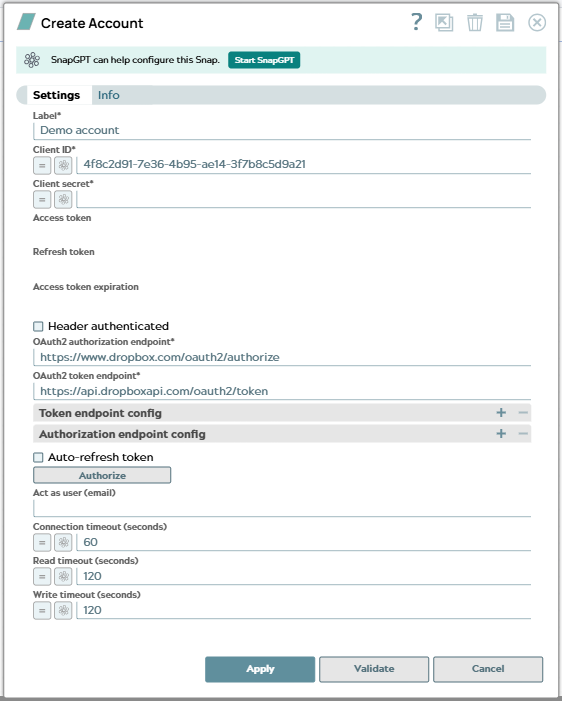
| Field/Field set | Description | ||
|---|---|---|---|
| Label*
|
Specify a unique label for the account. Default value: N/A Example: Dropbox Team Account |
||
| Client ID
|
The OAuth 2.0 Client ID for your Dropbox team application obtained from the Dropbox App Console. Default value: N/A Example: abc123xyz456 |
||
| Client Secret
|
The OAuth 2.0 Client Secret for your Dropbox team application obtained from the Dropbox App Console. Default value: N/A Example: Encrypted |
||
| Access token
|
The access token for the application. The retrieval of the access token is done when setting up the account for the endpoint. There, the OAuth2 flow will be executed and the resulting access token will be stored in this property. The access token might be refreshable, in that case an optional refresh token can be stored. You get a new access token if the access token has expired and no refresh token was defined or both the access and the refresh token have expired. Default value: N/A Example: N/A |
||
| Refresh token
|
The refresh token for the application. The retrieval of the refresh token is done when setting up the account for the endpoint. The OAuth2 flow will be executed and the resulting refresh token can be stored in this property. If the refresh token is stored, then the access token can be refreshed automatically before it expires. Default value: N/A Example: N/A |
||
| Access Token Expiration
|
The access token expiration value. Default value: N/A Example: N/A |
||
| Header authenticated
|
Select this checkbox if the endpoint uses the bearer header authentication. Default status: Deselected |
||
| OAuth2 authorization endpoint*
|
Specify the endpoint to authorize the application. Default value: https://www.dropbox.com/oauth2/authorize Example: N/A |
||
| OAuth2 token endpoint* String |
Specify the endpoint to get the access token. Default value: https://api.dropboxapi.com/oauth2/token Example: N/A |
||
| Token endpoint config | Use this field set to define custom properties for the OAuth2 token endpoint. | ||
| Token endpoint parameter
|
Specify the parameter for the token endpoint. Default value: N/A Example: redirect_uri |
||
| Token endpoint parameter value
|
Specify the value for the token endpoint parameter. Default value: N/A Example: https://elastic.snaplogic.com/api/1/rest/admin/oauth2callback/dropbox |
||
| Authorization endpoint config | Use this field set to define custom properties for the OAuth2 authorization endpoint. | ||
| Authorization endpoint parameter
|
Specify the parameter for the authorization endpoint. Default value: N/A Example: token_access_type |
||
| Authorization endpoint parameter value
|
Specify the value for the authorization endpoint parameter. Default value: N/A Example: offline |
||
| Auto-refresh Token
|
Select this checkbox to automatically refresh the access token when it expires using the refresh token. Default status: Selected |
||
| Act as user (email)
|
Specify the email address of the team member to act on behalf of. When specified, operations will be performed as this team member, allowing a team admin to access individual team member files and folders. Default value: N/A Example: [email protected] |
||
| Connection Timeout (seconds)
|
Specify the maximum time in seconds to wait for a connection to be established. Default value: 60 |
||
| Read Timeout (seconds)
|
Specify the maximum time in seconds to wait for data to be read from an established connection. Default value: 120 |
||
| Write Timeout (seconds)
|
Specify the maximum time in seconds to wait for data to be written to an established connection. Default value: 120 |
||
Troubleshooting
| Error | Reason | Resolution |
|---|---|---|
| Failed to validate account | Invalid credentials or missing required fields | Verify that the Client ID, Client Secret, and tokens are correct. Ensure your Dropbox team app has been approved by a team admin. |
| Invalid team member ID | The specified team member ID does not exist or is invalid | Verify the team member ID is correct. You can retrieve valid team member IDs using the Dropbox Team API. |
| Insufficient permissions | The OAuth scopes do not include required team permissions | Update the Scope field to include necessary team permissions. Re-authorize the account with a team admin. |