


Power BI Push Dataset
Overview
The Power BI Push Dataset Snap creates a new dataset, updates the metadata and schema for the specified table within the specified dataset, and adds new data rows to the specified table within the specified dataset in the workspace.
- This is a Write-type Snap.
 Works in Ultra Tasks
Snap views
| Type | Description | Examples of upstream and downstream Snaps |
|---|---|---|
| Input |
This Snap has at most one document input view. Expected input: A document containing details of the entity and/or table to create or update. |
|
| Output |
This Snap has exactly one document output view. Expected output: A document containing the success/failure confirmation of the push operation along with details of the impacted dataset/table. |
|
| Learn more about Error handling. | ||
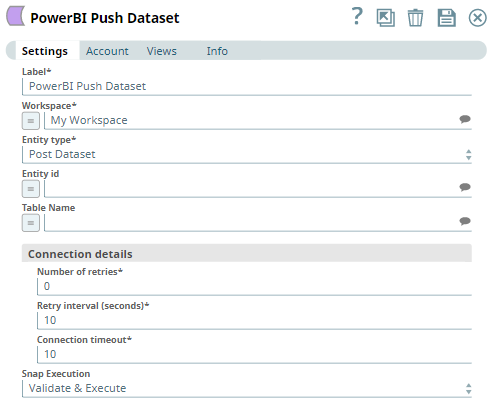
Snap settings
| Field/Field set | Description |
|---|---|
|
Label String
|
Specify a unique name for the Snap. Modify this to
be more appropriate, especially if there are more than one of the same Snap in the
pipeline.
Default value: Power BI Push Dataset Example: Update Dataset |
|
Workspace String/Expression/ Suggestion
|
Required. Enter the workspace from which to read the resource. Alternatively, click the Suggest icon to fetch a list of workspaces associated with the Power BI account and select the workspace.
Default value: N/A Example: Employee Records |
|
Entity type Dropdown list
|
Required. Select the entity type to read.
Available options are:
Default value: Post Dataset Example: Post Rows |
|
Entity id String/Expression/ Suggestion
|
Required if you select the Post Rows or Put Tables option in the Entity type field.
Enter the ID of the dataset to modify the table's metadata or to add rows to the tables. Alternatively, click the Suggest icon to fetch the IDs of all datasets available in the workspace. This field is shown dynamically according to different entity types from the suggestions. Users are allowed to choose an entity id from the suggestion or type an entity manually. The entity is shown as "[dataset name] ([dataset id])" in the suggestions. But it is also allowed to type only [dataset id] in this field. Note: In order to get table name suggestions, you have to select the dataset id.
Default value: N/A Example: SalesMarketingDataset (XXXXXXXXXXXXX) |
|
Table name String/Expression/ Suggestion
|
Required if you select the Post Rows or Put Tables option in the Entity type field.
Enter the name of the target table. Alternatively, click the Suggest icon to fetch the IDs of all tables available in the workspace. Default value: N/A Example: Designations |
| Connection details | Use this field set to configure the network connection parameters.
This field set contains the following fields:
|
|
Connection timeout Integer/Expression
|
Required. Specify the connection timeout duration in seconds.
Default value: 0 Example: 30 |
|
Number of retries Integer/Expression
|
Required. Specify the maximum number of re-connections if the connection fails or is timed-out.
Default value: 10 Example: 4 |
|
Retry interval (seconds) Integer/Expression
|
Required. Specify the interval in seconds between reconnections.
Default value: 10 Example: 30 |
|
Snap execution Dropdown list
|
Choose one of the three modes in
which the Snap executes. Available options are:
Default value: Execute only |
Troubleshooting
| Error | Cause | Resolution |
|---|---|---|
| HTTP Response Exception:400 | Invalid OAuth endpoint/token URL. | Verify the values of the OAuth2 endpoint or token URLs in the account settings. |
| HTTP Response Exception:401 | Invalid refresh token or access token. | Verify the values of the refresh or access tokens in the account settings. |
| HTTP Response Exception:409 | Conflict. | Verify the network and Snap settings. |
| Invalid input. | Your input in the Get object field is invalid. | Verify whether you have entered it correctly. Alternatively, select it from the drop-down list to avoid any human errors. |
| Property value is missing. | Your input for Workspace or Entity id is missing. | Required fields cannot be blank. Verify whether you have configured all required fields correctly. |