


Replacing old data in a DLP table with the latest data
Consider the scenario where the data in a DLP table becomes obsolete every few hours and fresh data is loaded on a frequent basis. The following pipeline example with a series of Databricks - Execute Snaps each of which executes exactly one Databricks SQL statement can fulfill this requirement. Using this pipeline, we delete the existing table, create a new table with the same schema as the source file, and populate the latest values into this new table.
Important:
- Ensure that the DLP account used with these Snaps has the required permissions to perform the operations specified in the SQL statements.
- For the purposes of this demo, the SQL statements are presented as expressions that
use pipeline parameters -
test_schemaandtest_table. You can, alternatively, input them as plain strings.

Download this Pipeline.
-
Configure the first instance of the Databricks - Execute Snap
to run a Databricks SQL statement that checks for and deletes the existing table.
Databricks - Execute Snap-1 configuration Databricks - Execute Snap-1 output 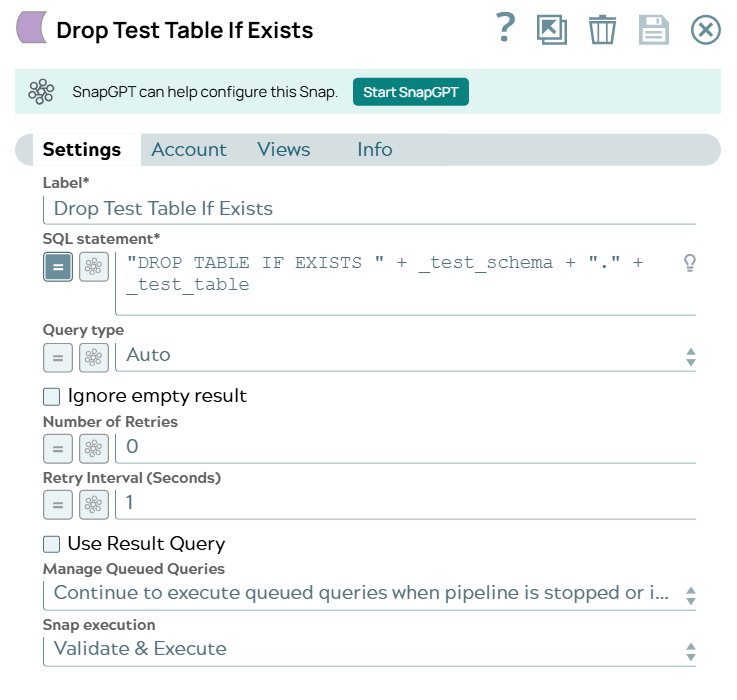
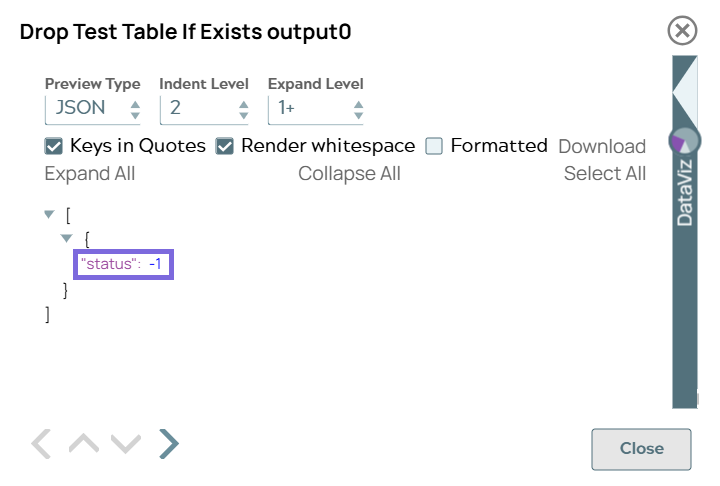
"status": -1indicates the operation has succeeded. -
Connect and configure a second Databricks - Execute
Snap to run a Databricks SQL CREATE TABLE statement that contains the new table schema in the
SQL statement field. This Snap creates the new table in the
specified DLP instance.
Databricks - Execute Snap-2 configuration Databricks - Execute Snap-2 output 

"status": -1indicates the operation has succeeded. -
Connect and configure a third Databricks - Execute
Snap to run a Databricks SQL INSERT INTO statement with a few rows of data matching the above schema in the
SQL statement field. This Snap inserts these new records in the Databricks table and
displays the summary in the output preview.
Databricks - Execute Snap-3 configuration Databricks - Execute Snap-3 output 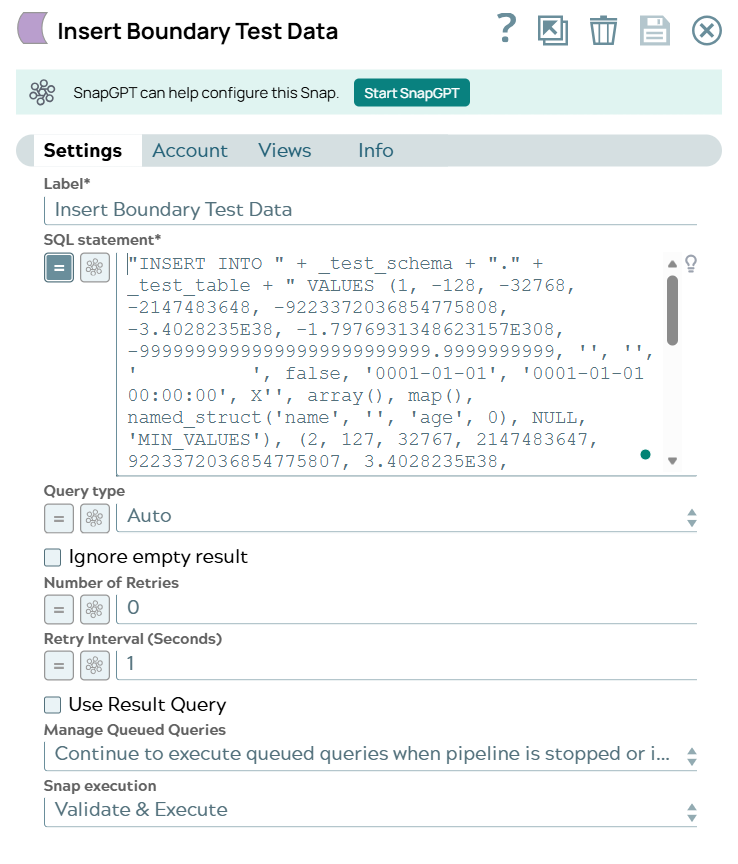
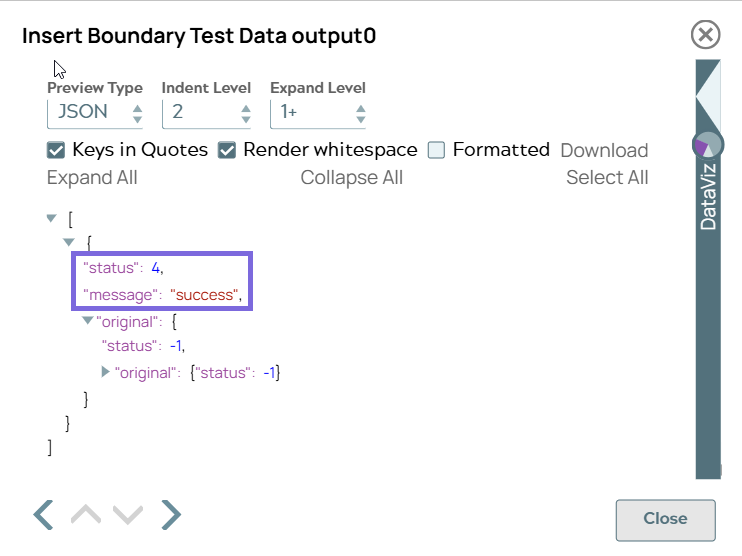
"status": 4, "message": "success"indicates the insert operation has succeeded for the four new records. -
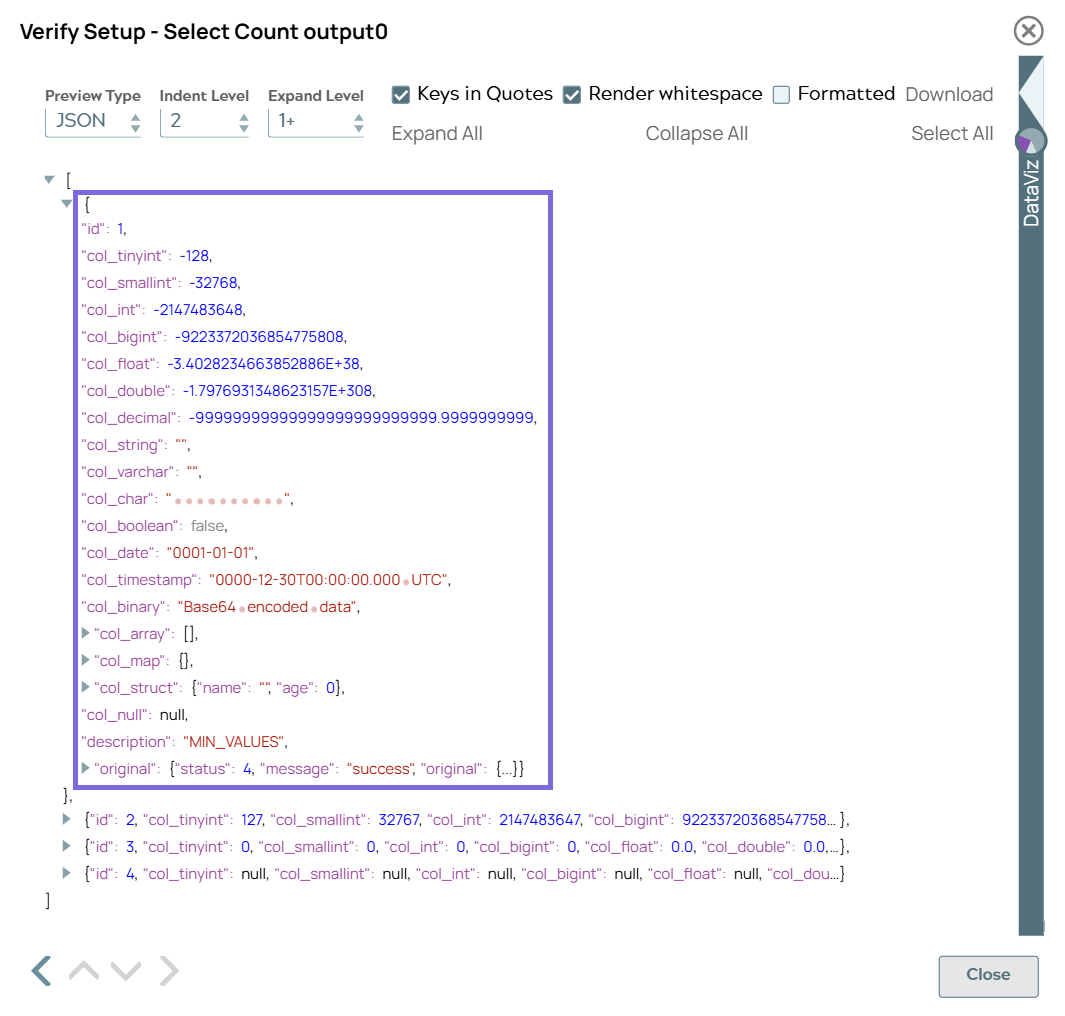
Connect and configure a fourth Databricks - Execute
Snap to run a Databricks SQL statement that fetches the data from the new table in the
SQL statement field. Upon successful validation, the Snap displays the output in the preview pane as follows.
Databricks - Execute Snap-4 configuration Databricks - Execute Snap-4 output 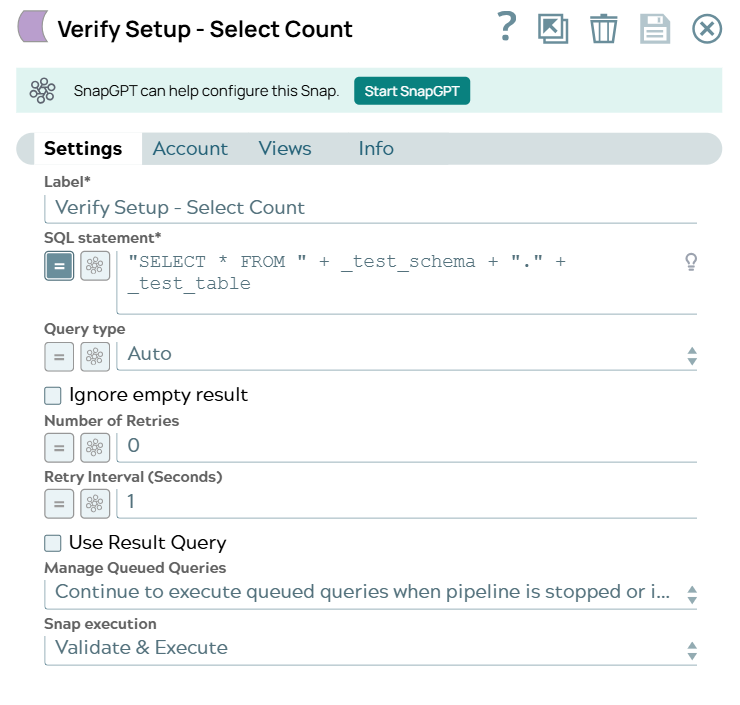
- Download and import the pipeline into SnapLogic.
- Configure Snap accounts as applicable.
- Provide pipeline parameters as applicable.