


SnapGPT in Monitor
SnapGPT is available in Monitor to help you diagnose Snaplex health issues and analyze failed pipeline executions without leaving the page you are working on.
SnapGPT in Monitor helps you investigate Snaplex health issues, diagnose failed pipeline executions, and plan infrastructure capacity, all without leaving the page you are working on. The SnapGPT panel is available from every page in Monitor and surfaces skills relevant to your current context.
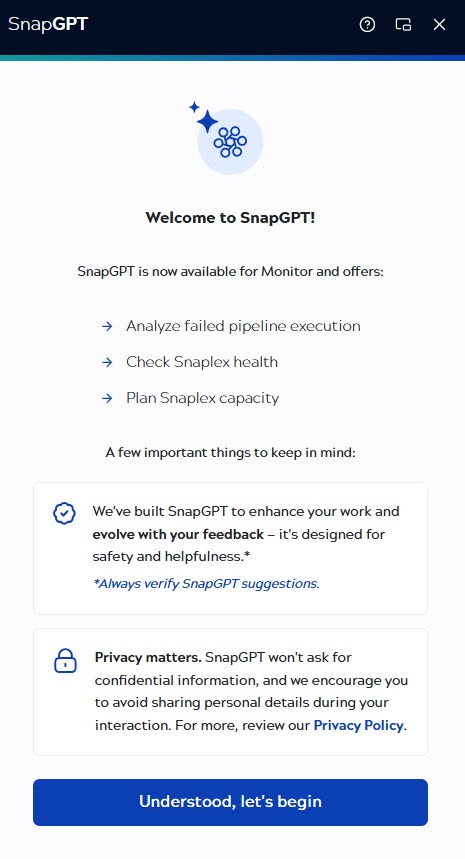
Welcome screen
The first time you open the SnapGPT panel in Monitor, the welcome screen appears. Click Understood, let's begin to dismiss it and open the home panel.
Page-aware skills
The home screen shows two sections: ACTIONS AVAILABLE NOW lists skills you can use immediately on the current page, and AVAILABLE IN OTHER CONTEXTS lists skills that are inactive on the current page, each with a note and a link to the page where the skill can be used.

The following skills are available in Monitor:
| Skill | Active on | Description |
|---|---|---|
| Check Snaplex health | Infrastructure page | Identify potential issues and suggested fixes on your Snaplexes. |
| Analyze failed pipeline execution | Pipeline executions page, when a failed execution detail panel is open | Identify the root cause and suggested fixes for a failed pipeline execution. |
| Plan Snaplex capacity | Insights page | Project when Snaplexes will run low on headroom based on historical usage trends. |
Skills listed under AVAILABLE IN OTHER CONTEXTS include a clickable link to the page where they can be used.
SnapGPT panel
The SnapGPT panel opens docked to the right side of the page. To switch between docked and floating mode, click the panel toggle icon in the panel header (next to the close button):
- Docked mode: The panel is fixed to the right edge of the page. The page content adjusts to sit alongside the panel.
- Floating mode: The panel detaches into a free-floating overlay. You can drag it anywhere on screen and resize it by dragging any edge or corner. The underlying page content is not affected. Use floating mode when you want to view the panel alongside specific areas of the page.
Your dock or float preference is saved and restored in future sessions.

When you navigate away from a page after opening a result, the panel stays mounted and the analysis remains visible. For example, if you click Open in Designer from a suggested fix, Designer opens in a new tab and the analysis stays open in Monitor so you can refer to it while you work.
Data sent to the AI
SnapGPT sends operational data from your environment to generate its analysis. Depending on the skill used, this data may include Snaplex telemetry, node alert codes, and pipeline execution error messages and stack traces. SnapGPT does not send pipeline business payload to the underlying large language model (LLM). For more information, refer to SnapLogic security and compliance.
Analysis caching
To reduce cost and latency, SnapGPT caches analysis results for up to one hour. If you run the same analysis within that window, the panel returns the cached result immediately without generating a new request to the LLM. To force a fresh analysis, wait for the cache to expire or change the input parameters, such as selecting a different time range or Snaplex.
Known issues
- You might experience latency or timeout issues depending on the complexity of the request and the capacity of the LLM provider.
- As with all AI based on LLMs, SnapGPT can occasionally produce responses that are incomplete or inconsistent. Always verify suggestions before acting on them.
- On-demand AI analysis for individual node alerts requires an active connection to the SnapGPT service. If the service is unavailable, the panel displays an error and does not produce a result.