


Workday REST OAuth2 Account
Overview
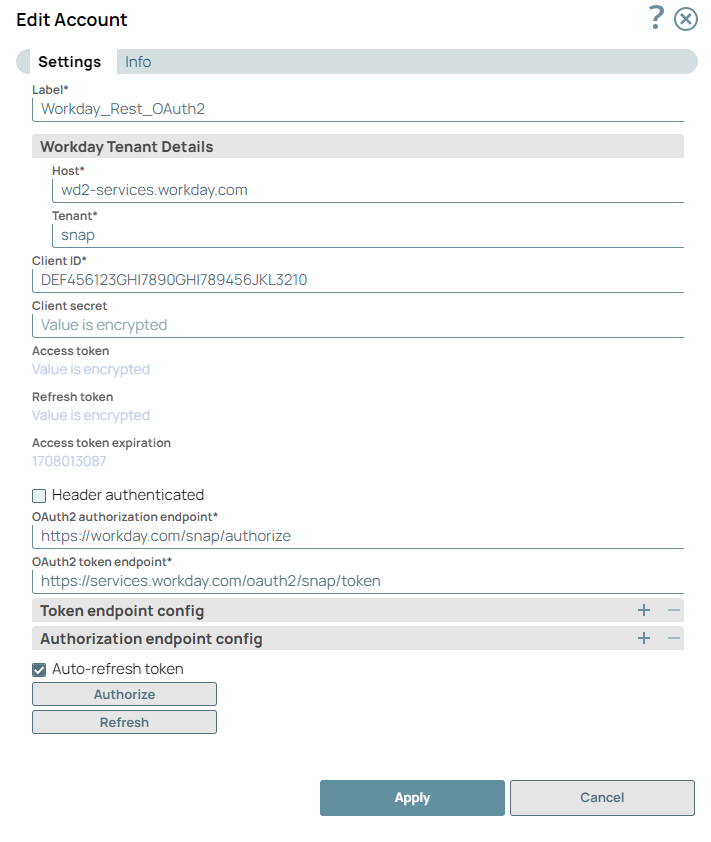
You can configure your accounts in SnapLogic using the Designer or Manager. Use the Workday REST OAuth2 Account type to connect the Workday REST Snap with endpoints that require OAuth2 authorization.
Prerequisites
- Valid Client ID, Client secret, and OAuth2 Endpoint
- Valid tenant URL
Limitations
None.
Known issues
This Snap does not support bulk operation.
Account settings
- Expression icon (
 ): Allows using
JavaScript syntax to access SnapLogic Expressions to set field values dynamically (if
enabled). If disabled, you can provide a static value. Learn more.
): Allows using
JavaScript syntax to access SnapLogic Expressions to set field values dynamically (if
enabled). If disabled, you can provide a static value. Learn more. - SnapGPT (
 ): Generates SnapLogic Expressions
based on natural language using SnapGPT. Learn
more.
): Generates SnapLogic Expressions
based on natural language using SnapGPT. Learn
more. - Suggestion icon (
 ): Populates a
list of values dynamically based on your Snap configuration. You can select only one
attribute at a time using the icon. Type into the field if it supports a comma-separated
list of values.
): Populates a
list of values dynamically based on your Snap configuration. You can select only one
attribute at a time using the icon. Type into the field if it supports a comma-separated
list of values. - Upload
 : Uploads files. Learn more.
| Field/Field set | Description |
|---|---|
Label*
String |
Required. Specify the name for the Workday REST account.
We recommend that you update the account name if there is more than one account of
the same account type in your project.
Default value: N/A Example: |
Workday Tenant Details
Fieldset |
Use this fieldset to specify details about your Workday tenant. This field set contains the following fields: |
Host
String |
Required. Specify the Host details under Workday Tenant
details.
Default value: N/A Example: |
Tenant
String/Expression |
Required. Specify the Tenant details under the Workday
Tenant details.
Default value: N/A Example: |
Client ID
String |
Required. Specify the client ID associated with your
account. You can create the client ID as advised by your application provider. Learn
more about generating a client ID.
Default value: N/A Example: |
Client secret
String |
The client secret associated with your account. The client secret is
auto-generated on registering the API client as advised by your application
provider. Learn more about generating a client secret.
Default value: N/A Example: |
Access token
String |
Required. Auto-generated on account authorization.
The access token is used to make API requests on behalf of the user associated with
the client ID.
Default value: N/A Example: |
Refresh token
String |
Auto-generated on account authorization. The token used to refresh the
access token.
To access the API beyond the lifetime of a single access token, your application can obtain a refresh token. The application stores the refresh token for future use and automatically refreshes the access token before it expires. Default value: N/A Example: |
Access token expiration
Integer |
Auto-generated on account authorization. The number of seconds after
which the access token expires.
Default value: N/A Example: |
Header authenticated
Checkbox |
Select this checkbox to enable the endpoint's bearer header authentication.
Default value: Deselected |
OAuth2 Endpoint
String |
Required. Specify the endpoint in this format
https://impl.workday.com/<tenant_details>/authorize to
authorize the application.
Default value: N/A Example: |
OAuth2 Token
String |
Required. Specify the OAuth2 token in this format
https://wd2-impl-service1.workday/oauth2/tenant_details/token to
get the access token.
Default value: N/A Example: |
Token endpoint config
Fieldset |
Use this fieldset to define custom properties for the OAuth2 token endpoint. This endpoint returns access tokens or refresh tokens depending on the request parameters. This field set contains the following fields: |
Token endpoint parameter
String |
Specify the parameter for the token endpoint.
Default value: N/A |
Token endpoint parameter value
String |
Specify the value associated with the optional endpoint parameter defined above.
Default value: N/A |
Auth endpoint config
Fieldset |
Use this fieldset to define custom properties for the OAuth2 authentication endpoint. This field set contains the following fields: |
Authentication parameter
String |
Specify the parameter for OAuth2 authentication.
Default value: N/A Example: |
Authentication parameter value
String |
Specify the value associated with the optional authorization endpoint parameter
defined above.
Default value: N/A |
Auto-refresh token
Checkbox |
Select this checkbox to enable auto-refresh of the access token before it
expires. Learn more about how the SnapLogic Platform handles token refresh
failures.
During the process of Registering an API Client for generating the Workday OAuth2 credential, if you select the Enforce 60 Minute Access Token Expiry option, the OAuth2 credential generates an access token which expires in 60 minutes. If you select the Auto-refresh token checkbox, the token automatically refreshes.
If you disable the Enforce 60 Minute Access Token Expiry option, you might
encounter an Default value: Deselected |
Troubleshooting
| Type | Description | Examples of upstream and downstream Snaps |
|---|---|---|
| Error 401 | The Pipeline could not complete execution due to a connection error. | Verify that the Refresh token field is configured to properly handle the inputs. If you are not sure when the input data is available, configure this field as zero to keep the connection always open. |
| Insufficient Permissions. | You do not have the required permissions to access the resource. | Contact your Workday Org Admin to resolve the POST permissions issue. |