Create Application Entries and Subscribe to APIs
To use an API in the Developer Portal, you must create an application entry, subscribe to APIs, wait for approval, and call the APIs using the Bearer authorization scheme.
Important: This page describes Classic APIM. For APIM 3.0,
refer to API Management 3.0.
Overview
To use an API in the Developer Portal, you must:
- Create an entry for your application. The application entry holds the Client ID and Client Secret that the server needs to identify your application as an approved consumer of the APIs.
- Subscribe to the APIs you need to call.
- Wait for your subscription to be approved. New subscriptions are approved by an Environment admin in the Applications tab of the Subscription Manager.
- Call the APIs using the Bearer authorization scheme with the Client Secret.
Warning: Check the API Key expiration date when you encounter a 401 error. Renew
the API key to resolve the error encountered.
Create an Application Entry
- In the Developer Portal, go to the Applications page, and click
Create New Application.
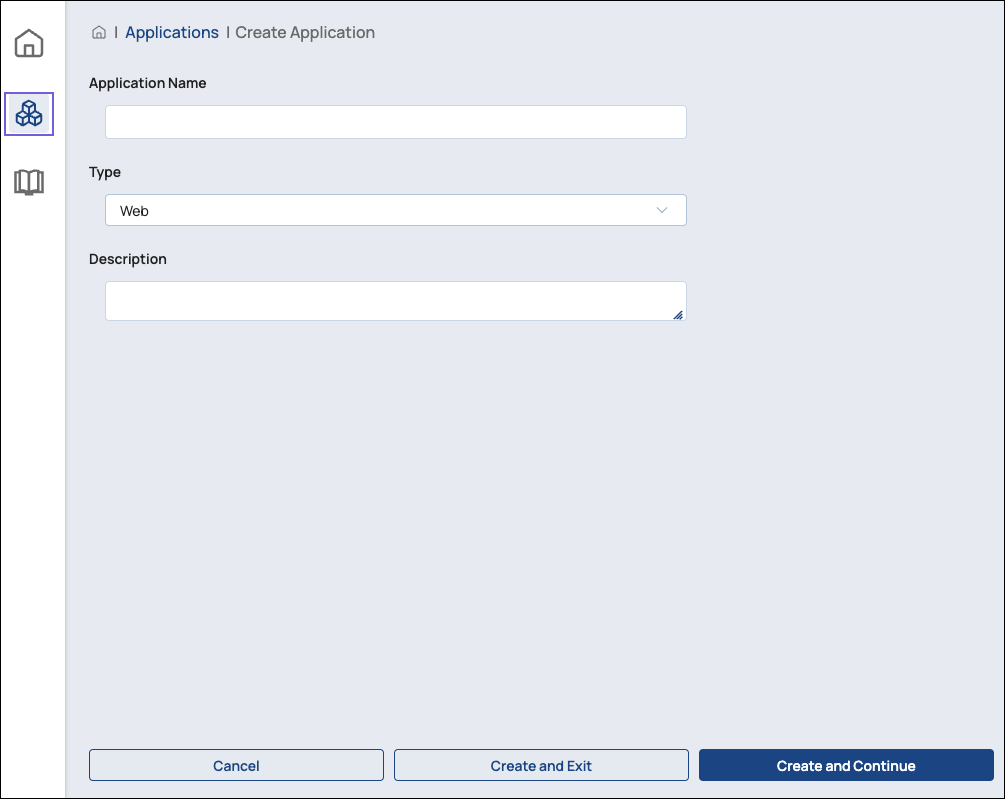
- In the Create Application dialog, enter the Application
Name, and select Web or
Mobile in the Type field. You can also
add a description.
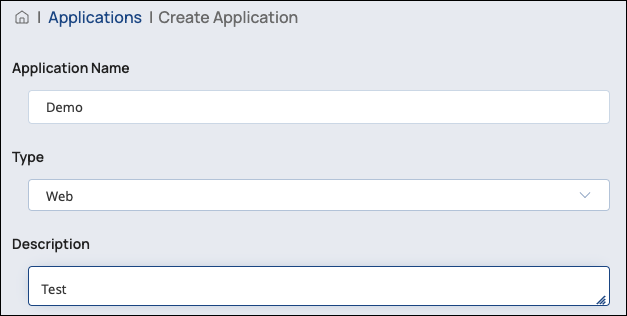
- If you want to subscribe to an API, click Create and Continue. This will open the Create Subscription dialog. If not, click Create and Exit to create your application entry and exit the Create Application dialog.
Subscribe to an API
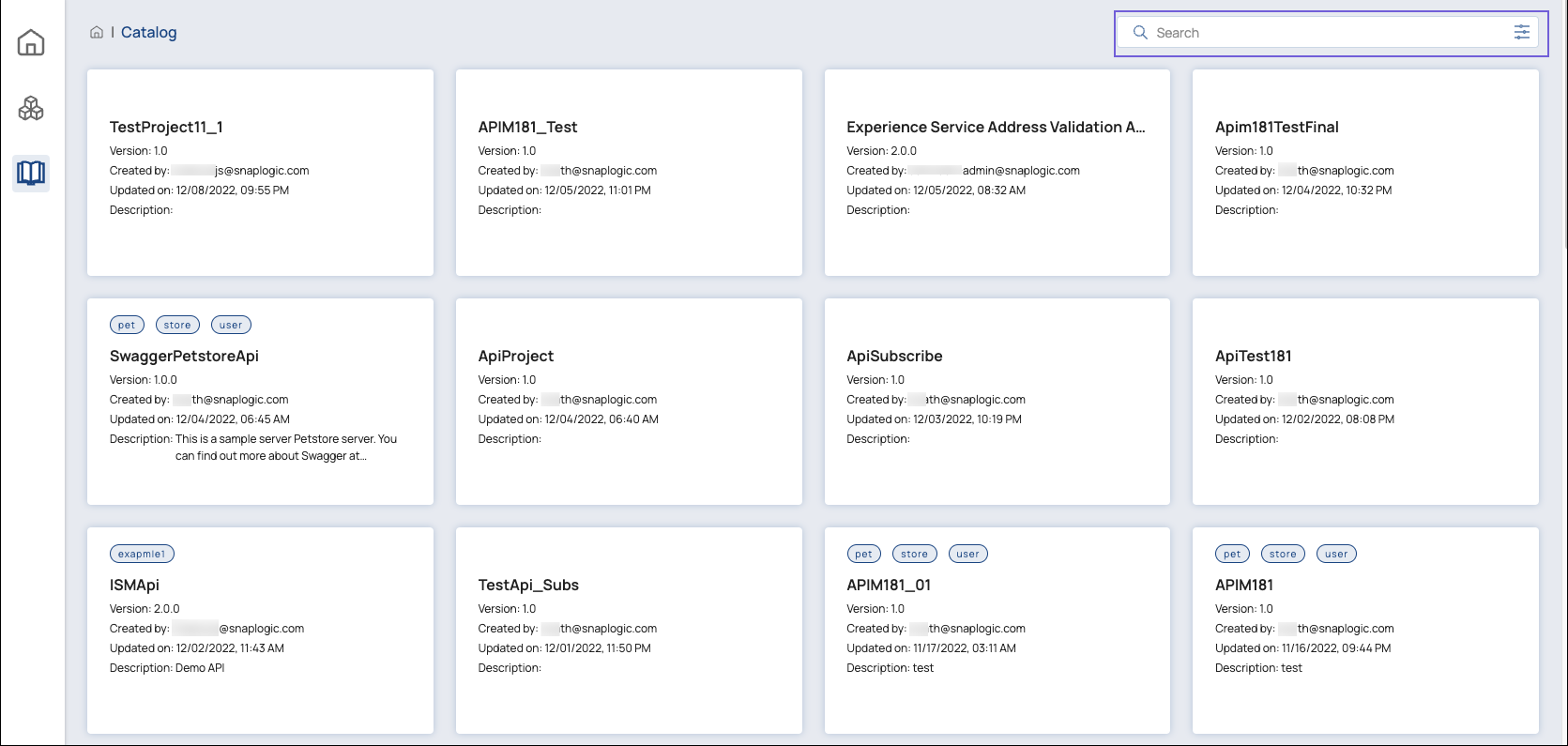
- In the Create Subscription dialog, use the API
Search field to find an API you want to subscribe to and click the API card
to select it. After selecting all the APIs you want, click
Continue. NOTE: You can subscribe only to APIs that allow
subscription.
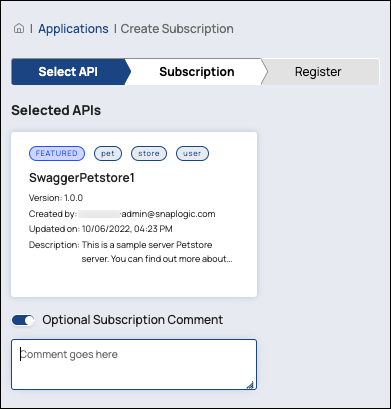
- In the Subscription tab, you can add an optional comment to your
selected APIs. Click Continue.
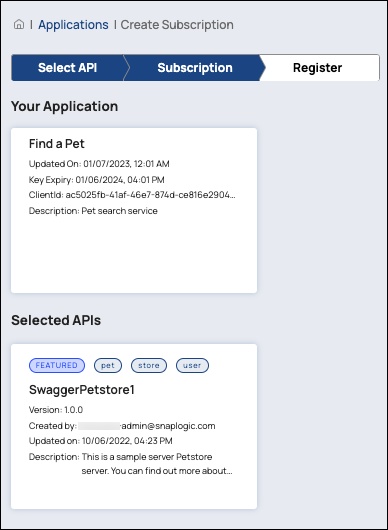
- In the Register tab, you will see a summary page of your
application entry and the APIs you selected. Click Register to
submit your application entry and subscription request.
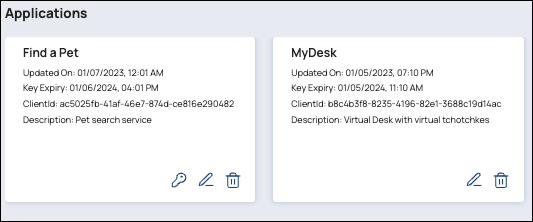
- On the Applications page, application entries with pending or
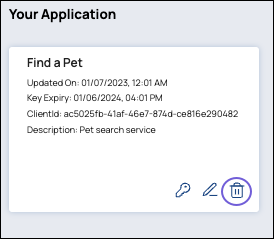
approved API subscriptions have a key icon (the Key icon) in addition to the edit icon (the
Edit icon) and delete icon (the Delete icon). TIP: Click the Key icon to copy the
Client Secret to your clipboard quickly.
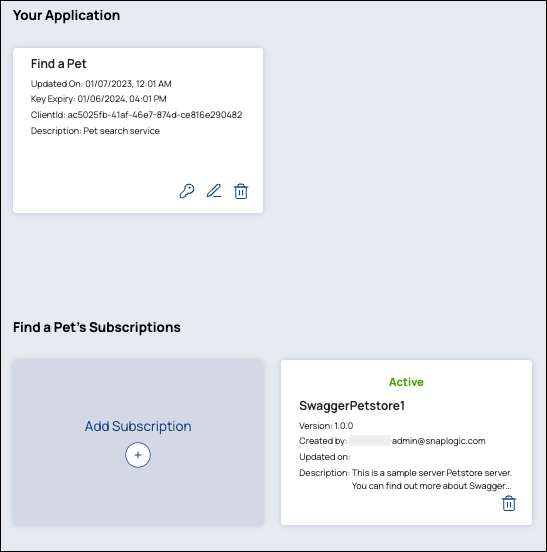
- To show the status of the subscription, click on the application entry card. The status
can be Active, Revoked, or
Pending.
Edit an Application Entry
- In the Developer Portal, go to the Applications page, then point
and click the target Application card.
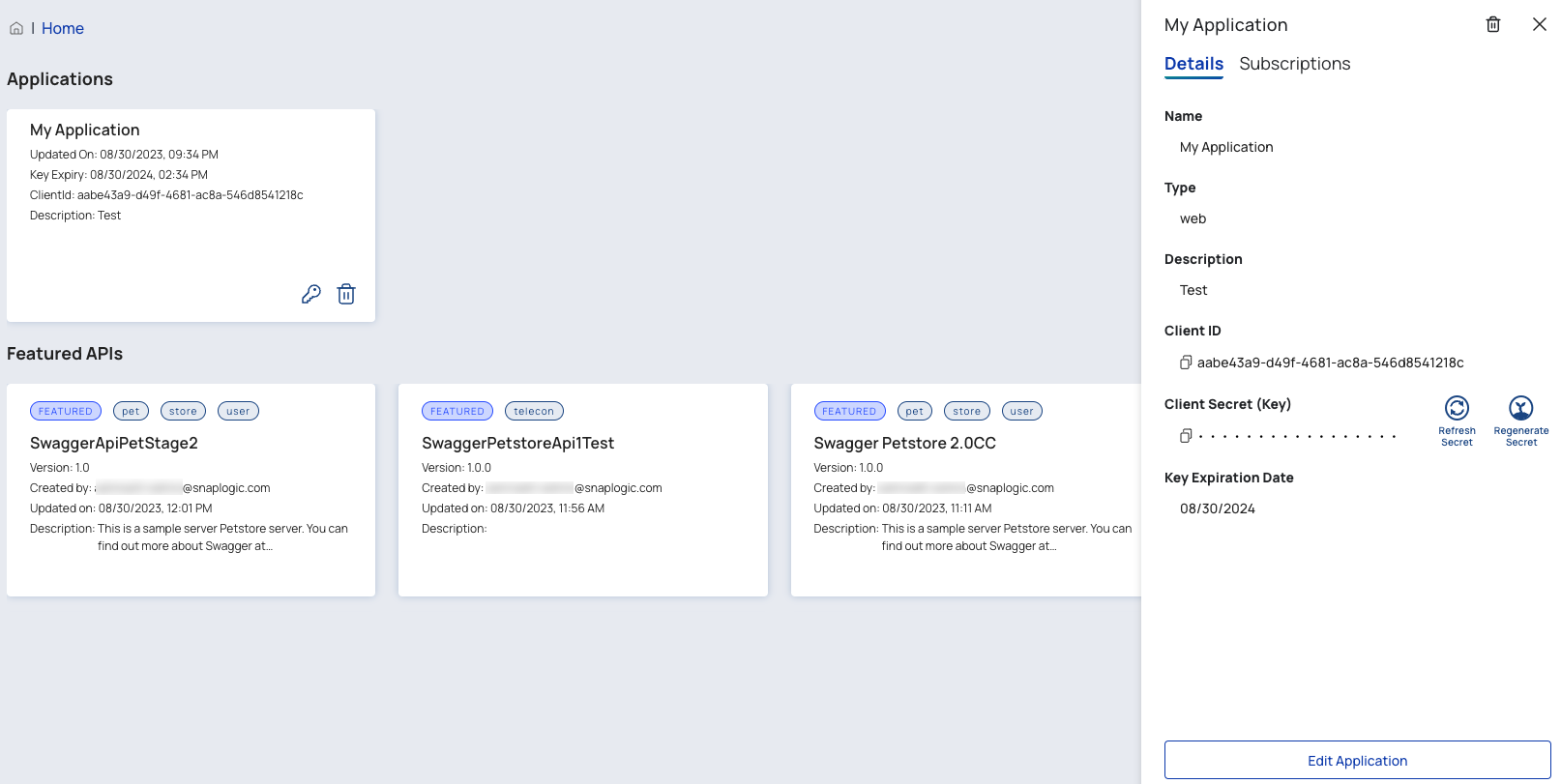
- You can change the Application Name,
Type, or Description.
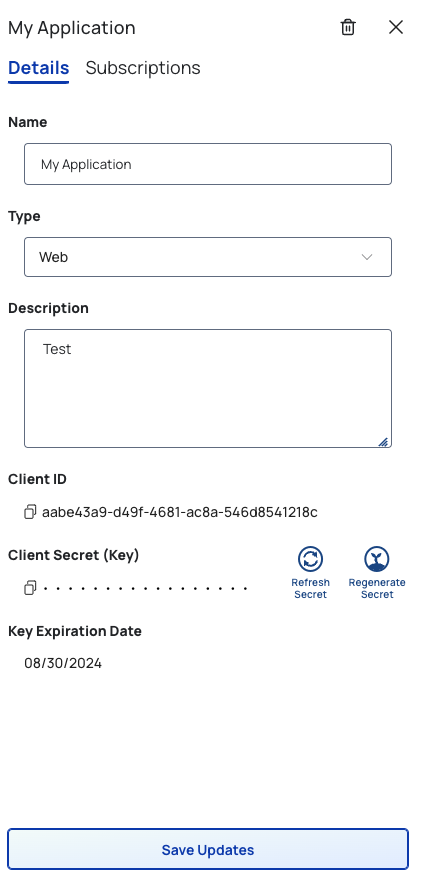
- You can also manage your Client Secret.
- Click the Copy icon under Client ID and Client Secret to copy it to your clipboard. Your subscription must already be approved.
- Click Refresh Secret to extend the expiration date of your secret key by a year.
- Click Regenerate Secret to generate a new secret key and refresh the expiration. Regenerating the secret key updates the secret key of all subscriptions associated with this application entry. The new secret key will automatically be saved whether you click Save or not.
- You can also subscribe to more APIs within your Application.
- Click the Subscriptions tab.
- Click Add Subscriptions.
- Click See All to browse through the APIs.
- Point and click the target API cards. When you scroll to the bottom of the page, you can see your selected APIs.
- Click Continue.
- Proceed through the Subscription wizard and click Register.
Call the API Using Your Application's Client Secret
After your API subscription is approved, you can use your application's client secret as your API Key to access an approved API.
- Edit your application entry or click the key icon (the Key icon) on your application's card to copy the Client Secret to your clipboard.
- When you configure your application to send a request, add the following
Authorization request header:
- For an API published with OAS 2.0:
Authorization: Bearer <client secret> - For an API published with OAS 3.0:
Authorization: <client secret>
- For an API published with OAS 2.0:
- Replace
<client secret>with the value stored in your clipboard. IMPORTANT: This must be the only Authorization request header in your application.
Learn more about the Authorization request header.
Tip: If the API or Proxy is published with custom subscription key parameters (as
a header or query parameter), you can also pass your Client Secret using those parameters.
Learn how to specify custom subscription key parameters when publishing an API version or
Proxy.
Delete an Application Entry
Click the Delete icon to remove an application entry and all its API subscriptions. Click Confirm.