


SuccessFactors Read - Advanced
Overview
The SuccessFactors Read Advanced Snap retrieves data objects from SuccessFactors Data Center.
The Snap provides the ability to read the navigation property by expanding the navigation level. Learn more about SuccessFactors APIs: SuccessFactors Documentation.
- This is a Read-type Snap.
 Works in Ultra Tasks
Supported Accounts
Prerequisites
- Valid SuccessFactors Host server.
- Valid User ID.
- Valid Password.
Snap views
| Type | Description | Examples of upstream and downstream Snaps |
|---|---|---|
| Input |
This Snap has at most one document input view. A document containing data that can be used to filter entities that need to be retrieved in SuccessFactors. |
|
| Output |
This Snap has exactly one document output view. A document containing the data retrieved from a SuccessFactors entity. |
|
| Learn more about Error handling. | ||
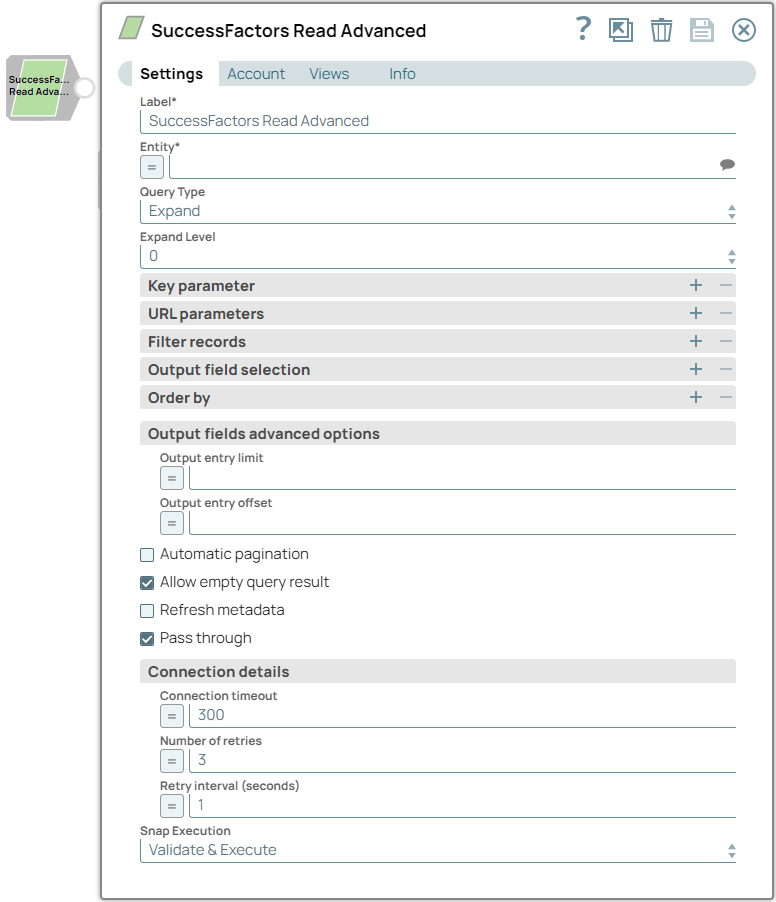
Snap settings
| Field/Field set | Description |
|---|---|
| Label
|
Specify a unique name for the Snap. Modify this to be more appropriate, especially if more than one of the same Snaps is in the pipeline. Default value: SuccessFactors Read Advanced Example: SuccessFactors Read Advanced |
| Entity
|
Required. Specify a business object from the list of business objects for the SuccessFactors API. SuccessFactors stores data in multiple table structures, which are commonly known as Entities; there are various entities for Foundation as well as Personal/Employment Objects. This field will be shown dynamically from different users' accounts from the suggestion dropdown. You can either choose an entity from the suggestion dropdown or type an entity manually. The entity is shown as [category name] – [entity name] in the dropdown. But it is also allowed to type only [entity name] in this field.
Default value: N/A Example: Foundation/Platform (PLT) – User or User |
| Query Type
|
Specify the query type. Available options include:
Default value: N/A Example: Expand |
| Expand Level
|
Specify the sublevel of the business object you want to access. The business object would be expanded until the sublevel selected. This field is only available if the Query Type is selected as Expand. Available options include:
Default value: 0 Example: 1 |
| Query
|
Specify the custom query. This field is only available if the Query Type is selected as Custom Query.
Default value: N/A |
| Key parameter | Use this fieldset to specify the key fields to a specific entity such as userId for the Foundation/Platform (PLT) – User entity. |
| Field name
|
Specify the names of key parameter (reference parameter) fields.
Default value: N/A |
| Field value
|
Specify the values of key parameter (reference parameter) fields. The data type of this field depends on what Field name you selected or entered which can be String, Integer, Boolean, etc.
Default value: N/A |
| URL parameters | Use this fieldset to specify the names and values of the URL parameters. This fieldset is only available if the Query Type is selected as Expand. |
| Parameter name
|
Specify the names of the URL parameters.
Default value: fromDate Example: fromDate |
| Parameter value
|
Specify the values for service operation fields. The data type of this field depends on what Field name you selected or entered which can be String, Integer, Boolean, etc.
Default value: N/A Example: 2020-01-01 |
| Filter records | Use this fieldset to filter the results from the API response based on the customer-selected fields. This fieldset is only available if the Query Type is selected as Expand. |
| Field name
|
Specify the system parameter $filter fields to be included in the output.
Default value: N/A Example: userId |
| Operation
|
Specify the comparison operator for the system parameter $filter.
Default value: N/A Example: Equals |
| Field value
|
Enter the values of specified input $filter fields. The data type of this field depends on what Field name you selected or entered which can be String, Integer, Boolean, etc.
Default value: N/A Example: test123 |
| Condition
|
Specify the logical operator for the system parameter $filter.
Default value: N/A Example: Or |
| Output field selection | Use this fieldset to select fields to be included in the output. If not selected, all fields will be returned. |
| Element
|
Specify the fields that will be displayed by descending or ascending order.
Default value: N/A Example: userId, country |
| Order by | Use this fieldset to order the resulting records based on specified elements. The order types to be selected are either ascending or descending. This fieldset is only available if the Query Type is selected as Expand. |
| Order by type
|
Specify the Order Type (Ascending or Descending order).
Default value: ascending Example: descending |
| Output fields advanced options | Add advanced options to define the limited number of output entries from a specific starting entry index. This fieldset is only available if the Query Type is selected as Expand. |
| Output entry limit
|
Add advanced options to define the limited number of output entries from a specific starting entry index.
Default value: N/A Example: 10 |
| Output entry offset
|
This property enables you to skip the number of records the query should return.
Default value: N/A Example: 10 |
| Automatic pagination
|
By default, SuccessFactors returns a maximum of 1000 records per page. If this field is selected, all matching records will be automatically returned (beyond the 1000 records). This field is only available if the Query Type is selected as Expand.
Note: If Automatic pagination is selected, then the field Output entry limit should not be set or used. Either set the Output entry limit or check the Automatic pagination checkbox. If both are used, the Snap displays an error exception.
Default value: Deselected |
| Allow empty query result
|
This property enables you to determine if the empty result will be shown in the output views. If not selected, an error will be thrown when the empty result is found.
Default value: Selected |
| Refresh metadata
|
If selected, the Snap will refresh the cache and show refreshed metadata results including new entities/parameters added or old entities/parameters deleted. This is handy in cases where changes are made to the data set outside of SnapLogic, such as a new data set created, existing data set deleted, and so on. In such cases, enabling this property will refresh the cache and display updated content. Please be aware that after the first run and new metadata has been refreshed, please deselect this checkbox.
Default value: Deselected |
| Pass through
|
This property enables you to "pass through" the data from an incoming document and merge it into the new document being written to the output. If selected, the input document will be passed through to the output view under the key 'original'.
Default value: Selected |
| Connection details | Configure the connection details. |
| Connection timeout
|
Required. This property enables you to set the connection timeout duration of seconds.
Default value: 300 Example: 100 |
| Number of retries
|
Required. This property enables you to set the maximum number of re-connections if the connection is failed or timeout.
Default value: 3 Example: 2 |
| Retry interval (seconds)
|
Required. This property enables you to set the interval in seconds between reconnections.
Default value: 1 Example: 3 |
| Snap execution
| Choose one of the three modes in
which the Snap executes. Available options are:
|
Troubleshooting
| Error | Cause | Resolution |
|---|---|---|
| You have an empty value in the Key/Value field. | Key/value parameters must not be empty. | Enter a valid value for key/value parameters. |
| The input entity does not exist. | An invalid entity has been entered. | Click the suggestion dropdown button and select the entity. |
| The fields "Automatic pagination" and "Output entry limit" cannot be used at the same time. | "Output entry limit" cannot be implemented together with "Automatic pagination". | Either select the "Automatic pagination" or fill the "Output entry limit" field. |
| Empty result found. | There is no data coming back from the API call. | Enable the "Allow empty query result" checkbox. |
| <Entity> with key ('<key>') not found! | The input key parameters entered for a specific entity does not exist in the system. | Check your input key parameters and change the key parameters to an existing one. |