


OpenAI Responses API Agent
Overview
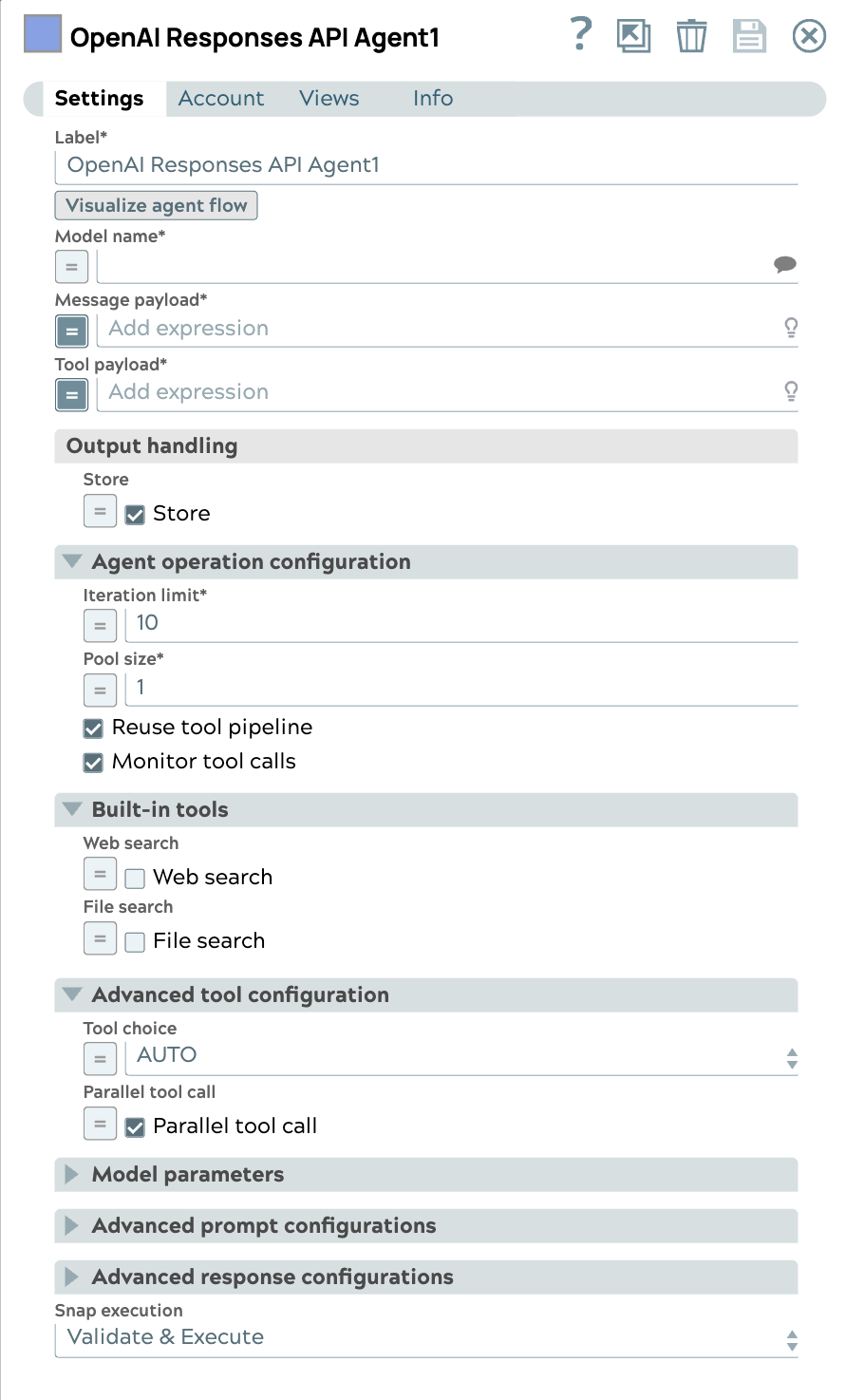
The OpenAI Responses API Agent Snap accepts input containing an initial message payload, a list of tools, and parameters to invoke an Agent execution loop. The Snap handles calls to the OpenAI Responses API, consumes the result and calls tools, then collects them accordingly until the model has no more tools to call. It supports built-in tools such as web search and file search.
Learn more about the Agent Snap in this developer blog.
- This is a Transform-type Snap.
Limitations
- The Store setting cannot be enabled in an organization that has Zero Data Retention enabled, since responses cannot be stored. Learn more.
- Feature availability may vary by model. For instance, some models, such as reasoning models, do not support web search. Learn more.
- Tool pipelines must return a single output document per invocation. If a tool pipeline returns more than one output document, the Agent Snap uses only the first document; the remaining documents are discarded, which may result in data loss. Refer to Create Tools for your Agents.
Snap views
| Type | Description | Examples of upstream and downstream Snaps |
|---|---|---|
| Input | This Snap has one document input view, typically carrying the input message for the OpenAI model. | |
| Output | This Snap has exactly two document output views. The first one outputs the full response from the model. The second one outputs the list of tools to call. It includes a JSON argument, whose value is a JSON object derived from converting the string-formatted argument of the model's response tool call. | |
| Learn more about Error handling. | ||
Snap settings
- Expression icon (
 ): Allows using
JavaScript syntax to access SnapLogic Expressions to set field values dynamically (if
enabled). If disabled, you can provide a static value. Learn more.
): Allows using
JavaScript syntax to access SnapLogic Expressions to set field values dynamically (if
enabled). If disabled, you can provide a static value. Learn more. - SnapGPT (
 ): Generates SnapLogic Expressions
based on natural language using SnapGPT. Learn
more.
): Generates SnapLogic Expressions
based on natural language using SnapGPT. Learn
more. - Suggestion icon (
 ): Populates a
list of values dynamically based on your Snap configuration. You can select only one
attribute at a time using the icon. Type into the field if it supports a comma-separated
list of values.
): Populates a
list of values dynamically based on your Snap configuration. You can select only one
attribute at a time using the icon. Type into the field if it supports a comma-separated
list of values. - Upload
 : Uploads files. Learn more.
| Field/Field set | Type | Description |
|---|---|---|
| Label*
|
String |
Specify a unique name for the Snap. Modify this to be more appropriate, especially if more than one of the same Snaps is in the pipeline. Default value: OpenAI Responses API Agent Example: Invoke gpt-4o model for customer support |
| Visualize agent flow | String |
Launch the Agent Visualizer UI. Default value: N/A |
| Model name | String/Expression/ Suggestion |
Required. The model name to use for the Responses API. Default value: N/A Example: gpt-4o |
| Message payload | String/Expression |
Required. Specify the message payload for the associated OpenAI model. Default value: N/A Example: $inputMessage |
| Tool payload | String/Expression |
Required. Specify the list of tool definitions to send to the model. Default value: N/A Example: $specifiedTools |
| Output handling |
Settings for response output management. |
|
| Store | Checkbox/Expression |
Indicate whether to store the generated model response. Default status: Selected |
| Agent operation configuration |
Modify the limitation of the agent operation. |
|
| Iteration limit | Integer/Expression |
Required. The maximum iterations an agent should run. Default value: 10 Example: 10 |
| Monitor tool calls | Checkbox |
Monitor tool call parameters in pipeline statistics. Default status: Selected |
| Handle errors via agent | Checkbox |
When enabled, tool execution errors are sent back to the LLM as tool results so the model can summarize or recover from failures. When disabled, the Snap fails immediately on a tool execution error. Default status: Selected for newly created pipelines; deselected for existing pipelines. |
| Pool size | Integer/Expression |
Required. The number of threads for parallel tool execution. Default value: 1 Example: 1 |
| Reuse tool pipeline | Checkbox |
Reuse the tool pipeline for tool execution. Default status: Selected |
| Tool pipeline timeout (minutes) | Integer/Expression |
The maximum time in minutes to wait for a tool pipeline to return its result
before the tool call fails. A tool pipeline that runs longer than this value fails
with Pipelines saved before this field was introduced default to 10 minutes. Default value: 10 Minimum value: 1 Example: 10 |
| Built-in tools |
Configure the built-in tools to be used. |
|
| Web search | Checkbox/Expression |
Select this checkbox to allow the model to search the web for the latest information. Default status: Deselected |
| Web search type | String/Expression/ Suggestion |
Appears when Web search is enabled. Required. Select the type of web search tool. Default value: web_search_preview Example: web_search_preview |
| Search context size | Dropdown list/Expression |
Appears when Web search is enabled. High-level guidance for the amount of context window space to use for the search.
Default value: medium Example: medium |
| User location | String/Expression |
Appears when Web search is enabled. An approximate user location to refine search results based on geography. Default value: N/A |
| File search | Checkbox/Expression |
Select this checkbox to allow the model to search the files. Default status: Deselected |
| Score threshold | Decimal/Expression |
Appears when File search is enabled. The score threshold for the file search, a number between 0 and 1. Numbers closer to 1 will attempt to return only the most relevant results, but may return fewer results. Default value: N/A |
| Include file search results | Checkbox/Expression |
Appears when File search is enabled. Select this checkbox to include the file search results in the response. Default status: Deselected |
| Maximum number of file search results | Integer/Expression |
Appears when File search is enabled. The maximum number of file search results to return. This number must be between 1 and 50. Default value: N/A |
| Vector store IDs | String/Expression |
Appears when File search is enabled. Required. The IDs of the vector stores to be used. Default value: N/A |
| Ranker | String/Expression |
Appears when File search is enabled. The ranker to use for the file search. Default value: auto Example: auto |
| Filters | String/Expression |
Appears when File search is enabled. The filters to apply to the file search. Default value: N/A |
| Advanced tool configuration |
Modify the tool call settings to guide the model responses and optimize output processing. |
|
| Tool choice | Dropdown list/Expression |
Controls which (if any) tool is called by the model.
Default value: AUTO Example: AUTO |
| Function name | String/Expression |
Appears when Tool choice is set to SPECIFY A FUNCTION. Required. The name of the function to force the model to call. Default value: N/A Example: get_weather |
| Built-in tool | Dropdown list/Expression |
Appears when Tool choice is set to SPECIFY A BUILT-IN TOOL. Required. Select the built-in tool to be used.
Default value: N/A |
| Parallel tool call | Checkbox/Expression |
Select this checkbox to enable parallel tool calling. Default status: Selected |
| Model parameters |
Parameters used to tune the model runtime. |
|
| Temperature | Decimal/Expression |
The sampling temperature to use, a decimal value between 0 and 2. If left blank, the endpoint uses its default value. Default value: N/A Example: 0.7 |
| Reasoning effort | Dropdown list/Expression |
Appears when an OpenAI o-series reasoning model is selected. Required. Select the level of constraint for a reasoning model. Reducing reasoning effort can result in faster responses and fewer tokens used on reasoning in a response.
Default value: medium Example: medium |
| Reasoning summary | Dropdown list/Expression |
Appears when an OpenAI o-series reasoning model is selected (other than o1-pro). A summary of the reasoning performed by the model. This can be useful for debugging and understanding the model's reasoning process.
Default value: none Example: none |
| Maximum output tokens | Integer/Expression |
Maximum number of tokens that can be generated for a response, including visible output tokens and reasoning tokens. If left blank, the endpoint uses its default value. Default value: N/A Example: 4096 |
| Top P | Decimal/Expression |
Nucleus sampling value, a decimal value between 0 and 1. If left blank, the endpoint uses its default value. Default value: N/A |
| Advanced prompt configurations |
Modify the prompt settings to guide the model responses and optimize output processing. |
|
| Instructions | String/Expression |
Specify the persona for the model to adopt in its responses. When used with a previous response ID, the instructions from the previous response are not carried over to the next response. Default value: N/A |
| JSON mode | Checkbox/Expression |
Select this checkbox to enable the model to generate strings that can be parsed into valid JSON objects. When selected, the output includes the parsed JSON object. Default status: Deselected |
| Advanced response configurations |
Modify the response settings to customize the responses and optimize output processing. |
|
| Structured outputs | String/Expression |
Ensures the model always returns outputs that match your defined JSON Schema. Default value: N/A |
| Include reasoning encrypted content | Checkbox/Expression |
Appears when using an o-series reasoning model with Store disabled. Select this checkbox to include an encrypted version of reasoning tokens in the output. This allows reasoning items to be used when Store is false. Default status: Deselected |
| Truncation | Dropdown list/Expression |
The truncation strategy to use for the model response.
Default value: disabled Example: disabled |
| Snap execution
|
Dropdown list |
Choose one of the three modes in
which the Snap executes. Available options are:
Default value: Validate & Execute Example: Execute only |
Troubleshooting
Warning: Tool pipeline pipeline-path produced N output documents, but only the first document is used by the Agent.
The remaining documents are discarded, which may result in data loss. The Agent Snap expects a 1:1 mapping between a tool call and its output document.
Add a Gate Snap or similar aggregation logic within the tool pipeline to consolidate multiple records into a single output document before the pipeline output view. Refer to Create Tools for your Agents.
Passing downstream accounts
The Agent Snap passes the account path through to the tool pipeline. In the following output example, the Agent Snap requires both the tool pipeline path and account path to automatically run the pipeline.
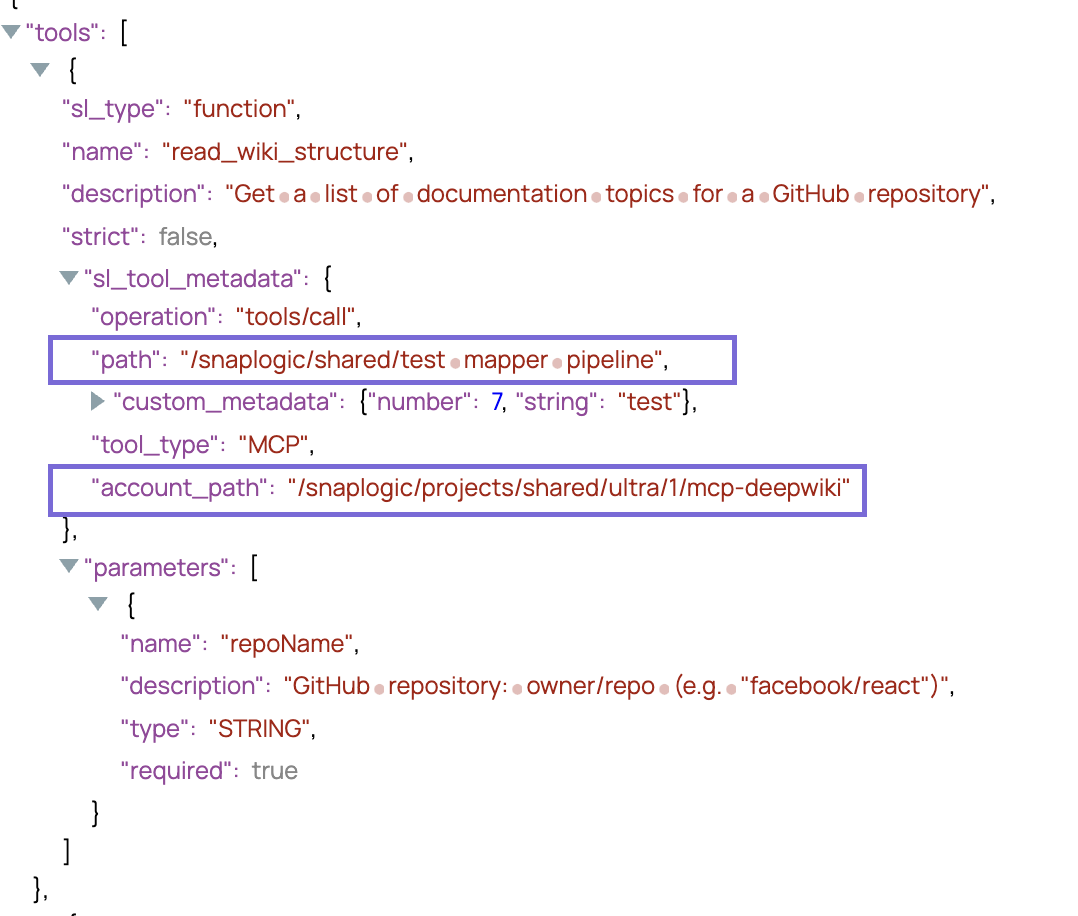
The account configuration is accessed via pipeline parameters. When you configure your pipeline, add the parameter account to the pipeline parameters of the agent and tool pipeline.
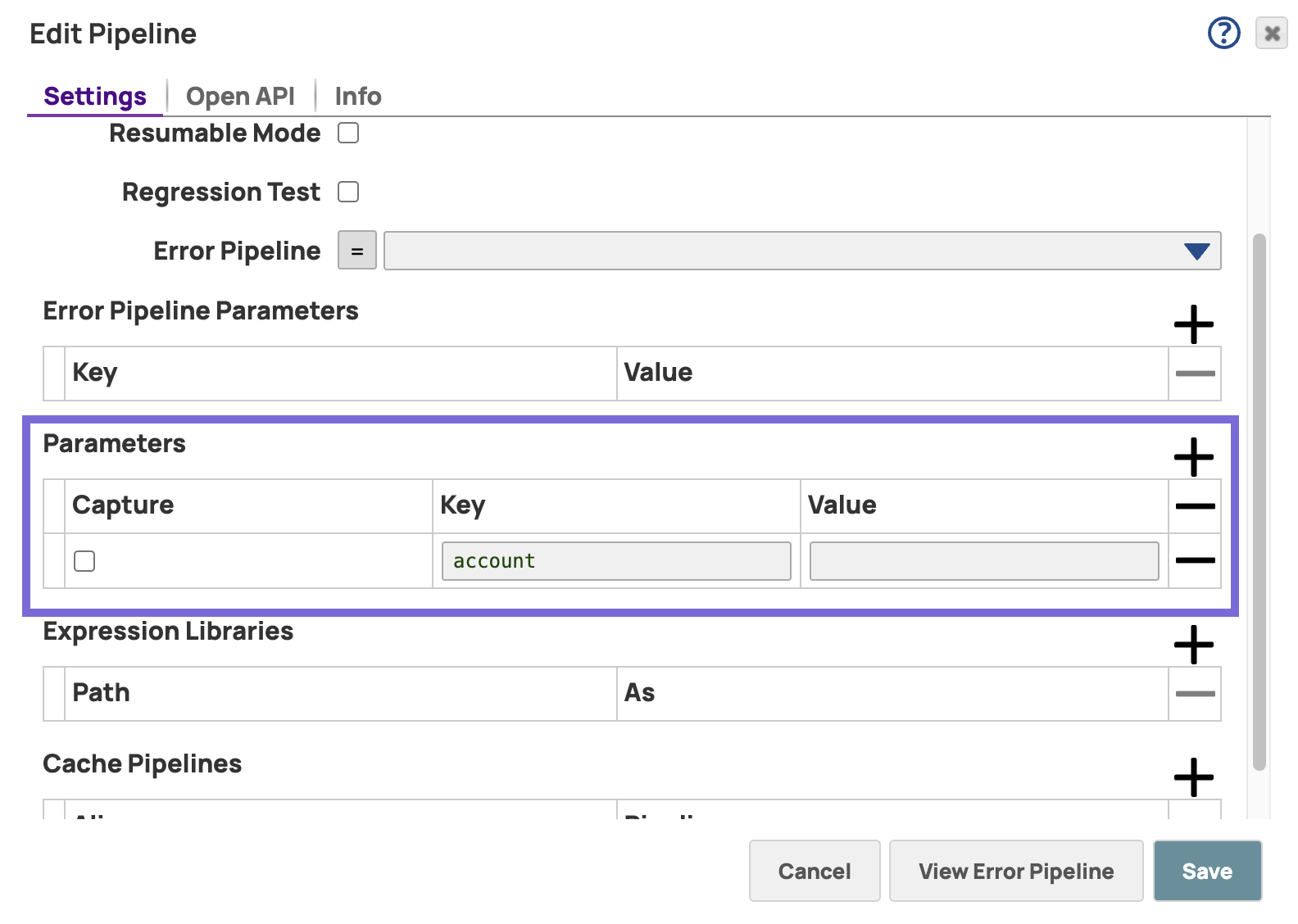
The tool pipeline executes successfully even if it references a different account than the Agent.