


HDFS Reader
Overview
This Snap reads data from HDFS (Hadoop File System) and produces a binary data stream at the output. For the hdfs protocol, please use a SnapLogic on-premises Groundplex and make sure that its instance is within the Hadoop cluster and SSH authentication has already been established. The Snap also supports reading from a Kerberized cluster using the HDFS protocol.
Hadoop allows you to configure proxy users to access HDFS on behalf of other users; this is called impersonation. When user impersonation is enabled on the Hadoop cluster, any jobs submitted using a proxy are executed with the impersonated user's existing privilege levels rather than those of the superuser associated with the cluster. For more information on user impersonation in this Snap, see the section on User Impersonation below.
Supported Accounts
- This is a Read-type Snap.
 Works in Ultra Tasks
Limitations
- Supports reading from HDFS Encryption.
- The platform does not support generating output previews for files larger than 8KB. This does not mean that the Snap has failed: The file will be read upon the Snap's execution; only the output preview will not be generated upon validation.
Known issues
Known Issue for WASB Protocol
The upgrade of Azure Storage library from v3.0.0 to v8.3.0 has caused the following issue when using the WASB protocol:
When you use invalid credentials for the WASB protocol in Hadoop Snaps (HDFS Reader, HDFS Writer, ORC Reader, Parquet Reader, Parquet Writer), the pipeline does not fail immediately, instead it takes 13-14 minutes to display the following error:
reason=The request failed with error code null and HTTP code 0. , status_code=error
Learn more about Azure Storage library upgrade.
Snap views
| Type | Description | Examples of upstream and downstream Snaps |
|---|---|---|
| Input | This Snap has at most one document input view. It may contain values for the File expression property. | Mapper |
| Output | This Snap has exactly one binary output view and provides the binary data stream read from the specified sources. Examples of Snaps that can be connected to this output are CSV Parser, JSON Parser, and XML Parser. | |
| Learn more about Error handling. | ||
Snap settings
| Field/Field set | Description |
|---|---|
| Label
|
Default value: HDFS Reader Example: Read HDFS file |
| Directory
|
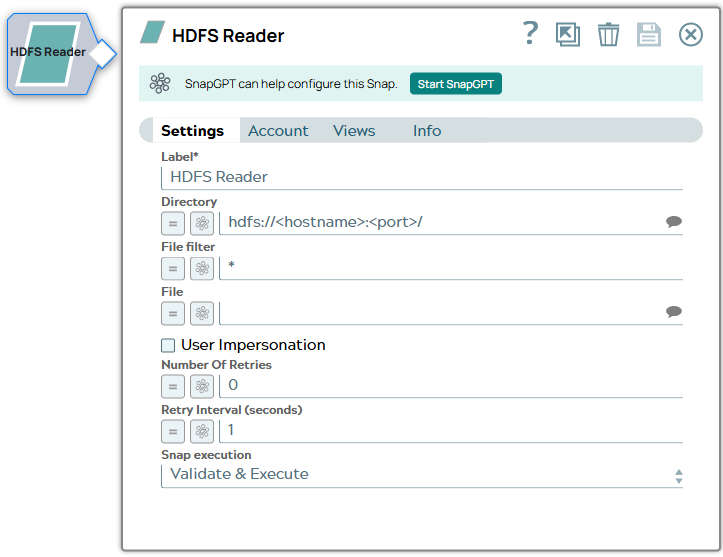
Specify the URL for the data source (directory). The Snap supports the following protocols.
When you use the ABFS protocol to connect to an endpoint, the account name and endpoint details provided in the URL override the corresponding values in the Account Settings fields. The Directory property is not used in the pipeline execution or preview and used only in the Suggest operation. When you press the Suggest icon, it will display a list of subdirectories under the given directory. It generates the list by applying the value of the Filter property. Note: SnapLogic automatically appends "azuredatalakestore.net" to the store name you specify when using Azure Data Lake; therefore, you do not need to add 'azuredatalakestore.net' to the URI while specifying the directory.
Example:
Default value: hdfs://<hostname>:<port>/ |
| File Filter
|
Specify the Glob filter pattern. Note: Use glob patterns to display a list of directories or files when you click the Suggest icon in the Directory or File property. A complete glob pattern is formed by combining the value of the Directory property with the Filter property. If the value of the Directory property does not end with "/", the Snap appends one, so that the value of the Filter property is applied to the directory specified by the Directory property.
Default value: * |
| File
|
The name of the file to be read. This can also be a relative path under the directory given in the Directory property. It should not start with a URL separator "/". The File property can be a JavaScript expression which will be evaluated with values from the input view document. When you press the Suggest icon, it will display a list of regular files under the directory in the Directory property. It generates the list by applying the value of the Filter property. If this property is left blank (the * wildcard is used) when the Snap is executed, all files under the directory matching the glob filter will be read. Example:
Default value: [None] |
| User Impersonation
|
Select this check box to enable user impersonation. Note: For encryption zones, use user impersonation.
Default value: Not selected For more information on working with user impersonation, see the User Impersonation Details section. |
| Number Of Retries
|
Specify the maximum number of attempts to be made to receive a response. Note:
Default value: 0 |
| Retry Interval (seconds)
|
Specify the time interval between two successive retry requests. A retry happens only when the previous attempt resulted in an exception. Default value: 1 |
| Snap execution
|
Choose one of the three modes in
which the Snap executes. Available options are:
Default value: Validate & Execute Example: Execute only |
Troubleshooting
Writing to S3 files with HDFS version CDH 5.8 or later
When running HDFS version later than CDH 5.8, the Hadoop Snap Pack may fail to write to S3 files. To overcome this, make the following changes in the Cloudera manager:
- Go to HDFS configuration.
- In Cluster-wide Advanced Configuration Snippet (Safety Valve) for core-site.xml, add an entry with the following details:
- Name: fs.s3a.threads.max
- Value: 15
- Click Save.
- Restart all the nodes.
- Under Restart Stale Services, select Re-deploy client configuration.
- Click Restart Now.